
Elfring Fonts Inc B0033SU4HA
Bar Code 128 Maker Instruction Manual
By Elfring Fonts Inc
Introduction
The Bar Code 128 Maker software provides a comprehensive solution for generating various types of barcodes, including Code 128, EAN-128, UCC-128, SCC-14, and SSCC-18. This manual will guide you through the installation, operation, and maintenance of the software, ensuring you can efficiently create and manage your barcode needs.
This software is designed to work seamlessly with Windows operating systems, offering flexibility in printing and exporting barcodes for diverse applications.
Key Features
- Generate Code 128, EAN 128, SCC-14, or SSCC-18 barcodes, including subsets A, B, and C.
- Print an unlimited number of barcodes on Windows 11, 10, 8, 7, XP, and Server 2022/2016 (32 or 64 bit).
- Print sheets of Code 128 labels. Select the label size and add optional text or graphics.
- Export barcodes in common graphic formats: BMP, GIF, JPG, or PNG, with resolutions up to 1200 dpi.
- Integrate with Microsoft Excel, Access, or Word using Visual Basic macros to generate multiple barcodes efficiently.
Setup and Installation
To install the Bar Code 128 Maker software, follow these steps:
- System Requirements: Ensure your computer meets the minimum requirements: Windows 11, 10, 8, 7, XP, or Server 2022/2016 (32 or 64 bit).
- Obtain Software: Insert the installation CD into your computer's optical drive, or if you have a digital download, locate the installer file.
- Run Installer: Double-click the installer executable (e.g.,
setup.exe). - Follow On-Screen Prompts: The installation wizard will guide you through the process. Accept the license agreement, choose the installation directory, and select any additional components if prompted.
- Complete Installation: Click "Finish" once the installation is complete. A shortcut to the Bar Code 128 Maker software will typically be placed on your desktop or in the Start Menu.

Figure 1: The Bar Code 128 Maker software packaging.
Operating Instructions
Creating a Barcode
The main interface allows you to quickly generate barcodes. Follow these steps:
- Launch Software: Open the Bar Code 128 Maker application.
- Select Subset: Choose the desired barcode subset (A, B, or C) or specific code type like SCC-14 or SSCC-18 using the radio buttons on the left.
- Enter Data: In the "Type the data you want to bar code here:" field, enter the alphanumeric or numeric data for your barcode.
- Generate Barcode: Click the "Make" button. The software will generate the barcode and display the corresponding string for Elfring Font's bar code 128 typefaces, along with a sample barcode.
- Adjust Settings: You can control the type, height, and width of the barcode using the options at the top, including font size and human-readable text options.

Figure 2: The primary interface for generating barcodes. Note the sample barcode for data 0171234567890127.
Printing Barcode Labels
To print your generated barcodes on labels:
- Generate Barcode: First, generate the barcode you wish to print as described above.
- Open Label Printing: Click the "Labels" button on the main interface. This will open the "Label Printing" dialog.
- Select Label Size: Choose your desired label size from the available options (e.g., 1.75 x 0.50, 2.625 x 1.00, 4.00 x 1.00, etc.). You can also select "Custom" for user-defined sizes.
- Print Labels: Click the "Print Labels" button to send the barcodes to your printer.
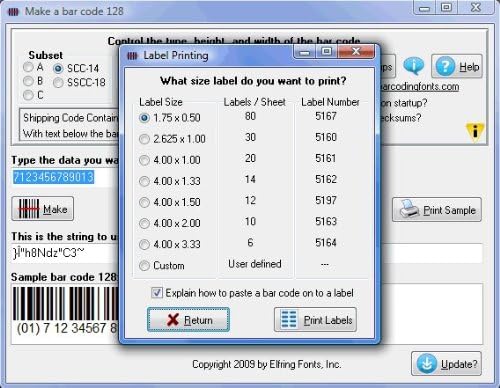
Figure 3: The "Label Printing" dialog, allowing selection of standard label sizes for printing.
Exporting Barcodes as Images
If you need to use your barcodes in other applications or send them for external printing, you can export them as image files:
- Generate Barcode: Ensure the barcode you want to export is generated and displayed in the main window.
- Open Export Dialog: Click the "Export" button. This will open the "Convert to bmp, gif, jpg, or png" dialog.
- Select Resolution: Choose your desired image resolution (300 dpi, 600 dpi, 900 dpi, or 1200 dpi).
- Save File: Click the "Save As" button, then select the desired file format (BMP, GIF, JPG, or PNG) and location to save your barcode image.

Figure 4: The export dialog for saving barcodes as image files with various resolutions. Note the sample barcode for data 0171234567890127.
Understanding Barcode Types
The software supports various barcode types and subsets:
- Code 128 Subsets:
- Subset A: Encodes uppercase letters, numbers, and control characters. Example: ABCD1234
- Subset B: Encodes uppercase and lowercase letters, numbers, and special characters. Example: ABCdef12
- Subset C: Encodes numeric pairs (00-99) for high-density numeric data. Example: 0123456789
- SCC-14 (Shipping Container Code): Used for identifying trade items at a logistics unit level. Example: (01) 79457100038417
- SSCC-18 (Serial Shipping Container Code): Used to identify logistics units, often for tracking and tracing. Example: (00) 794571000384100007

Figure 5: Visual representation of Bar Code 128 Subsets A, B, and C, showing their character encoding capabilities.

Figure 6: Examples of SCC-14 and SSCC-18 barcodes, commonly used in shipping and logistics.
Generating Multiple Barcodes (Advanced)
For generating large quantities of different barcodes, the software includes Visual Basic macros that integrate directly with Microsoft Excel, Access, and Word. Refer to the software's help documentation for detailed instructions on using these macros to automate barcode generation from your data sources.
Maintenance
Software maintenance primarily involves keeping the application updated and ensuring your system is compatible.
- Software Updates: Periodically check the Elfring Fonts Inc website or the software's built-in update feature (if available) for the latest versions. Updates often include bug fixes, performance improvements, and new features.
- System Compatibility: Ensure your operating system remains compatible with the software. While the software supports a wide range of Windows versions, future OS updates might require a software update.
- Data Backup: If you create and save project files or custom settings within the software, regularly back up these files to prevent data loss.
Troubleshooting
| Problem | Possible Cause | Solution |
|---|---|---|
| Software does not launch. | Incorrect installation, missing dependencies, or corrupted files. | Reinstall the software. Ensure your system meets the minimum requirements. Run as administrator. |
| Barcode does not scan correctly. | Incorrect data input, wrong subset selected, or printer quality issues. | Verify the input data. Ensure the correct barcode subset (A, B, or C) is chosen. Print at a higher resolution (e.g., 600 dpi or 1200 dpi) and check printer settings. |
| Cannot print labels. | Printer not connected, incorrect printer settings, or label size mismatch. | Check printer connection and power. Verify printer drivers are up to date. Ensure the selected label size in the software matches your physical labels. |
| Exported image quality is poor. | Low resolution selected during export. | When exporting, select a higher DPI setting (e.g., 900 dpi or 1200 dpi) for better image clarity. |
Specifications
- Product Name: Bar Code 128 Maker
- Manufacturer: Elfring Fonts Inc
- ASIN: B0033SU4HA
- Supported Operating Systems: Windows 11, Windows 10, Windows 8, Windows 7, Windows XP, Windows Server 2022, Windows Server 2016 (32-bit and 64-bit versions)
- Barcode Types Supported: Code 128 (Subsets A, B, C), EAN-128, UCC-128, SCC-14, SSCC-18
- Export Formats: BMP, GIF, JPG, PNG
- Export Resolutions: 300 dpi, 600 dpi, 900 dpi, 1200 dpi
- Integration: Visual Basic macros for Microsoft Excel, Access, and Word
- Product Dimensions (Packaging): 7.5 x 0.6 x 5.4 inches
- Product Weight (Packaging): 5 ounces
- First Available Date: January 11, 2010
Warranty and Support
Warranty Information
Specific warranty details for the Bar Code 128 Maker software are typically provided at the time of purchase or within the software's license agreement. Please refer to the documentation included with your software or visit the official Elfring Fonts Inc website for the most current warranty policy.
Technical Support
For technical assistance, bug reports, or inquiries regarding the Bar Code 128 Maker software, please contact Elfring Fonts Inc directly. Support contact information can usually be found on their official website or within the software's "Help" or "About" section.
It is recommended to have your product purchase details and software version readily available when contacting support.
Ask a question about this manual
Ask about setup, troubleshooting, compatibility, parts, safety, or missing instructions. Manuals+ will review the question and use this page’s manual context to help answer it.