Introduction
The Kodak EasyShare M550 is a compact digital camera designed for ease of use and instant sharing. Featuring a 12-megapixel sensor, 5x wide-angle optical zoom, and a 2.7-inch LCD, it captures high-quality photos and videos. Its unique Share button allows for quick tagging and uploading to popular social media sites and email when connected to a computer, simplifying the process of sharing your memories.

Image: Front view of the Kodak EasyShare M550 Digital Camera, showcasing its tan finish, 12-megapixel resolution, and 5x optical zoom lens.
1. Setup
1.1 What's in the Box
Before you begin, ensure all components are present:
- Kodak EasyShare M550 Digital Camera
- Kodak Rechargeable Li-Ion Battery KLIC-7006
- Kodak USB AC adapter for in-camera charging
- Wrist strap
- USB Cable
- User Guide (this manual)
1.2 Battery Installation and Charging
The camera uses a rechargeable Li-Ion battery. For optimal performance, fully charge the battery before first use.
- Open the battery compartment cover on the bottom of the camera.
- Insert the Kodak Rechargeable Li-Ion Battery KLIC-7006, ensuring the contacts align correctly. Close the cover securely.
- Connect the camera to the Kodak USB AC adapter using the supplied USB cable. Plug the adapter into a wall outlet.
- The battery charging indicator light will illuminate. Charging is complete when the light turns off.
1.3 Memory Card Installation
The camera supports SD/SDHC memory cards (not included). It also has 32 MB of internal memory for temporary storage.
- Open the memory card slot cover, usually located near the battery compartment.
- Insert the SD/SDHC card with the label facing the front of the camera until it clicks into place.
- Close the memory card slot cover.
1.4 Initial Power On
Press the power button located on the top of the camera to turn it on. Follow any on-screen prompts for initial setup, such as setting the date and time.
2. Operating the Camera
2.1 Basic Photography with Smart Capture
Kodak's Smart Capture feature automatically identifies the scene and adjusts camera settings for optimal results in various environments.
- Intelligent Scene Detection: The camera analyzes scene conditions.
- Intelligent Capture Control: Automatically sets exposure, focus, and ISO for clear, sharp pictures, even in low light.
- Intelligent Image Processing: Reduces noise and clears dark shadows for vibrant, crisp details.
To take a picture, simply point the camera at your subject and press the shutter button halfway to focus, then press fully to capture the image.
2.2 Zoom Functionality
The camera features a 5x optical zoom lens (28mm wide-angle to 140mm telephoto equivalent).
- Use the W (Wide) button on the back of the camera to zoom out and capture a wider scene.
- Use the T (Telephoto) button to zoom in on distant subjects.
2.3 Flash Usage
The built-in flash provides illumination in low-light conditions. Flash modes can typically be accessed via the camera's menu or a dedicated flash button.
- Auto Flash: Camera automatically determines if flash is needed.
- Fill Flash: Flash fires regardless of ambient light.
- Red-Eye Reduction: Fires a pre-flash to reduce red-eye effect.
- Flash Off: Flash is disabled.
2.4 Video Recording
The Kodak EasyShare M550 can record continuous VGA video (640 x 480) at 30 frames per second with audio.
- Switch the camera to video mode (refer to the mode dial or menu).
- Press the shutter button to start recording. Press again to stop.
- Videos are saved in QUICKTIME Motion JPEG format.
2.5 Reviewing Photos and Videos
View your captured moments on the 2.7-inch LCD screen, which features Kodak Color Science Technology for vibrant details.
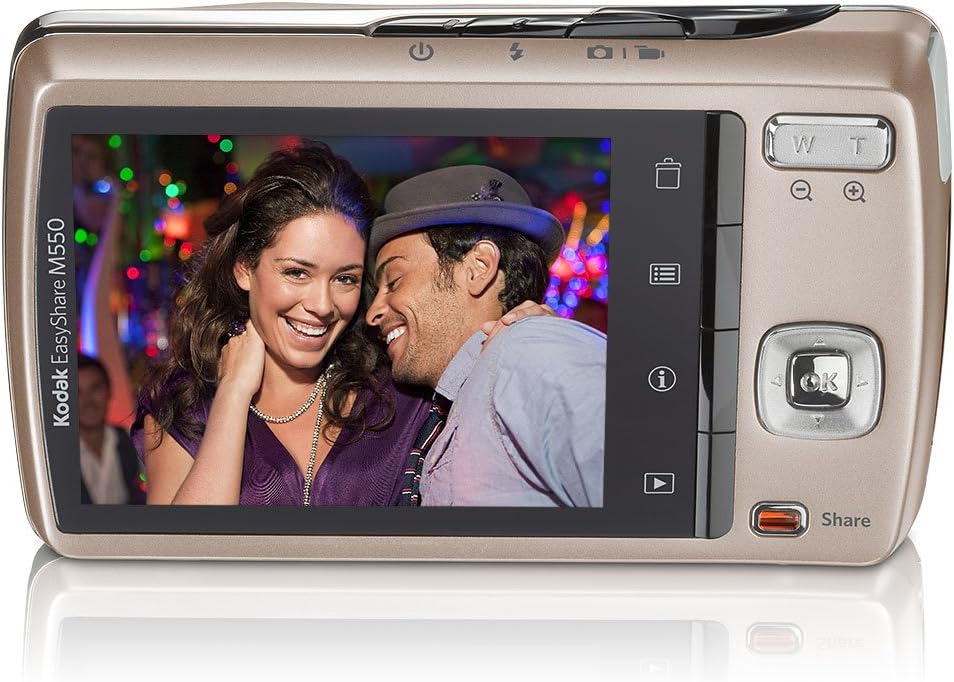
Image: Rear view of the Kodak EasyShare M550, showing a vibrant image displayed on its 2.7-inch LCD screen, ready for review.
Press the playback button (usually indicated by a triangle icon) to enter playback mode. Use the navigation buttons to scroll through your images and videos. Press the OK button to play videos.
2.6 Sharing Features (Kodak Share Button)
The Kodak Share button simplifies uploading your pictures and videos.

Image: The Kodak EasyShare M550 camera, highlighting the dedicated 'Share' button for quick content sharing.

Image: The camera's LCD screen displaying sharing options, including Facebook, Flickr, Kodak Gallery, YouTube, and Email.
- After taking a picture or video, press the Share button on the back of the camera.
- Select your desired sharing destinations (e.g., YouTube, Facebook, Flickr, Kodak Gallery, Email).
- Connect your camera to your computer using the USB cable.
- With Kodak's Share button app (Kodak EasyShare Software), your tagged pictures and videos will be automatically uploaded to the selected destinations.
2.7 Face Recognition Feature
The camera can automatically recognize up to 20 pre-tagged faces, making it easier to organize and share photos. It can recognize up to five faces in a single image.
2.8 HD Picture Capture
Capture stunning HD pictures and view them in high definition on an HDTV or other HD devices (requires optional cables/adapters).
2.9 Scene Modes and Picture Enhancing Features
The camera offers various scene modes and on-camera editing tools:
- Scene Modes: Select from multiple pre-set scene modes for specific shooting conditions (e.g., Portrait, Landscape, Night).
- Color Modes: Adjust color output (e.g., Vivid, Sepia, Black & White).
- Cropping: Trim unwanted parts of your photos.
- Auto Picture Rotation: Automatically orient images correctly.
- Undo-Delete: Recover accidentally deleted photos.
- Panorama Stitch Mode: Combine up to three shots into one wide panoramic picture.
- Kodak PERFECT TOUCH Technology: Enhance pictures by clearing dark shadows and revealing brighter details.
- Multimedia Slideshow: Create slideshows with pre-loaded sound themes and transitions directly on the camera.
3. Maintenance
3.1 Cleaning the Camera
- Use a soft, lint-free cloth to clean the camera body.
- For the lens and LCD screen, use a specialized lens cleaning cloth and solution. Avoid harsh chemicals.
- Do not use compressed air directly on the lens or sensor.
3.2 Battery Care
- Store batteries in a cool, dry place when not in use.
- Avoid exposing batteries to extreme temperatures.
- If the camera will not be used for an extended period, remove the battery.
3.3 Storage
Store the camera in a dry, dust-free environment, ideally in a camera bag or case to protect it from impacts and scratches.
4. Troubleshooting
| Problem | Possible Cause / Solution |
|---|---|
| Camera does not power on. | Battery may be depleted or incorrectly inserted. Ensure battery is charged and properly seated. |
| Pictures are blurry. | Camera shake or subject movement. Ensure good lighting, hold camera steady, or use blur reduction features. |
| Flash does not fire. | Flash mode may be set to "Flash Off" or battery is low. Check flash settings and battery level. |
| Cannot transfer photos to computer. | USB cable may be faulty or not connected properly. Ensure Kodak EasyShare Software is installed on your computer. |
| Memory card error. | Memory card may be full, corrupted, or incompatible. Try a different card or format the current one (this will erase all data). |
5. Specifications
| Feature | Detail |
|---|---|
| Model Name | m550 |
| Effective Still Resolution | 12 MP |
| Optical Zoom | 5x |
| Minimum Focal Length | 28 Millimeters |
| Maximum Focal Length | 140 Millimeters |
| Screen Size | 2.7 Inches |
| Display Type | LCD |
| Photo Sensor Technology | CCD |
| Video Resolution | 640 x 480 (30 fps) |
| Flash Memory Type | SD/SDHC card, Internal (32 MB) |
| Battery Type | Rechargeable Li-Ion Battery KLIC-7006 |
| Connectivity Technology | USB |
| Item Weight | 0.28 Pounds |
| Color | Tan |
6. Warranty and Support
6.1 Warranty Information
For detailed warranty information regarding your Kodak EasyShare M550 Digital Camera, please refer to the warranty card included with your purchase or visit the official Kodak support website. Warranty terms and conditions may vary by region and retailer.
6.2 Customer Support
Should you require further assistance, technical support, or have questions not covered in this manual, please visit the official KODAK support website or contact their customer service. Keep your product's model number and serial number ready when contacting support.
You can find additional resources and software updates on the KODAK Store on Amazon or the official Kodak website.