
HP m9260f
HP Pavilion Elite m9260f Desktop Computer User Manual
This manual provides detailed instructions for setting up, operating, maintaining, and troubleshooting your HP Pavilion Elite m9260f Desktop Computer.
1. Setup Guide
1.1 Unpacking Your Computer
Carefully remove all components from the packaging. Ensure you have the following items:
- HP Pavilion Elite m9260f Desktop Tower
- HP Multimedia Keyboard
- HP Optical Mouse
- Remote Control
- Power Cord
- Documentation and Software Discs
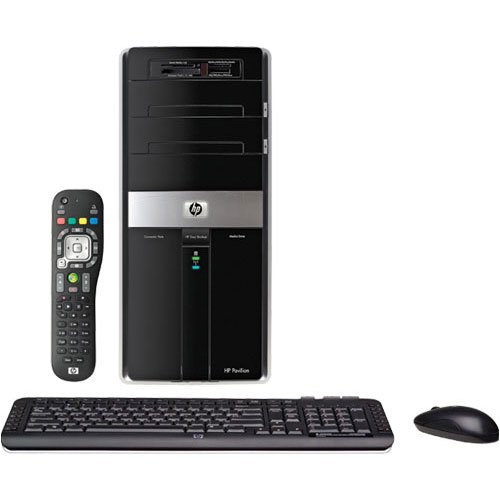
Image: The HP Pavilion Elite m9260f desktop tower, accompanied by its multimedia keyboard, optical mouse, and remote control, illustrating the complete system package.
1.2 Connecting Peripherals
- Connect the Monitor: Plug your monitor's video cable into the appropriate port on the back of the computer (e.g., DVI, VGA, HDMI).
- Connect Keyboard and Mouse: Plug the USB cables of the keyboard and mouse into any available USB 2.0 ports on the computer.
- Connect Speakers/Headphones: If using external audio devices, connect them to the audio output jacks.
- Connect to Network (Optional): For internet access, connect an Ethernet cable to the network port or ensure your wireless adapter is configured.
- Connect Power: Plug the power cord into the computer's power input, then into a wall outlet or surge protector.
1.3 Initial Power On
Press the power button on the front of the desktop tower. The computer will boot up, and you may be guided through the initial setup of Windows Vista (64-bit) and pre-installed software. Follow the on-screen prompts to complete the setup process, including user account creation and network configuration.
2. Operating Instructions
2.1 Basic Operation
Your HP Pavilion Elite m9260f runs on Windows Vista Home Premium (64-bit). Familiarize yourself with the desktop environment, Start Menu, and basic file management. Use the pre-installed Microsoft Works 9 for productivity tasks.
2.2 Multimedia Features
This computer is equipped with advanced multimedia capabilities:
- Blu-ray/HD DVD ROM Drive: Enjoy high-definition movies.
- LightScribe SuperMulti DVD Burner: Burn DVDs and CDs, and print labels directly onto compatible LightScribe discs.
- Integrated TV Tuners: Watch and record ATSC (digital TV), NTSC (analog TV), and FM radio programs. The computer functions as a Digital Video Recorder (DVR), allowing you to record TV programs directly to the hard drive.
- Cyberlink DVD Suite Deluxe: Utilize this software for DVD and CD burning, playback, and other media tasks.
2.3 Data Management and Connectivity
The system includes a 1TB (2x500GB) SATA Hard Drive for ample storage. Manage your digital photos, videos, and music. Use the integrated 15-in-1 digital media card reader for easy photo transfer from cameras. Connect external devices via the six USB 2.0 ports or the two FireWire ports for digital video capture.
3. Maintenance and Care
3.1 Cleaning
Regularly clean the exterior of your computer with a soft, dry cloth. Use compressed air to clear dust from vents and ports to ensure proper airflow and prevent overheating. Do not use liquid cleaners directly on components.
3.2 Software Updates
Keep your operating system and drivers updated. Windows Vista updates can be managed through the Windows Update feature. Regularly check the HP support website for the latest drivers for your specific model to ensure optimal performance and security.
3.3 Backup Procedures
Regularly back up your important data. The system includes HP Easy Backup software to assist with this process. Consider using external hard drives or network storage for comprehensive data protection.
4. Troubleshooting
This section provides solutions to common issues you might encounter.
4.1 No Power
- Ensure the power cord is securely connected to both the computer and the power outlet.
- Verify the power outlet is functional by plugging in another device.
- Check the power supply unit (PSU) fan for operation.
4.2 No Display on Monitor
- Confirm the monitor is powered on and its video cable is securely connected to the computer.
- Try connecting the monitor to a different video port if available.
- Ensure the monitor's input source is correctly selected.
4.3 Slow Performance
- Close unnecessary programs running in the background.
- Run a disk cleanup and defragmentation.
- Check for malware or viruses using Norton Internet Security 2008 (ensure subscription is active).
- Ensure sufficient free space on the hard drive.
4.4 Network Connectivity Issues
- Verify Ethernet cable connection or Wi-Fi settings (802.11b/g).
- Restart your router and modem.
- Check network adapter drivers.
5. Technical Specifications
| Feature | Specification |
|---|---|
| Processor | 2.66GHz Intel Core 2 Quad Processor Q6700 (4 Cores) |
| RAM | 4GB (4x1GB) DDR2 SDRAM |
| Hard Drive | 1TB (2x500GB) SATA Hard Drive |
| Graphics | nVIDIA GeForce 8600 GT (Dedicated) |
| Optical Drive | Blu-ray/HD DVD ROM with LightScribe SuperMulti DVD Burning |
| Operating System | Windows Vista Home Premium (64-bit) |
| Wireless Connectivity | 802.11b/g Wi-Fi |
| TV Tuners | ATSC TV, NTSC TV, FM Radio Tuners |
| USB Ports | 6 x USB 2.0 |
| FireWire Ports | 2 x FireWire |
| Media Card Reader | 15-in-1 Digital Media Card Reader |
| Weight | 24 pounds (approx.) |
6. Warranty and Support
6.1 Limited Warranty
Your HP Pavilion Elite m9260f Desktop Computer comes with a 1-Year Limited Warranty. This warranty covers defects in materials and workmanship under normal use. Please refer to the warranty documentation included with your product for full terms and conditions.
6.2 Customer Support
For technical assistance, driver downloads, or further support, please visit the official HP support website. You can find contact information and resources specific to your product model by searching for "HP Pavilion Elite m9260f support" online.
Related Documents - m9260f
 |
HP Notebook PC Startup Guide: Setup, Usage, and Support Comprehensive startup guide for HP Notebook PCs, covering setup, hardware identification, software configuration, troubleshooting, and support resources. Includes information on OmniBook XE3 and Pavilion series. |
 |
HP Pavilion Entertainment PC: Getting Started Guide An essential guide for new users of the HP Pavilion Entertainment PC, covering setup, hardware overview, HP QuickWeb, networking, maintenance, backup, and customer support. Includes links to HP support resources. |
 |
HP Pavilion dv8000 Notebook PC Maintenance and Service Guide Comprehensive maintenance and service guide for the HP Pavilion dv8000 Notebook PC, detailing troubleshooting, parts identification, disassembly procedures, and technical specifications. |
 |
HP Pavilion PC Getting Started Guide This guide provides essential instructions for setting up and using your HP Pavilion PC, covering initial setup, hardware connections, software configuration, audio settings, media playback, and accessing support resources. |
 |
Agilent Technologies HP 8901A Modulation Analyzer Service Manual Comprehensive service manual for the Agilent Technologies HP 8901A Modulation Analyzer, providing technical details and maintenance guidance. Covers the transition from Hewlett-Packard to Agilent Technologies. |
 |
HP Desktop PC Setup Guide: Getting Started and Troubleshooting This guide provides essential information for setting up, using, and troubleshooting your HP desktop computer, including connection instructions, software setup, and maintenance tips. Learn how to connect peripherals, get online, and maintain your system for optimal performance. |
Ask a question about this manual
Ask about setup, troubleshooting, compatibility, parts, safety, or missing instructions. Manuals+ will review the question and use this page’s manual context to help answer it.