Introduction
This manual provides detailed instructions for the setup, operation, and maintenance of your Smith Corona Classic 12 Typewriter. Please read this manual thoroughly before using your typewriter to ensure proper function and longevity.
Setup
Unpacking
Carefully remove the typewriter from its packaging. Ensure all packing materials are removed from around the platen and typebars. The typewriter comes with a durable case for protection and portability.

Image: The Smith Corona Classic 12 Typewriter, shown open within its protective carrying case, ready for use.
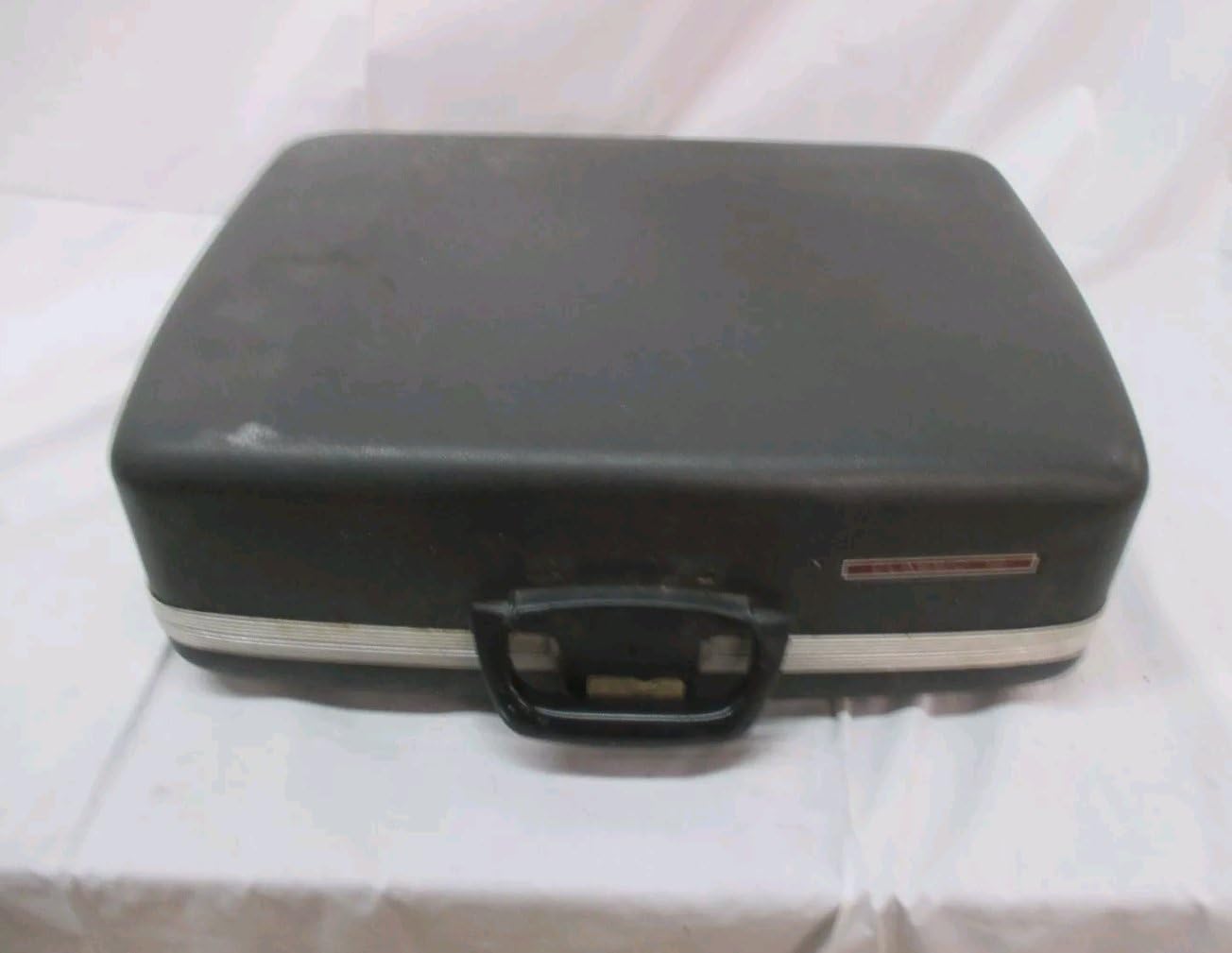
Image: The closed carrying case for the Smith Corona Classic 12 Typewriter, highlighting its portability.
Power Connection
Locate the power cord compartment at the rear of the unit. Open the cover, plug in the power cord, and connect it to a standard 110V electrical outlet. The power switch is located on the right side of the machine. Flip the switch to the 'on' position. A green power LED on the keyboard will illuminate.
Video: Demonstrates how to connect the power cord and turn on the typewriter. This video is provided by the seller, Jaylahnsna, and is titled "How to Use This Typewriter".
Inserting Paper
- Pull the paper support up.
- Align a sheet of letter-size paper with the (L) symbol on the paper support.
- Lift the paper release lever and turn the platen knob until the paper is inserted.
- Push the paper release lever forward to ensure the paper is straight.
- Pull the lever back to secure the sheet.
Operating Instructions
Basic Typing
The Classic 12 features a full-size 45-key keyboard with 17 function keys. It includes a 20-character keystroke buffer for fast typists and a type speed of 12 characters per second. To type, simply press the desired keys. The typewriter will automatically advance the carriage.

Image: A close-up view of the typewriter's keyboard and internal typing mechanism.
Correction Memory
The typewriter is equipped with correction memory. If you make a typing error, press the "WORD" correction key to automatically erase the last typed word. For single character errors, use the "BACK SPACE" key followed by the correct character.
Margin and Tab Settings
- Set Margins: When the unit is turned on, margins are automatically set to 10 (Left) and 75 (Right). You can set your own margins by moving the carriage to the desired position and pressing the MAR LEFT or MAR RIGHT key.
- Margin Release: Pressing MAR REL will release the set margins so that you can type beyond them.
- Set Tabs: Move the carriage to the position where you want to set a tab and then press the TAB SET key. The typewriter can store up to 12 tab positions.
- Clear Tabs: To clear a single tab, move the carriage to the tab position and press TAB SET again. To clear all tabs, hold down CODE + TAB SET momentarily.
Line Spacing and Paper Advance
To advance the paper, you can either manually turn the platen knob or use the "RETURN" key on the keyboard for a single line feed. Ensure the paper bar is used to keep the paper flat against the platen for consistent typing.
Video: Showcases various functions of a typewriter, including paper insertion and typing. This video is provided by the seller, ZHOUTOO, and is titled "Typewriter Function Showcase".
Maintenance
Ribbon Cassette Replacement
- Turn the typewriter OFF.
- Open the top cover and gently grasp the ribbon cassette.
- Remove the cassette by lifting it up and forward.
- Insert a new ribbon cassette, ensuring it clicks into place.
- Close the top cover.
Video: Demonstrates the process of replacing a typewriter ribbon. This video is provided by the seller, BSIE Typewriters USA, and is titled "BSIE Typewriters Ribbon".
Printwheel Replacement
- Turn the typewriter OFF.
- Open the top cover.
- Gently grasp the edge of the printwheel and carefully pull it between the card holder and the print head.
- Insert the new printwheel, ensuring the characters face away from you.
- Press the printwheel's Set/Reset Lever forward to lock it into place.
- Close the top cover.
Troubleshooting
- Unit does not function: Ensure the typewriter is properly plugged into a live power outlet and the power switch is ON. Check if the ribbon cassette and correction tape are correctly installed.
- Keys are sticky: This may indicate a need for cleaning or lubrication of the typebars. Consult a qualified technician if the issue persists.
- Ribbon not advancing: Check if the ribbon cassette is correctly seated and if the ribbon is not tangled. Replace the ribbon if it is worn out.
- Paper not feeding correctly: Ensure the paper is aligned properly and the paper release lever is secured. Check for any obstructions in the paper path.
Specifications
- Model Number: DLTV 520316H
- Brand: Smith Corona
- Keyboard: Full Size 45 Key, 17 Function Keyboard
- Keystroke Buffer: 20 Character
- Type Speed: 12 Characters per Second
- Paper Capacity: 13 inches
- Typing Width: 9 inches
- Features: Automatic Underlining, Bold Typing, Superscript and Subscript, Margin Set and Release, Auto Indent, Tab Set and Release, Decimal Tabulation, Auto Centering, Flush Right Margin, Auto Return, Word Correction
- Item Weight: 21.8 pounds
- Package Dimensions: 18.25 x 18 x 9.25 inches
- Manufacturer: SCM - Smith Corona
- Date First Available: September 1, 2009
Support
For further assistance or inquiries, please contact customer support:
Customer Support: 1-800-272-6229
Please have your model number (DLTV 520316H) ready when contacting support.