
Canon G11
Canon PowerShot G11 Digital Camera User Manual
Model: G11
Introduction
The Canon PowerShot G11 is a compact digital camera designed for advanced amateurs, offering a blend of advanced features and user-friendly operation. It incorporates a 10-megapixel High Sensitivity System, a 28mm wide-angle lens with 5x optical zoom, and a 2.8-inch Vari-Angle PureColor System LCD. This manual provides essential information for setting up, operating, and maintaining your camera.
What's in the Box
- PowerShot G11 Camera Body
- Lithium Battery Pack NB-7L
- Battery Charger CB-2LZ
- Neck Strap NS-DC9
- Digital Camera Solution CD-ROM
- USB Interface Cable IFC-400PCU
- AV Cable AVC-DC400
Setup
1. Charging the Battery
Before first use, fully charge the Lithium Battery Pack NB-7L using the provided Battery Charger CB-2LZ. Insert the battery into the charger and plug the charger into a power outlet. The charging indicator light will change to indicate completion.
2. Inserting the Battery and Memory Card
Open the battery/card compartment cover on the bottom of the camera. Insert the charged battery, ensuring correct orientation. Insert an SD/SDHC memory card (not included) into the card slot until it clicks into place. Close the compartment cover securely.

Image: Rear view of the Canon PowerShot G11, showing the general camera body. The battery and memory card compartment are located on the bottom.
3. Attaching the Neck Strap
Thread the Neck Strap NS-DC9 through the strap eyelets on the camera body as shown in the camera's quick start guide. Ensure it is securely fastened to prevent accidental drops.

Image: Front view of the Canon PowerShot G11 with its lens extended, ready for use.
Operating the Camera
Shooting Modes
The PowerShot G11 offers a variety of shooting modes accessible via the mode dial on the top of the camera. These include:
- Smart AUTO: Automatically detects the scene and applies optimal settings from 22 predefined situations.
- Program AE (P): Camera sets aperture and shutter speed, but allows user control over other settings.
- Shutter-priority AE (Tv): User sets shutter speed, camera sets aperture.
- Aperture-priority AE (Av): User sets aperture, camera sets shutter speed.
- Manual (M): Full manual control over aperture and shutter speed.
- Custom (C1, C2): Save and recall preferred shooting settings.
- Low Light: Optimized for shooting in very dim conditions, automatically adjusting ISO speed.
- Movie: Records standard definition video.
- Various Scene Modes (e.g., Portrait, Landscape, Night Snapshot, Indoor, Kids & Pets, Foliage, Snow, Beach, Fireworks, Aquarium, ISO 3200, Color Accent, Color Swap, Stitch Assist).
Using the Vari-Angle LCD
The 2.8-inch Vari-Angle PureColor System LCD can be rotated and swiveled, allowing for flexible shooting angles, including self-portraits or shots from high or low perspectives. To adjust, gently pull the screen out from the camera body and rotate it to the desired position.
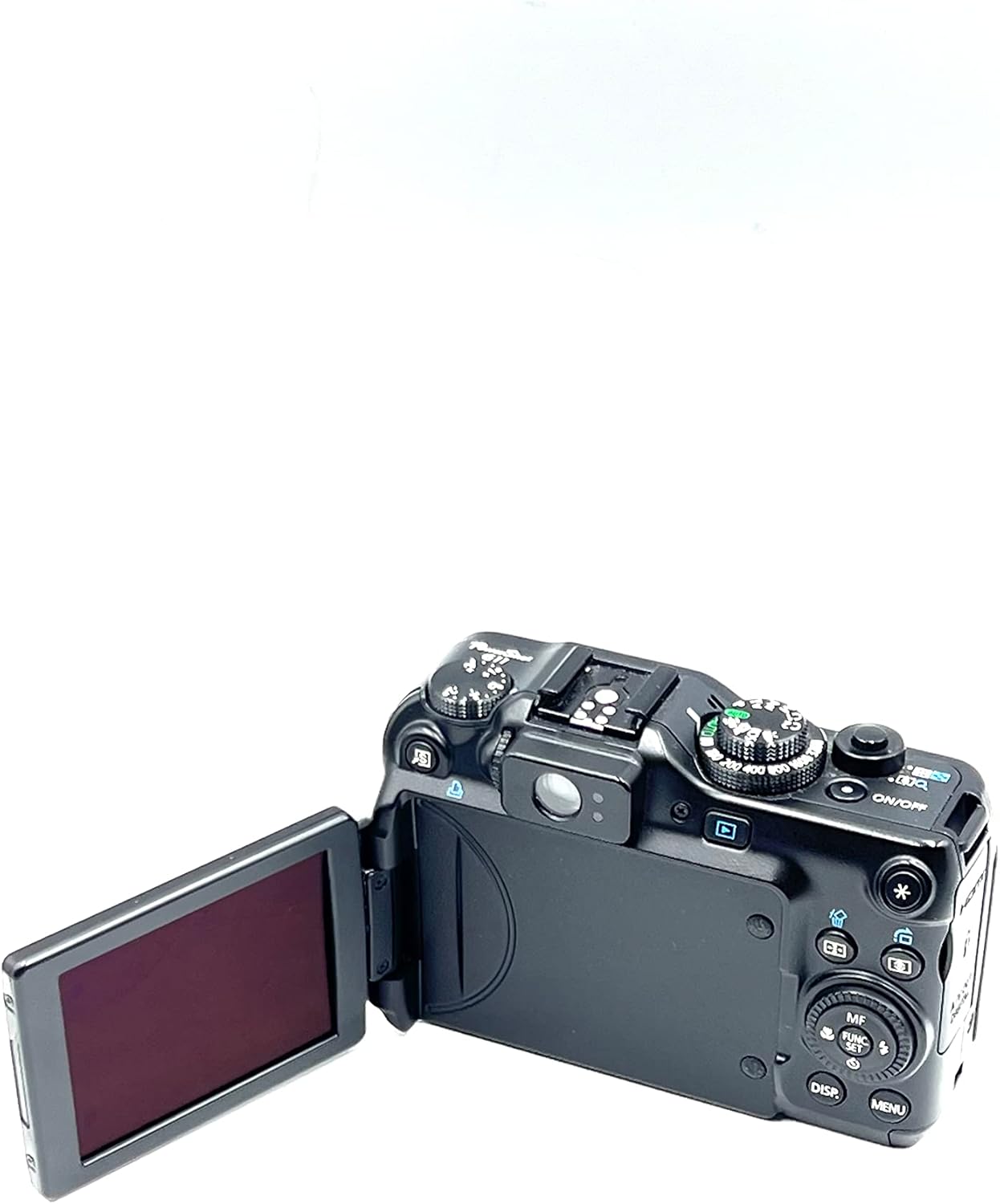
Image: The Canon PowerShot G11 with its Vari-Angle LCD screen extended and rotated, demonstrating its flexibility.
Zoom Operation
The camera features a 5x optical zoom lens (equivalent to 28-140mm). Use the zoom lever located around the shutter button to zoom in (telephoto) or out (wide-angle). The Optical Image Stabilizer helps to reduce blur, especially at longer focal lengths or in low light.

Image: Side view of the Canon PowerShot G11 showing the lens extended, indicating zoom capability.
RAW + JPEG Shooting
The PowerShot G11 supports simultaneous recording of both RAW and JPEG image files. RAW files provide maximum flexibility for post-processing, while JPEG files are ready for immediate use. This setting can be configured in the camera's menu.
Advanced Features
- High Sensitivity System: Combines a powerful CCD sensor and DIGIC 4 Image Processor for improved image quality and reduced noise, especially at high ISO speeds (up to ISO 3200).
- i-Contrast (Intelligent Contrast Correction): Automatically adjusts compensation levels to brighten dark areas while preserving bright areas, resulting in more balanced images. This can also be applied in playback mode.
- Red-eye Correction: Identifies and corrects red-eye in flash pictures during shooting or playback.
- Face Detection and Face Self-Timer: Automatically detects faces for optimal focus and exposure. The Face Self-Timer can delay the shutter release until a new face enters the frame.
- HDMI Output: Connect the camera directly to an HDTV using the mini-HDMI connector (cable not included) to view photos and videos in high resolution.
Maintenance
Cleaning the Camera
- Camera Body: Wipe with a soft, dry cloth. For stubborn dirt, use a cloth lightly dampened with water and then dry thoroughly.
- Lens: Use a lens brush or a blower to remove dust. For smudges, use a lens cleaning cloth and lens cleaning fluid. Avoid touching the lens surface with your fingers.
- LCD Screen: Gently wipe with a soft, dry cloth. Avoid pressing hard on the screen.
Battery Care
- Store batteries in a cool, dry place when not in use.
- Do not expose batteries to extreme temperatures or direct sunlight.
- Recharge batteries before they are completely depleted to prolong their lifespan.
Storage
When storing the camera for extended periods, remove the battery and memory card. Store the camera in a dry, well-ventilated area, preferably in a camera bag or case to protect it from dust and impacts.
Troubleshooting
| Problem | Possible Cause | Solution |
|---|---|---|
| Camera does not power on. | Battery is depleted or incorrectly inserted. | Charge the battery fully. Reinsert the battery correctly. |
| Cannot take pictures. | Memory card is full, not inserted, or locked. | Delete unnecessary images, insert a memory card, or unlock the memory card (slide the lock switch). |
| Images are blurry. | Camera shake, subject movement, or incorrect focus. | Hold the camera steady, use a tripod, or enable Image Stabilization. Ensure proper focus. |
| Flash does not fire. | Flash mode is set to OFF or battery is low. | Change flash mode to Auto or On. Charge the battery. |
| LCD screen is blank. | Camera is off, or display is turned off. | Power on the camera. Press the DISP. button to cycle through display modes. |
Specifications
| Feature | Detail |
|---|---|
| Model Name | Canon PowerShot G11 |
| Photo Sensor Resolution | 10 Megapixels |
| Photo Sensor Technology | CCD |
| Image Processor | DIGIC 4 |
| Optical Zoom | 5x |
| Focal Length | 28-140mm (35mm equivalent) |
| Image Stabilization | Optical |
| LCD Screen Size | 2.8 Inches |
| Display Type | Vari-Angle PureColor System LCD |
| ISO Sensitivity | Expanded ISO Minimum 80, Expanded ISO Maximum 3200 |
| Supported File Formats | RAW, JPEG |
| Video Resolution | 480p |
| Connectivity | USB, HDMI |
| Storage Media | SD, SDHC, MMC, MMCplus, HC MMCplus card |
| Battery Type | Lithium-Ion NB-7L rechargeable battery |
| Item Weight | 0.83 Pounds |
Warranty and Support
For detailed warranty information and technical support, please refer to the documentation included with your product or visit the official Canon support website. You can also find additional resources and frequently asked questions online.
Canon Support Website: www.usa.canon.com/support