
AOC 2436VW
AOC 2436Vw 24-inch Widescreen HD Monitor User Manual
Model: 2436VW
1. Introduction
This manual provides comprehensive instructions for the setup, operation, and maintenance of your AOC 2436Vw 24-inch Widescreen HD Monitor. Please read this manual thoroughly before using the product to ensure proper functionality and to prevent damage.
The AOC 2436Vw monitor features a 24-inch (23.6-inch viewable) TFT LCD panel with a 1920 x 1080 resolution, a 5ms response time, and a 60,000:1 dynamic contrast ratio. It includes VGA and DVI-D inputs with HDCP support, touch-sensitive controls, and a USB pass-through connector for enhanced user convenience.

Figure 1.1: The AOC 2436Vw monitor showcasing its display capabilities with a colorful image.
2. Package Contents
Carefully unpack the monitor and verify that all items listed below are present and in good condition. If any items are missing or damaged, contact your retailer.
- AOC 2436Vw 24-inch Widescreen HD Monitor
- Monitor Stand Base
- Power Cable (AC 120/230 V)
- VGA Cable
- DVI Cable
- USB Cable
- Driver CD
- Quick Start Guide
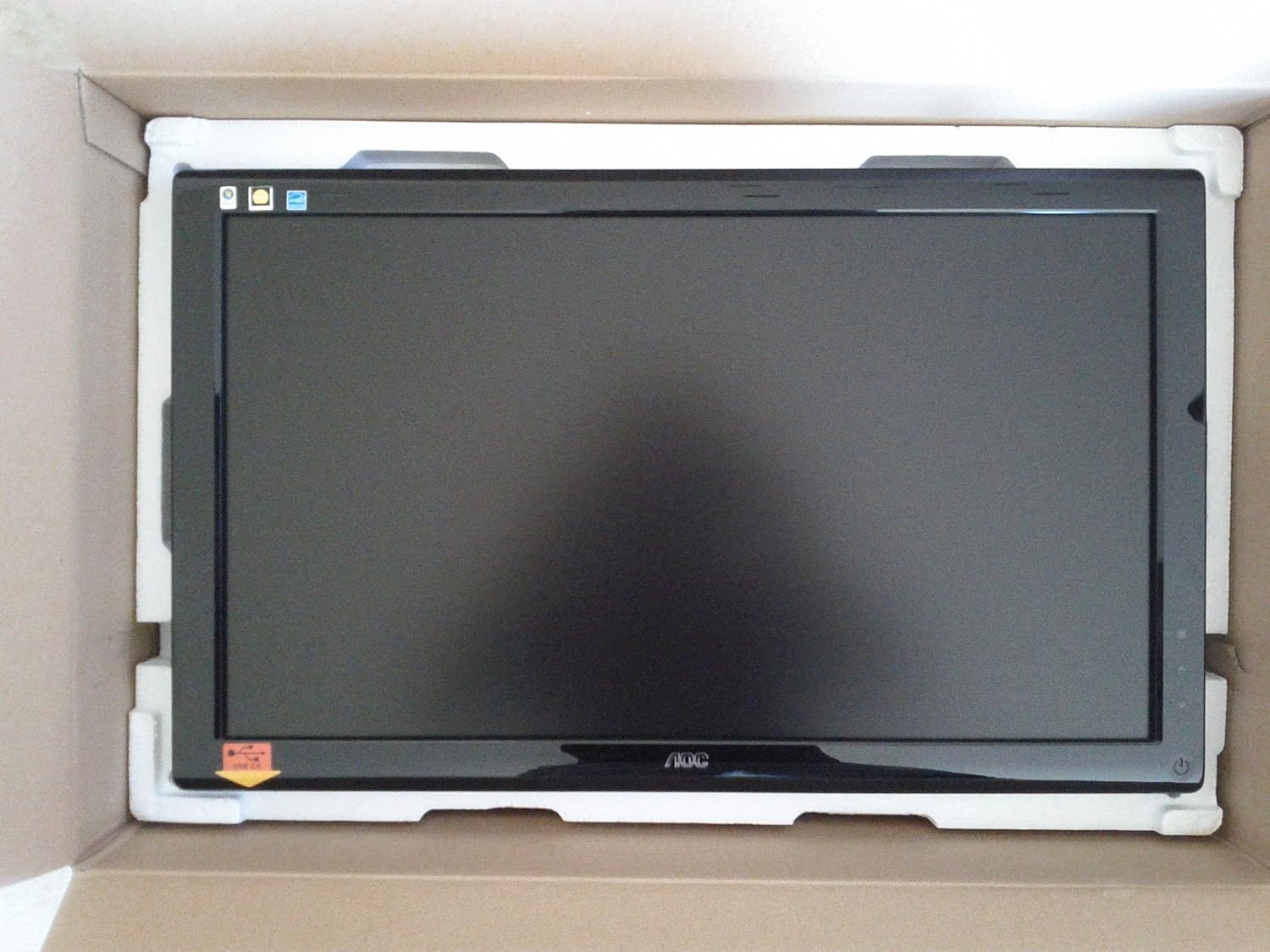
Figure 2.1: The AOC 2436Vw monitor securely packaged in its box, showing the screen protected by foam inserts.

Figure 2.2: Various accessories for the AOC 2436Vw monitor, including cables, stand base, and driver CD, neatly arranged in their packaging compartments.
3. Setup Instructions
3.1 Assembling the Monitor Stand
- Carefully remove the monitor from its packaging, placing it face down on a soft, clean surface to prevent scratches.
- Attach the stand base to the monitor neck. Ensure it clicks securely into place or is fastened with the provided screw, depending on the model's design.
- Gently lift the assembled monitor and place it on a stable, flat surface.
3.2 Connecting Cables
Ensure your computer and monitor are powered off before making any connections.
- Power Connection: Connect the power cable to the monitor's power input and then to a grounded electrical outlet.
- Video Connection:
- DVI-D: Connect one end of the DVI cable to the DVI-D port on the monitor and the other end to the DVI-D port on your computer's graphics card. This is recommended for optimal digital signal quality.
- VGA: Alternatively, connect one end of the VGA cable to the VGA port on the monitor and the other end to the VGA port on your computer's graphics card.
- USB Pass-through: Connect the USB cable from the monitor's upstream USB port to an available USB port on your computer. This enables the monitor's built-in USB pass-through functionality.
3.3 Initial Power On and Driver Installation
- Power on your computer, then power on the monitor by pressing the power button located on the bezel.
- The monitor should automatically detect the input signal. If not, use the OSD menu to select the correct input source (DVI or VGA).
- Driver Installation: For optimal performance and access to all features, it is recommended to install the monitor drivers.
- Insert the provided driver CD into your computer's optical drive and follow the on-screen instructions.
- Alternatively, visit the official AOC website and download the latest drivers for the 2436Vw model.
4. Operating the Monitor
4.1 Controls and On-Screen Display (OSD) Menu
The AOC 2436Vw features touch-sensitive controls located on the lower right side of the bezel. These controls allow you to navigate the OSD menu and adjust various display settings.
To access the OSD menu, press the Menu button (usually indicated by an icon or a specific touch area). Use the navigation buttons (up/down, left/right, or similar) to browse through options and the Select/Enter button to confirm choices.
4.2 Common OSD Settings
- Brightness/Contrast: Adjust the overall luminance and difference between light and dark areas of the display.
- Color Settings: Modify color temperature, gamma, and individual RGB levels to achieve desired color accuracy.
- Input Select: Manually switch between DVI and VGA input sources.
- Picture Modes: Select from predefined display modes (e.g., Standard, Text, Internet, Game, Movie) optimized for different content types. The monitor also features a Dynamic Contrast Ratio (DCR) setting that automatically adjusts brightness based on screen content.
- i-Menu Software: The monitor includes AOC's proprietary i-Menu software, which allows you to adjust OSD settings using your mouse and keyboard from within the operating system. Install this software from the driver CD or AOC website.
5. Maintenance
5.1 Cleaning the Monitor
- Always power off the monitor and unplug the power cord before cleaning.
- Use a soft, lint-free cloth lightly dampened with water or a mild, non-abrasive screen cleaner.
- Do not spray cleaner directly onto the screen or bezel. Apply it to the cloth first.
- Avoid using benzene, thinner, ammonia-based cleaners, or abrasive materials, as these can damage the display surface.
5.2 General Care
- Avoid placing the monitor in direct sunlight or near heat sources.
- Ensure adequate ventilation around the monitor.
- Do not block the ventilation openings.
- Protect the monitor from excessive dust and moisture.
- The monitor is VESA 100mm wall mount compliant. If mounting, ensure proper installation according to VESA standards.
- A Kensington Security Slot is built in to help protect your computer display from theft.
6. Troubleshooting
If you encounter issues with your monitor, refer to the following common problems and solutions:
| Problem | Possible Cause / Solution |
|---|---|
| No image on screen |
|
| Image is blurry or distorted |
|
| Colors appear incorrect or washed out |
|
| Touch controls are unresponsive |
|
7. Technical Specifications
| Feature | Specification |
|---|---|
| Brand | AOC |
| Model Number | 2436VW |
| Screen Size | 24 Inches (23.6" Viewable) |
| Panel Type | TFT LCD |
| Resolution | 1920 x 1080 (FHD 1080p) |
| Aspect Ratio | 16:9 |
| Response Time | 5ms |
| Brightness (typical) | 300 cd/m² |
| Contrast Ratio (Dynamic) | 60,000:1 |
| Colors Supported | > 16 Million |
| Analog Input | RGB D-Sub (VGA) |
| Digital Input | DVI with HDCP |
| USB Ports | USB Pass-through |
| Built-in Speakers | No |
| Power Supply | AC 120/230 V (50/60 Hz) |
| Power Consumption (Operational) | 49 Watts |
| Dimensions (WxDxH) | 22.91 x 2.56 x 16.73 inches (582.1 x 65.9 x 425.5 mm) |
| Weight | 12.1 lbs (5.5 kgs) |
| VESA Mount Compatibility | 100mm |
| Certifications | ENERGY STAR Compliant, EPEAT Rated |
8. Warranty and Support
8.1 Warranty Information
Please note that this product is sold "as is" and does not include a manufacturer's warranty. For specific details regarding your purchase, please refer to the terms and conditions provided by your retailer at the time of purchase.
8.2 Customer Support
For further assistance, technical support, or to download the latest drivers and software, please visit the official AOC website or contact AOC customer service through their provided channels.
Related documents2436VW


Ask a question about this manual
Ask about setup, troubleshooting, compatibility, parts, safety, or missing instructions. Manuals+ will review the question and use this page’s manual context to help answer it.