
1. Introduction
This manual provides essential instructions for the safe and efficient use of your FSP ATX-300PA 300W ATX Power Supply. Please read this manual thoroughly before installation and operation to ensure proper functionality and to prevent damage to the unit or other components. Keep this manual for future reference.
2. Safety Information
Observe the following safety precautions to prevent injury or damage:
- Always disconnect the power cord from the wall outlet before installing, removing, or servicing the power supply.
- Do not open the power supply casing. High voltage components are present inside, which can cause electric shock. There are no user-serviceable parts within.
- Ensure proper ventilation around the power supply to prevent overheating. Do not block any ventilation openings.
- Use the power supply only in dry environments. Avoid exposure to moisture, humidity, or liquids.
- This product is designed for internal computer use only. Do not use it for any other purpose.
- Ensure the power supply is compatible with your system's motherboard and components before installation.
3. Setup and Installation
Follow these steps to install the FSP ATX-300PA power supply into your computer system:
- Prepare Your System: Turn off your computer and disconnect the power cord from the wall outlet. Open your computer case.
- Remove Old Power Supply (if applicable): Disconnect all power cables from the motherboard, graphics card, and other components. Unscrew and remove the old power supply from the case.
- Install New Power Supply: Carefully place the FSP ATX-300PA into the power supply bay of your computer case. Ensure the fan is oriented correctly for optimal airflow (typically facing downwards or inwards, depending on case design). Secure the power supply with screws provided with your computer case.
- Connect Motherboard Power: Connect the main 20+4 pin ATX power connector to the corresponding socket on your motherboard. Ensure it clicks into place.
- Connect CPU Power: Connect the 4-pin (or 4+4 pin) CPU power connector to the CPU power socket on your motherboard.
- Connect Peripheral Power: Connect SATA power connectors to your hard drives, SSDs, and optical drives. Connect Molex connectors to any other peripherals that require them.
- Connect Graphics Card Power (if applicable): If your graphics card requires additional power, connect the appropriate PCIe power connectors from the power supply.
- Cable Management: Route cables neatly to improve airflow and aesthetics within the case.
- Close Case and Connect Power: Close your computer case. Connect the AC power cord to the power supply's input socket and then to a wall outlet or surge protector.
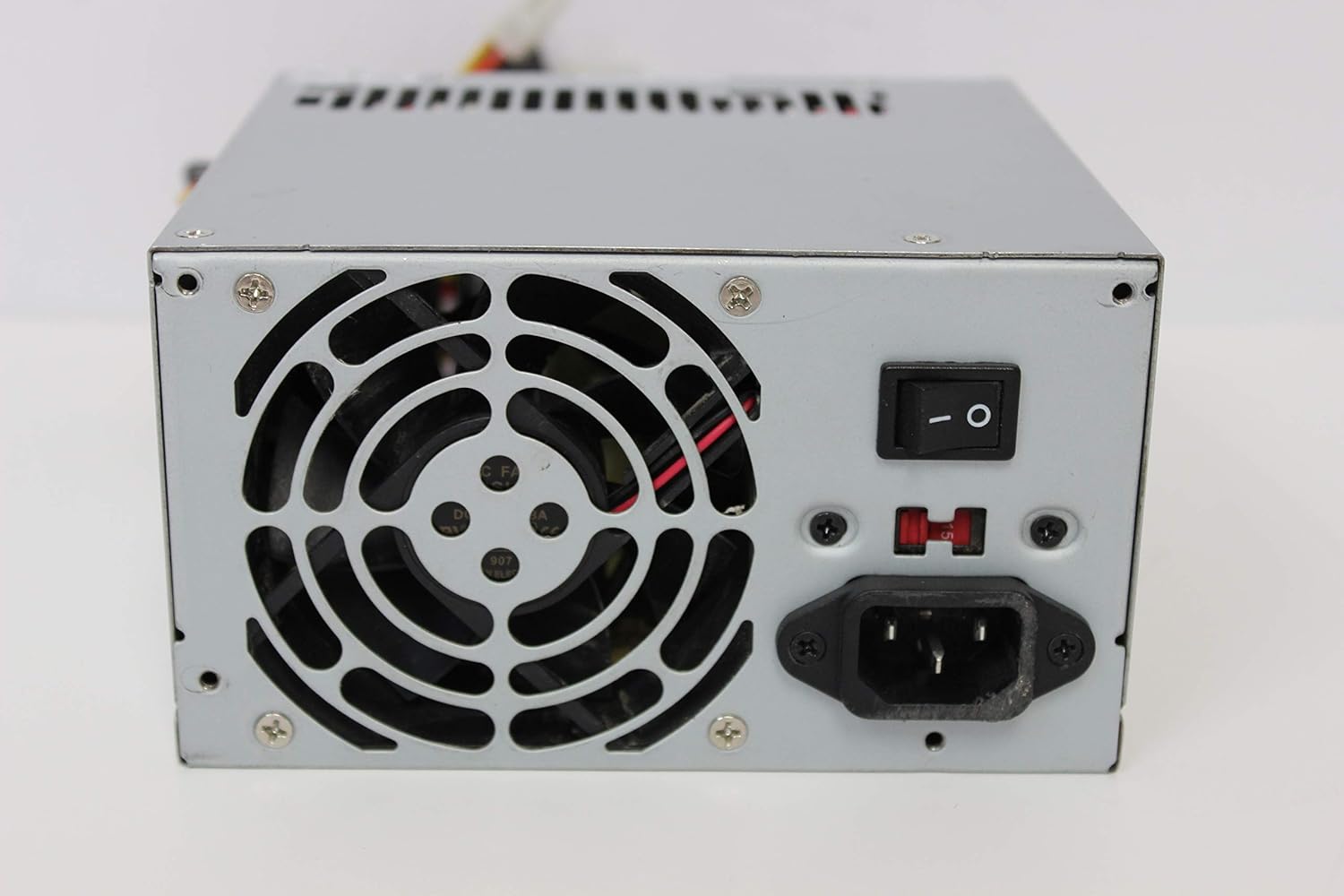
Image: Rear view of the FSP ATX-300PA power supply. This image displays the rear panel of the FSP ATX-300PA power supply. Visible components include the AC power input socket, the main power on/off switch, and the exhaust fan grille. A fuse holder is also present.

Image: Power connectors of the FSP ATX-300PA. This image shows a selection of power cables and connectors extending from the FSP ATX-300PA power supply. The prominent connector is the 20+4 pin ATX motherboard power connector, alongside several peripheral power connectors (e.g., Molex, SATA, 4-pin CPU).
4. Operating Instructions
Once the power supply is correctly installed and all connections are secure:
- Ensure the power switch on the rear of the power supply is in the "ON" (I) position.
- Press the power button on your computer case to start the system.
- The power supply will provide stable power to all connected components.
5. Maintenance
Regular maintenance helps ensure the longevity and optimal performance of your power supply:
- Dust Cleaning: Periodically (e.g., every 6-12 months), disconnect the power supply from the wall outlet and open your computer case. Use compressed air to gently remove dust buildup from the power supply's fan and vents. Hold the fan blades to prevent them from spinning excessively during cleaning.
- Fan Inspection: Check the power supply fan for any obstructions or unusual noises. A clean, unobstructed fan is crucial for effective cooling.
- Cable Check: Ensure all power cables remain securely connected to their respective components.
Warning: Do not attempt to lubricate or disassemble the power supply fan. Do not open the power supply casing for any reason.
6. Troubleshooting
If you encounter issues with your FSP ATX-300PA power supply, consider the following troubleshooting steps:
- No Power to System:
- Ensure the AC power cord is securely connected to both the power supply and the wall outlet.
- Verify that the power switch on the rear of the power supply is in the "ON" (I) position.
- Check if the wall outlet is functional by plugging in another device.
- Confirm all internal power connectors (20+4 pin ATX, CPU, peripherals) are firmly seated.
- System Instability or Random Shutdowns:
- Ensure the power supply is adequately ventilated and not overheating.
- Verify that the total power draw of your components does not exceed the power supply's 300W capacity.
- Check for loose connections to any components.
- Unusual Noises:
- If you hear grinding or rattling, it may indicate a fan issue. Disconnect power and inspect the fan for obstructions. Do not attempt to repair the fan yourself.
If issues persist after performing these checks, it may indicate a faulty power supply or another component. Consider professional diagnosis.
7. Specifications
| Brand | FSP |
| Model Number | ATX-300PA |
| Output Wattage | 300 Watts |
| Form Factor | ATX |
| Connector Type | ATX |
| UPC | 754031288653 |
| Manufacturer | FSP GROUP INC. |
8. Warranty and Support
For detailed warranty information, technical support, or service inquiries regarding your FSP ATX-300PA power supply, please refer to the official FSP Group INC. website or contact their customer support directly. Warranty terms and conditions may vary by region and purchase date.


