
OM SYSTEM Stylus 7010
OM SYSTEM OLYMPUS Stylus 7010 Digital Camera User Manual
Model: Stylus 7010
1. Introduction
This manual provides comprehensive instructions for the safe and effective use of your OM SYSTEM OLYMPUS Stylus 7010 Digital Camera. Please read this manual thoroughly before using the camera to ensure proper operation and to maximize its features. Keep this manual in a safe place for future reference.
The Stylus 7010 is a 12-megapixel digital camera featuring a 7x optical zoom lens with dual image stabilization, a 2.7-inch LCD screen, and various in-camera creative functions.
2. Safety Information
- Do not expose the camera to water or moisture. This camera is not water-resistant.
- Avoid dropping the camera or subjecting it to strong impacts.
- Do not attempt to disassemble or modify the camera. Repairs should only be performed by authorized service personnel.
- Keep the camera away from strong magnetic fields and excessive heat.
- Use only specified batteries and chargers.
- Clean the lens and LCD screen with a soft, dry cloth. Avoid using harsh chemicals.
3. Package Contents
Verify that all the following items are included in your camera package:
- OM SYSTEM OLYMPUS Stylus 7010 Digital Camera
- Li-Ion Rechargeable Battery (LI-42B)
- Battery Charger
- USB Cable
- Audio/Video Cable
- Wrist Strap
- MASD-1 (microSD Adapter)
- CD-ROM Manual
- Warranty Card
- OLYMPUS Master 2 Software (CD-ROM)
4. Camera Parts and Controls
4.1 Front View
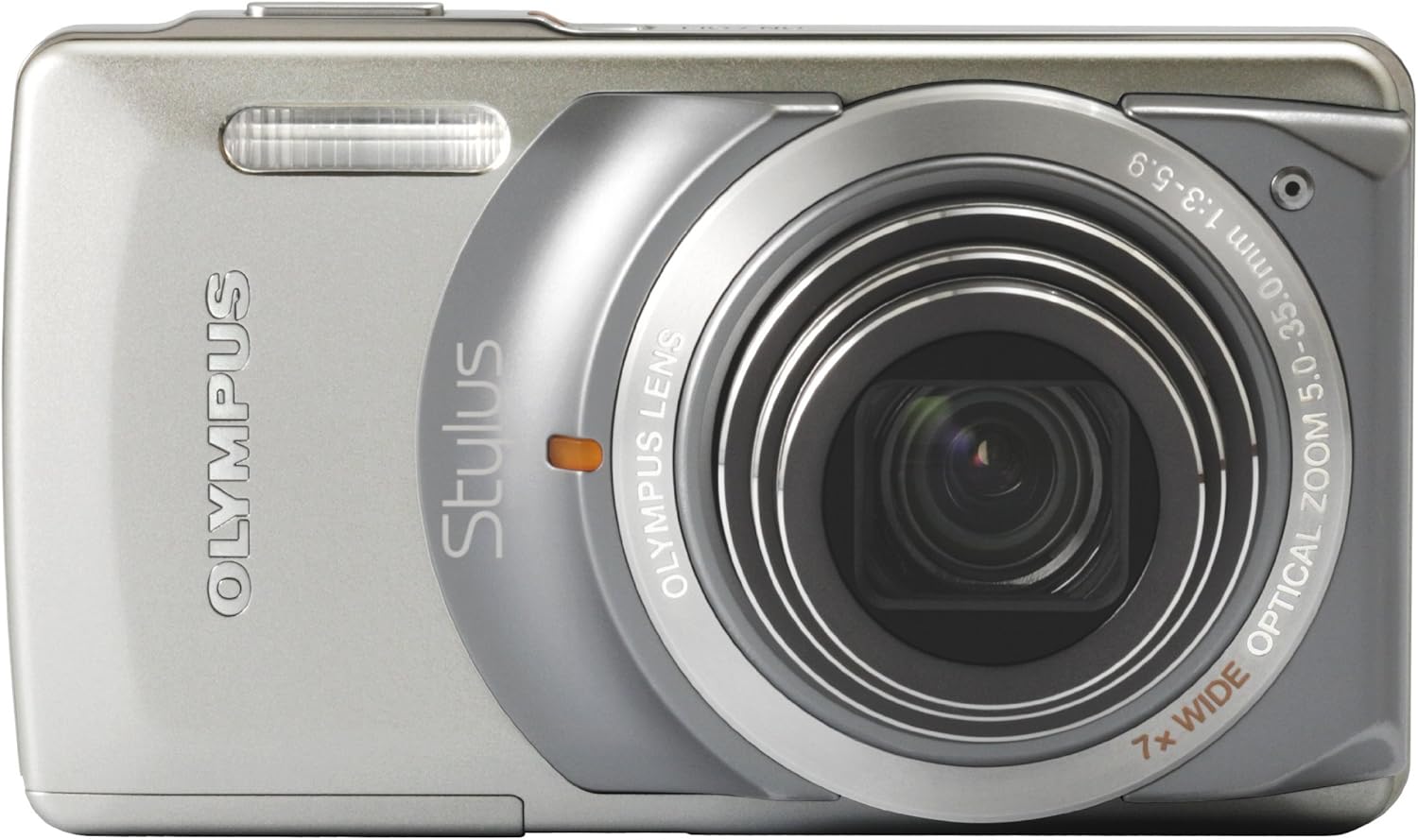
Description: This image displays the front of the OM SYSTEM OLYMPUS Stylus 7010 Digital Camera. Key features visible include the Olympus lens with 7x wide optical zoom, the flash unit, and the Stylus branding. The camera body is silver.
- Flash: Provides illumination in low-light conditions.
- Lens: 7x wide optical zoom lens (5.0-35.0mm, 1:3-5.9).
- Self-Timer Lamp/AF Illuminator: Indicates self-timer operation and assists autofocus in dark environments.
- Microphone: Records audio during video capture.
4.2 Rear View

Description: This image shows the back of the OM SYSTEM OLYMPUS Stylus 7010 Digital Camera. The large HyperCrystal View LCD screen is prominent, surrounded by various control buttons and a mode dial.
- LCD Monitor: 2.7-inch HyperCrystal II LCD for viewing images, videos, and menu options.
- Zoom Lever (W/T): Controls optical zoom (Wide/Telephoto).
- Mode Dial: Selects shooting modes (e.g., Intelligent Auto, Program Auto, Scene Modes, Beauty, Movie).
- MENU Button: Accesses camera settings and options.
- Directional Pad (Up/Down/Left/Right): Navigates menus and selects options.
- OK/FUNC Button: Confirms selections and accesses the Function menu.
- Flash Button: Controls flash modes.
- Self-Timer/Delete Button: Activates self-timer or deletes images in playback mode.
- DISP./OR Button: Changes display information or accesses Olympus Recommended features (Magic Filters, Panorama, Shadow Adjustment, Perfect Shot Preview).
- Playback Button: Switches to playback mode to view captured images and videos.
4.3 Top View

Description: This image shows the top of the OM SYSTEM OLYMPUS Stylus 7010 Digital Camera, highlighting the power button and shutter release button.
- Power Button: Turns the camera on or off.
- Shutter Button: Press halfway to focus, fully to capture an image.
5. Setup
5.1 Charging the Battery
The camera uses a Lithium-Ion LI-42B rechargeable battery. Before first use, fully charge the battery.
- Insert the battery into the supplied charger.
- Plug the charger into a power outlet. The charging indicator light will illuminate.
- Once charging is complete (indicator light changes or turns off), remove the battery.
5.2 Inserting the Battery and Memory Card
The Stylus 7010 supports xD-Picture Card and microSD cards (via the MASD-1 adapter).
- Open the battery/card compartment cover on the bottom of the camera.
- Insert the charged battery with the correct orientation until it clicks into place.
- Insert the memory card (xD-Picture Card directly, or a microSD card into the MASD-1 adapter first) into the card slot until it clicks. Ensure the card is facing the correct direction.
- Close the compartment cover securely.
5.3 Initial Power On and Settings
- Press the ON/OFF button to turn on the camera.
- The first time you power on, you may be prompted to set the date, time, and language. Use the directional pad to navigate and the OK/FUNC button to confirm.
6. Operating the Camera
6.1 Basic Photography (Intelligent Auto Mode)
- Turn the camera on.
- Rotate the Mode Dial to i-Auto (Intelligent Auto) mode. The camera will automatically detect the scene and optimize settings.
- Frame your shot using the LCD monitor. Use the Zoom Lever (W/T) to adjust the zoom.
- Press the Shutter Button halfway down to focus. The focus frame will turn green when focus is achieved.
- Press the Shutter Button fully down to capture the image.
6.2 Advanced Shooting Features
The Stylus 7010 offers several features to enhance your photography:
- Dual Image Stabilization: Automatically reduces blur caused by camera shake or subject movement.
- AF Tracking: Locks focus on a moving subject, continuously adjusting focus and brightness. Activate this feature through the menu or specific scene modes.
- Magic Filters: Apply creative effects directly in-camera. Access via the DISP./OR button or Mode Dial.
- Pop Art: Enhances and saturates colors.
- Pin Hole: Reduces peripheral brightness for a focused center.
- Fish-Eye: Creates a wide, hemispherical image effect.
- Shadow Adjustment Technology: Compensates for extreme contrast in scenes, revealing details in shadowed areas.
- In-Camera Panorama: Captures three images and stitches them together to create a panoramic picture. Press the shutter and pan slowly.
- Beauty Mode: Softens shadows and smooths skin tones for portraits. Can be applied before or after capture.
- Perfect Shot Preview: Allows previewing various photographic effects on a multi-window screen before taking the shot. Access via the DISP./OR button.
6.3 Video Recording
- Rotate the Mode Dial to the Movie mode icon.
- Press the Shutter Button to start recording.
- Press the Shutter Button again to stop recording.
6.4 Playback
- Press the Playback Button to enter playback mode.
- Use the Left/Right directional buttons to scroll through images and videos.
- Press the OK/FUNC button to view options for the selected image/video (e.g., delete, rotate, edit).
- To exit playback mode, press the Playback Button again or half-press the Shutter Button.
6.5 Connecting to a Computer (Olympus Master 2 Software)
Use the included Olympus Master 2 software to manage your photos and videos.
- Install Olympus Master 2 from the provided CD-ROM onto your computer.
- Connect the camera to your computer using the supplied USB cable.
- Turn on the camera. It should be recognized by the computer and the software.
- Follow the on-screen instructions in Olympus Master 2 to import, organize, edit, or share your media.
7. Maintenance
7.1 Cleaning the Camera
- Camera Body: Wipe with a soft, dry cloth. For stubborn dirt, lightly dampen the cloth with water and then wipe dry.
- Lens: Use a lens brush to remove dust, then gently wipe with a lens cleaning cloth. Avoid touching the lens surface with your fingers.
- LCD Monitor: Gently wipe with a soft, dry cloth. Do not press hard.
7.2 Storage
- When not in use for extended periods, remove the battery from the camera.
- Store the camera in a cool, dry, well-ventilated area, away from direct sunlight, high temperatures, and humidity.
- Use a desiccant (e.g., silica gel) in the storage container to absorb moisture.
8. Troubleshooting
| Problem | Possible Cause | Solution |
|---|---|---|
| Camera does not turn on. | Battery is depleted or incorrectly inserted. | Charge the battery fully. Reinsert the battery correctly. |
| Cannot take pictures. | Memory card is full, locked, or not inserted. | Delete unnecessary images, unlock the card, or insert a new card. |
| Images are blurry. | Camera shake, subject movement, or out of focus. | Hold the camera steady. Ensure AF Tracking is active for moving subjects. Allow the camera to focus before fully pressing the shutter. |
| Flash does not fire. | Flash mode is set to "Flash Off" or battery is low. | Change flash mode to Auto or Fill-in Flash. Charge the battery. |
| Lens does not extend/retract. | Obstruction or internal error. | Ensure no obstructions. If the problem persists, contact customer support. |
9. Specifications
| Feature | Detail |
|---|---|
| Model Name | Olympus Stylus 7010 |
| Image Sensor | 12 MP CCD (1/2.33 inches) |
| Effective Still Resolution | 12 Megapixels |
| Lens | 7x Optical Zoom (5-35mm, f/3-5.9) |
| Digital Zoom | 5x |
| Image Stabilization | Sensor-shift (Dual Image Stabilization) |
| LCD Screen | 2.7-inch HyperCrystal II LCD |
| Processor | TruePic III |
| ISO Sensitivity | Expanded ISO Minimum 64, Expanded ISO Maximum 1600 |
| Shutter Speed | Minimum 4 seconds, Maximum 1/2000 seconds |
| Video Resolution | 480p (MJPEG format) |
| Storage Media | xD-Picture Card, microSD Card (via adapter), Internal Memory |
| Connectivity | USB 2.0, Audio/Video Out |
| Battery Type | Lithium-Ion LI-42B |
| Dimensions (approx.) | Item Height: 2.2 inches (Other dimensions not specified in input) |
| Weight (approx.) | 5.12 ounces |
| Color | Silver |
10. Warranty and Support
Your OM SYSTEM OLYMPUS Stylus 7010 Digital Camera comes with a warranty card included in the package. Please refer to the warranty card for detailed information regarding coverage, terms, and conditions.
For technical support, service, or inquiries about your product, please refer to the contact information provided on your warranty card or visit the official OM SYSTEM / Olympus support website.
Note: The "Legal Disclaimer" states "Sold as is, in working condition." This may imply specific warranty limitations depending on the seller. Always refer to the official warranty documentation provided with your product.
Ask a question about this manual
Ask about setup, troubleshooting, compatibility, parts, safety, or missing instructions. Manuals+ will review the question and use this page’s manual context to help answer it.