
Introduction
The Compaq Presario CQ60-410US is a 15.6-inch notebook PC designed for everyday computing tasks. This manual provides essential information for the proper setup, operation, and maintenance of your laptop, ensuring optimal performance and longevity. Familiarize yourself with the components and functions described herein to enhance your user experience.
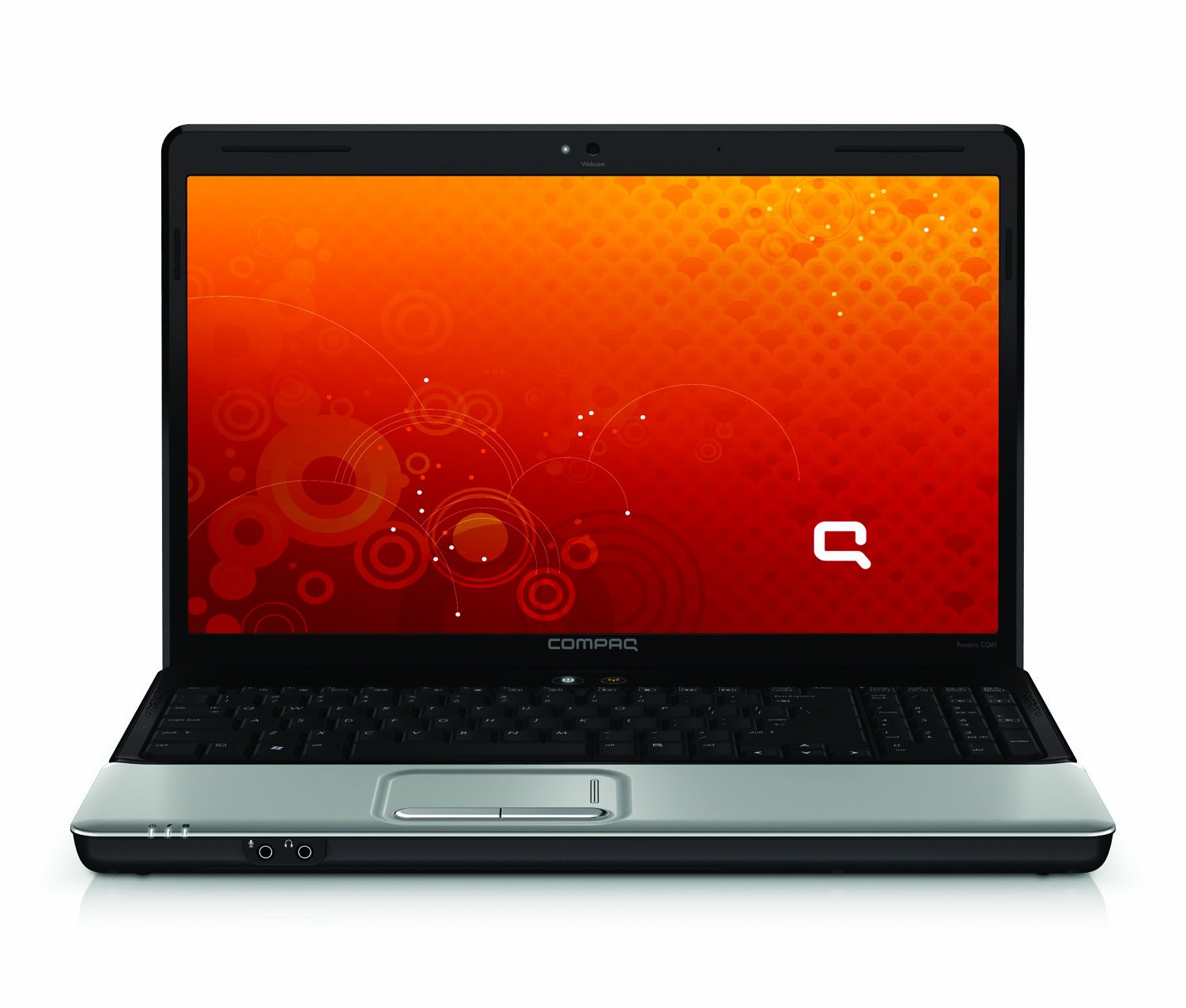
Image: Top-down view of the closed Compaq Presario CQ60-410US laptop, showcasing its sleek black finish and the Compaq logo.
What's in the Box
Upon unpacking your Compaq Presario CQ60-410US laptop, verify that all the following items are included:
- Compaq Presario CQ60-410US Laptop
- 65W AC Adapter
- 6-Cell Lithium-Ion Battery
- User Manuals and Documentation
- Pre-installed Software (e.g., Symantec Norton Internet Security 2009, HP DVD Play, Microsoft Works, Muvee Reveal, Cyberlink DVD Suite, Adobe Acrobat Reader, HP Games)
Setup
1. Installing the Battery
- Ensure the laptop is powered off and unplugged from the AC adapter.
- Turn the laptop over to access the battery compartment.
- Align the battery with the compartment and gently push it into place until it clicks.
- Secure the battery latch, if present.
2. Connecting the AC Adapter
- Connect the AC adapter cable to the power connector on the side of the laptop.
- Plug the AC adapter into a grounded electrical outlet.
- The battery will begin charging automatically. It is recommended to fully charge the battery before initial use.

Image: Left side of the laptop showing the power input port, two USB ports, and an Ethernet port. The power adapter connects to the circular port on the far right.
3. Initial Power On and Operating System Setup
- Open the laptop lid and press the power button.
- Follow the on-screen instructions to complete the initial setup of Windows Vista Home Premium. This process may include setting up user accounts, network connections, and software configurations.
Operating the Laptop
Power On/Off
- To Power On: Press the power button located above the keyboard.
- To Shut Down: Click the Start button in Windows, then select 'Shut Down'.
- To Restart: Click the Start button, then select 'Restart'.
- To Sleep: Close the laptop lid or select 'Sleep' from the Start menu.
Using the Touchpad
The integrated touchpad functions as a mouse. Use your finger to move the cursor on the screen. The touchpad includes left and right click buttons below the pad.
Connecting External Devices
- USB Devices: Connect USB devices such as external hard drives, printers, or mice to the available USB ports.
- External Display: Use the VGA port to connect an external monitor or projector.
- Ethernet: Connect an Ethernet cable to the RJ-45 port for a wired network connection.
- Memory Cards: Insert compatible SD, MS/Pro, MMC, or xD memory cards into the card reader slot.
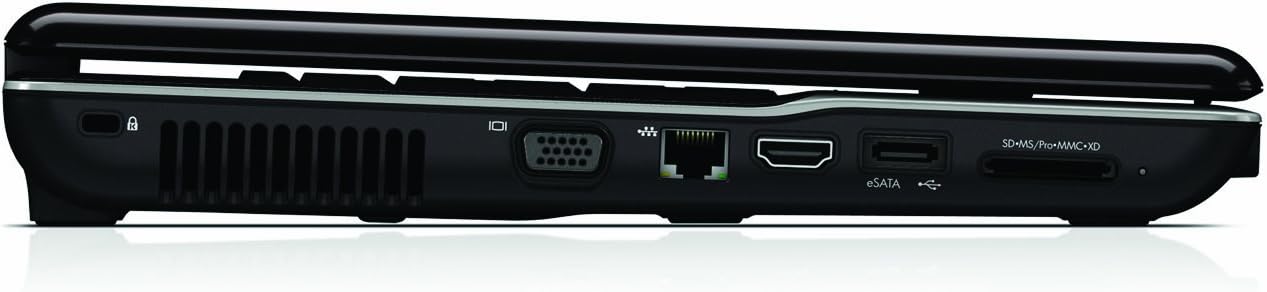
Image: Right side of the laptop showing the Kensington lock slot, ventilation, VGA port, Ethernet port, HDMI port, eSATA/USB combo port, and multi-format card reader.
Audio Connections
The front edge of the laptop features audio input and output jacks.
- Headphone Jack: Connect headphones or external speakers.
- Microphone Jack: Connect an external microphone.

Image: Front edge of the laptop, displaying the headphone and microphone jacks.
Optical Drive
The laptop includes a DVD SuperMulti optical drive for reading and writing CDs and DVDs. Insert discs gently into the drive slot.
Maintenance
Battery Care
- Avoid fully discharging the battery frequently.
- Store the laptop in a cool, dry place when not in use.
- If storing for an extended period, charge the battery to approximately 50% capacity.
Cleaning the Laptop
- Use a soft, lint-free cloth dampened with water or a specialized screen cleaner for the display.
- For the keyboard and chassis, use a soft cloth. Avoid harsh chemicals.
- Periodically clean the ventilation grilles to prevent dust buildup, which can cause overheating.
Software Updates
Regularly check for and install operating system and driver updates to ensure system stability and security.
Troubleshooting
Laptop Does Not Power On
- Ensure the AC adapter is securely connected to both the laptop and a working power outlet.
- Verify the battery is properly installed and charged.
- Try removing the battery and powering the laptop solely with the AC adapter.
No Display on Screen
- Ensure the laptop is powered on.
- Connect an external monitor to the VGA port to check if the display issue is with the laptop screen itself.
- Adjust screen brightness using the function keys (Fn + F2/F3, or similar, refer to keyboard icons).
Wireless Connection Issues
- Ensure the wireless adapter is enabled (check for a wireless indicator light or a physical switch).
- Verify that your Wi-Fi router is functioning correctly.
- Restart the laptop and the wireless router.
Overheating
- Ensure the ventilation grilles are not blocked.
- Use the laptop on a hard, flat surface to allow for proper airflow.
- Consider using a laptop cooling pad for extended use.
Specifications
| Feature | Specification |
|---|---|
| Model Number | NW159UA#ABA |
| Processor | Intel Celeron Processor 2.1 GHz |
| RAM | 2 GB SDRAM |
| Hard Drive | 160 GB SATA 5400 RPM |
| Screen Size | 15.6 Inches |
| Max Screen Resolution | 1366 x 768 pixels |
| Operating System | Windows Vista Home Premium 32-bit |
| Graphics Card | Integrated |
| Wireless Type | 802.11b, 802.11b/g |
| Optical Drive Type | DVD SuperMulti |
| Item Weight | 6.52 pounds |
| Product Dimensions (LxWxH) | 14.88 x 9.9 x 1.72 inches |
Warranty and Support
For warranty information and technical support, please refer to the documentation included with your product or visit the official Compaq support website. Keep your purchase receipt and product serial number readily available when contacting support.


