Carefully remove the HP DeskJet F4480 printer from its packaging. Ensure all components are present before proceeding with the setup.
Included Components:
HP DeskJet F4480 All-in-One Printer
HP 60 Black Ink Cartridge
HP 60 Tri-color Ink Cartridge
AC Power Cord
Power Supply
Software CD (HP Photosmart Essential Software)
Setup Poster and Reference Guide
Figure 1.1: Front view of the HP DeskJet F4480 printer.
1.2 Connecting the Printer
Connect the power cord to the printer and then to a wall outlet. Connect the printer to your computer using a USB 2.0 cable (not included). Ensure the connection is secure.
Figure 1.2: Rear view of the printer with connectivity ports.
1.3 Installing Ink Cartridges
Open the ink cartridge access door. Wait for the carriage to move to the center. Gently insert the HP 60 Black and HP 60 Tri-color ink cartridges into their respective slots until they click into place. Close the access door.
Figure 1.3: Installing an ink cartridge.
Figure 1.4: Installed ink cartridges.
1.4 Software Installation
Insert the HP Photosmart Essential Software CD into your computer's CD/DVD drive. Follow the on-screen instructions to install the printer drivers and software. This software is essential for full functionality, including printing, scanning, and copying features.
2. Operation
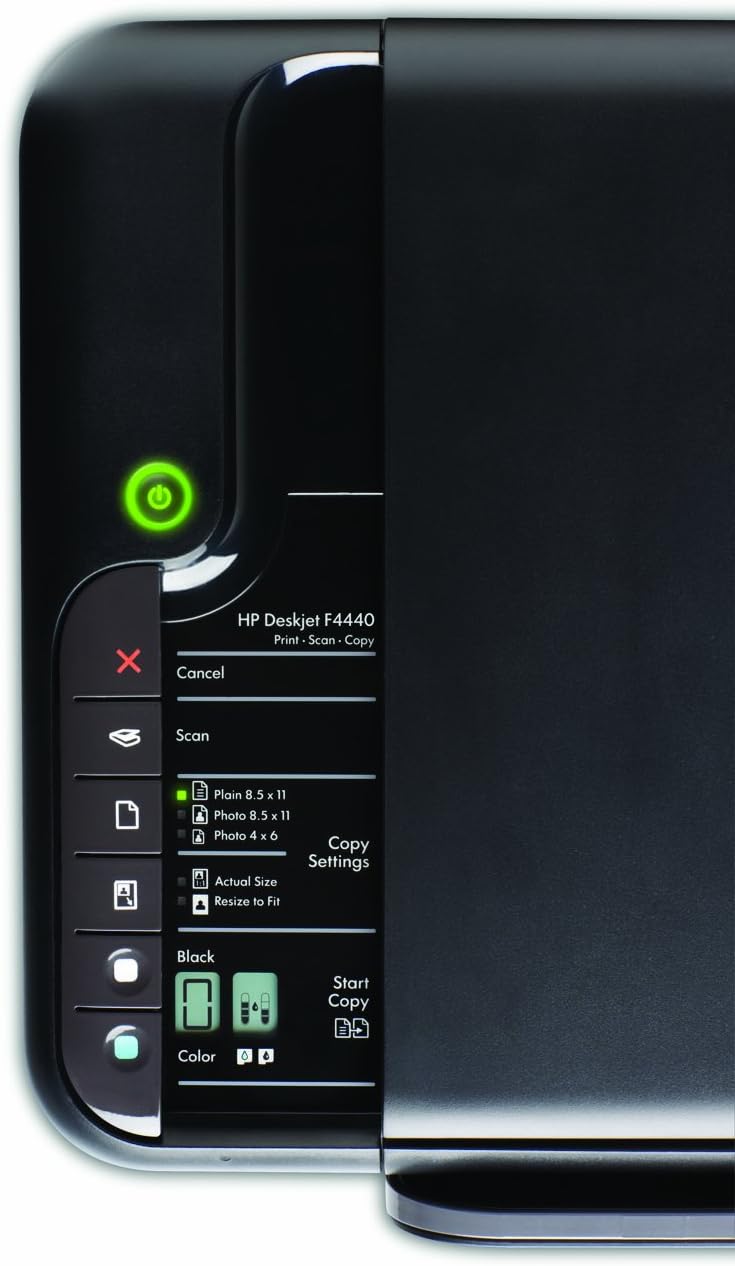
2.1 Control Panel Overview
The control panel provides access to the printer's functions. Familiarize yourself with the buttons and indicators.
Figure 2.1: Control Panel.
Power Button: Turns the printer on or off.
Cancel Button: Stops the current print, scan, or copy job.
Scan Button: Initiates a scan.
Copy Buttons (Black/Color): Starts a black or color copy job.
Copy Settings: Adjusts copy size and number of copies.
2.2 Printing Documents and Photos
Load paper into the 80-sheet input tray. From your computer, select the HP DeskJet F4480 as your printer and choose your desired print settings. The printer supports various media types including plain paper, inkjet paper, photo paper, envelopes, transparencies, labels, and cards.
Print Specifications:
Print Speed (Black): Up to 28 pages per minute (ppm)
Print Speed (Color): Up to 22 ppm
Print Resolution (Black): Up to 600 dpi
Print Resolution (Color): Up to 4800 x 1200 optimized dpi
Borderless Printing: Supported up to 8.5 x 11 inches
Supported Sizes: Letter, legal, 4 x 6 in, 5 x 7 in, 8 x 10 in, No. 10 envelopes
Figure 2.2: Document printing from the top view.
2.3 Scanning Documents
Place the document face-down on the scanner glass. Use the control panel's Scan button or initiate a scan from your computer's software. The scanner supports various document sizes.
Scan Specifications:
Scan Resolution (Hardware): Up to 1200 x 2400 dpi
Scan Resolution (Optical): Up to 1200 dpi
Maximum Scan Size: 8.5 x 11.7 inches
Input Modes: Front-panel scan, copy
2.4 Copying Documents
Place the document on the scanner glass. Press the Black or Color copy button on the control panel to make a copy. You can adjust copy settings such as resize percentage and number of copies.
Copy Specifications:
Copy Speed (Black): Up to 28 copies per minute (cpm)
Copy Speed (Color): Up to 22 cpm
Copy Resolution (Black/Color): Up to 1200 optimized dpi from 600 dpi input
Copy Resize: 25 to 200 percent
Maximum Copies: Up to 9
3. Maintenance
3.1 Replacing Ink Cartridges
The printer will provide automatic low-ink alerts. When an ink cartridge is depleted, replace it with a new HP 60 Black or Tri-color cartridge. Refer to section 1.3 for installation steps. For responsible disposal, utilize the HP Planet Partners program for free ink cartridge recycling by visiting hp.com/recycle.
3.2 Cleaning the Printer
Regularly clean the exterior of the printer with a soft, damp, lint-free cloth. For the scanner glass, use a glass cleaner applied to a cloth, not directly to the glass, to avoid streaks or damage. Do not use abrasive cleaners.
4. Troubleshooting
4.1 Common Issues and Solutions
Printer Not Responding: Ensure the printer is powered on and the USB cable is securely connected to both the printer and the computer. Verify that the correct drivers are installed.
Paper Jams: If a paper jam occurs, carefully open the printer access doors and remove any jammed paper following the instructions in the reference guide. Press the Print Cancel button to clear the error.
Poor Print Quality: Check ink levels and replace cartridges if low. Perform a print head cleaning or alignment through the printer software. Ensure you are using appropriate paper for your print settings.
Software Installation Issues: If you encounter problems installing the software, temporarily disable your antivirus or firewall and try again. Ensure your operating system meets the minimum requirements.
5. Specifications
Feature
Specification
Model Name
CB745A
Item Model Number
CB745A#B1H
Functions
Print, Scan, Copy
Connectivity Technology
USB 2.0
Printing Technology
Inkjet
Max Print Speed (Black)
28 ppm
Max Print Speed (Color)
22 ppm
Max Print Resolution (Color)
4800 x 1200 optimized dpi
Max Scan Resolution
1200 x 2400 dpi (Hardware)
Max Copy Speed (Black)
28 cpm
Max Input Sheet Capacity
80 sheets
Ink Cartridge Type
HP 60 Black, HP 60 Tri-color
Power Consumption
20 Watts (On-mode)
Product Dimensions (L x W x H)
22 x 17 x 6.5 inches
Item Weight
10.5 pounds
Memory Storage Capacity
16 MB
6. Warranty and Support
6.1 Product Warranty
The HP DeskJet F4480 All-in-One Printer comes with a limited warranty. Please refer to the warranty documentation included in your product packaging for specific terms and conditions, including coverage period and service options.
6.2 Customer Support
For additional support, driver downloads, troubleshooting guides, and frequently asked questions, please visit the official HP support website. You can find comprehensive resources and contact information for technical assistance there.