
1. Introduction
This manual provides essential information for the setup, operation, and maintenance of your Samsung UN40B7000 40-Inch 1080p 120 Hz LED HDTV. The UN40B7000 series utilizes LED backlighting for enhanced contrast and energy efficiency, featuring a slim design and advanced picture technologies.

Figure 1: Front view of the Samsung UN40B7000 LED HDTV, showcasing its slim bezel and stand.
2. Setup
2.1 Unpacking and Stand Assembly
Carefully remove the TV and its components from the packaging. The package includes the TV unit and a detachable swivel table stand. Follow the instructions provided in the separate quick setup guide for proper stand assembly.
2.2 Connecting External Devices
Your Samsung UN40B7000 HDTV offers various connection ports for external devices. Ensure the TV is powered off before making any connections.

Figure 2: Rear view of the Samsung UN40B7000 LED HDTV, showing the location of various input and output ports.
- HDMI (version 1.3): 4 ports (side-mounted). Use these for high-definition audio and video from devices like Blu-ray players, game consoles, and cable/satellite boxes.
- USB 2.0: 2 ports (side-mounted). Connect USB devices to view JPEG photos or MPEG movies, or listen to MP3 audio.
- Component Video: 1 set of inputs (bottom-mounted). For analog high-definition video and stereo audio from compatible devices.
- PC Input: 1 port (bottom-mounted). Connect a computer to use the TV as a monitor.
- Ethernet: 1 port (bottom-mounted). For wired network connection to access Internet@TV services and DLNA features.
- Optical Digital Audio Output: 1 port (side-mounted). For connecting to a home theater system or soundbar for digital audio.
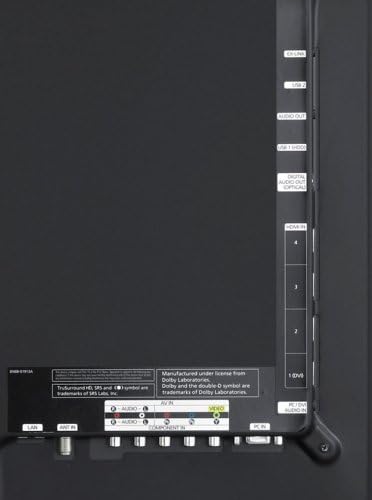
Figure 3: Detailed view of the side and bottom connection ports, including HDMI, USB, Component, PC, Ethernet, and Optical Digital Audio Out.
2.3 Initial Power On
After connecting all desired devices and the power cable, press the power button on the TV or remote control. Follow the on-screen prompts for initial setup, including language selection and channel scanning.
3. Operating the TV
3.1 Picture Quality Features
- Full HD 1080p: Provides 1920 x 1080 pixel resolution for detailed and clear images.
- LED Picture Quality: Utilizes LED backlighting for a wide range of brightness, from deep blacks to bright whites, and improved contrast.
- Auto Motion Plus 120Hz: This technology doubles the frame rate from 60 to 120 frames per second, reducing motion blur and image judder in fast-moving scenes.
- Ultra Clear Panel: Advanced LCD technology that enhances image details, natural skin tones, and vibrant colors while reducing reflections from ambient light.
- Wide Color Enhancer Pro: Optimizes color hue for more natural and accurate color rendering.
3.2 Smart Features and Connectivity
- Internet@TV (Medi2.0): Access online content services from providers like Yahoo!, Flickr, and YouTube through on-screen TV widgets. Requires a wired Ethernet connection or an optional Samsung LinkStick wireless LAN adapter.
Video 1: An overview of the Internet@TV feature, demonstrating access to various online content services and widgets.
- InfoLink RSS Service: Get real-time news, weather, stock quotes, and sports information from USA Today directly on your TV screen without interrupting your viewing.
Video 2: Demonstration of the InfoLink RSS service, showing how to access real-time news, weather, and sports updates on the TV.
- DLNA-compatible: Allows for seamless interoperability with other DLNA-certified electronics, computers, and mobile devices, enabling easy sharing of digital content across your home network.
- USB 2.0 Media Playback: Connect a USB device to play back JPEG photos, MPEG movies, or MP3 audio files directly on your TV.
- Anynet Plus (HDMI-CEC): Enables control of compatible peripheral AV devices (e.g., DVD player) using your Samsung TV remote control.
- Content Library (2 GB Flash Memory): Features a built-in library with photo art, games, workout routines, recipes, and other digital content. Additional items and updates may be available from Samsung.com.
3.3 Audio Features
- SRS TruSurround HD: Creates an immersive surround sound experience from the TV's built-in speakers, with rich bass, high-frequency detail, and clear dialogue.
- Down-firing Stereo Speakers: Two 10-watt speakers (20 watts total power) with a subwoofer provide clear audio output.
3.4 Convenience Features
- Game Mode: Optimizes picture and sound quality for gaming systems by enhancing dark areas, sharpening the picture, and speeding up image processing response.
- Picture-in-Picture (PIP): Allows simultaneous viewing of TV programs and video or PC content sources.
- V-Chip System: Enables parental control by blocking rated TV and movie programs.
- Trilingual On-Screen Displays: Menu options are available in English, Spanish, or French.
- Variable Sleep Timer: Program the TV to turn off automatically at specified time intervals.
4. Maintenance
4.1 Energy Savings
The Samsung UN40B7000 LED TV is designed for energy efficiency, using up to 40 percent less power than conventional LCD TVs. It is Energy Star Compliant, reducing energy consumption by up to 25 percent compared to standard TVs. The TV includes a power indicator menu and an optimized energy savings mode to help manage power usage.
4.2 General Care
To maintain the appearance and performance of your TV, regularly clean the screen and bezel with a soft, dry cloth. Avoid using harsh chemicals or abrasive materials. Ensure proper ventilation around the TV to prevent overheating.
5. Troubleshooting
If you encounter issues with your Samsung UN40B7000 HDTV, consider the following basic troubleshooting steps:
- No Power: Ensure the power cable is securely connected to both the TV and a working electrical outlet.
- No Picture/Sound: Verify that all external devices are correctly connected to the appropriate input ports and that the correct input source is selected on the TV. Check the volume settings.
- Poor Picture Quality: Check the signal source (cable, satellite, antenna) and ensure it is providing a strong, clear signal. Adjust picture settings (brightness, contrast, sharpness) in the TV menu.
- Network Connectivity Issues: For wired connections, ensure the Ethernet cable is properly connected. For wireless, ensure the optional Samsung LinkStick is installed and configured correctly, and that your wireless network is functioning.
For more detailed troubleshooting or persistent issues, please refer to the comprehensive user manual available on the Samsung support website or contact Samsung customer support.
6. Specifications
| Feature | Specification |
|---|---|
| Model Number | UN40B7000 |
| Screen Size | 40 Inches |
| Display Technology | LED |
| Resolution | 1920 x 1080 (Full HD 1080p) |
| Refresh Rate | 120 Hz |
| Product Dimensions (without stand) | 39.2 x 24.8 x 1.2 inches (WxHxD) |
| Product Dimensions (with stand) | 39.2 x 27.2 x 10 inches (WxHxD) |
| Item Weight (with stand) | 60.4 pounds |
| HDMI Inputs | 4 (side) |
| USB Ports | 2 (side) |
| Component Video Input | 1 (bottom) |
| PC Input | 1 (bottom) |
| Ethernet Port | 1 (bottom) |
| Optical Digital Audio Output | 1 (side) |
| Audio Output Power | 2 x 10W (20W total) |
| Supported Internet Services | Yahoo, Internet@TV |
| Included Components | Stand, TV |

Figure 4: Dimensional diagram of the Samsung UN40B7000 LED HDTV with stand.
7. Warranty and Support
7.1 Warranty Information
The Samsung UN40B7000 LED HDTV comes with a 1-year parts and 1-year labor warranty for residential use. For commercial use, the warranty is 90 days parts and labor. In-home service is typically provided, backed by Samsung's toll-free support.
7.2 Customer Support
For technical assistance, warranty claims, or service inquiries, please contact Samsung customer support. Refer to your product registration or the official Samsung website for the most current contact information.
8. Optional Accessories
Enhance your TV experience with these optional accessories:
- Samsung WIS09ABGN LinkStick Wireless LAN Adapter: Connect wirelessly to your home network for Internet@TV services without the need for an Ethernet cable.
- Samsung WMN1000B Fixed Low-Profile Wall Mount: A picture frame-style mount for simple wall installation. Mounting hardware is typically included with the mount.


