
1. Introduction
This manual provides essential information for the safe and effective operation of your Canon PowerShot A480 digital camera. Please read it thoroughly before using the camera and retain it for future reference. The PowerShot A480 is a compact digital camera featuring 10.0-megapixel resolution, a 3.3x optical zoom lens, and a 2.5-inch LCD screen, designed for ease of use and high-quality image capture.
2. Package Contents
Verify that all items listed below are included in your camera package:
- PowerShot A480 camera body
- AA-size alkaline batteries (x2)
- 128 MB SD memory card (SDC-128MB)
- Wrist strap (WS-800)
- Digital Camera Solution CD-ROM
- USB interface cable (IFC-400PCU)
- AV cable (AVC-DC300)
3. Camera Components
3.1 Front View
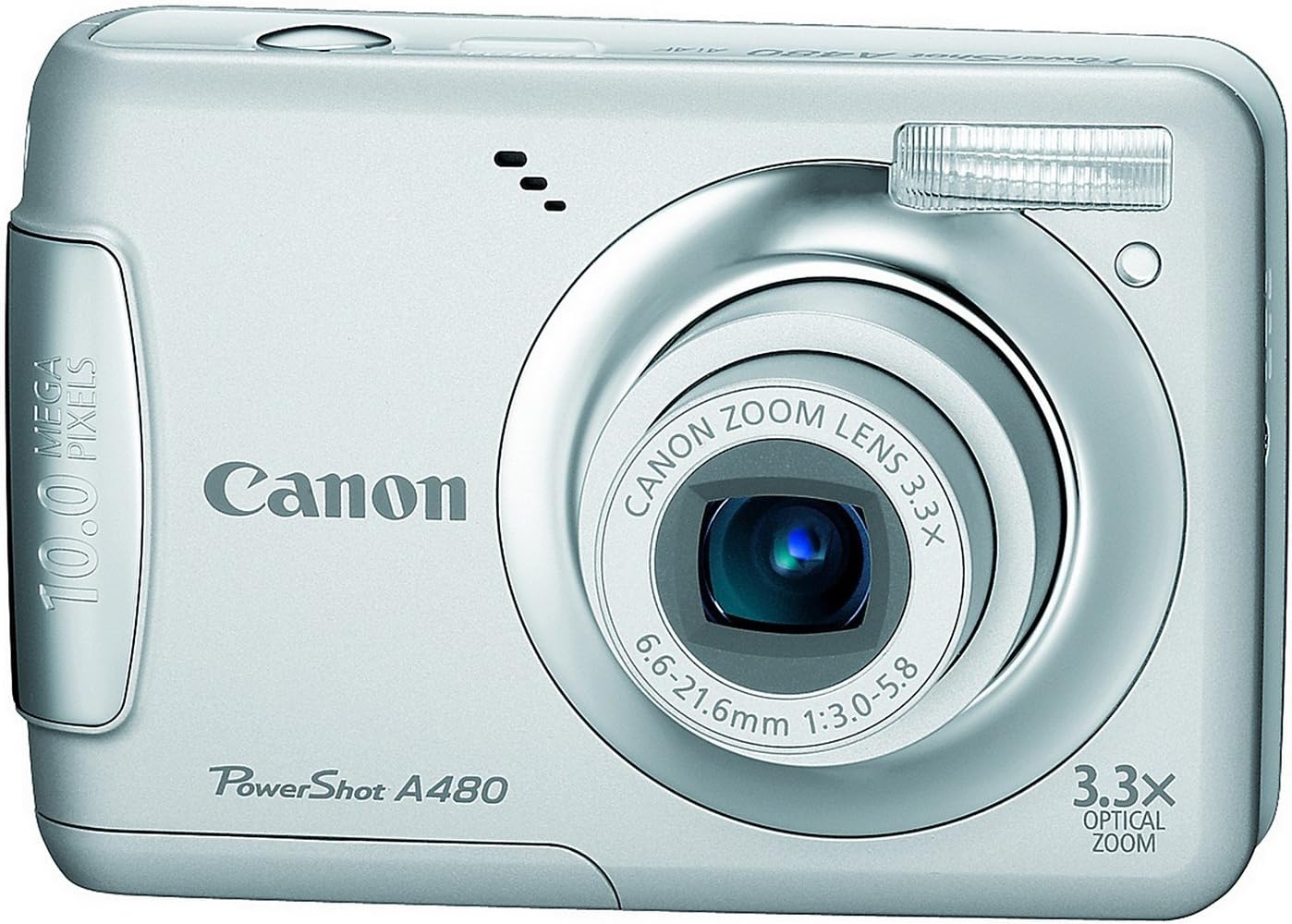
The front of the camera features the 3.3x optical zoom lens, the built-in flash, and the autofocus assist beam. The lens is protected by an automatic cover when the camera is off.
3.2 Rear View

The rear of the camera is dominated by the 2.5-inch LCD screen for composing shots and reviewing images. Control buttons include the directional pad, FUNC./SET button, Menu button, Display button, and Playback button.
4. Setup
4.1 Inserting Batteries
- Open the battery compartment cover located on the bottom of the camera.
- Insert two AA-size alkaline batteries, ensuring correct polarity (+/-).
- Close the battery compartment cover securely.
4.2 Inserting a Memory Card
The camera supports SD/SDHC, MMC/MMC Plus/HC MMC Plus memory cards.
- Open the memory card slot cover, usually located near the battery compartment.
- Insert the memory card with the label facing the front of the camera until it clicks into place.
- Close the memory card slot cover.
5. Operating Instructions
5.1 Powering On/Off
Press the Power button located on the top of the camera to turn it on or off. The lens will extend when powered on.
5.2 Selecting Shooting Modes
The PowerShot A480 offers 15 shooting modes, including 12 Special Scene Modes. Rotate the mode dial (if present) or navigate through the menu to select your desired shooting mode. Modes include:
- Auto Mode: Camera automatically optimizes settings.
- Program AE (P) Mode: Allows more control over settings while maintaining automatic exposure.
- Special Scene Modes: Optimized settings for specific scenarios like Portrait, Landscape, Night Snapshot, Kids & Pets, Indoor, etc.
5.3 Using the Zoom
Use the zoom lever/buttons (typically around the shutter button) to adjust the 3.3x optical zoom. Zoom in to magnify distant subjects or zoom out to capture a wider scene.
5.4 Flash Settings
The camera features a built-in flash. Press the flash button (often part of the directional pad) to cycle through flash modes such as Auto, Flash On, Flash Off, and Red-eye Reduction. The DIGIC III Image Processor includes Red-eye Correction during shooting and playback.
5.5 Recording Videos
To record a video, switch to video mode (if available via mode dial) or select it from the menu. Press the shutter button to start and stop recording. The camera supports video resolutions of 640 x 480 (30 fps) and 320 x 240 (30 fps).
6. Maintenance
6.1 Cleaning the Camera
- Use a soft, dry cloth to clean the camera body.
- For the lens, use a lens brush or a soft, lint-free cloth specifically designed for optical lenses. Avoid touching the lens with your fingers.
- Clean the LCD screen gently with a soft cloth.
6.2 Battery Care
- Remove batteries when the camera will not be used for an extended period.
- Store batteries in a cool, dry place.
- Do not expose batteries to excessive heat or direct sunlight.
7. Troubleshooting
| Problem | Possible Cause | Solution |
|---|---|---|
| Camera does not power on | Batteries are depleted or incorrectly inserted. | Replace with fresh batteries or reinsert them correctly. |
| "Lens Error" message appears | Obstruction in the lens mechanism or lens is jammed. | Turn the camera off and on again. Ensure no foreign objects are near the lens. If the problem persists, contact customer support. |
| Images are blurry | Camera shake, subject movement, or incorrect focus. | Hold the camera steady, use the Optical Image Stabilizer, or ensure the subject is within the autofocus range. |
| Red-eye in photos | Flash used in low light conditions. | Enable Red-eye Reduction flash mode or use the in-camera Red-eye Correction feature during playback. |
| Memory card error | Card is full, corrupted, or incompatible. | Delete unnecessary files, format the card (this will erase all data), or try a different compatible memory card. |
8. Specifications
| Feature | Specification |
|---|---|
| Model Name | A480 |
| Photo Sensor Resolution | 10 MP |
| Optical Zoom | 3.3 x |
| Digital Zoom | 4 x |
| Screen Size | 2.5 Inches |
| Image Stabilization | Digital, Optical |
| Video Resolution | 640 x 480 (30 fps), 320 x 240 (30 fps) |
| Supported File Format | JPEG, RAW |
| Flash Memory Type | SD/SDHC/MMC/MMCplus |
| Battery Type | 2 x AA Alkaline or NiMH Batteries |
| Item Weight | 0.31 Pounds |
| Connectivity Technology | USB |
9. Warranty and Support
For warranty information, please refer to the documentation included in your product package. For technical support, troubleshooting assistance, or service inquiries, please visit the official Canon website or contact Canon customer service directly.