
Introduction
This manual provides essential instructions for the safe and efficient use of your Mustek PowerMate 625 Power Supply. The PowerMate 625 is a 360W power supply unit designed for computer systems, providing stable and reliable power to your components. Please read this manual thoroughly before installation and operation, and retain it for future reference.
Safety Instructions
- Electrical Safety: Always disconnect the power supply from the mains outlet before performing any installation, maintenance, or troubleshooting.
- Ventilation: Ensure adequate ventilation around the power supply. Do not block any ventilation openings.
- Moisture: Do not expose the power supply to water or excessive humidity.
- Temperature: Operate the power supply within recommended temperature ranges. Avoid extreme heat or cold.
- Professional Installation: If you are unsure about any installation steps, seek assistance from a qualified technician.
- Internal Components: Do not open the power supply casing. High voltage components inside can cause electric shock. There are no user-serviceable parts inside.
Package Contents
Verify that all items are present in the package:
- Mustek PowerMate 625 Power Supply Unit
- AC Power Cord (may vary by region)
- User Manual (this document)
Setup
Follow these steps to properly install your Mustek PowerMate 625 Power Supply into your computer system.
- Prepare Your System: Ensure your computer is completely powered off and unplugged from the wall outlet. Open your computer case.
- Remove Old Power Supply (if applicable): Disconnect all cables from the old power supply to your motherboard, graphics card, and other components. Unscrew and remove the old power supply from the case.
- Install New Power Supply: Carefully place the Mustek PowerMate 625 into the power supply bay of your computer case. Ensure the fan faces the correct direction for optimal airflow (usually facing down or out the back of the case). Secure the power supply with screws provided with your computer case or the power supply itself.
- Connect Main Power Cables:
- Connect the 20+4 pin ATX connector to your motherboard. Ensure it clicks into place.
- Connect the 4+4 pin (or 8-pin) EPS/ATX 12V connector to your motherboard's CPU power socket.
- Connect Peripheral Cables: Connect SATA power connectors to your hard drives, SSDs, and optical drives. Connect Molex connectors to any other peripherals that require them.
- Connect Graphics Card Power (if applicable): If your graphics card requires additional power, connect the appropriate PCIe power connectors (6-pin or 6+2 pin).
- Close Case and Connect AC Power: Once all internal connections are secure, close your computer case. Connect the AC power cord to the power supply's inlet and then to a grounded wall outlet.
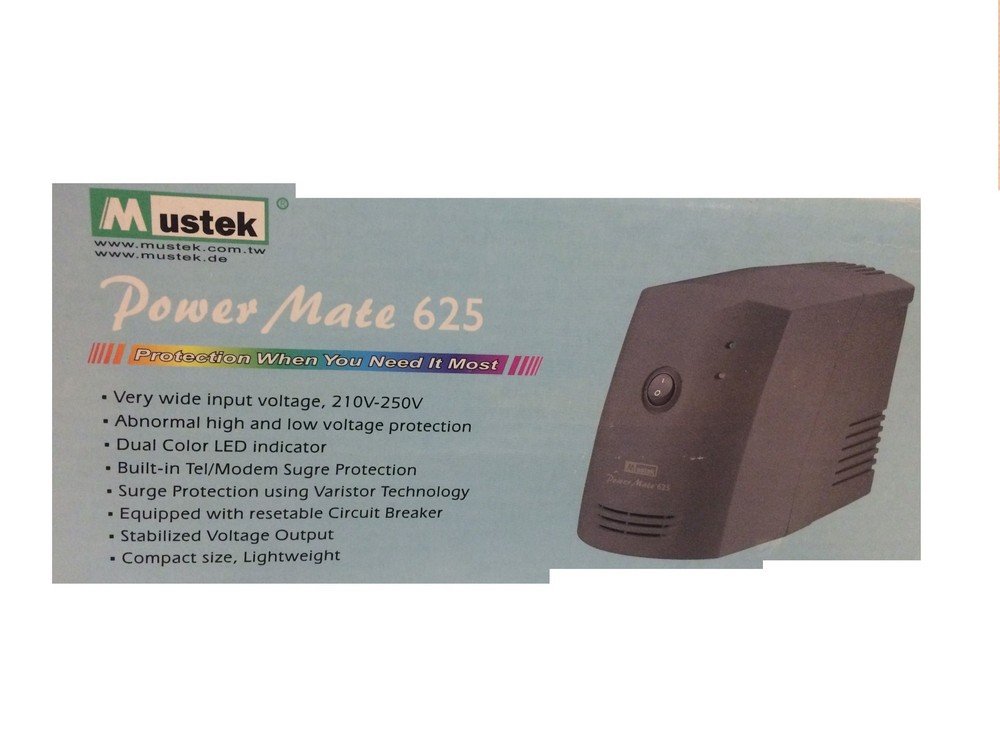
Image 1: Front view of the Mustek PowerMate 625 Power Supply. This image shows the main unit with its power button and indicator lights, ready for installation into a computer case.
Operating Instructions
After successful installation, operating the PowerMate 625 is straightforward.
- Power On: Ensure the main power switch on the back of the power supply (if present) is in the 'ON' position. Press the power button on your computer case. The power supply will begin to deliver power to your system.
- Indicator Lights: The PowerMate 625 features indicator lights on its front panel (as shown in Image 1). These lights typically indicate power status or operational mode. Refer to your computer's motherboard manual for specific power-on sequence indicators.
- Power Off: To turn off your computer, use the operating system's shutdown procedure. The power supply will cease operation once the system is fully shut down. For complete power disconnection, turn off the main switch on the power supply and unplug it from the wall.
Maintenance
Proper maintenance ensures the longevity and optimal performance of your power supply.
- Keep Vents Clear: Regularly check that the ventilation openings on the power supply and your computer case are not obstructed by dust or other debris. Blocked vents can lead to overheating.
- Dust Removal: Periodically clean the exterior of the power supply and the interior of your computer case using compressed air. Ensure the computer is powered off and unplugged before cleaning.
- Cable Management: Ensure internal cables are neatly managed to promote good airflow within the computer case, which helps keep the power supply cool.
Troubleshooting
If you encounter issues with your PowerMate 625, refer to the following common problems and solutions.
| Problem | Possible Cause | Solution |
|---|---|---|
| Computer does not power on. |
|
|
| System instability or random shutdowns. |
|
|
| Loud fan noise from PSU. |
|
|
Specifications
Technical specifications for the Mustek PowerMate 625 Power Supply.
| Feature | Detail |
|---|---|
| Brand | Mustek |
| Model | 98-AVR-R0625 |
| Product Dimensions | 19.99 x 10.49 x 14 cm |
| Item Weight | 1.34 kg |
| Wattage | 360 watts |
| Voltage | 230 Volt |
| Noise Level | 40 Decibel |
| First Available Date | 7 February 2009 |
Warranty and Support
For warranty information and technical support, please refer to the documentation provided with your purchase or contact your retailer. Keep your proof of purchase for warranty claims.
For further assistance, you may also visit the official Mustek website or contact their customer service department.