
Introduction
The Tascam DP-004 Digital 4-Track Recorder is a compact and portable multi-track recording device designed for musicians and audio creators. It allows for the capture of high-quality audio, overdubbing, mixing, and mastering of up to four tracks. This manual provides comprehensive instructions for setting up, operating, maintaining, and troubleshooting your DP-004 to ensure optimal performance and longevity.
Product Overview
The Tascam DP-004 is engineered for ease of use, drawing inspiration from traditional cassette Portastudios while incorporating modern digital capabilities. Key features include:
- Four CD-quality audio tracks for recording.
- Built-in stereo condenser microphone for immediate recording.
- Two 1/4-inch mic/line inputs, with one switchable to guitar level.
- Headphone/Line output for monitoring and playback.
- USB 2.0 connectivity for data transfer to a computer.
- Records directly to SD Card media.
- Functions like Autopunch, Repeat, and Undo for precise editing.
- Dedicated stereo mixdown track for mastering.
- Bounce feature to consolidate tracks and free up recording space.
- Power via AA batteries or an optional PS P520 power adapter.

Figure 1: Front view of the Tascam DP-004, showing the control panel with input settings, track controls, and navigation buttons.
Setup
1. Powering the Unit
The DP-004 can be powered by four (4) AA batteries or an optional Tascam PS P520 AC adapter.
- Battery Installation: Open the battery compartment cover located on the bottom of the unit. Insert four AA batteries, ensuring correct polarity.
- AC Adapter Connection: If using an AC adapter, connect it to the DC IN 5V port on the side of the unit.
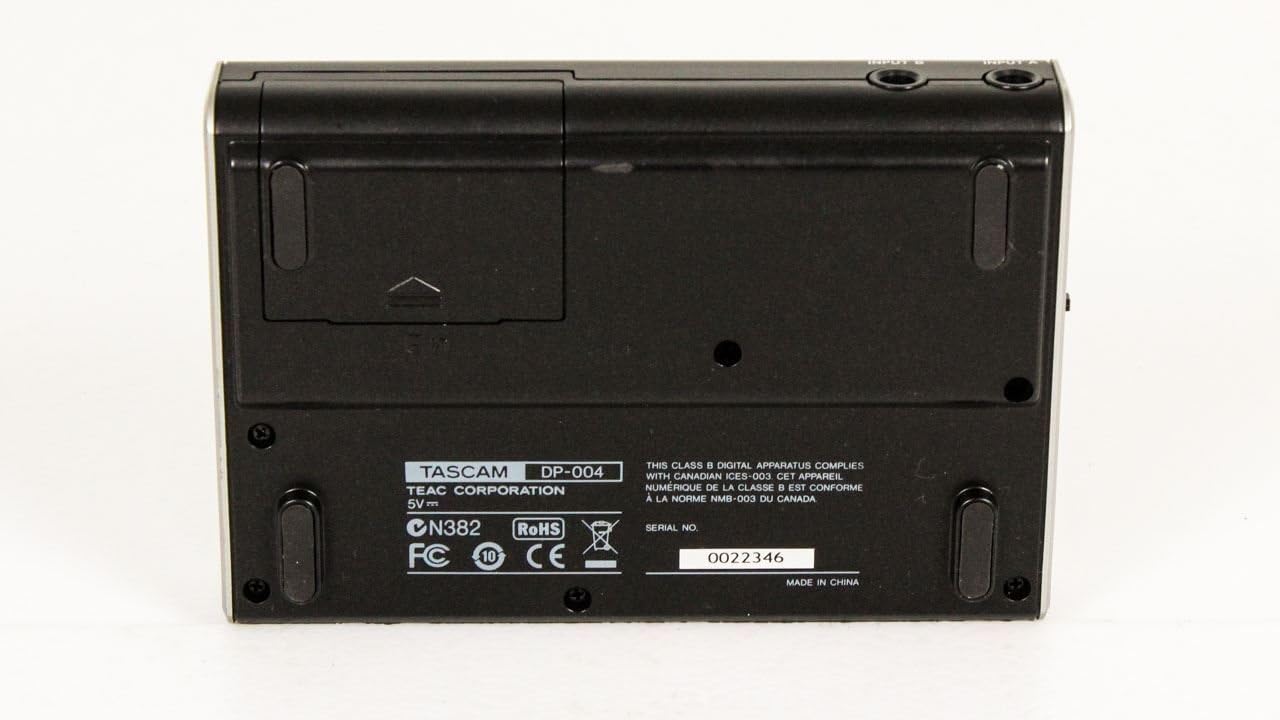
Figure 2: Bottom view of the DP-004, illustrating the battery compartment where AA batteries are inserted and the SD card slot is located.
2. SD Card Installation
The DP-004 records to SD Card media. The SD card slot is located within the battery compartment.
- Ensure the unit is powered off.
- Open the battery compartment cover.
- Carefully insert the SD card into its designated slot until it clicks into place.
- Close the battery compartment cover.
3. Connecting Inputs and Outputs
Connect your microphones, instruments, and headphones to the appropriate ports.
- Microphone/Line Inputs: Use the two 1/4-inch jacks on the rear panel for dynamic microphones or line-level sources.
- Guitar Input: One of the 1/4-inch inputs can be switched to a guitar level signal for direct instrument recording.
- Headphone/Line Output: Connect headphones for monitoring or a line-out cable to an external mixer or amplifier.
- USB Connection: Use the USB 2.0 port to connect the DP-004 to a computer for data transfer.

Figure 3: Side view of the DP-004, highlighting the USB port, DC power input, and Input B jack.
Operating Instructions
1. Basic Recording
- Power On: Press the POWER button to turn on the unit.
- Select Track: Use the track buttons (TRACK 1-4) to select the desired track for recording.
- Set Input Level: Adjust the INPUT A/B LEVEL knobs to set the recording level. Monitor the display to avoid clipping.
- Arm Track: Press the REC button for the selected track to arm it for recording. The button will illuminate.
- Start Recording: Press the PLAY button to begin recording. Press it again to stop.
- Using Built-in Microphones: The DP-004 features integrated stereo condenser microphones. Simply ensure no external inputs are active if you wish to use the built-in mics.
2. Overdubbing and Track Management
To add more layers to your song, you can overdub on empty tracks while listening to previously recorded tracks.
- Overdubbing: Play back existing tracks, arm an empty track, and record your new part.
- Bounce Feature: When all four tracks are full, use the Bounce feature to combine multiple tracks into one or two new tracks, freeing up space for additional overdubbing. Refer to the detailed manual for specific steps on bouncing tracks.
3. Mixing and Mastering
Once all tracks are recorded, you can mix them down to a stereo master track.
- Adjust Levels and Pan: Use the LEVEL and PAN knobs for each track to achieve your desired mix.
- Record Mixdown: Record your final mix onto the dedicated stereo master track. This creates a stereo WAV file of your song.
4. Data Transfer to Computer
Transfer your recorded tracks and stereo mixes to a computer for further editing, burning to CD, or sharing online.
- Connect the DP-004 to your computer using a USB 2.0 cable.
- The DP-004 will appear as an external storage device (like an SD card reader).
- Drag and drop your WAV files from the DP-004's SD card to your computer.
Maintenance
- Cleaning: Use a soft, dry cloth to clean the exterior of the unit. Avoid abrasive cleaners or solvents.
- Battery Care: Remove batteries if the unit will not be used for an extended period to prevent leakage.
- SD Card Handling: Always safely eject the SD card from your computer before disconnecting the USB cable. Avoid removing the SD card while the unit is powered on or actively recording/playing.
- Storage: Store the DP-004 in a cool, dry place away from direct sunlight and extreme temperatures.
Troubleshooting
| Problem | Possible Cause / Solution |
|---|---|
| Unit does not power on. | Check battery installation and charge. Ensure AC adapter is properly connected if used. |
| No sound during recording or playback. | Verify input/output connections. Check volume levels on the DP-004 and connected devices. Ensure correct track is armed for recording or selected for playback. |
| Recording sounds distorted or too quiet. | Adjust input level knobs. Avoid setting levels too high (clipping) or too low. Check microphone placement and sensitivity. |
| Cannot transfer files to computer. | Ensure USB cable is securely connected. Verify the DP-004 is recognized as a storage device by your computer. Try a different USB port or cable. |
| "Clicking" sound recorded when pressing REC button. | This is a physical characteristic of the button. To avoid recording this sound, ensure the built-in microphones are not active or are sufficiently far from the unit when pressing the button, or use external microphones. |
| Poor quality with external microphones. | The DP-004's inputs are designed for specific signal levels. Ensure your external microphone is compatible and consider using a preamplifier if necessary, especially for condenser microphones requiring phantom power (which the DP-004 does not provide). |
Specifications
| Feature | Detail |
|---|---|
| Model Number | DP-004 (TAS DP004) |
| Recording Tracks | 4 (stereo master track also available) |
| Media Format | WAV |
| Memory Storage Capacity | 1 GB (SD Card) |
| Inputs | Two 1/4-inch mic/line inputs (one switchable to guitar level) |
| Outputs | Headphone/Line output (3.5 mm jack) |
| Microphone Form Factor | Built-In stereo condenser microphones |
| Hardware Interface | USB 2.0 |
| Power Supply | 4 AA batteries or optional DC 5V AC adapter (PS P520) |
| Battery Type | Alkaline |
| Item Weight | 1.3 pounds |
| Product Dimensions | 9 x 3 x 5.75 inches |
| Color | Black |
| Date First Available | November 2, 2008 |
Warranty and Support
For information regarding warranty coverage, technical support, or service, please refer to the warranty card included with your product or visit the official Tascam website. You can also find additional resources and contact information on the Tascam Store on Amazon.


