
Logitech K740
Logitech Illuminated Ultrathin Keyboard K740 User Manual
Model: K740 (920-000914) | Brand: Logitech
Introduction
The Logitech Illuminated Ultrathin Keyboard K740 is designed to provide a superior typing experience with its laser-etched backlit keys and comfortable soft-touch palm rest. Its ultra-thin profile adds a sleek aesthetic to any workspace. This manual provides essential information for setting up, operating, maintaining, and troubleshooting your keyboard.
What's in the Box:
- Logitech Illuminated Keyboard K740
- User Documentation
- Soft-Touch Palm Rest (integrated)
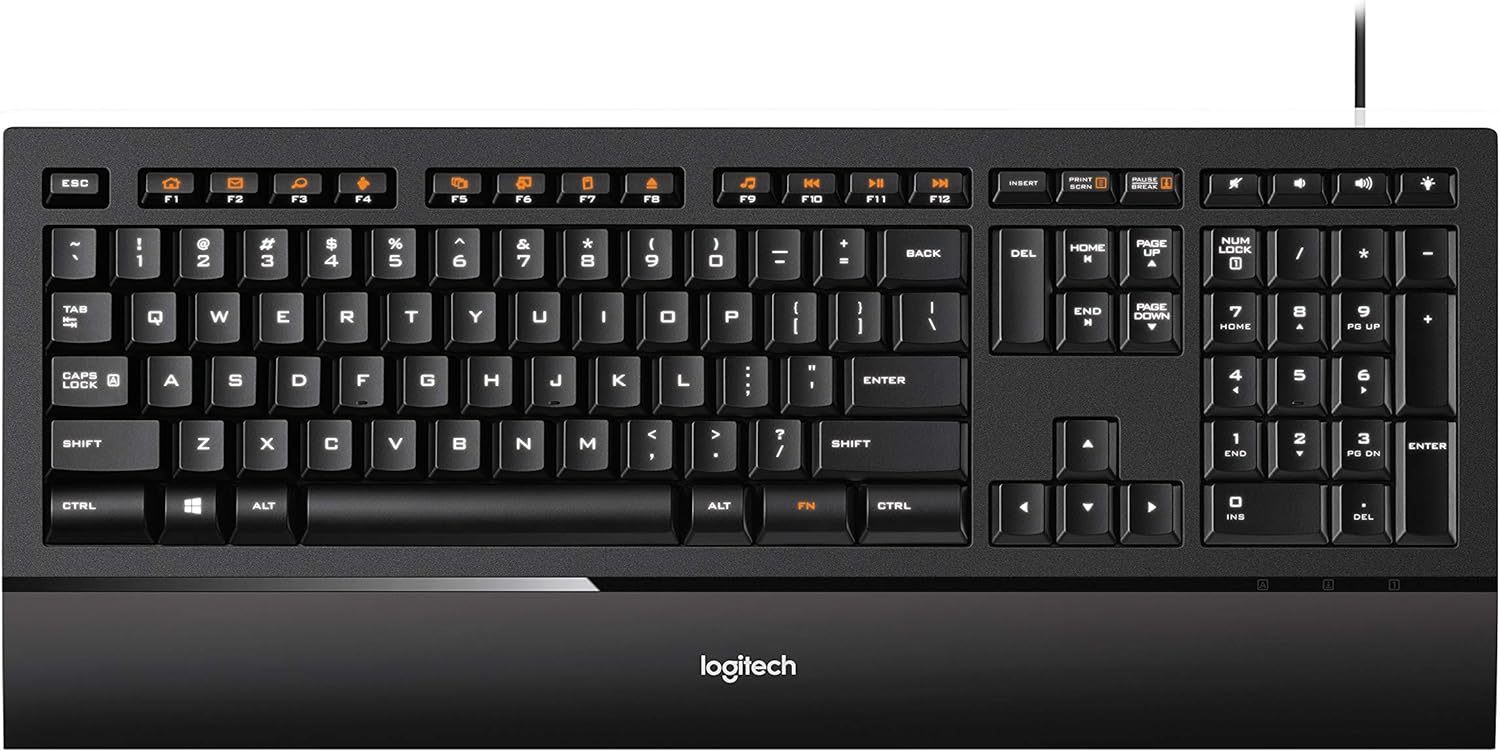
Figure 1: Top-down view of the Logitech Illuminated Ultrathin Keyboard K740, showcasing its full layout and integrated palm rest.
Setup
System Requirements
- Operating System: Windows 10, Windows 8, Windows 7, Windows XP, or Windows Vista
- Available USB port
Connecting the Keyboard
- Unpack the Logitech Illuminated Ultrathin Keyboard K740 from its packaging.
- Locate an available USB port on your computer.
- Insert the USB cable from the keyboard firmly into the USB port. The keyboard is plug-and-play and does not require additional drivers for basic functionality.
- The keyboard's backlighting will illuminate upon successful connection.

Figure 2: The Logitech K740 keyboard integrated into a typical desktop computer setup, demonstrating its sleek design.
Operating the Keyboard
Backlit Keys
The K740 features laser-etched backlit keys that provide clear visibility in various lighting conditions.
- Adjusting Brightness: Use the dedicated brightness control keys (typically F5 and F6, or indicated by sun icons) to increase or decrease the illumination level. There are multiple brightness settings, including off.
- Automatic Illumination: The backlighting is designed to provide optimal visibility, with only the key characters illuminated.

Figure 3: A close-up view highlighting the laser-etched backlit keys, which provide clear visibility in low-light environments.
PerfectStroke Key System
The PerfectStroke key system ensures that typing force is distributed evenly across the key surfaces. This results in a quiet, natural, and fluid typing experience, even if you strike the edge of a key.
Function (FN) Keys
The keyboard includes a row of function keys (F1-F12) that can perform additional tasks when pressed in combination with the FN key (located near the right Alt key). These functions are typically indicated by orange icons on the keys.
Common FN key functions include:
- Media controls (Play/Pause, Stop, Previous/Next Track)
- Volume control (Mute, Volume Down, Volume Up)
- Application shortcuts (e.g., launching email, web browser, search)
- Brightness adjustment (as mentioned above)
Integrated Soft-Touch Palm Rest
The built-in soft-touch palm rest is designed to help position your hands for more comfortable typing, reducing strain during extended use. Its soft, rubberized coating enhances comfort.
Maintenance
Regular cleaning helps maintain the performance and appearance of your Logitech K740 keyboard.
- General Cleaning: Use a soft, lint-free cloth slightly dampened with water or a mild cleaning solution to wipe down the keycaps and palm rest. Avoid harsh chemicals or abrasive materials.
- Removing Debris: For crumbs or dust under the keys, use a can of compressed air to blow out debris. Hold the can upright and use short bursts.
- Keycap Removal (Advanced): While keycaps can be removed for deeper cleaning, exercise extreme caution. The scissor switches are delicate. If removing, gently pry from the sides, not the bottom, to avoid breaking the small hooks. Re-attaching requires careful alignment.

Figure 4: Side profile of the Logitech K740 keyboard, illustrating its ultra-thin design and integrated palm rest.
Troubleshooting
If you encounter issues with your Logitech K740 keyboard, try the following steps:
- Keyboard Not Responding:
- Ensure the USB cable is securely plugged into a working USB port on your computer.
- Try plugging the keyboard into a different USB port.
- Restart your computer.
- Backlighting Not Working or Dim:
- Press the brightness increase key (typically F6 or the sun icon with a plus) to ensure the brightness is not set to minimum or off.
- Verify the keyboard is properly connected to the USB port, as power is supplied via USB.
- Keys Not Registering or Sticking:
- Check for any visible debris under the affected keys. Use compressed air to clear it.
- If a specific key is consistently problematic, it may indicate a hardware issue.
- Function (FN) Keys Not Working:
- Ensure you are pressing the FN key simultaneously with the desired function key.
- For advanced customization or persistent issues, visit the Logitech support website for potential software updates or troubleshooting tools.
If these steps do not resolve the issue, please refer to the official Logitech support resources.
Specifications
| Feature | Detail |
|---|---|
| Brand | Logitech |
| Model Name | K740 |
| Item Model Number | 920-000914 |
| Connectivity Technology | Wired (USB) |
| Operating System Compatibility | Windows 10, Windows 8, Windows 7, Windows XP, Windows Vista |
| Keyboard Description | Multimedia |
| Number of Keys | 104 |
| Backlighting | Laser-etched backlit keys, Single Color (White), Manual brightness adjustment |
| Key System | PerfectStroke |
| Palm Rest | Integrated Soft-Touch Palm Rest |
| Color | Black |
| Item Weight | 2.31 pounds (approx. 1.05 kg) |
| Product Dimensions (LxWxH) | 18 x 8 x 3 inches (approx. 45.7 x 20.3 x 7.6 cm) |
| Power Source | Corded Electric (USB powered) |
Warranty and Support
For detailed warranty information, please refer to the warranty card included with your product or visit the official Logitech website.
Customer Support:
- For technical assistance, FAQs, and driver downloads, visit the Logitech Support website.
- You can also find additional user documentation and community forums on the official Logitech website.
Related documentsK740


Ask a question about this manual
Ask about setup, troubleshooting, compatibility, parts, safety, or missing instructions. Manuals+ will review the question and use this page’s manual context to help answer it.