
1. Introduction
This manual provides comprehensive instructions for the installation, configuration, and operation of your SABRENT NT-WRLRT Wireless 802.11g Router. This device is designed to provide a wireless network solution for Small Office/Home Office (SOHO) environments, enabling shared internet access, file sharing, and secure wireless connectivity.
2. Package Contents
Please verify that all items listed below are present in your package:
- SABRENT NT-WRLRT 802.11g Wireless Cable/DSL Gateway Router
- Power Supply Unit
- Long Range Performance Antenna
- Quick Installation Guide
- RJ-45 Networking Cable
3. Product Overview
The SABRENT NT-WRLRT router integrates a wireless access point, a 4-port Ethernet switch, and a router into a single device. It supports 802.11g and 802.11b wireless standards, offering data rates up to 54Mbps.
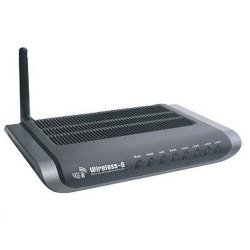
Figure 1: Front view of the SABRENT NT-WRLRT Wireless Router, showing indicator lights and ports.
Key Features:
- Complies with IEEE 802.11g, IEEE 802.11b, IEEE 802.3, IEEE 802.3u standards.
- One 10/100M Auto-Negotiation RJ45 WAN port.
- Four 10/100M Auto-Negotiation RJ45 LAN ports with Auto MDI/MDIX support.
- Supports 54/48/36/24/18/12/9/6/11/5.5/3/2/1Mbps wireless LAN data transfer rates.
- Integrated NAT and DHCP server with static IP address distribution.
- Built-in firewall supporting IP address filtering, Domain Name filtering, and MAC address filtering.
- Supports WEP, WPA/WPA2, and WPA-PSK/WPA2-PSK authentication with TKIP/AES encryption.
- Supports TCP/IP, PPPoE, DHCP, ICMP, NAT protocols.
- Remote and Web management capabilities.
4. Setup
4.1 System Requirements
- Broadband Internet connection (e.g., cable or DSL modem) with an RJ45 (Ethernet) connection.
- At least one computer with an installed network interface adapter.
- TCP/IP networking protocol installed on each computer.
- RJ45 Ethernet networking cable.
- Internet browser (e.g., Chrome, Firefox, Edge).
4.2 Hardware Installation
- Connect the Antenna: Screw the provided antenna onto the antenna connector at the rear of the router.
- Connect to Modem: Connect one end of the RJ-45 networking cable to the WAN port on the router and the other end to your cable or DSL modem.
- Connect to Computer (Optional for initial setup): Connect one end of an RJ-45 networking cable to any of the LAN ports (1-4) on the router and the other end to the Ethernet port on your computer.
- Power On: Connect the power adapter to the router's power input and then plug it into a standard electrical outlet. The power indicator light on the router should illuminate.
- Verify Connections: Wait for the router to initialize. Check the indicator lights for WAN, LAN, and WLAN to ensure proper connection status.
4.3 Initial Configuration Access
To access the router's web-based management interface:
- Ensure your computer is connected to the router via an Ethernet cable or wirelessly (if the default wireless network is broadcasting).
- Open a web browser.
- In the address bar, type the router's default IP address (usually
192.168.1.1or192.168.0.1, refer to the Quick Installation Guide for the exact default IP). - Press Enter. You will be prompted for a username and password. The default credentials are typically
adminfor both username and password. - Once logged in, you can proceed with configuring your network settings.
5. Operating Instructions
5.1 Internet Connection
After initial setup, the router should automatically establish an internet connection if your modem is properly configured. You can verify the connection status through the router's web interface.
- Dynamic IP: Most cable modem users will use this setting. The router obtains an IP address automatically from your ISP.
- PPPoE: Common for DSL users. You will need to enter the username and password provided by your ISP.
- Static IP: Less common for home users. You will need to manually enter the IP address, subnet mask, gateway, and DNS server information provided by your ISP.
5.2 Wireless Network Connection
To connect wireless devices (laptops, smartphones, tablets) to your router:
- On your wireless device, search for available Wi-Fi networks.
- Select the network name (SSID) of your SABRENT NT-WRLRT router. The default SSID is usually "SABRENT" or similar, as indicated in the Quick Installation Guide.
- If prompted, enter the wireless security key (password). The default key is typically found on a label on the router or in the Quick Installation Guide.
- Once connected, your device should have internet access through the router.
6. Advanced Configuration
Access the router's web management interface to configure advanced settings.
6.1 Wireless Security Settings
It is highly recommended to configure wireless security to protect your network from unauthorized access.
- WEP (Wired Equivalent Privacy): An older, less secure encryption method.
- WPA/WPA2-PSK (Wi-Fi Protected Access - Pre-Shared Key): Recommended for stronger security. Choose WPA2-PSK with AES encryption for the best protection. You will set a passphrase (network key) for your wireless network.
- Wireless LAN ACL (Access Control List) Filtering: Allows you to specify which wireless devices (based on MAC address) are permitted or denied access to your network.
6.2 Network Settings (LAN & DHCP)
The router includes a built-in DHCP server that automatically assigns IP addresses to devices on your local network. You can configure the DHCP range or assign static IP addresses if needed.
6.3 Firewall Settings
The integrated firewall provides protection for your network. You can configure:
- IP Address Filtering: Block or allow specific IP addresses.
- Domain Name Filtering: Block access to certain websites.
- MAC Address Filtering: Control network access based on device MAC addresses.
- VPN Pass-through: Allows VPN connections to pass through the router.
6.4 Firmware Upgrade
Periodically check the SABRENT website for firmware updates. Upgrading firmware can improve performance, add new features, or fix bugs. Follow the instructions provided with the firmware update carefully.
7. Maintenance
To ensure optimal performance and longevity of your router:
- Placement: Place the router in a central location, away from obstructions, large metal objects, and devices that emit radio frequency interference (e.g., microwaves, cordless phones).
- Cleaning: Keep the router clean and free from dust. Use a soft, dry cloth for cleaning. Do not use liquid cleaners.
- Ventilation: Ensure adequate airflow around the router to prevent overheating. Do not cover ventilation openings.
- Power Cycle: If you experience network issues, try power cycling the router (unplug the power adapter, wait 10 seconds, then plug it back in).
- Regular Password Changes: Change your router's administrative password and wireless network password periodically for enhanced security.
8. Troubleshooting
This section addresses common issues you might encounter.
8.1 No Internet Access
- Check Cables: Ensure all Ethernet cables are securely connected to the router and modem.
- Modem Status: Verify that your cable/DSL modem is working correctly and has an active internet connection.
- Router Lights: Check the WAN indicator light on the router. If it's off or blinking abnormally, there might be an issue with the connection to your modem or ISP.
- Power Cycle: Power cycle both your modem and router. Unplug both devices, wait 30 seconds, then plug in the modem first. Once the modem is fully online, plug in the router.
- Router Configuration: Log into the router's web interface and check the WAN settings. Ensure they match the connection type provided by your ISP (Dynamic IP, PPPoE, Static IP).
8.2 Cannot Connect to Wireless Network
- SSID Broadcast: Ensure the router is broadcasting its SSID. Check the wireless settings in the web interface.
- Wireless Password: Double-check that you are entering the correct wireless security key (password). Passwords are case-sensitive.
- Signal Strength: Move closer to the router to improve signal strength.
- Wireless Adapter: Ensure your device's wireless adapter is enabled and functioning correctly.
- Router Reboot: Reboot the router.
8.3 Slow Wireless Speed
- Interference: Reduce interference from other wireless devices or electronics. Try changing the wireless channel in the router's settings.
- Distance/Obstacles: Move devices closer to the router and minimize physical obstructions.
- Firmware: Ensure your router has the latest firmware installed.
- Network Congestion: Too many devices or high-bandwidth activities on the network can slow down speeds.
9. Specifications
| Feature | Description |
|---|---|
| Brand | SABRENT |
| Model Number | NT-WRLRT |
| Wireless Standard | IEEE 802.11g, IEEE 802.11b |
| Ethernet Standard | IEEE 802.3, IEEE 802.3u |
| Data Transfer Rate | Up to 54 Mbps |
| WAN Ports | 1 x 10/100M Auto-Negotiation RJ45 |
| LAN Ports | 4 x 10/100M Auto-Negotiation RJ45 (Auto MDI/MDIX) |
| Security Protocols | WEP (64/128-bit), WPA/WPA2, WPA-PSK/WPA2-PSK (TKIP/AES) |
| Special Features | WPS, Built-in NAT, DHCP Server, Firewall (IP/Domain/MAC Filtering), VPN Pass-through, Remote/Web Management |
| Connectivity Technology | Wireless, Ethernet |
| Compatible Devices | Personal Computer |
| Control Method | Remote |
10. Warranty and Support
For warranty information and technical support, please refer to the official SABRENT website or contact SABRENT customer service directly. Details regarding warranty periods and support channels are typically provided with your product documentation or on the manufacturer's website.
SABRENT Official Website: www.sabrent.com