
Introduction
This manual provides comprehensive instructions for setting up, operating, maintaining, and troubleshooting your Belkin Wireless N Router F5D8236-4. Please read this guide thoroughly to ensure proper installation and optimal performance of your device.
1. Setup
1.1 Hardware Connection
Follow these steps to connect your router:
- Unplug Power: Disconnect the power from your modem and any existing router.
- Connect Modem to Router: Connect one end of an Ethernet cable (not supplied) to the Ethernet port on your modem and the other end to the WAN (Internet) port on the Belkin Wireless N Router.
- Connect Power: Plug the power adapter into the router's power port and then into an electrical outlet.
- Power On: Power on your modem first, wait for it to fully initialize (usually indicated by stable lights), then power on your Belkin router.
- Verify Lights: Check the indicator lights on the front of the router. The power, internet, and wireless lights should be illuminated and stable once the setup is complete.
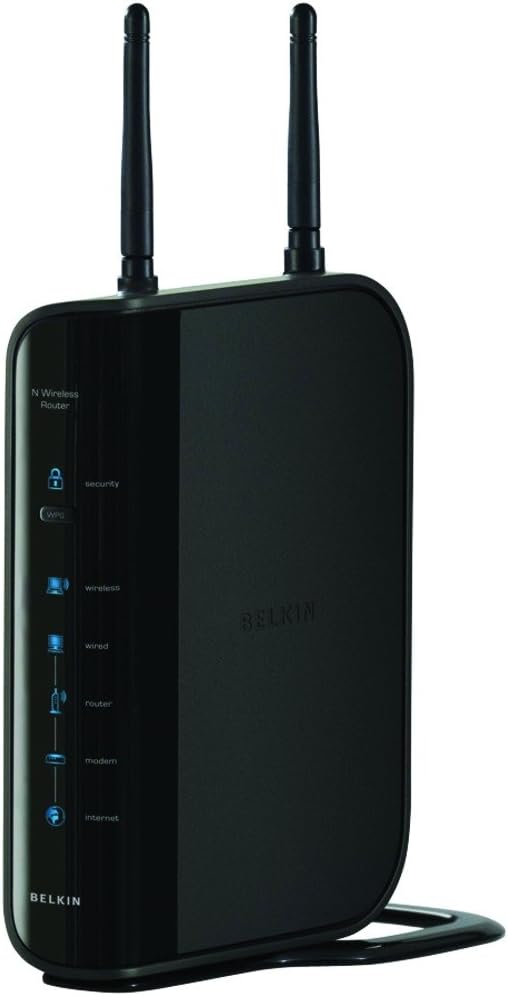
Figure 1: Front view of the Belkin Wireless N Router F5D8236-4, showing indicator lights and antennas.
1.2 Software Configuration
To configure your router's settings:
- Connect Computer: Connect a computer to one of the router's LAN ports using an Ethernet cable, or connect wirelessly using the default Wi-Fi network name (SSID) and password printed on the router's label.
- Access Setup Page: Open a web browser (Internet Explorer 6.0+, Firefox 1.0+, or Safari 2.0+) and enter the router's default IP address (e.g., 192.168.2.1 or belkin.router) into the address bar.
- Follow On-Screen Instructions: The setup wizard will guide you through configuring your internet connection, Wi-Fi network name (SSID), and password. It is highly recommended to change the default Wi-Fi password for security.
2. Operating Instructions
The Belkin Wireless N Router F5D8236-4 operates on IEEE 802.11n draft 2.0, IEEE 802.11g, and IEEE 802.11b wireless standards, offering a link rate of up to 300 Mbps in 40 MHz channel mode. It provides an operating range of up to 1200 feet, suitable for home use.
2.1 Network Security
The router supports strong network security protocols including WPA, WPA2, WPS, and 64- and 128-bit WEP. It is crucial to configure and enable WPA2 security with a strong, unique password for your wireless network to protect your data and prevent unauthorized access.
2.2 Wired Connections
The router includes four 10/100 Mbps Ethernet ports for wired devices, allowing for stable and fast connections for computers, gaming consoles, or other network-enabled devices.

Figure 2: A typical home setup showing a router providing wireless connectivity for entertainment.
3. Maintenance
Regular maintenance ensures the longevity and optimal performance of your router:
- Firmware Updates: Periodically check the Belkin support website for firmware updates. Keeping your router's firmware up-to-date can improve performance, add new features, and enhance security.
- Physical Placement: Place the router in a central location in your home, away from obstructions and devices that emit electromagnetic interference (e.g., microwaves, cordless phones) to maximize wireless range and signal strength.
- Regular Reboot: Occasionally reboot your router (unplug from power for 10-15 seconds, then plug back in) to clear its memory and resolve minor connectivity issues.
- Cleaning: Keep the router clean and free of dust to prevent overheating. Use a soft, dry cloth for cleaning.
4. Troubleshooting
If you encounter issues with your Belkin Wireless N Router, consider the following:
- No Internet Connection:
- Ensure all cables are securely connected to the correct ports on both the modem and the router.
- Reboot your modem and router in sequence (modem first, then router).
- Check your Internet Service Provider (ISP) status for outages.
- Slow Wireless Speeds:
- Move the router to a more central location.
- Reduce interference from other electronic devices.
- Ensure your wireless adapter drivers on your computer are up-to-date.
- Verify that your router's firmware is the latest version.
- Difficulty Connecting to Wi-Fi:
- Double-check your Wi-Fi network name (SSID) and password.
- Ensure your device supports the wireless standards (IEEE 802.11n/g/b) used by the router.
- If using WPS, ensure it is enabled on both the router and your device.
- Network Security Concerns:
- Always use WPA2 encryption for your wireless network.
- Change the default administrator password for your router's settings page.
- Regularly review connected devices through the router's administration interface.
5. Specifications
| Feature | Detail |
|---|---|
| Model Number | F5D8236-4 |
| Wireless Standards | IEEE 802.11n draft 2.0; IEEE 802.11g; IEEE 802.11b; IEEE 802.3u; IEEE 802.3 |
| Ports | 4x computer/device ports (RJ-45), 1x modem port (RJ-45) |
| Operating Range | Up to 1200 feet |
| Link Rate | Up to 300 Mbps in 40 MHz channel mode |
| Security | WPA, WPA2, WPS, 64- and 128-bit WEP |
| Ethernet Ports | Four 10/100 Mbps Ethernet ports |
| Product Dimensions | 10 x 4.1 x 8.1 inches |
| Item Weight | 1.4 pounds |
| First Available | July 15, 2008 |
6. Warranty Information
Please note that this product is an older generation model. The provided product information indicates a legal disclaimer of "sale is final". For specific warranty details applicable at the time of your purchase, please refer to the documentation included with your product or contact Belkin customer support directly.
7. Support
For further assistance, technical support, or to access the latest drivers and firmware, please visit the official Belkin support website. You can often find FAQs, troubleshooting guides, and contact information for customer service there.