
Brother LC61BK
Brother LC61BK 2 Pack Black Ink Cartridges Instruction Manual
Brand: Brother | Model: LC61BK
Introduction
This manual provides essential information for the proper use and maintenance of your Brother LC61BK 2 Pack Black Ink Cartridges. These genuine Brother Innobella ink cartridges are designed to deliver crisp, black prints, yielding up to 450 pages per cartridge in accordance with ISO/IEC 24711 standards. They are compatible with a wide range of Brother printers, ensuring seamless integration and reliable performance for all your printing needs.

Figure 1: Brother LC61BK 2 Pack Black Ink Cartridges packaging.
Setup and Installation
Follow these steps to correctly install your Brother LC61BK ink cartridges into your compatible Brother printer. Always refer to your printer's specific user manual for detailed instructions, as procedures may vary slightly by model.
- Prepare the Cartridge: Carefully remove the new LC61BK ink cartridge from its packaging. Do not touch the electrical contacts or the print head nozzle to avoid damage or print quality issues.
- Open Printer Access: Open the ink cartridge cover on your Brother printer. The location of this cover varies by model; consult your printer's manual if unsure.
- Remove Old Cartridge (if applicable): If replacing an empty cartridge, gently press the release lever and pull the old cartridge straight out of its slot. Dispose of the old cartridge responsibly.
- Insert New Cartridge: Insert the new LC61BK ink cartridge into the correct slot, ensuring it clicks firmly into place. The cartridge is designed to fit only one way.
- Close Cover: Close the ink cartridge cover. The printer will typically perform an automatic cleaning cycle after installation.
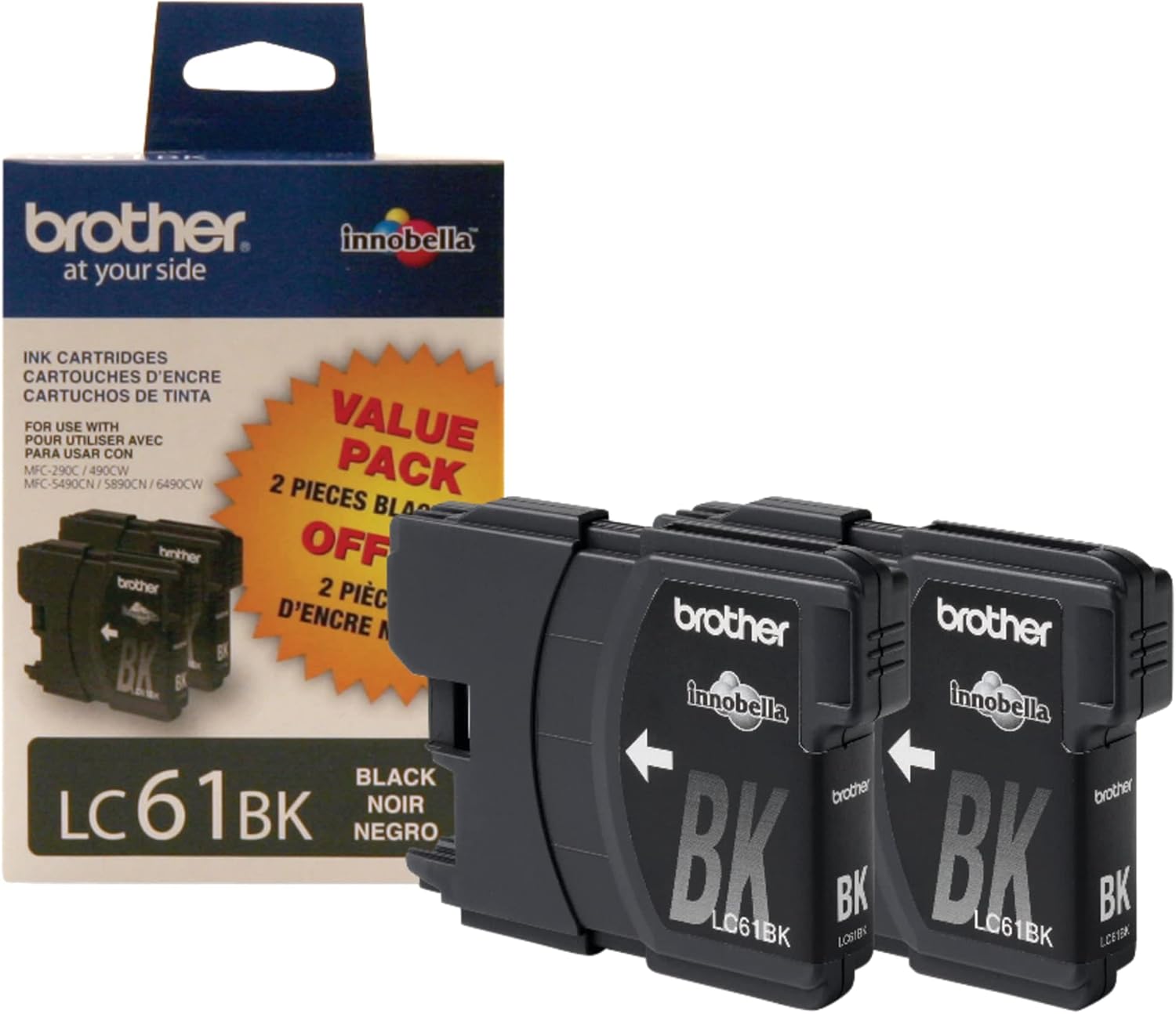
Figure 2: Proper handling of the Brother LC61BK ink cartridge during installation.
Operating Instructions
Once the cartridges are installed, your Brother printer is ready for operation. The LC61BK cartridges are designed for optimal performance with Brother's Innobella inks and papers, producing high-quality black text and images.
- Printing Documents: Select your Brother printer from your computer's print dialogue. Ensure "Black and White" or "Grayscale" is selected if you only wish to use the black ink.
- Print Quality: For best results, use genuine Brother paper. Adjust print settings (e.g., draft, normal, best) based on your desired output quality and speed.
- Compatible Models: These cartridges are compatible with Brother MFC-290C, MFC-490CW, MFC-5490CN, MFC-5890CN, MFC-6490CW, and other models including DCP-165, DCP-255, DCP-295, DCP-375, DCP-385, DCP-395, DCP-585, DCP-J125, MFC-250, MFC-255, MFC-290, MFC-295, MFC-490, MFC-495, MFC-5490, MFC-5890, MFC-5895, MFC-6490, MFC-6890, MFC-790, MFC-795, MFC-990, MFC-J220, MFC-J265, MFC-J270, MFC-J410, MFC-J415, MFC-J615, MFC-J630, and Justio MFC-5890.
Maintenance
Proper maintenance ensures the longevity of your ink cartridges and consistent print quality.
- Storage: Store unused ink cartridges in their sealed packaging in a cool, dark place until ready for use.
- Regular Printing: Print at least once a week to prevent ink from drying in the print head nozzles.
- Cleaning Cycles: If print quality degrades (e.g., streaks, faded prints), perform a print head cleaning cycle through your printer's utility software. Refer to your printer's manual for instructions on running cleaning cycles.
- Ink Levels: Monitor ink levels through your printer's software or display panel to avoid running out of ink during important print jobs.
Troubleshooting
If you encounter issues with your Brother LC61BK ink cartridges, consider the following common solutions:
| Problem | Possible Cause / Solution |
|---|---|
| Faded or Streaky Prints | Ink nozzles might be clogged. Perform a print head cleaning cycle. Ensure genuine Brother ink and paper are used. |
| Cartridge Not Recognized | Cartridge may not be installed correctly. Remove and reinsert the cartridge firmly until it clicks. Clean the electrical contacts on the cartridge and in the printer with a lint-free cloth. |
| "Ink Low" or "Ink Empty" Error | Replace the indicated ink cartridge. Even if some ink remains, the printer may indicate it's time for replacement to maintain print quality. |
| Printer Not Printing | Check if the printer is connected and powered on. Ensure all ink cartridges are correctly installed and have sufficient ink. Check for paper jams. |
For persistent issues, consult your Brother printer's comprehensive user manual or visit the official Brother support website.
Specifications
| Feature | Detail |
|---|---|
| Brand | Brother |
| Model Number | LC61BK |
| Ink Color | Black |
| Page Yield | Up to 450 pages per cartridge (ISO/IEC 24711) |
| Number of Items | 2 (Two-pack) |
| Item Weight | 4 ounces |
| Product Dimensions | 1.9 x 3.3 x 4.8 inches |
| Ink Type | Innobella Ink (Water-based) |
| Compatible Devices | Brother DCP-145C, DCP-165, DCP-165C, DCP-195C, DCP-197C, DCP-365CN, DCP-375, DCP-375CW, DCP-385, DCP-385C, DCP-385CW, DCP-395, DCP-395CN, DCP-585, DCP-585CW, DCP-6690, DCP-6690CW, DCP-J125, DCP-J125C, DCP-J140, DCP-J140W, DCP-J715W, MFC-250, MFC-250C, MFC-255, MFC-255CW, MFC-290, MFC-290C, MFC-295, MFC-295CN, MFC-490, MFC-490CW, MFC-495, MFC-495CN, MFC-495CW, MFC-5490, MFC-5490CN, MFC-5890, MFC-5890CN, MFC-5895, MFC-5895CW, MFC-6490, MFC-6490CW, MFC-6890, MFC-6890CDW, MFC-6890DW, MFC-790, MFC-790CW, MFC-795, MFC-795CW, MFC-990, MFC-990CW, MFC-J220, MFC-J265, MFC-J265W, MFC-J270, MFC-J270W, MFC-J410, MFC-J410W, MFC-J415, MFC-J415W, MFC-J615, MFC-J615W, MFC-J630, MFC-J630W, Justio MFC-5890. |
Warranty and Support
For information regarding the warranty of your Brother LC61BK ink cartridges, please refer to the official documentation included with your purchase or visit the official Brother website. Brother provides comprehensive customer support and resources for their products.
Official Brother Support: www.brother-usa.com/support