
1. Introduction
Thank you for choosing the Logicom Aero 50 wired landline telephone. This manual provides detailed instructions for the proper installation, operation, and maintenance of your new telephone. The Aero 50 is designed for simplicity and efficiency, featuring direct access memory for frequently called numbers, caller ID display, and a hands-free function for convenience. Please read this manual thoroughly before using the device to ensure optimal performance and longevity.
2. Safety Information
To reduce the risk of fire, electric shock, or injury, always follow basic safety precautions when using this product.
- Do not use this product near water, for example, near a bathtub, washbowl, kitchen sink, or laundry tub, in a wet basement, or near a swimming pool.
- Avoid using the telephone during an electrical storm. There may be a remote risk of electric shock from lightning.
- Do not use the telephone to report a gas leak in the vicinity of the leak.
- Unplug this product from the wall outlet before cleaning. Do not use liquid cleaners or aerosol cleaners. Use a damp cloth for cleaning.
- Place the telephone on a stable surface. Serious damage and/or injury may result if the telephone falls.
- Do not block or cover the openings on the telephone.
- This product should be operated only from the type of power source indicated on the marking label. If you are not sure of the type of power supply to your home, consult your dealer or local power company.
3. Package Contents
Carefully unpack your Logicom Aero 50 telephone and ensure all items are present. If any items are missing or damaged, please contact your retailer.
- Logicom Aero 50 Telephone Unit
- Handset
- Coiled Handset Cord
- Telephone Line Cord
- User Manual (this document)
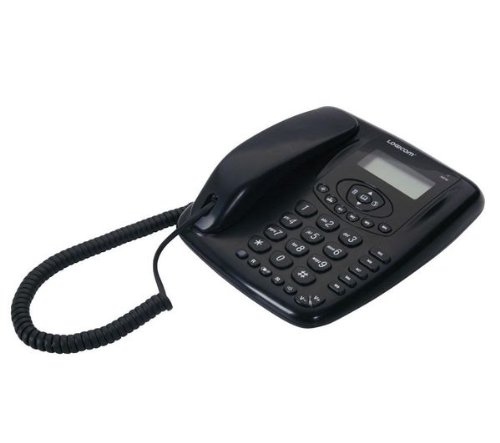
Image 1: Logicom Aero 50 Wired Landline Telephone. This image shows the complete telephone unit, including the base, handset, and keypad.
4. Product Overview
Familiarize yourself with the main components of your Logicom Aero 50 telephone.
- Handset: Used for speaking and listening during a call.
- Keypad: Numeric keys (0-9), * and # for dialing, and function keys.
- Display Screen: Shows caller ID, dialed numbers, menu options, and call duration.
- Hands-Free Speaker/Microphone: For speakerphone functionality.
- Function Buttons: Dedicated buttons for features like Redial, Flash, Mute, and Memory.
- Line Port (RJ11): Located at the back or side of the base unit, for connecting to the telephone wall jack.
- Handset Port: For connecting the coiled cord from the handset to the base unit.
5. Setup
Follow these steps to set up your Logicom Aero 50 telephone.
- Connect the Handset: Plug one end of the coiled handset cord into the handset and the other end into the handset port on the telephone base unit.
- Connect the Telephone Line: Plug one end of the telephone line cord into the line port on the telephone base unit and the other end into your telephone wall jack. Ensure a secure connection.
- Initial Check: Lift the handset. You should hear a dial tone. If not, check all connections.
- Set Date and Time (if applicable): Some models may require manual date and time setting for caller ID functionality. Refer to the on-screen prompts or a dedicated menu button.
- Language Selection: Your telephone supports 16 languages. To change the display language, navigate through the menu settings using the arrow keys and select your preferred language.
6. Operating Instructions
Making and Receiving Calls
- To Make a Call: Lift the handset or press the Hands-Free button. Wait for a dial tone, then dial the desired phone number.
- To Receive a Call: When the phone rings, lift the handset or press the Hands-Free button to answer.
- To End a Call: Place the handset back on the cradle or press the Hands-Free button again if using speakerphone.
Hands-Free Function
The Logicom Aero 50 features a hands-free function for convenient conversations without holding the handset.
- To Activate: During a call, press the Hands-Free button. The call will transfer to the speakerphone.
- To Deactivate: Lift the handset to switch back to private conversation, or press the Hands-Free button again to end the call.
Caller ID (Presentation du nom et du numéro)
When you receive an incoming call, the caller's number and name (if available and subscribed to the service) will be displayed on the screen.
- Viewing Call Log: Use the UP/DOWN arrow keys to scroll through the list of incoming calls.
- Redialing from Call Log: Select an entry from the call log and press the Dial or Hands-Free button to call back.
Phonebook / Speed Dial (9 Direct Access Memories)
Store frequently called numbers for quick dialing using the direct access memory keys.
- To Store a Number:
- Press the STORE button (or similar, consult your phone's specific button layout).
- Enter the phone number using the keypad.
- Press STORE again, then press one of the 9 direct access memory keys (e.g., M1-M9, or a specific number key if designated).
- Confirm the entry if prompted.
- To Dial a Stored Number: Simply press the corresponding direct access memory key.
7. Maintenance
Proper care and maintenance will ensure the longevity of your Logicom Aero 50 telephone.
- Cleaning: Use a soft, slightly damp cloth to clean the exterior of the telephone. Do not use harsh chemicals, cleaning solvents, or abrasive cleaners.
- Avoid Liquids: Keep the telephone away from water and other liquids. If the phone accidentally gets wet, unplug it immediately and allow it to dry completely before reconnecting.
- Storage: Store the telephone in a cool, dry place away from direct sunlight and extreme temperatures when not in use for extended periods.
- Cord Care: Regularly check the handset coiled cord and telephone line cord for any signs of wear or damage. Damaged cords can affect call quality.
8. Troubleshooting
If you experience issues with your Logicom Aero 50, try the following troubleshooting steps.
| Problem | Possible Cause | Solution |
|---|---|---|
| No dial tone | Telephone line cord is not connected properly or is faulty. | Ensure the telephone line cord is securely plugged into both the phone and the wall jack. Try a different line cord if available. |
| No display or faint display | The phone is line-powered and may not have a backlit display. Insufficient ambient light. | The Logicom Aero 50 does not feature a backlit display. Ensure adequate lighting in your environment to read the screen. |
| Poor sound quality / Noise on the line | Loose or faulty handset coiled cord or telephone line cord connection. Interference. | Check that both the handset coiled cord and the telephone line cord are firmly connected. Try replacing the cords if the issue persists. Keep the phone away from other electronic devices that might cause interference. |
| Keys require hard pressing to register | Keypad wear or debris under keys. | Ensure the keypad is clean. If the issue persists, it may indicate internal wear. |
| Caller ID not working | Caller ID service not subscribed or not activated by your telephone service provider. | Contact your telephone service provider to ensure Caller ID service is active on your line. |
9. Specifications
| Brand: | Logicom |
| Model Number: | Aero50 |
| Color: | Black |
| Hands-Free Function: | Yes |
| Caller ID (Name & Number): | Yes |
| Phonebook / Call Log: | Yes |
| Direct Access Memories: | 9 |
| Language Options: | 16 |
| Dialer Type: | Single Keypad |
| Power Source: | Line Powered (Electrical Cable) |
| Material: | Acrylonitrile Butadiene Styrene (ABS) |
| Item Weight: | 0.92 kg (2.03 Pounds) |
| Multi-line Operation: | Single Line Operation |
| ASIN: | B001ASZE0W |
10. Warranty and Support
Your Logicom Aero 50 telephone comes with a manufacturer's warranty. Please refer to the warranty card included with your purchase for specific terms and conditions, including the warranty period and coverage details.
- Manufacturer Warranty: Standard manufacturer's warranty applies.
- Spare Parts Availability: Information regarding the availability of spare parts is not provided.
- Technical Support: For technical assistance or warranty claims, please contact your retailer or visit the official Logicom website for support contact information.