
HP C4120A
HP LaserJet 4000N Laser Printer User Manual
Model: C4120A
Introduction
This manual provides comprehensive instructions for the setup, operation, maintenance, and troubleshooting of your HP LaserJet 4000N Laser Printer. Please read this manual thoroughly before using the printer to ensure proper functionality and to extend the life of your device.
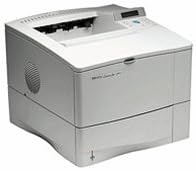
Image: The HP LaserJet 4000N Laser Printer, a monochrome laser printer designed for office use. This model is known for its robust performance and network capabilities.
Setup
1. Unpacking and Placement
- Carefully remove the printer from its packaging. Retain all packaging materials for future transport or storage.
- Remove all protective tapes and packing inserts from the printer.
- Place the printer on a stable, level surface that can support its weight (approximately 50 pounds). Ensure adequate ventilation around the printer.
2. Connecting the Printer
- Power Connection: Connect the power cord to the printer's power input and then to a grounded electrical outlet.
- Data Connection:
- Network (Ethernet): For network models (4000N), connect an Ethernet cable from the printer's network port to your network router or switch.
- USB (Optional/Adapter): If using a USB connection (requires an adapter for some models), connect the USB cable from the printer to your computer.
3. Installing the Toner Cartridge
- Open the top cover of the printer.
- Remove the new toner cartridge from its packaging and gently shake it to distribute the toner evenly.
- Insert the toner cartridge into the printer until it clicks into place.
- Close the top cover.
4. Driver Installation
Turn on the printer. For optimal performance, install the latest printer drivers on your computer. Drivers can typically be downloaded from the official HP support website. Search for "HP LaserJet 4000N drivers" on HP's support website.
Operating Instructions
1. Loading Paper
- Open the paper tray (Tray 2 is standard).
- Adjust the paper guides to the size of the paper you are loading.
- Load the paper stack into the tray, ensuring it is flat and not exceeding the maximum fill line.
- Close the paper tray.
2. Basic Printing
- Ensure the printer is powered on and connected to your computer or network.
- Open the document you wish to print on your computer.
- Select "Print" from the application's menu (e.g., File > Print).
- Choose the "HP LaserJet 4000N" from the list of available printers.
- Adjust print settings as needed (e.g., number of copies, paper size, print quality).
- Click "Print" to send the job to the printer.
3. Control Panel Overview
The control panel on the top of the printer provides status information and allows for basic configuration. It typically includes a small LCD display and several buttons for navigation (e.g., Menu, Item, Select, Go, Cancel).
Maintenance
1. Replacing the Toner Cartridge
When the toner low message appears on the control panel, it is time to prepare for a replacement. When print quality degrades significantly, replace the cartridge.
- Open the top cover of the printer.
- Grasp the handle of the old toner cartridge and pull it straight out of the printer.
- Unpack the new toner cartridge and gently shake it.
- Insert the new cartridge into the printer until it locks into place.
- Close the top cover.
2. Cleaning the Printer
- Exterior: Use a soft, damp, lint-free cloth to wipe the exterior of the printer. Do not use abrasive cleaners or solvents.
- Paper Path: If you experience frequent paper jams or print quality issues, a cleaning page can often resolve this. Refer to the printer's control panel menu for options to print a cleaning page.
Troubleshooting
This section addresses common issues you might encounter with your HP LaserJet 4000N printer.
Common Issues and Solutions:
- Printer Not Responding:
- Ensure the printer is powered on and all cables (power, network/USB) are securely connected.
- Restart the printer and your computer.
- Verify that the correct printer driver is installed and selected on your computer.
- Check the printer's control panel for error messages.
- Paper Jams:
- Open all access covers and carefully remove any jammed paper, pulling in the direction of the paper path.
- Ensure paper is loaded correctly in the trays and not overfilled.
- Use only recommended paper types and quality.
- Poor Print Quality:
- Check the toner cartridge level and replace if low.
- Perform a cleaning cycle or print a cleaning page from the printer's menu.
- Ensure the paper type setting in your print driver matches the paper loaded in the tray.
For more detailed troubleshooting, refer to the HP support website or the printer's built-in help features.
Specifications
| Feature | Detail |
|---|---|
| Model Number | C4120A |
| Brand | HP |
| Printing Technology | Laser |
| Printer Output | Monochrome |
| Max Print Speed (Monochrome) | 17.00 pages per minute |
| Compatible Devices | Laptops (and other compatible systems) |
| Control Method | Remote (via network/driver) |
| Item Weight | Approximately 50 pounds |
| Package Dimensions | 33 x 18 x 16 inches |
| UPC | 033584114962 |
Warranty Information
As this product is listed as "Renewed," the warranty terms may differ from a new product. Please refer to the specific warranty information provided by the seller at the time of purchase. Typically, renewed products come with a limited warranty from the refurbisher or seller.
For details regarding your specific warranty coverage, please contact the seller directly or review the documentation included with your purchase.
Customer Support
For technical assistance, driver downloads, or further information regarding your HP LaserJet 4000N Laser Printer, please visit the official HP support website:
If you purchased this renewed product from a third-party seller, you may also contact them directly for support related to your purchase or warranty.