
Avcomm AC-200
Avcomm AC-200 Headset User Manual
Model: AC-200 | Brand: Avcomm
Introduction
The Avcomm AC-200 PNR Headset is designed to provide reliable and clear communication in aviation environments. Featuring Passive Noise Reduction (PNR) technology, this headset offers a balance of performance, comfort, and durability. It is equipped with high-efficiency ultra-lite speakers and an M-65 microphone with an active filtering chip, ensuring clear voice transmission and reception. This manual provides essential information for the proper setup, operation, maintenance, and troubleshooting of your AC-200 headset.
Key Features
- Passive Noise Reduction (PNR) Performance: Designed for effective noise attenuation in aviation settings.
- Incredible Voice Clarity: Achieved through high-efficiency ultra-lite Neodymium speakers and an M-65 microphone.
- M-65 Microphone: Features an active filtering chip for enhanced voice transmission.
- Comfort-Oriented Design: Includes acoustic foam ear seals, an acoustic mic muff, and an easy-to-adjust stainless steel headband.
- Volume Control: Integrated volume control for convenient audio level adjustment.
- Lightweight Construction: Weighs approximately 13.4 oz for extended comfort during use.
Product Overview
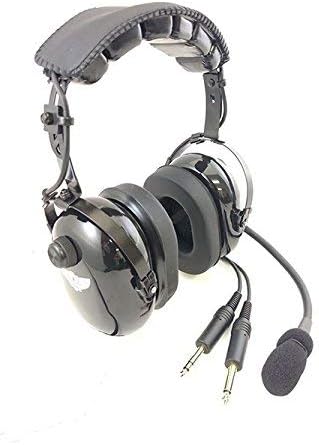
Figure 1: Avcomm AC-200 Headset. This image displays the headset from a front-right angle, showing the adjustable headband, earcups with volume control knob, flexible microphone boom with foam muff, and the dual 3.5mm audio jacks for connection.
Components:
- Headband: Adjustable stainless steel for secure and comfortable fit.
- Earcups: House the ultra-lite Neodymium speakers and provide passive noise reduction.
- Ear Seals: Acoustic foam ear seals for comfort and noise isolation.
- Volume Control Knob: Located on one earcup for audio level adjustment.
- Microphone Boom: Flexible arm for positioning the M-65 microphone.
- M-65 Microphone: Equipped with an active filtering chip for clear voice pickup. Includes an acoustic mic muff.
- Audio Cables with Plugs: Two 3.5mm jacks for connecting to aviation equipment.
Setup
- Unpack the Headset: Carefully remove the AC-200 headset and any included accessories (e.g., ear cushions) from its packaging.
- Inspect for Damage: Before first use, visually inspect the headset, cables, and plugs for any signs of damage. Do not use if damaged.
- Adjust Headband: Extend or retract the stainless steel headband slides to fit your head comfortably. The earcups should fully cover your ears without excessive pressure.
- Position Microphone: Adjust the flexible microphone boom so that the M-65 microphone is approximately 0.5 to 1 inch (1.2 to 2.5 cm) from your mouth, slightly to the side to avoid direct breath. Ensure the acoustic mic muff is securely in place.
- Connect to Equipment: Insert the two 3.5mm audio plugs into the corresponding jacks on your aviation equipment (e.g., aircraft intercom panel). Ensure a firm connection.
Operating Instructions
Volume Control:
The AC-200 headset features an integrated volume control knob on one of the earcups. Rotate the knob clockwise to increase the listening volume and counter-clockwise to decrease it. Adjust the volume to a comfortable level that allows clear reception of audio without distortion.
Microphone Usage:
The M-65 microphone is designed for clear voice transmission. Ensure it is positioned correctly (0.5 to 1 inch from your mouth) and that the mic muff is in place to reduce breath noise. Speak clearly and at a normal conversational volume. The active filtering chip will help optimize your voice for transmission.
Maintenance
- Cleaning:
- Wipe the headset's exterior surfaces with a soft, damp cloth. Do not use harsh chemicals or abrasive cleaners.
- Clean the ear seals and mic muff regularly. Replace them if they become worn or damaged to maintain comfort and performance.
- Storage:
- Store the headset in a clean, dry place, away from direct sunlight and extreme temperatures.
- Avoid coiling the cables tightly to prevent damage. The cable features are retractable, so ensure they are not stressed.
- If possible, store in a protective bag or case to prevent dust accumulation and physical damage.
- Inspection: Periodically inspect the cables, plugs, microphone boom, and headband for any signs of wear, fraying, or damage. Address any issues promptly.
Troubleshooting
| Problem | Possible Cause | Solution |
|---|---|---|
| No audio in headset |
|
|
| Microphone not transmitting |
|
|
| Poor sound quality / Static |
|
|
Specifications
| Model Name | AC-200 |
| Brand | Avcomm |
| Connectivity Technology | Wired |
| Headphones Jack | 3.5 mm Jack (Dual Plugs) |
| Noise Control | Passive Noise Cancellation (PNR) |
| Microphone Type | M-65 with active filtering chip |
| Material | Stainless Steel (Headband) |
| Item Weight | Approximately 13.4 oz (380g) |
| Product Dimensions | 6 x 4 x 8 inches (approximate, for headset) |
| Recommended Uses | Aviation |
| Included Components | Ear Cushions |
Warranty and Support
The Avcomm AC-200 Headset comes with a full five-year factory warranty. This warranty covers defects in materials and workmanship under normal use. For warranty claims, technical support, or service inquiries, please contact Avcomm customer service directly. Retain your proof of purchase for warranty validation.
For further assistance, please visit the official Avcomm website or contact their authorized service centers.
Ask a question about this manual
Ask about setup, troubleshooting, compatibility, parts, safety, or missing instructions. Manuals+ will review the question and use this page’s manual context to help answer it.