
1. Introduction
This manual provides essential information for the safe and efficient operation of your Sony PSLX300USB USB Stereo Turntable. Please read it thoroughly before use and retain it for future reference.
The Sony PSLX300USB is designed to play vinyl records and offers the capability to convert analog audio from records into digital audio files via its USB output for storage on a computer.
2. Safety Information
Important Precautions
- The turntable contains fragile parts. Handle the unit with care to prevent damage.
- Ensure proper ventilation around the unit to prevent overheating. Do not block ventilation openings.
- Do not expose the unit to rain, moisture, or excessive humidity. Keep liquids away from the turntable.
- Avoid placing the unit in direct sunlight or near heat sources.
- Use only the power supply specified for this unit.
- Refer to the main product safety guidelines for detailed electrical safety instructions.
3. Key Features
The Sony PSLX300USB turntable includes the following features:
- Supports 33 1/3 and 45 rpm Speeds for various record types.
- Fully automatic operation for ease of use.
- Built-in phono preamp for direct connection to most audio systems.
- Static balance tonearm for stable tracking.
- USB audio output for digital conversion of vinyl records.
- Reliable Belt Drive System.
4. What's Included
Verify that all the following items are present in the packaging:
- Sony PSLX300USB Turntable Unit
- Dust cover
- RCA cables (integrated)
- USB cable
- 45 RPM adapter
5. Setup Guide
5.1 Unpacking and Placement
- Carefully remove all components from the packaging. Keep packaging materials for future transport or storage.
- Place the turntable on a stable, level surface. Ensure the surface is free from vibrations and direct exposure to sunlight or heat sources.
5.2 Assembling the Turntable
- Install the Platter: Carefully place the platter onto the center spindle. Ensure it sits securely and rotates freely.
- Install the Drive Belt: Locate the drive belt. Gently stretch it around the motor pulley (a small brass or plastic cylinder) and the inner rim of the platter. Ensure the belt is not twisted.
- Attach the Dust Cover: Insert the hinges of the dust cover into the corresponding slots at the rear of the turntable body.

Figure 1: Sony PSLX300USB Turntable with dust cover open, illustrating the main components.
5.3 Connecting to an Audio System
The PSLX300USB features a built-in phono preamp, allowing connection to either a PHONO input or a LINE/AUX input on your amplifier or receiver.
- RCA Connection: Connect the integrated RCA cables (red and white plugs) from the turntable to the corresponding audio input (e.g., PHONO, AUX, LINE) on your amplifier or receiver.
- Phono/Line Selector Switch: Locate the PHONO/LINE selector switch on the turntable (usually on the rear or bottom).
- Set the switch to "PHONO" if connecting to an amplifier's dedicated PHONO input.
- Set the switch to "LINE" if connecting to an amplifier's LINE or AUX input.
5.4 USB Connection (for Digital Conversion)
- Connect the supplied USB cable from the turntable's USB port to an available USB port on your computer.
- Your computer should automatically recognize the turntable as an audio input device.
- Install the provided audio recording software (if applicable) or a compatible third-party software (e.g., Audacity) on your computer to begin digitizing your vinyl collection.
6. Operating Instructions
6.1 Playing a Record
- Power On: Connect the AC power cord to an electrical outlet.
- Place Record: Open the dust cover and carefully place a vinyl record on the platter. If playing a 45 RPM single, place the included adapter on the center spindle before placing the record.
- Select Speed: Set the SPEED selector switch (located on the turntable) to either "33" or "45" depending on the record's playback speed.
- Start Playback: Press the "START" button. The tonearm will automatically move to the beginning of the record and gently lower the stylus onto the groove.
- Stop Playback: To stop playback, press the "STOP" button. The tonearm will automatically lift, return to its rest position, and the platter will stop spinning.
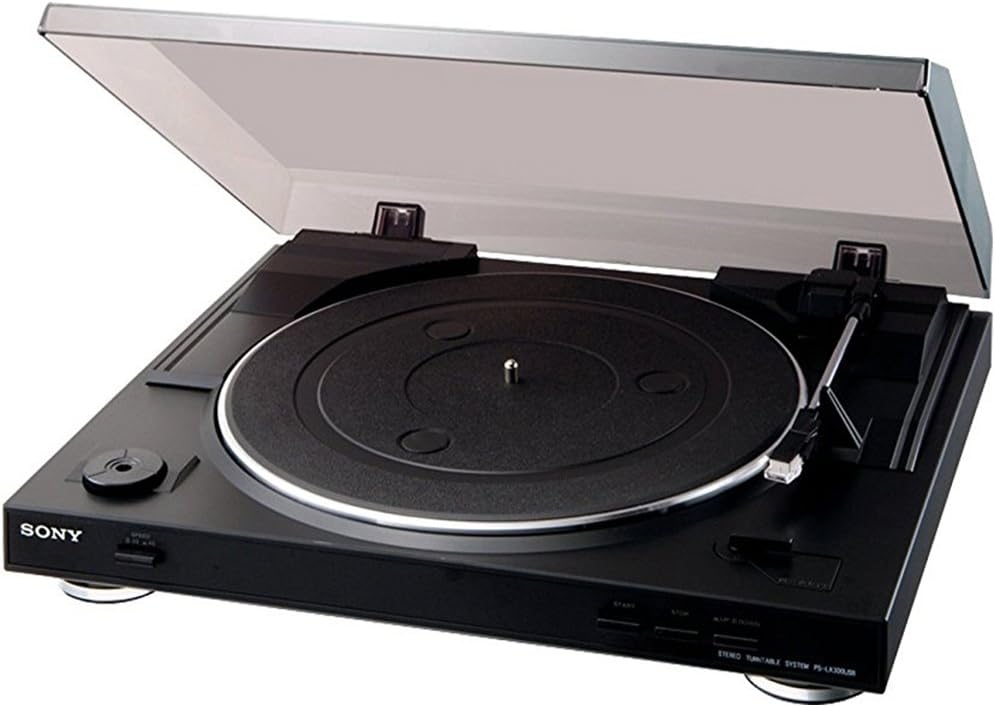
Figure 2: Close-up view of the turntable's control panel.
6.2 Digitizing Vinyl via USB
To convert your vinyl records to digital audio files:
- Connect to PC: Ensure the turntable is connected to your computer via the USB cable.
- Launch Software: Open your preferred audio recording software (e.g., the supplied Audio Studio software, Audacity, etc.) on your computer.
- Configure Input: In the software's settings or preferences, select the Sony PSLX300USB (or similar name) as the audio input device.
- Record: Start the recording function in your software, then begin playing your record on the turntable using the steps in Section 6.1.
- Save: Once the record side is finished, stop the recording in your software and save the digital audio file in your desired format (e.g., MP3, WAV).
7. Maintenance and Care
7.1 Cleaning the Turntable
- Wipe the dust cover and cabinet with a soft, dry cloth. Do not use abrasive cleaners, solvents, or alcohol, as these can damage the finish.
- For stubborn marks, lightly dampen the cloth with water and a mild detergent, then wipe dry immediately.
7.2 Stylus Care
- Gently clean the stylus periodically using a soft brush specifically designed for stylus cleaning. Always brush from the back of the stylus towards the front.
- Avoid touching the stylus with your fingers, as oils and dirt can accumulate and affect sound quality.
- Replace the stylus when sound quality deteriorates significantly, or after approximately 300-500 hours of use, depending on record condition and playing habits.
7.3 Drive Belt Replacement
The drive belt is a wear item and may need replacement over time if playback speed becomes inconsistent or the platter fails to spin. Refer to Section 5.2 for instructions on how to access and install a new drive belt.
8. Troubleshooting
If you experience issues with your turntable, consult the following troubleshooting guide:
8.1 No Sound or Low Volume
- Check all cable connections (RCA, power) to ensure they are secure.
- Verify that the PHONO/LINE selector switch on the turntable is set correctly for your amplifier's input type.
- Ensure your amplifier or receiver is set to the correct input source and the volume is turned up.
- Check if the stylus is properly installed in the cartridge and is not damaged.
8.2 Turntable Platter Not Spinning
- Ensure the power cord is securely connected to both the turntable and a working electrical outlet.
- Check if the drive belt is properly installed around the motor pulley and the inner rim of the platter. The belt may have slipped off.
- Press the "START" button to initiate platter rotation.
8.3 Poor Sound Quality (Distortion, Skips, Hiss)
- Clean the record thoroughly to remove dust and debris.
- Clean the stylus as described in Section 7.2.
- Ensure the turntable is placed on a stable, level surface to minimize vibrations.
- Check for stylus wear; a worn stylus can cause distortion and damage records. Replace if necessary.
8.4 USB Recording Issues
- Verify the USB cable connection between the turntable and your computer.
- Ensure the Sony PSLX300USB is selected as the audio input device within your recording software's settings.
- Check your computer's sound settings to ensure the USB audio device is enabled and recognized.
9. Specifications
| Feature | Detail |
|---|---|
| Model Name | PSLX300USB |
| Brand | Sony |
| Product Dimensions (W x D x H) | 13.5 x 15.7 x 3.9 inches (approx.) |
| Item Weight | 6 pounds (approx.) |
| Supported Speeds | 33 1/3 RPM, 45 RPM |
| Operation Type | Fully Automatic |
| Tonearm Type | Static Balance |
| Audio Outputs | USB, Analog (stereo RCA) |
| Phono Preamp | Built-in (switchable) |
| Drive System | Belt Drive |
| Material | Plastic |
| Color | Black |
10. Warranty and Support
For detailed warranty information, terms, and conditions, please refer to the warranty card or documentation included with your purchase. Keep your proof of purchase (receipt) as it may be required for warranty claims.
For technical support, service, or further assistance, please visit the official Sony support website or contact Sony customer service in your region. Contact information can typically be found on the Sony website or in your product documentation.