
1. Introduction
This manual provides detailed instructions for the proper setup, operation, and maintenance of your BakkerElkhuizen S-Board 840 Numeric Keypad. Please read this manual thoroughly before using the device to ensure optimal performance and longevity.
The S-Board 840 Numeric Keypad is designed to complement compact keyboards, offering dedicated numeric input and integrated calculator functionality. It connects via USB and features an extendable cable for convenience.
2. Product Features
- Dedicated Numeric Input: 26 keys for efficient data entry.
- Integrated Calculator Functionality: Operates as a standalone calculator or connected to a PC/Mac.
- USB Connectivity: Simple plug-and-play connection.
- Extendable USB Cable: For flexible placement and cable management.
- Compact Design: Optimizes desk space and promotes ergonomic posture.
- Scissor Mechanism Keys: Provides a quiet and comfortable typing experience.

Figure 2.1: Top view of the BakkerElkhuizen S-Board 840 Numeric Keypad, showing the display and key layout.

Figure 2.2: The numeric keypad shown with its extendable coiled USB cable, ready for connection.
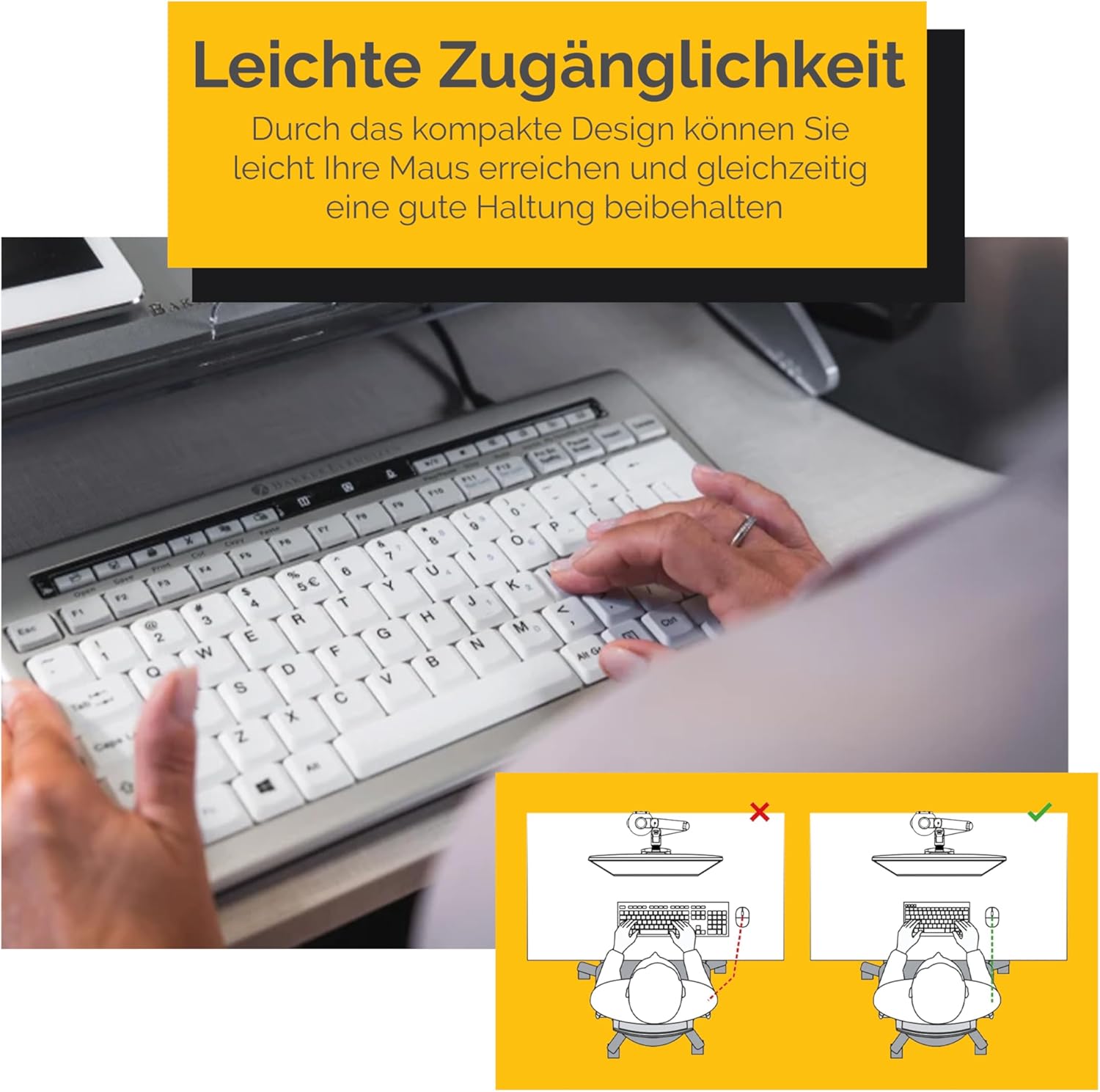
Figure 2.3: Illustration of an ergonomic setup, demonstrating how the compact design allows for easy mouse access and promotes good posture. The image highlights the benefits of a compact keyboard and separate numeric keypad for maintaining a comfortable working position.

Figure 2.4: This image illustrates the 'Scissor Mechanism' keys, which contribute to a quieter and lighter typing experience, enhancing user comfort during extended use.
3. Setup
3.1 Connecting to a Computer (PC/Mac)
- Uncoil the integrated USB cable from the numeric keypad.
- Plug the USB connector into an available USB port on your computer.
- The operating system should automatically detect and install the necessary drivers. No additional software is typically required.
- The keypad is now ready for use as a numeric input device.
3.2 Battery Installation for Calculator Function
The S-Board 840 Numeric Keypad requires one C battery for its standalone calculator functionality. This battery powers the calculator when the device is not connected via USB.
- Locate the battery compartment on the underside of the keypad.
- Open the battery compartment cover.
- Insert one C battery, ensuring correct polarity (+/-).
- Close the battery compartment cover securely.
Note: If the calculator function does not activate when disconnected from USB, check the battery installation or replace the battery.
4. Operating Instructions
4.1 Numeric Input Mode (PC/Mac Connected)
When connected to your computer via USB, the keypad functions as a standard numeric input device. The 'Num Lock' key controls the numeric input:
- Press the Num Lock key to toggle numeric input on or off.
- When Num Lock is active, the corresponding indicator light on the keypad will illuminate.
- In Num Lock active mode, keys 0-9, decimal, and arithmetic operators (+, -, *, /) function as expected.
- When Num Lock is inactive, some keys may function as navigation keys (e.g., Home, End, Pg Up, Pg Dn, Ins, Del).
4.2 Calculator Mode (Standalone or PC/Mac Connected)
The S-Board 840 features an integrated calculator. You can use it independently or in conjunction with your computer.
4.2.1 Activating Calculator Mode
- Press the PC/CAL button to switch between PC mode and Calculator mode.
- In Calculator mode, the display on the keypad will show calculations.
- If connected to a PC, pressing PC/CAL again will switch back to PC mode, and the keypad will send numeric input to your computer.
4.2.2 Calculator Functions
The calculator offers standard arithmetic operations and memory functions:
- Numeric Keys (0-9, 00, .): Input numbers.
- Arithmetic Operators (+, -, *, /): Perform addition, subtraction, multiplication, and division.
- Enter: Executes calculations.
- CE/AC: Clears the current entry (CE) or all entries (AC).
- M+: Adds the displayed number to memory.
- M-: Subtracts the displayed number from memory.
- MR: Recalls the value stored in memory.
- MC: Clears the memory.
- SEND: Sends the calculated result from the keypad's display to the connected computer (only in PC mode, after switching from CAL mode).
5. Maintenance
5.1 Cleaning
To maintain the appearance and functionality of your keypad:
- Disconnect the keypad from your computer before cleaning.
- Use a soft, lint-free cloth slightly dampened with water or a mild cleaning solution.
- Avoid using harsh chemicals, abrasive cleaners, or solvents, as these can damage the surface.
- Do not allow liquids to enter the keypad's interior.
5.2 Battery Replacement
If the standalone calculator function becomes unresponsive or the display dims, the C battery may need replacement.
- Follow the battery installation steps outlined in Section 3.2.
- Ensure you use a fresh C battery for optimal performance.
- Dispose of old batteries according to local regulations.
6. Troubleshooting
- Keypad not recognized by computer:
- Ensure the USB cable is securely connected to both the keypad and the computer.
- Try plugging the keypad into a different USB port on your computer.
- Restart your computer.
- Verify that the keypad is in PC mode (not Calculator mode) by pressing the PC/CAL button.
- Numeric keys are not typing numbers:
- Press the Num Lock key to activate numeric input. The Num Lock indicator light should be on.
- Calculator function not working (standalone):
- Ensure a fresh C battery is correctly installed in the battery compartment (refer to Section 3.2).
- Press the PC/CAL button to switch to Calculator mode.
- Display is dim or blank in Calculator mode:
- Replace the C battery.
7. Specifications
| Feature | Detail |
|---|---|
| Model Number | BNES840DNUM |
| Brand | BakkerElkhuizen |
| Connectivity Technology | USB |
| Hardware Platform | PC / Mac |
| Number of Keys | 26 |
| Special Feature | Calculator function |
| Power Source | Corded Electric (USB) |
| Voltage | 5 Volts |
| Battery Requirement | 1 C battery (for standalone calculator) |
| Item Weight | 4.2 ounces (approx. 119 grams) |
| Product Dimensions (LxWxH) | 7.68 x 3.74 x 0.83 inches (approx. 19.5 x 9.5 x 2.1 cm) |
| Material | Acrylonitrile Butadiene Styrene |
| Color | Silver |
8. Warranty and Support
For warranty information and technical support, please refer to the documentation included with your purchase or visit the official BakkerElkhuizen website. If you encounter issues not covered in this manual, please contact BakkerElkhuizen customer support for assistance.
BakkerElkhuizen Official Website: www.bakkerelkhuizen.com


