
Samsung 2253LW
Samsung SyncMaster 2253LW LCD Monitor User Manual
Model: 2253LW | Brand: Samsung
1. Introduction
This manual provides comprehensive instructions for the safe and efficient use of your Samsung SyncMaster 2253LW LCD monitor. Please read this manual thoroughly before operating the device and retain it for future reference.

Figure 1.1: Front view of the Samsung SyncMaster 2253LW LCD monitor. This image displays the monitor from the front, showcasing its sleek black bezel and the Samsung logo centered on the bottom frame. The screen is dark, indicating it is powered off or in standby mode, with a small blue rectangle visible on the screen, likely a signal indicator.
The Samsung SyncMaster 2253LW is a 54.9 cm (21.6-inch) LCD monitor designed for various computing tasks, offering a clear display and user-friendly features.
2. Safety Information
To ensure safe operation and prevent damage to your monitor, please observe the following precautions:
- Do not expose the monitor to rain or moisture.
- Do not block ventilation openings.
- Use only the power cord supplied with the monitor.
- Place the monitor on a stable, level surface.
- Avoid placing heavy objects on the power cord.
- Disconnect the power plug during lightning storms or when unused for long periods.
- Refer all servicing to qualified service personnel.
3. Package Contents
Verify that all the following items are included in your product package:
- Samsung SyncMaster 2253LW LCD Monitor
- Power Cable
- VGA Cable (D-Sub)
- DVI Cable
- User Manual (this document)
- Installation CD (may contain drivers and software)
4. Setup
4.1 Assembling the Stand
Carefully attach the monitor panel to the stand base. Ensure it clicks securely into place. Refer to the quick setup guide for detailed illustrations.
4.2 Connecting the Monitor
Before connecting, ensure both the monitor and your computer are powered off. Connect the appropriate video cable (VGA or DVI) from your computer's graphics card to the corresponding input port on the back of the monitor. Then, connect the power cable to the monitor and a wall outlet.

Figure 4.1: Rear view of the Samsung SyncMaster 2253LW LCD monitor. This image shows the back of the monitor, highlighting the VESA mount holes for wall mounting and the recessed area where the input ports (VGA, DVI, power) are typically located. The Samsung logo is prominently displayed in the center.
4.3 Initial Power On
After connecting all cables, power on your computer, then press the power button on the monitor. The monitor should automatically detect the input signal.
5. Operating Instructions
5.1 Powering On/Off
Press the power button located on the front right side of the monitor to turn it on or off. A blue LED indicator will illuminate when the monitor is active.

Figure 5.1: Close-up view of the control buttons located on the bottom right bezel of the Samsung SyncMaster 2253LW monitor. Visible buttons include 'SOURCE' (input selection), 'AUTO' (auto adjustment), and the 'POWER' button with a blue LED indicator, which is currently lit, indicating the monitor is on.
5.2 Adjusting Settings
Use the touch-sensitive buttons on the front bezel to navigate the On-Screen Display (OSD) menu. Common adjustments include:
- Brightness: Adjusts the overall luminance of the screen.
- Contrast: Controls the difference between light and dark areas.
- MagicBright: Pre-set picture modes for different viewing environments (e.g., Text, Internet, Game, Sport, Movie, Dynamic Contrast).
- Color: Adjusts color temperature and individual RGB levels.
- Input: Manually select between VGA (Analog) and DVI (Digital) inputs.
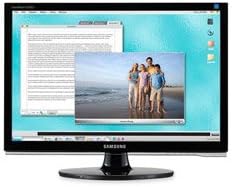
Figure 5.2: The Samsung SyncMaster 2253LW monitor displaying a typical computer desktop environment. The screen shows multiple open windows, including a document editor and an image viewer displaying a family photo on a beach, demonstrating the monitor's capability for multitasking and media consumption.
6. Maintenance
6.1 Cleaning the Monitor
To clean the screen, gently wipe it with a soft, lint-free cloth. For stubborn marks, dampen the cloth slightly with water or a specialized LCD screen cleaner. Do not spray cleaner directly onto the screen. For the monitor casing, use a soft, dry cloth.
6.2 Storage
If storing the monitor for an extended period, disconnect all cables and store it in a cool, dry place, preferably in its original packaging to protect it from dust and physical damage.
7. Troubleshooting
If you encounter issues with your monitor, refer to the following common problems and solutions:
| Problem | Possible Cause / Solution |
|---|---|
| No Power | Check if the power cable is securely connected to both the monitor and the power outlet. Ensure the power outlet is functional. |
| No Signal / "Check Signal Cable" Message | Verify that the video cable (VGA or DVI) is firmly connected to both the monitor and the computer's graphics card. Ensure the correct input source is selected on the monitor. Restart the computer. |
| Image is too dark/bright or colors are off | Adjust Brightness, Contrast, and Color settings via the OSD menu. Reset monitor settings to factory defaults if necessary. |
| Screen Flickers | Check the refresh rate setting on your computer's display settings. Ensure it is compatible with the monitor's specifications. |
If the problem persists after trying these solutions, please contact Samsung customer support.
8. Specifications
Key technical specifications for the Samsung SyncMaster 2253LW LCD monitor:
- Model Name: 2253LW
- Display Size: 22 inches (55.9 cm)
- Resolution: SXGA+ Wide (typically 1680x1050 for 22-inch widescreen)
- Brightness: 300 cd/m² (nit)
- Static Contrast Ratio: 1000:1
- Dynamic Contrast Ratio: 8000:1
- Response Time: 2ms (Gray to Gray)
- Color: Black
- Dimensions (with stand): Approximately 15.24 x 60.96 x 45.72 cm (6 x 24 x 18 inches)
- Weight: Approximately 6.8 kg (15 lbs)
- Connectivity: VGA (D-Sub), DVI
- Power Consumption: (Typical operating values not provided, but generally low for LCD)
- Certifications: Energy Star (as indicated by logo)

Figure 8.1: Close-up view of the top right corner of the Samsung SyncMaster 2253LW monitor's bezel. This section prominently displays key specifications and certifications, including the "Energy Star" logo, "2ms" response time, and "8000:1 Dynamic Contrast" ratio, highlighting the monitor's performance features.
9. Warranty and Support
Your Samsung SyncMaster 2253LW monitor is covered by a limited warranty. For specific warranty terms and conditions, please refer to the warranty card included with your product or visit the official Samsung support website. For technical assistance, driver downloads, or service inquiries, please visit Samsung Support or contact their customer service hotline.
Ask a question about this manual
Ask about setup, troubleshooting, compatibility, parts, safety, or missing instructions. Manuals+ will review the question and use this page’s manual context to help answer it.