
Philips 6FF3FPW
Philips 5.6-Inch Analog Digital Photo Frame (Model 6FF3FPW) User Manual
This manual provides detailed instructions for the setup, operation, and maintenance of your Philips 5.6-Inch Analog Digital Photo Frame, model 6FF3FPW. Please read thoroughly before use.
1. Product Overview
The Philips 6FF3FPW Digital Photo Frame allows you to display your digital photos without the need for a computer. It features a 5.6-inch LCD screen with a 4:3 aspect ratio, designed to present your memories in clear, vibrant color. The frame supports various memory card types and USB flash drives, offering flexible options for viewing your photo collection.
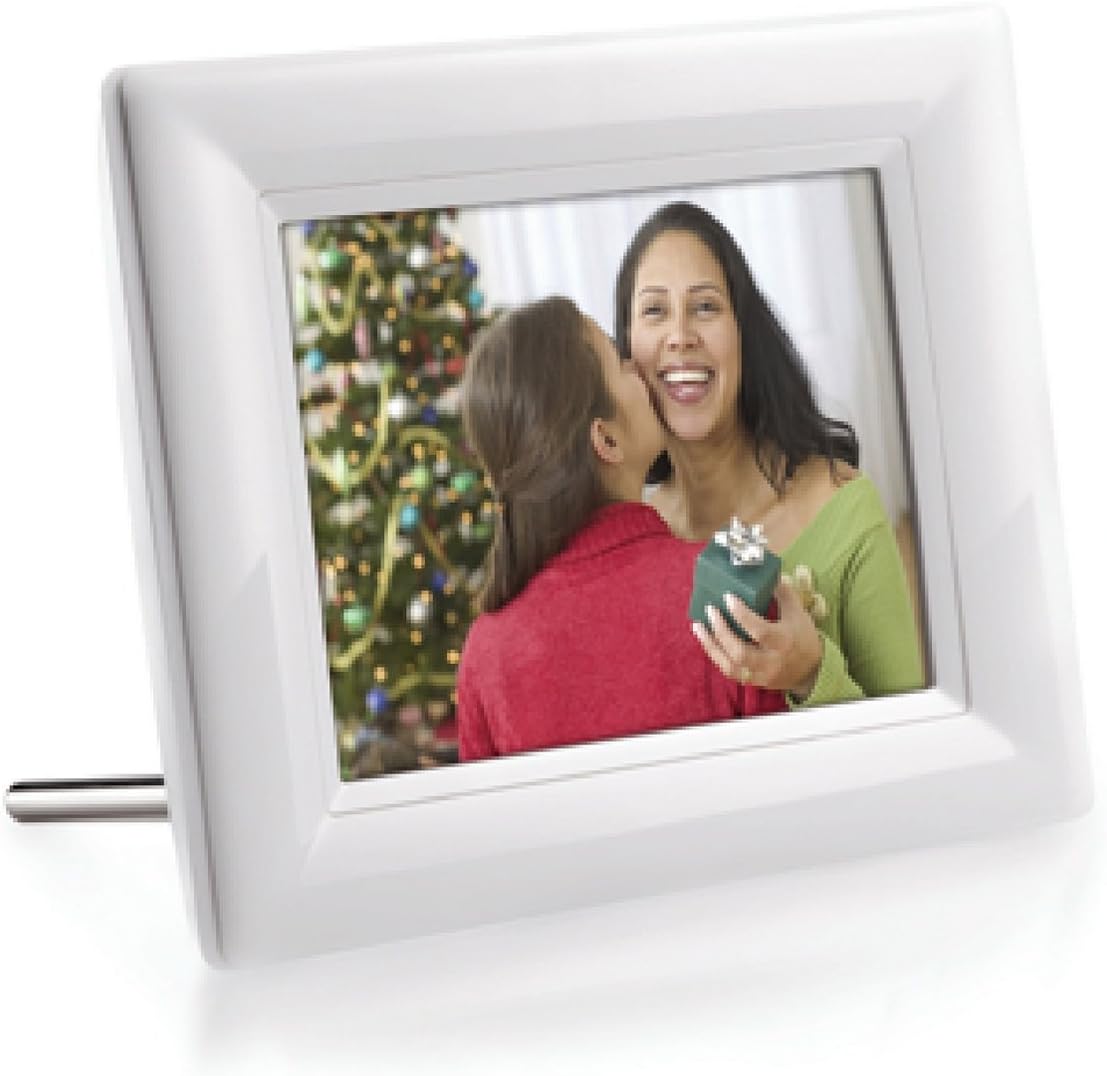
Image 1.1: Front view of the Philips 5.6-Inch Digital Photo Frame, showcasing a family photo on its screen.
2. Package Contents
Verify that all items listed below are included in your product package:
- Digital Photo Frame (Model 6FF3FPW)
- AC-DC Power Adapter
- Quick Start Guide
- Stand
- User Manual (this document)
3. Initial Setup
3.1 Attaching the Stand
Carefully attach the provided stand to the back of the digital photo frame to ensure stable placement on a flat surface.
3.2 Connecting Power
- Insert the small end of the AC-DC power adapter into the DC IN port on the back of the photo frame.
- Plug the other end of the power adapter into a standard electrical outlet.
- The frame will power on automatically or can be turned on using the power button.
3.3 Inserting Memory Cards or USB Flash Drives
The photo frame is equipped with multiple slots for memory cards and a USB port for flash drives. Ensure the device is powered on before inserting storage media.
- Locate the memory card slots and USB port on the side/back of the frame.
- Insert your compatible memory card (SD, SDHC, xD, Memory Stick, Memory Stick Pro, Multimedia Card) or USB flash drive into the appropriate slot/port.
- The frame will automatically detect the storage device and begin displaying photos.
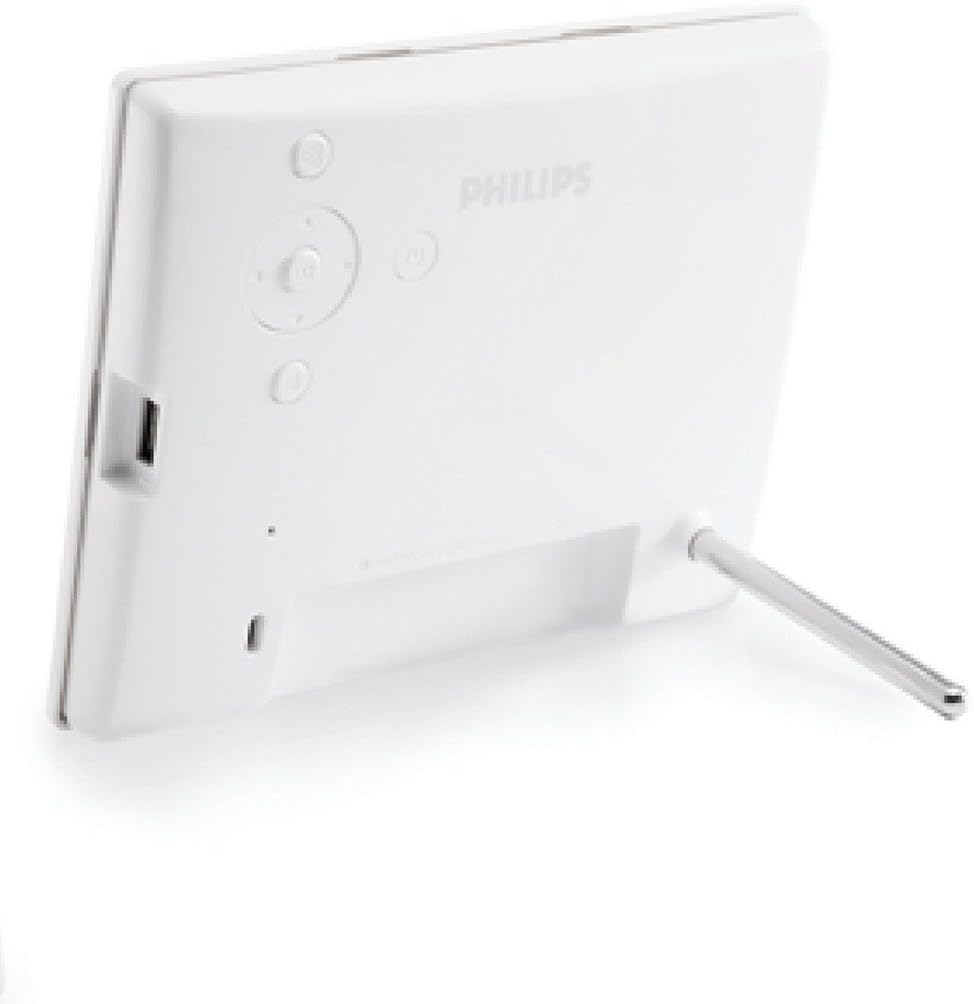
Image 3.1: Rear view of the Philips Digital Photo Frame, highlighting the memory card slots, USB port, and control buttons.
4. Operating Instructions
4.1 Basic Navigation
Control the photo frame using the 4-way navigation key and enter button, along with three additional function buttons located on the back of the unit. These buttons allow you to navigate menus, select options, and manage photo display.
4.2 Displaying Photos
The frame is designed to display photos in JPEG format. Other formats (e.g., web images, scanned images, RAW files) are not directly supported and must be converted to JPEG using computer applications.
- From Memory Cards/USB: Photos stored on compatible memory cards or USB flash drives will be automatically detected and displayed.
- Internal Memory: The frame has a small internal memory (10MB) for storing a few favorite pictures. This memory is fixed and cannot be expanded.
4.3 Viewing Modes
The Philips Digital Photo Frame offers several ways to view your photos:
- Single Photo View: Displays one photo at a time.
- Thumbnail View: Shows multiple small images, allowing for quick browsing and selection.
- Slideshow: Automatically cycles through your photos at a set interval.
- Multiple-Photo Collage Effect: Displays photos in a collage format, automatically compiling different photos to fill the screen and avoid unattractive borders from smaller images.
4.4 Photo Management
Utilize the frame's controls to manage your photos directly:
- Edit Functions: Copy, Delete, Rotate, Zoom, and Crop photos.
- Photo Effects: Apply effects such as Black and White, Sepia, and various Frames.
- Screen Background Color: Choose from Ambient color, Auto-fit, Black, White, or Gray.
4.5 Power Management
The Auto On/Off feature allows you to set specific times for the frame to automatically turn its display on and off, conserving energy.
4.6 Image Enhancement Technologies
Your Philips Digital Photo Frame incorporates advanced technologies for optimal image display:
- Imagen Technology: Automatically analyzes photos for correct color and adjusts for optimal contrast, separating colors and correcting Gamma for accuracy.
- RadiantColor: Extends the color from the edges of smaller photos to fill the screen, eliminating black bars and aspect ratio distortion for 4:3 images.
- Smart Contrast: Analyzes content and dynamically adjusts colors and backlight intensity to enhance contrast, especially for photos and videos with dark hues. An Economy mode is available for fine-tuned contrast and backlighting.
5. Care and Maintenance
To ensure the longevity and optimal performance of your digital photo frame, follow these care guidelines:
- Cleaning the Screen: Gently wipe the LCD screen with a soft, lint-free cloth. Do not use abrasive cleaners or solvents.
- Cleaning the Frame: Use a soft, dry cloth to clean the exterior of the frame.
- Placement: Avoid placing the frame in direct sunlight, near heat sources, or in areas with high humidity.
- Power Off: Disconnect the power adapter from the wall outlet if the frame will not be used for an extended period.
6. Troubleshooting and Frequently Asked Questions
Q: Can I increase the internal memory size?
A: No, the internal memory of the digital photo frame is fixed at 10MB and cannot be expanded. To display more photos, use compatible memory cards with larger capacities.
Q: Why are some of my photos not displaying?
A: The digital photo frame is designed to display photos saved in standard JPEG format. Images from web sources, scanned documents, or RAW files from professional cameras may not adhere to these standards and will not display. Convert such images to standard JPEG format using computer software before attempting to view them on the frame.
Q: Is the LCD screen touch-enabled?
A: No, the LCD screen is not touch-enabled. All controls and navigation are performed using the physical buttons located on the back of the frame.
Q: Can I print photos directly from the digital photo frame?
A: No, the Philips 6FF3FPW Digital Photo Frame does not support direct photo printing functionality.
Q: The Auto-Off function is not working as expected. What should I do?
A: Ensure that the current time, AUTO OFF time, and AUTO ON time settings are correctly configured. The frame will turn off its display precisely at the set AUTO OFF time. If the set time has already passed for the current day, the function will activate from the next day onwards.
Q: Will displaying the same photo for extended periods damage the LCD screen?
A: No, the digital photo frame is designed to display the same photo continuously for up to 1,000 hours without causing damage to the LCD screen.
7. Technical Specifications
| Screen Size | 5.6 inches (viewable display) |
| Panel Resolution | 320 x 234 pixels |
| Aspect Ratio | 4:3 |
| Brightness | 200 cd/m² |
| Contrast Ratio | 300:1 |
| Supported Memory Cards | Secure Digital (SD), Secure Digital High Capacity (SDHC), xD card, Memory Stick, Memory Stick Pro, Multimedia Card |
| USB Connectivity | USB 2.0 (for USB flash drives) |
| Supported Photo Format | JPEG (up to 20 megapixels, up to 10MB file size) |
| Controls | 4-way navigation key, Enter button, 3 additional buttons |
| Power Consumption | 3 W |
| Product Dimensions (with stand) | 6.6 inches (width) x 5.3 inches (height) x 4 inches (depth) |
| Item Weight | 1.33 pounds |
| Lifetime (to 50% brightness) | 20,000 hours |
| OS Compatibility | Windows 2000/XP or later, Mac OS X, Windows Vista |
| On-Screen Display Languages | English, Spanish, German, French, Italian, Dutch, Danish, Russian, Simplified Chinese, Japanese |
8. Warranty and Customer Support
For warranty information, technical assistance, or customer support regarding your Philips Digital Photo Frame, please refer to the warranty card included in your package or visit the official Philips support website. Keep your purchase receipt as proof of purchase for warranty claims.
Ask a question about this manual
Ask about setup, troubleshooting, compatibility, parts, safety, or missing instructions. Manuals+ will review the question and use this page’s manual context to help answer it.