
Yamaha MSP5STUDIO
Yamaha MSP5 Studio Monitor 5" Speaker User Manual
Model: MSP5STUDIO
Product Overview
The Yamaha MSP5 STUDIO is a high-precision two-way bi-amplified bass-reflex monitor system designed for accurate audio production in both stereo and surround sound environments. Its compact design makes it suitable for smaller project studios and DAW-based production setups. This monitor features a 5-inch cone woofer powered by a 40-watt amplifier and a 1-inch dome tweeter driven by a 27-watt amplifier. It incorporates advanced magnetic structures for low distortion and a unique waveguide horn for broad, uniform high-frequency dispersion, ensuring optimal balance regardless of listening position. The low-diffraction rounded baffle contributes to smooth, uniform dispersion across the entire frequency range, with a flat frequency response extending up to 40 kHz, making it ideal for mastering applications.
Key Features
- LF: 5" cone woofer with 40W amplifier.
- HF: 1" dome tweeter with 27W amplifier.
- Superior magnetic shielding for interference reduction.
- One-piece molded enclosure with rounded baffle for smooth dispersion.
- Input connectivity includes XLR (balanced) and 1/4" (unbalanced) jacks.
What's in the Box
- Yamaha MSP5 Studio Monitor 5" Speaker
- XLR cable
- 1/4" cable
Setup
Unpacking and Placement
Carefully remove the MSP5 STUDIO monitor from its packaging. Place the monitor on a stable, flat surface, ideally at ear level in your listening environment. Ensure there is adequate space around the speaker for proper ventilation and to avoid acoustic interference.
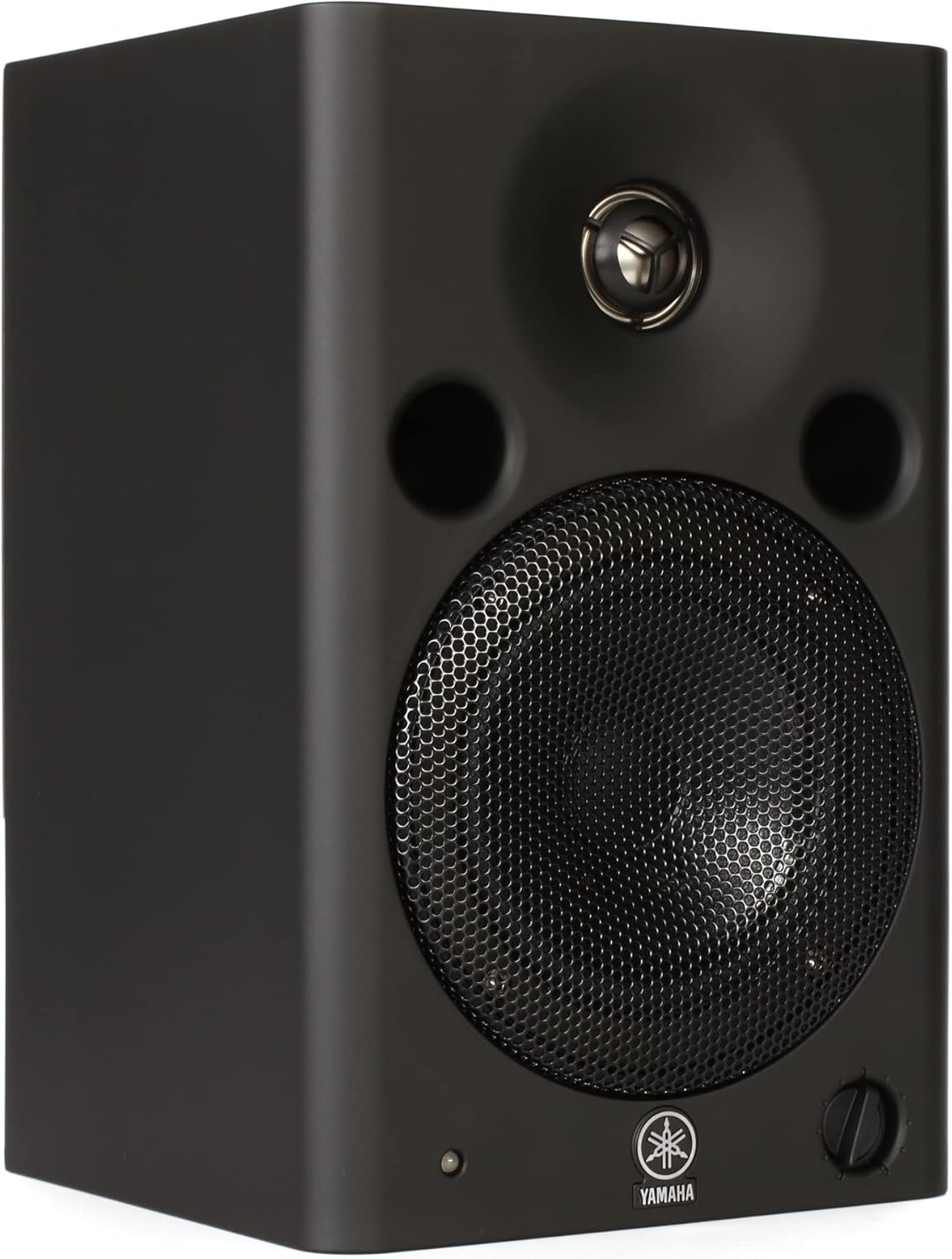
Figure 1: Front view of the Yamaha MSP5 Studio Monitor. This image shows the speaker's main grille, tweeter, and bass reflex ports.

Figure 2: Angled view of the Yamaha MSP5 Studio Monitor, highlighting its compact design and overall aesthetic.

Figure 3: Dimensions of the Yamaha MSP5 Studio Monitor, showing its height, width, and depth for proper placement planning.
Connections
The MSP5 STUDIO offers both balanced XLR and unbalanced 1/4" input options. Choose the appropriate cable for your audio interface or mixer. For optimal sound quality and to minimize noise, balanced XLR connections are recommended.
- Connect the provided XLR cable from your audio source's output to the XLR input on the MSP5 STUDIO.
- Alternatively, use the 1/4" cable for unbalanced connections.
- Connect the power cord to the monitor and then to a suitable AC outlet.
Operating Instructions
Powering On/Off
Locate the power switch on the rear panel of the monitor. Press the switch to the 'ON' position to power on the unit. The power indicator LED on the front will illuminate. To power off, press the switch to the 'OFF' position.
Volume Control
Adjust the input sensitivity/volume knob on the rear panel to set the desired listening level. Start with a low volume and gradually increase it to a comfortable level to prevent sudden loud sounds.
Acoustic Adjustments
The MSP5 STUDIO may feature controls on the rear panel for acoustic adjustments, such as room control or high-frequency trim. Refer to the detailed specifications for available controls and adjust them according to your room acoustics and personal preference for optimal sound reproduction.
Maintenance
Cleaning
To clean the exterior of the monitor, use a soft, dry cloth. For stubborn dirt, a slightly damp cloth with mild, non-abrasive cleaner can be used, ensuring no liquid enters the speaker grilles or ports. Avoid using harsh chemicals or solvents.
Storage
When not in use for extended periods, store the monitor in a cool, dry place, away from direct sunlight and extreme temperatures. It is recommended to keep the original packaging for safe storage and transport.
Troubleshooting
| Problem | Possible Cause | Solution |
|---|---|---|
| No Sound |
|
|
| Distorted Sound |
|
|
| Hum or Buzz Noise |
|
|
Specifications
| Attribute | Detail |
|---|---|
| Model Name | MSP5STUDIO |
| Speaker Type | Monitor |
| Compatible Devices | Smartphone, Tablet, Desktop, Television, Projector, Laptop |
| Subwoofer Diameter | 5 Inches |
| Controller Type | Corded Electric |
| Surround Sound Channel Configuration | 2.0 |
| Included Components | XLR cable, 1/4" cable |
| Product Dimensions | 10.5"D x 9.8"W x 15.5"H |
| Item Weight | 17.42 pounds (7900 Grams) |
| Is Waterproof | FALSE |
| Maximum Range | 14.5 Feet |
| Number of Items | 1 |
| Control Method | Touch |
| Speaker Size | 5 Inches |
| Power Source | Corded Electric |
| Signal-to-Noise Ratio | 7E+1 dB |
| Woofer Diameter | 5 Inches |
| Tweeter Diameter | 1 Inches |
| Audio Driver Type | Dynamic Driver |
| Audio Driver Size | 5 Inches |
| Subwoofer Connectivity Technology | Wired |
| Connectivity Protocol | XLR, RCA |
| Manufacturer | Yamaha Corporation of America |
| Date First Available | November 28, 2007 |
| Speaker Amplification Type | Active |
| Wattage | 60 watts |
| Brand | Yamaha |
| Speaker Maximum Output Power | 40 Watts |
| Connectivity Technology | XLR |
| Audio Output Mode | Stereo, Surround |
| Mounting Type | Magnetic Mount |
Warranty and Support
Warranty Information
The Yamaha MSP5 STUDIO monitor comes with a Limited Warranty. For specific terms, conditions, and duration of the warranty, please refer to the warranty card included with your product or visit the official Yamaha website. Retain your proof of purchase for warranty claims.
Customer Support
For technical assistance, troubleshooting beyond this manual, or service inquiries, please contact Yamaha customer support. You can find contact information on the official Yamaha website or through the documentation provided with your product.
Official Yamaha Website: www.yamaha.com
Ask a question about this manual
Ask about setup, troubleshooting, compatibility, parts, safety, or missing instructions. Manuals+ will review the question and use this page’s manual context to help answer it.