
Canon 2420B001
Canon PowerShot SX100IS Digital Camera Instruction Manual
Model: SX100IS (2420B001)
Brand: Canon
Introduction
This manual provides comprehensive instructions for the safe and effective use of your Canon PowerShot SX100IS Digital Camera. The PowerShot SX100IS is an 8.0-megapixel digital camera featuring a 10x optical image-stabilized zoom lens, designed for capturing high-quality images and videos with ease. It incorporates Canon's DIGIC III Image Processor, Face Detection Technology, and Optical Image Stabilizer for enhanced performance and user convenience.

Figure 1: The Canon PowerShot SX100IS Digital Camera, showcasing its compact design with the 10x optical zoom lens retracted.
Setup
1. What's in the Box
Verify that all components are present:
- Canon PowerShot SX100IS Digital Camera
- AA-size alkaline batteries (x 2)
- 16MB SD memory card (SDC-16M)
- Wrist strap (WS-200)
- Digital Camera Solution CD-ROM
- USB interface cable (IFC-400PCU)
- AV cable (AVC-DC300)
2. Battery Installation
The PowerShot SX100IS operates on two AA-size batteries. For optimal performance and battery life, it is recommended to use NiMH rechargeable batteries.
- Locate the battery compartment cover on the bottom of the camera.
- Slide the cover latch to open the compartment.
- Insert two AA batteries, ensuring correct polarity (+/-) as indicated inside the compartment.
- Close the battery compartment cover securely until it clicks into place.
3. Memory Card Installation
The camera uses SD/SDHC/MMC memory cards for storing images and videos. A 16MB SD card is included.
- Open the battery/memory card compartment cover.
- Insert the memory card into the card slot with the label facing the correct direction (usually towards the front of the camera). Push until it clicks into place.
- Close the compartment cover securely.

Figure 2: The Canon PowerShot SX100IS with its 10x optical zoom lens extended, indicating readiness for capturing images.
Operating Instructions
1. Powering On/Off
Press the ON/OFF button located on the top of the camera to power it on or off. The lens will extend when powered on.

Figure 3: Top view of the Canon PowerShot SX100IS, highlighting the ON/OFF button and the Mode Dial for selecting shooting modes.
2. Basic Photography
To take a picture:
- Turn the camera on.
- Select your desired shooting mode using the Mode Dial.
- Frame your shot using the 2.5-inch LCD screen.
- Press the Shutter Button halfway down to focus. The camera will automatically detect faces and set focus/exposure.
- Press the Shutter Button completely down to capture the image.
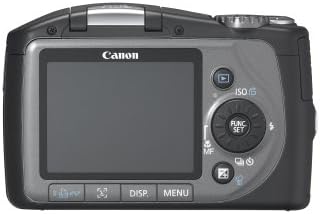
Figure 4: Rear view diagram of the Canon PowerShot SX100IS, illustrating the LCD screen and the arrangement of control buttons, including the control wheel and function buttons.
3. Using the Zoom
The camera features a 10x optical zoom and 4x digital zoom. Use the zoom lever located around the shutter button to adjust the focal length. Optical zoom provides higher quality images than digital zoom.
4. Shooting Modes
The Mode Dial allows selection of various shooting modes:
- Auto Mode: Camera automatically sets optimal settings.
- Program AE (P) Mode: Camera sets aperture and shutter speed, but allows control over other settings.
- Manual (M) Mode: Full control over aperture, shutter speed, and other settings.
- Scene Modes: Includes specific settings for common situations like Portrait, Landscape, Night Snapshot, Kids & Pets, Indoor, Foliage, Snow, Beach, Fireworks, Aquarium, and ISO 1600.
5. Face Detection Technology
The camera's DIGIC III processor includes advanced Face Detection. It automatically detects faces in the frame and optimizes focus, exposure, and flash settings for clear, natural-looking portraits. Use the Face Selector Button to prioritize a specific face.
6. Optical Image Stabilizer (IS)
The Optical Image Stabilizer reduces blur caused by camera shake, especially useful when shooting at longer zoom settings or in low light. This feature operates automatically.
7. Video Recording
To record a video:
- Turn the Mode Dial to the movie camera icon.
- Press the Shutter Button to start recording.
- Press the Shutter Button again to stop recording.
Note: Optical zoom is not available during video recording; only digital zoom can be used.
8. Playback and Review
To view captured images and videos:
- Press the Playback Button (usually indicated by a play icon).
- Use the directional buttons or the control wheel to navigate through your photos and videos.
- Press the DISP button to change the information displayed on the screen.

Figure 5: Rear view of the Canon PowerShot SX100IS, with the LCD screen displaying a captured image during playback mode.
9. Connecting to a Computer or Printer
Use the Print/Share Button for easy direct printing and image transfer.
- Direct Printing: Connect the camera to a PictBridge-compatible printer (e.g., Canon CP, SELPHY, or PIXMA Photo Printer) using the USB cable. Press the lighted Print/Share button to print.
- Image Transfer: Connect the camera to a computer (Windows or Macintosh) using the USB cable. Press the Print/Share button to initiate image transfer.
Maintenance
1. Cleaning the Camera
- Use a soft, dry cloth to clean the camera body.
- For the lens, use a lens brush or a soft, lint-free cloth specifically designed for optical surfaces. Avoid touching the lens with your fingers.
- For the LCD screen, use a soft, dry cloth. Do not use abrasive cleaners.
2. Battery Care
- Remove batteries if the camera will not be used for an extended period.
- Store batteries in a cool, dry place.
- Use high-quality AA batteries, preferably NiMH rechargeable ones, for best performance and longevity.
3. Memory Card Handling
- Always format new memory cards in the camera before first use.
- Do not remove the memory card while the camera is writing or reading data.
- Keep memory cards away from strong magnetic fields.
Troubleshooting
| Problem | Possible Cause | Solution |
|---|---|---|
| Camera does not power on. | Batteries are depleted or incorrectly inserted. | Replace with fresh batteries or ensure correct polarity. Use fully charged NiMH batteries. |
| Images are blurry. | Camera shake, subject movement, or out of focus. | Hold the camera steady. Ensure the Optical Image Stabilizer is active. Use a faster shutter speed or flash in low light. Allow camera to focus completely before pressing shutter. |
| Red-eye in photos. | Flash reflection in subject's eyes. | Enable Red-eye Correction in camera settings or during playback. Increase ambient light. |
| Poor battery life. | Using alkaline batteries, frequent flash use, or extensive LCD use. | Switch to NiMH rechargeable batteries. Reduce flash usage. Adjust LCD brightness or use power-saving modes. |
| Memory card error. | Card is full, corrupted, or incompatible. | Delete unnecessary files, format the card (will erase all data), or try a different compatible SD/SDHC card. |
Specifications
| Feature | Detail |
|---|---|
| Model Name | Canon PowerShot SX100IS |
| Effective Still Resolution | 8 Megapixels |
| Photo Sensor Technology | CCD |
| Optical Zoom | 10x |
| Digital Zoom | 4x |
| Image Stabilization | Optical |
| Screen Size | 2.5 Inches LCD |
| Supported File Format | JPEG |
| Video Resolution | 480p (MJPEG format) |
| Storage Media | SD/SDHC/MMC card (up to 32 GB supported) |
| Power Source | 2 x AA Batteries |
| Connectivity | USB, AV Out |
| Dimensions (approx.) | Item Height: 2.8 inches |
| Weight (approx.) | 0.7 Pounds |
| Model Number | 2420B001 |
| UPC | 013803087758 |
Warranty and Support
For detailed warranty information and technical support, please visit the official Canon support website or contact Canon customer service. Keep your purchase receipt as proof of purchase.
Related Documents - 2420B001
 |
Canon PowerShot G2: High-Resolution Digital Camera Overview Explore the features and specifications of the Canon PowerShot G2, a 4-megapixel digital camera offering advanced capabilities for professional and amateur photographers, including detailed information on its lens, shooting modes, and system accessories. |
 |
Canon PowerShot ELPH 360 HS A Digital Camera Specifications Detailed specifications for the Canon PowerShot ELPH 360 HS A digital camera, covering image capture, lens, display, exposure control, shooting modes, storage, playback, interfaces, power, and physical characteristics. |
 |
Canon PowerShot SX50 HS Black: Руководство пользователя камеры Полное руководство пользователя для цифровой камеры Canon PowerShot SX50 HS Black. Ознакомьтесь с функциями, настройками, комплектом поставки и мерами безопасности для оптимального использования. |
 |
Canon PowerShot Digital Camera Quick Start Guide This guide provides initial setup and basic operation instructions for Canon PowerShot A4000 IS, A2400 IS, A3400 IS, and A2300 digital cameras. It covers unboxing, battery charging, memory card insertion, date/time setting, basic shooting, video recording, image viewing, and touch screen usage. |
 |
Canon PowerShot SX740 HS Camera User Guide Comprehensive user guide for the Canon PowerShot SX740 HS digital camera, covering setup, basic operations, shooting modes, wireless features, and safety instructions. |
 |
Canon PowerShot G11 相機使用者指南 深入了解 Canon PowerShot G11 數碼相機的全面使用指南。本手冊涵蓋基本操作、拍攝技巧、設定選項及安全注意事項,助您充分發揮相機功能。 |