
Introduction
This manual provides comprehensive instructions for the setup, operation, and maintenance of your Logitech H390 Wired Headset. Designed for clear audio communication and comfortable use, this headset is ideal for PC and laptop users, offering stereo sound and a noise-cancelling microphone.
Key features include:
- Handy In-line Controls: Simple in-line controls on the cable of these over ear headphones let you adjust the volume or mute calls without disruption; they're great as gaming headsets for PC and microphone noise cancelling headphones for work.
- Rotating Noise Cancelling Mic: The computer headphones minimize unwanted background noise for clear conversations. The rotating boom arm can be tucked out of the way when you’re not using the computer headset with microphone.
- Comfortable Headphones: These headphones for gaming feature an adjustable headband, swivel-mount, and leatherette ear cushions for comfort; they are easy to clean and are great as a noise-cancelling call center headset with a microphone.
- Digital Stereo Sound: Fine-tuned drivers in these headphones with microphone provide enhanced digital audio for music, calls, meetings and more.
- Plug-and-Play USB Computer Headset: Simply plug the USB-A connector of this PC headset with mic into your computer and you’re ready to talk or listen without the need to install software.
What's in the Box
Your Logitech H390 Wired Headset package should contain the following items:
- USB Headset H390
- Quick-Start Guide

Image: The Logitech H390 Wired Headset, showcasing the headphones, microphone, and the USB-A cable with integrated inline controls.
Setup
The Logitech H390 headset is designed for simple plug-and-play functionality, requiring no additional software installation for basic operation.
- Connect the Headset: Locate an available USB-A port on your computer (PC or laptop). Insert the USB-A connector of the H390 headset firmly into the USB port.

Image: A close-up view of the USB-A plug, ready for connection to a computer.
- System Recognition: Your operating system (Windows, macOS, Chrome OS) should automatically detect the headset and install the necessary drivers. This process usually takes a few seconds.
- Verify Audio Settings: After connection, it is recommended to verify that the Logitech H390 is selected as the default audio input (microphone) and output (speakers) device in your computer's sound settings.
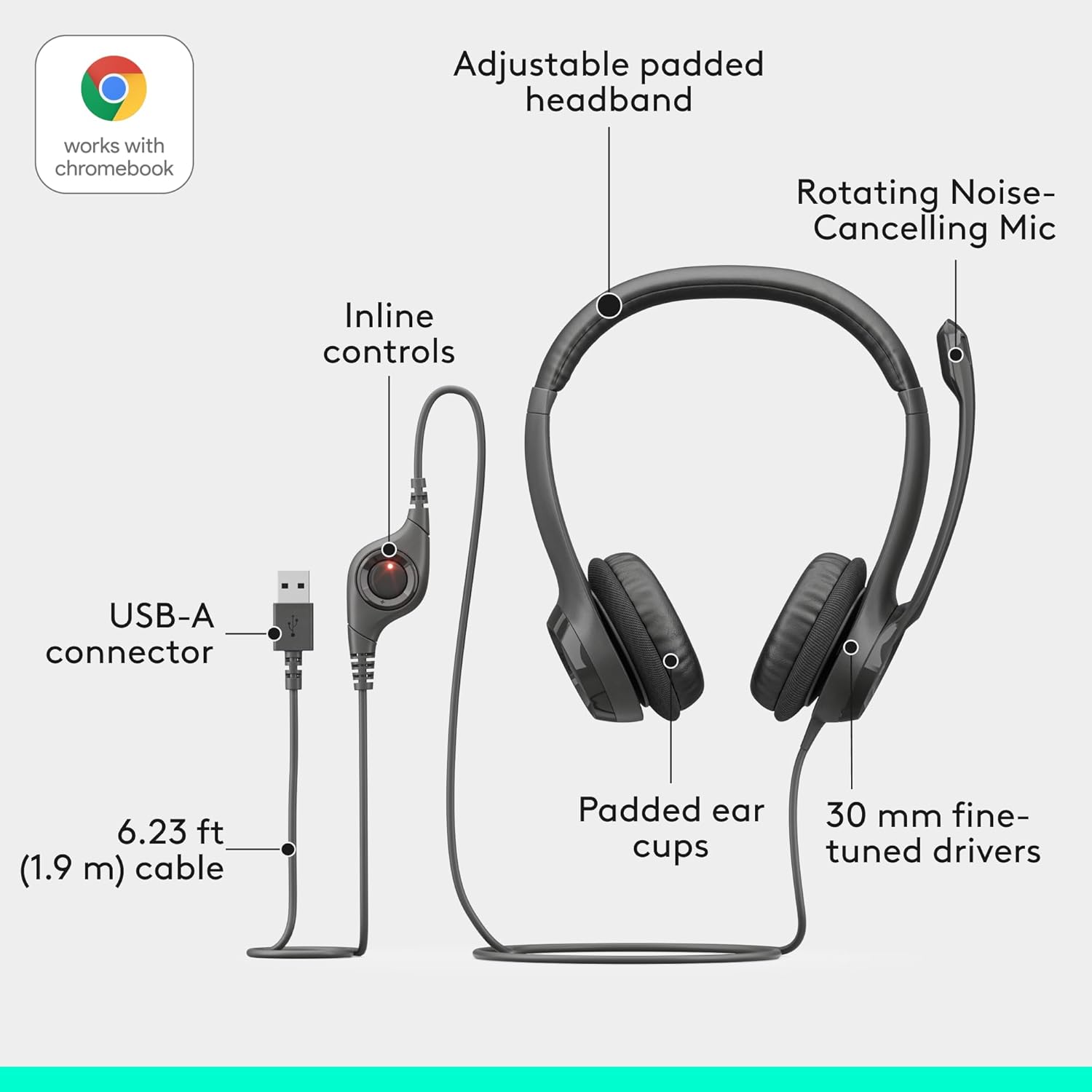
Image: An exploded diagram illustrating the headset's components, including the adjustable padded headband, rotating noise-cancelling mic, inline controls, USB-A connector, padded ear cups, and 30mm fine-tuned drivers.
Operating Instructions
The Logitech H390 headset features intuitive controls for managing your audio and calls.
Adjusting the Headset for Comfort
- Headband Adjustment: Extend or retract the adjustable headband to ensure a comfortable and secure fit on your head.
- Ear Cushions: The leatherette ear cushions are designed for comfort during extended use. Ensure they sit comfortably over your ears.

Image: A man wearing the Logitech H390 headset, demonstrating its comfortable fit during use in an office environment.

Image: A close-up view highlighting the padded ear cups of the Logitech H390 headset, emphasizing comfort.
Using the Microphone
- Positioning: Rotate the boom arm to position the noise-cancelling microphone optimally near your mouth for clear voice capture.
- Stowing: When not in use, the microphone boom arm can be rotated upwards and out of the way.

Image: A diagram illustrating the rotating mechanism of the noise-cancelling microphone, showing its movement from active to stowed position.
In-Line Controls
The in-line control unit on the headset cable provides quick access to essential functions:
- Volume Up: Press the '+' button to increase the listening volume.
- Volume Down: Press the '-' button to decrease the listening volume.
- Mute: Press the mute button to toggle the microphone on or off. A red indicator light typically signifies that the microphone is muted.

Image: A detailed view of the inline control unit, clearly labeling the volume up, volume down, and mute buttons, with a red light indicating mute status.
Maintenance
To ensure the longevity and optimal performance of your Logitech H390 headset, follow these simple maintenance guidelines:
- Cleaning: Gently wipe the ear cushions and other surfaces with a soft, damp cloth. Avoid using harsh chemicals or abrasive cleaners.
- Storage: When not in use, store the headset in a clean, dry place away from extreme temperatures and direct sunlight.
- Cable Care: Avoid sharp bends or excessive pulling on the USB cable to prevent internal damage.
Troubleshooting
If you encounter issues with your Logitech H390 headset, try the following troubleshooting steps:
| Problem | Possible Solution |
|---|---|
| No audio from headset |
|
| Microphone not working |
|
| Sound quality is poor or distorted |
|
| Headset is uncomfortable after long use |
|
Specifications
| Feature | Detail |
|---|---|
| Brand | Logitech |
| Model Name | H390 USB COMPUTER HEADSET |
| Item Model Number | 981-000014 |
| Connectivity Technology | Wired (USB-A) |
| Noise Control | Active Noise Cancellation (Microphone) |
| Frequency Response | 20000 Hz |
| Headphones Jack | USB |
| Ear Placement | On Ear |
| Form Factor | On Ear |
| Control Type | Mute button, Volume Control |
| Cable Feature | Retractable (referring to the microphone boom arm) |
| Item Weight | 7 ounces (0.44 Pounds) |
| Product Dimensions | 3.23 x 8.35 x 10.24 inches |
| Material | Plastic |
| Compatible Devices | PC Audio Applications |
| Country of Origin | Vietnam |
Warranty & Support
For detailed warranty information, please refer to the official Logitech warranty document. A copy of the warranty is available:
For further assistance, technical support, or to inquire about replacement parts, please visit the official Logitech support website or contact their customer service. Contact information can typically be found on the Logitech website or in the original product packaging.


