
1. Introduction
This manual provides essential information for the safe and efficient operation of your Sharp Aquos LC42D64U 42-Inch 1080p LCD HDTV. Please read these instructions thoroughly before using your television and retain them for future reference. The Sharp Aquos D64 series offers a slim design, Full HD 1080p resolution, and advanced features for an enhanced viewing experience.
2. Important Safety Information
Always follow basic safety precautions when using this television to reduce the risk of fire, electric shock, and injury.
- Power Source: Connect the TV only to the power supply indicated on the label.
- Ventilation: Ensure proper ventilation. Do not block ventilation openings.
- Water and Moisture: Do not expose the TV to rain or moisture. Do not place objects filled with liquids on the TV.
- Cleaning: Unplug the TV from the wall outlet before cleaning. Use a soft, dry cloth.
- Servicing: Do not attempt to service this product yourself. Refer all servicing to qualified service personnel.
- Mounting: If wall-mounting, ensure the mount is compatible and installed by qualified personnel.
- Children: Supervise children to prevent them from climbing on or playing with the TV.
3. What's in the Box
Verify that all components are present before proceeding with setup.
- Sharp Aquos LC42D64U 42-Inch LCD HDTV
- Remote Control
- Table Stand
- Power Cord
- User Manual (this document)
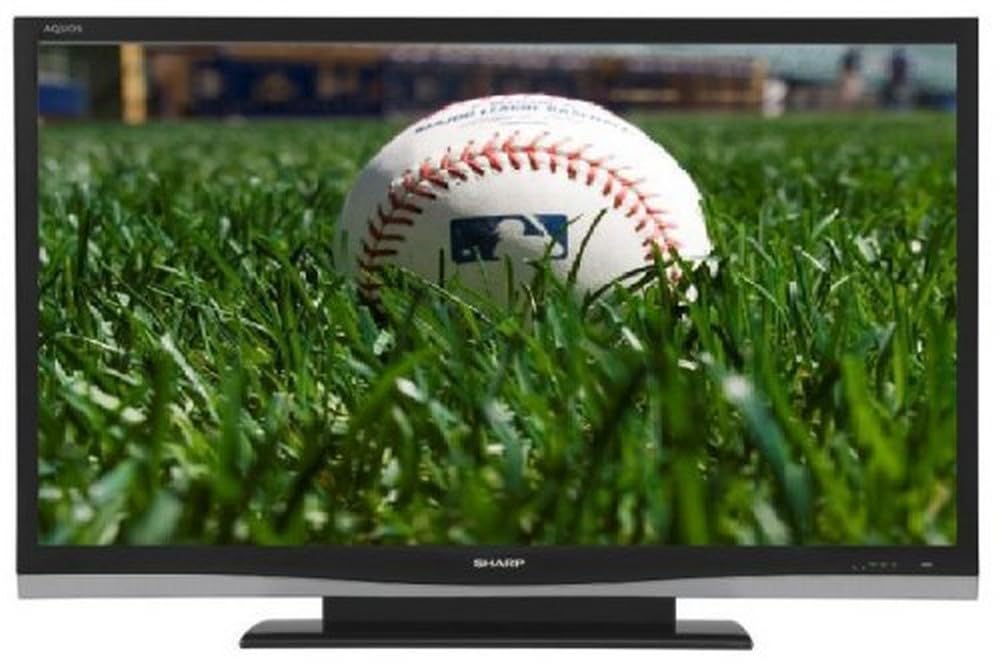
Image: Front view of the Sharp Aquos LC42D64U 42-Inch LCD HDTV with its included table stand.
4. Setup
4.1 Attaching the Table Stand
If you are not wall-mounting the television, attach the included table stand. Refer to the separate assembly guide for detailed instructions on securing the stand to the TV. Ensure all screws are tightened securely.
4.2 Connecting External Devices
Connect your external devices (e.g., cable box, Blu-ray player, game console) to the appropriate input terminals on the rear or side of the TV.
- HDMI: For high-definition digital video and audio. The TV features three HDMI 1.3 inputs (two rear, one side).
- Component Video (Y, Pb, Pr): For high-definition analog video. Two inputs are available.
- Composite Video (A/V): For standard-definition analog video and audio. One side and one rear input.
- S-Video: For standard-definition video. One side and one rear input.
- PC Input (D-Sub 15-pin): Connect a computer for use as a monitor.
- RF Antenna Inputs: Two inputs for connecting an antenna or cable TV.
- Ethernet Port: For network connectivity (DLNA).
4.3 Power Connection
After connecting all desired devices, plug the power cord into the TV's power inlet and then into a wall outlet. The TV will enter standby mode.
5. Operating Instructions
5.1 Initial Power On and Channel Setup
- Press the POWER button on the remote control or the TV to turn it on.
- The first time you power on, the TV will guide you through the initial setup process, including language selection and channel scanning.
- Select your preferred language (English, Spanish, or French).
- Perform an "Easy Setup" or "Channel Setup" scan to detect available digital (ATSC, QAM) and analog (NTSC) channels.
5.2 Basic Remote Control Functions
- POWER: Turns the TV on or off (standby).
- INPUT: Cycles through available input sources (HDMI, Component, PC, etc.).
- CH +/-: Changes channels.
- VOL +/-: Adjusts volume.
- MENU: Accesses the on-screen menu for settings adjustments.
- ARROW BUTTONS: Navigate through menu options.
- ENTER: Confirms selections.
- EXIT/RETURN: Exits menus or returns to the previous screen.
5.3 Menu Navigation and Settings
Press the MENU button to access various settings categories:
- Picture: Adjust brightness, contrast, color, tint, sharpness, and backlight. The OPC function automatically adjusts brightness based on room conditions.
- Audio: Control volume, bass, treble, balance, and select audio modes.
- Channel: Rescan channels, add/delete channels, and set up favorite channels.
- Setup: General settings like language, time, sleep timer, and parental controls (V-Chip).
- Advanced Features: Access settings for DLNA, Picture-in-Picture, and AQUOS LINK.
6. Advanced Features
6.1 AQUOS LINK (HDMI-CEC)
AQUOS LINK allows convenient control of compatible Sharp devices connected via HDMI using just your AQUOS TV remote. Ensure connected devices also support HDMI-CEC (Consumer Electronics Control) and are enabled in their respective settings.
6.2 DLNA Compatibility
The TV is DLNA-compatible, enabling interoperability with other DLNA-certified electronics, computers, and mobile devices. Connect the TV to your home network via the Ethernet port to access and share digital content (photos, videos, music) from compatible devices on your network.
6.3 Picture-in-Picture (PIP)
The Picture-in-Picture function allows simultaneous viewing of a TV program and a video or PC source. Consult the on-screen menu for PIP activation and source selection.
6.4 V-Chip System
The V-Chip system allows you to block TV and movie programs based on their rating, providing parental control over objectionable content. Access V-Chip settings through the TV's setup menu.
7. Maintenance
7.1 Cleaning the Screen
Gently wipe the screen with a soft, lint-free cloth. For stubborn marks, lightly dampen the cloth with water or a specialized screen cleaner. Do not use harsh chemicals, abrasive cleaners, or spray liquids directly onto the screen.
7.2 Cleaning the Cabinet
Wipe the TV cabinet with a soft, dry cloth. Avoid using solvents or abrasive materials.
7.3 General Care
- Unplug the TV during lightning storms or when unused for long periods.
- Keep the TV away from direct sunlight, heat sources, and excessive dust.
- Ensure adequate space around the TV for proper ventilation.
8. Troubleshooting
Before contacting customer support, try the following solutions for common issues:
| Problem | Possible Solution |
|---|---|
| No power | Check if the power cord is securely plugged into the TV and the wall outlet. Ensure the outlet has power. |
| No picture, but sound is present | Verify the correct input source is selected. Check cable connections to external devices. |
| No sound, but picture is present | Check the volume level and mute setting. Ensure audio cables are correctly connected. |
| Remote control not working | Replace batteries. Ensure there are no obstructions between the remote and the TV's IR sensor. |
| "Hotel Mode" issue (as per customer review) | If the TV is stuck in a limited functionality mode, contact Sharp customer support for assistance in disabling "Hotel Mode." This typically requires a specific service menu sequence. |
9. Specifications
| Feature | Detail |
|---|---|
| Model Number | LC42D64U |
| Screen Size | 42 Inches |
| Display Technology | LCD |
| Resolution | 1080p (Full HD) |
| Contrast Ratio | 10,000:1 Dynamic |
| Response Time | 4 Milliseconds |
| HDMI Ports | 3 (2 rear, 1 side) |
| Component Video Inputs | 2 |
| Composite Video Inputs | 3 (1 side, 2 rear) |
| S-Video Inputs | 2 (1 side, 1 rear) |
| PC Input | 1 (D-Sub 15-pin) |
| Ethernet Port | Yes |
| Tuner Type | ATSC, QAM, NTSC |
| Parental Control | V-Chip |
| Weight | 70.2 Pounds (approx.) |
| Model Year | 2008 |
10. Warranty and Support
10.1 Limited Warranty
This Sharp Aquos LC42D64U television comes with a 1 Year Parts and 1 Year Labor Warranty from the date of original purchase. This warranty covers manufacturing defects in materials and workmanship under normal use. It does not cover damage caused by misuse, accident, modification, or unauthorized repair.
Please retain your proof of purchase for warranty claims.
10.2 Customer Support
For technical assistance, troubleshooting beyond this manual, or warranty service, please contact Sharp Customer Support. Refer to the contact information provided with your product documentation or visit the official Sharp website for the most current support details.
When contacting support, please have your model number (LC42D64U) and serial number ready.


