
Panasonic RR-US470
Panasonic RR-US470 Voice Recorder User Manual
Model: RR-US470
Introduction
Welcome to the user manual for your Panasonic RR-US470 Voice Recorder. This manual provides comprehensive instructions on how to set up, operate, maintain, and troubleshoot your device. Please read this manual thoroughly to ensure proper use and to maximize the performance of your voice recorder.
Product Overview
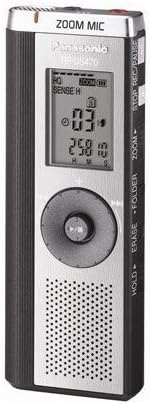
The Panasonic RR-US470 is a compact and slim digital voice recorder designed for clear audio capture. It features a prominent LCD display for easy navigation and status updates, a multi-directional control dial, and dedicated buttons for functions like recording, playback, and file management. The device includes a built-in speaker and a 'ZOOM MIC' for enhanced sound capture, along with a 'HOLD' switch to prevent accidental operations. Its sleek silver and black design makes it highly portable.
The RR-US470 is equipped with a high-quality microphone, an intuitive interface, and ample recording capacity, making it ideal for lectures, meetings, and personal notes. It also includes PC software for easy file transfer and management.
Setup
Battery Installation
The Panasonic RR-US470 requires two (2) AAA batteries for operation.
- Locate the battery compartment cover on the back of the device.
- Slide the cover open in the direction indicated by the arrow.
- Insert two AAA batteries, ensuring the correct polarity (+ and -) as marked inside the compartment.
- Close the battery compartment cover securely until it clicks into place.
Initial Power On
After installing the batteries, press and hold the POWER button (if available, or the STOP/REC/PAUSE button if it doubles as power) until the LCD screen illuminates. The device may prompt you to set the date and time upon first use.
Connecting to a Computer
To transfer recorded files to your computer, use the supplied USB cable.
- Connect one end of the USB cable to the USB port on the voice recorder.
- Connect the other end of the USB cable to an available USB port on your computer.
- The voice recorder should be recognized as a removable storage device.
- Install the included PC software (if not already installed) to utilize features like Speech to Text and advanced file management. Refer to the software's installation guide for detailed instructions.
Operating Instructions
Recording Audio
The RR-US470 offers various recording settings, including HQ (High Quality) and SENSE H (High Sensitivity) for optimal audio capture.
- Ensure the device is powered on and not in HOLD mode.
- Select your desired recording folder using the FOLDER button.
- To start recording, press the REC/PAUSE button. The recording indicator will illuminate, and the display will show recording time.
- Adjust the microphone sensitivity or activate the ZOOM MIC feature as needed for your recording environment.
- To pause recording, press REC/PAUSE again. Press it once more to resume.
- To stop recording, press the STOP button. The recorded file will be saved automatically.
Playback
- Navigate through your recorded files using the control dial or FOLDER buttons.
- Select the desired file on the LCD screen.
- Press the PLAY button (center of the dial) to begin playback.
- Adjust the volume using the outer ring of the control dial. Be mindful that the dial also controls stop/play functions, so precise movements are recommended.
- To stop playback, press the STOP button.
File Management
The device allows for basic file management directly on the unit.
- Erase: To delete a file, select it and press the ERASE button. Confirm your selection when prompted.
- Folder: Use the FOLDER button to switch between different recording folders (e.g., A, B, C, D) to organize your recordings.
Using PC Software
The included PC software enhances the functionality of your RR-US470.
- File Transfer: Easily transfer recorded audio files from the recorder to your computer for storage, editing, or sharing.
- Speech to Text: Utilize the integrated Speech to Text software to convert your audio recordings into text documents. Note that accuracy may vary based on audio quality and clarity.
- File Conversion: The device saves files in a proprietary format. The PC software is necessary to convert these files to more common formats like MP3 for wider compatibility.
Maintenance
Cleaning
To maintain the appearance and functionality of your voice recorder:
- Wipe the exterior of the device with a soft, dry cloth.
- Do not use liquid cleaners, abrasive pads, or chemical solvents, as these can damage the surface or internal components.
- Keep the microphone and speaker grilles free from dust and debris.
Battery Care
- Remove batteries if the device will not be used for an extended period to prevent leakage.
- Replace both batteries simultaneously with new ones of the same type.
- Dispose of used batteries according to local regulations.
Troubleshooting
If you encounter issues with your Panasonic RR-US470, refer to the table below for common problems and their solutions.
| Problem | Possible Cause | Solution |
|---|---|---|
| Device does not power on. | Batteries are dead or incorrectly inserted. | Replace batteries with new ones, ensuring correct polarity. |
| Poor sound quality during recording/playback. | Microphone/speaker obstructed; incorrect recording settings; low battery. | Ensure microphone/speaker are clear. Check recording mode (e.g., HQ). Replace batteries. |
| Difficulty with control dial (e.g., accidental stop). | Sensitive control design. | Exercise caution and precise movements when using the multi-function dial, especially for volume adjustments. |
| Cannot connect to PC or transfer files. | USB cable issue; driver not installed; incompatible OS (e.g., Windows XP). | Try a different USB port or cable. Ensure PC software is installed. Verify OS compatibility (some older models may have limited support for newer OS versions). |
| Recorded files are in an unfamiliar format. | Proprietary file format. | Use the included Panasonic PC software to convert files to standard formats like MP3. |
Specifications
| Feature | Detail |
|---|---|
| Brand | Panasonic |
| Model | RR-US470 |
| Recording Time (Max) | 134 hours |
| Hardware Interface | USB |
| Compatible Devices | Personal Computer |
| Display Technology | LCD |
| Screen Display Size | 2 Inches |
| Battery Type | 2 x AAA batteries |
| Product Dimensions | 1.42 x 3.81 x 10.41 cm |
| Item Weight | 318 g (0.7 Pounds) |
| Model Year | 2008 |
Warranty and Support
Your Panasonic RR-US470 Voice Recorder is covered by a limited warranty. For specific warranty terms and conditions, please refer to the warranty card included with your product or visit the official Panasonic website for your region.
For technical support, troubleshooting assistance beyond this manual, or service inquiries, please contact Panasonic customer support. Contact information can typically be found on the Panasonic website or in your product's packaging.
Related Documents - RR-US470
 |
Panasonic IC Recorder Operating Instructions Manual Official operating instructions manual for Panasonic IC Recorder models RR-US490, RR-US470, RR-US450, and RR-US430. Learn how to use, record, play, and manage your device. |
 |
Panasonic RR-US470 IC Recorder: Operating Instructions and User Manual Comprehensive operating instructions for the Panasonic RR-US470 IC Recorder. This guide covers setup, recording, playback, file management, security features, troubleshooting, specifications, and warranty information, presented in an accessible HTML format. |
 |
Panasonic RR-QR170 Digital Voice Recorder User Manual Comprehensive user manual for the Panasonic RR-QR170, RR-US395, and RR-QR180 digital voice recorders. Covers setup, operation, recording, playback, file management, advanced features, computer connectivity, maintenance, and troubleshooting. |
 |
Panasonic IC-Rekorder Bedienungsanleitung Bedienungsanleitung für den Panasonic IC-Rekorder mit den Modellen RR-US395, RR-QR180 und RR-QR170, die Funktionen, Einrichtung, Bedienung und Fehlerbehebung abdeckt. |
 |
Panasonic RR-QR400/RR-QR200/RR-QR100 IC Recorder Operating Instructions Operating instructions for the Panasonic RR-QR400, RR-QR200, and RR-QR100 IC recorders. This guide covers battery insertion, time setting, recording, playback, file management, and troubleshooting. |
 |
Panasonic RR-US395/RR-QR180/RR-QR170 Digital Voice Recorder User Manual Comprehensive user manual for Panasonic RR-US395, RR-QR180, and RR-QR170 digital voice recorders. This guide covers device setup, recording functions (Meeting, Dictation, VAS), playback operations, file management, timer features, care instructions, computer connectivity, and technical specifications. |
Ask a question about this manual
Ask about setup, troubleshooting, compatibility, parts, safety, or missing instructions. Manuals+ will review the question and use this page’s manual context to help answer it.