
BOSS Micro BR
BOSS Micro BR Digital Multitrack Recorder User Manual
Model: Micro BR
1. Introduction
This manual provides comprehensive instructions for the setup, operation, maintenance, and troubleshooting of your BOSS Micro BR Digital Multitrack Recorder. The Micro BR is a compact and powerful recording studio designed for musicians on the go, offering a range of features for recording, practice, and playback.
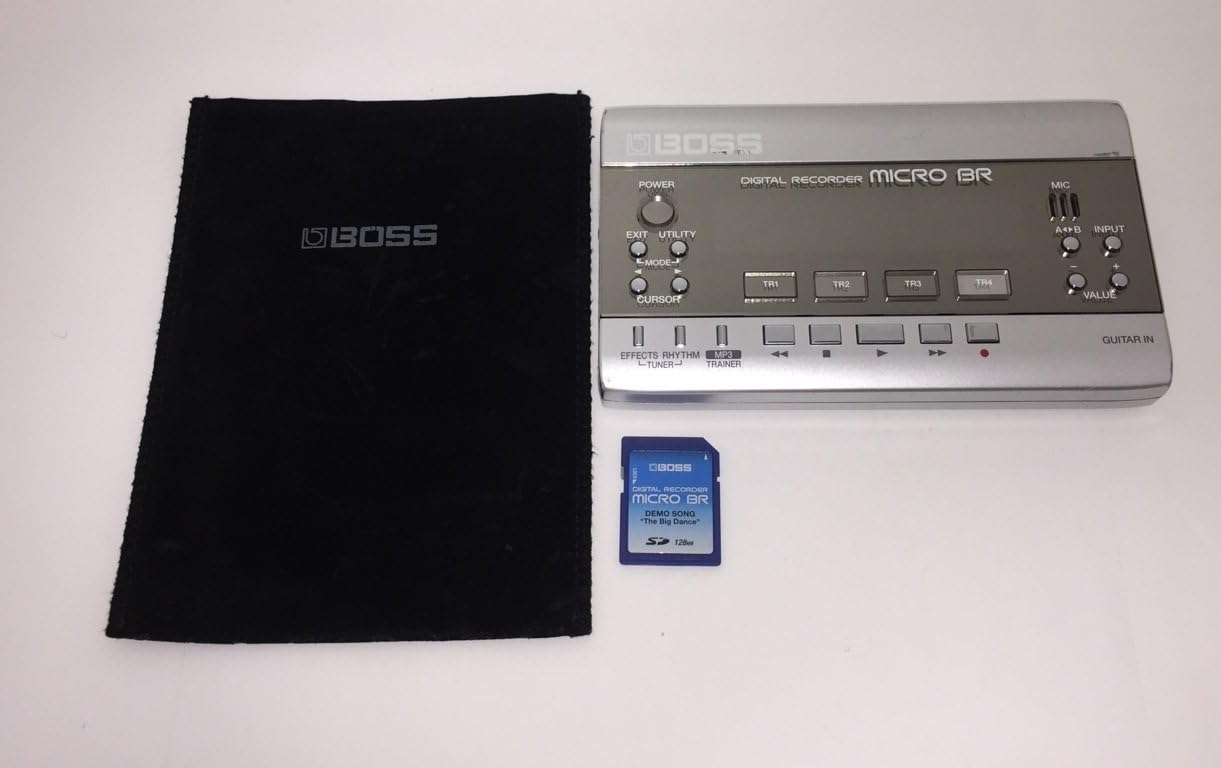
Figure 1: BOSS Micro BR Digital Multitrack Recorder with its protective pouch and an SD card. This image displays the compact size of the device alongside its essential accessories.
Key Features:
- Ultra-portable design, compact and lightweight.
- Four-track playback with 32 V-Tracks for flexible recording.
- Ability to load and play MP3 files.
- Integrated multi-effects processor with a dedicated guitar input.
- Time-Stretch and Center Cancel features, applicable to MP3 files.
- Built-in drum machine with 293 rhythm patterns.
- Integrated tuner and microphone.
- USB port for data transfer.
- SD Card slot for recording media, with a 128MB card typically included.
2. Setup
2.1 Power Supply
The Micro BR can be powered by two AA (R6/LR6) batteries or an optional BOSS PSA series AC adaptor. Ensure the correct polarity when inserting batteries. For optimal performance and extended use, the AC adaptor is recommended.

Figure 2: The bottom panel of the Micro BR, illustrating the battery compartment (for two AA batteries) and the SD card slot. Note the "USE BOSS PSA ADAPTOR ONLY" label.
2.2 Inserting an SD Card
The Micro BR uses Secure Digital (SD) cards for storing all recorded data and settings. Locate the SD card slot on the bottom of the unit (refer to Figure 2). Gently insert the SD card until it clicks into place. To remove, push the card in slightly until it springs out.
2.3 Connecting Devices
The Micro BR offers various input and output options:
- GUITAR IN: Connect your guitar or bass here.
- LINE IN/MIC (STEREO): Connect external audio sources or an external microphone.
- PHONES/LINE OUT: Connect headphones for monitoring or output to an amplifier/mixer.
- USB: Connect to a computer for data transfer.
- DC IN: Connect the BOSS PSA series AC adaptor here.

Figure 3: Left side panel of the Micro BR, detailing the USB port, PHONES/LINE OUT jack, VOLUME control, and DC IN jack.

Figure 4: Right side panel of the Micro BR, showing the GUITAR IN jack and the LINE IN/MIC (STEREO) jack.
3. Operating Instructions
3.1 Front Panel Controls

Figure 5: Front panel of the Micro BR, displaying the power switch, navigation buttons, track buttons (TR1-TR4), input level controls, and transport controls.
- POWER: Turns the unit on/off.
- EXIT/UTILITY: Used to exit menus or access utility functions.
- MODE/CURSOR: Navigates through modes and menu options.
- TR1-TR4 Buttons: Select individual tracks for recording or playback.
- MIC/INPUT A+B/VALUE: Adjusts microphone/input levels and parameter values.
- EFFECTS/RHYTHM/TUNER/MP3 TRAINER Buttons: Access dedicated functions.
- Transport Controls: Play, Stop, Record, Fast Forward, Rewind.
3.2 Basic Recording
- Connect your instrument to the GUITAR IN jack or an external microphone/source to the LINE IN/MIC jack.
- Press the desired TR (Track) button (TR1-TR4) to select the track for recording.
- Adjust the INPUT level using the A+B/VALUE buttons to prevent clipping.
- Press the RECORD button (red circle) and then the PLAY button to start recording.
- Press the STOP button to end recording.
- The Micro BR supports 4 simultaneous playback tracks and 2 simultaneous record/input tracks. Each main track has 8 V-Tracks, allowing for multiple takes.
3.3 Using the Drum Machine
The Micro BR includes a built-in drum machine with 293 rhythm patterns. Press the RHYTHM button to access drum patterns. These patterns play independently and do not consume any of the four playback tracks, providing a foundation for your recordings or practice sessions.
3.4 Multi-Effects and Tuner
Access the onboard multi-effects processor by pressing the EFFECTS button. This includes various effects tailored for guitar and other instruments. The built-in tuner can be activated by pressing the TUNER button, allowing for accurate instrument tuning.
3.5 MP3 Playback and Training
The Micro BR can load and play MP3 files. Connect the unit to your computer via USB to transfer MP3s to the SD card. Use the MP3 TRAINER function to utilize features like Time-Stretch (changing tempo without altering pitch) and Center Cancel (reducing the volume of center-panned audio, often vocals or lead instruments) for practice.
4. Maintenance
4.1 Cleaning
Wipe the unit with a soft, dry cloth. Avoid using abrasive cleaners, waxes, or solvents, as these can damage the finish and internal components.
4.2 Battery Replacement
When the battery indicator shows low power, replace both AA batteries simultaneously. Always use fresh batteries of the same type. Remove batteries if the unit will not be used for an extended period to prevent leakage.
4.3 SD Card Care
Handle SD cards carefully. Avoid bending, dropping, or exposing them to extreme temperatures or moisture. Always ensure the unit is powered off before inserting or removing an SD card to prevent data corruption.
5. Troubleshooting
If you encounter issues with your Micro BR, refer to the following common solutions:
| Problem | Possible Cause / Solution |
|---|---|
| Unit does not power on. | Check batteries (ensure they are fresh and correctly inserted). If using AC adaptor, ensure it is a BOSS PSA series adaptor and properly connected. |
| No sound output. | Verify headphone/line out connection. Check volume levels on the Micro BR and connected devices. Ensure tracks are not muted. |
| Cannot record. | Check input connections and levels. Ensure an SD card is inserted and has sufficient free space. Verify that the selected track is not protected. |
| SD card error. | Ensure the SD card is properly inserted. Try reformatting the SD card (this will erase all data, so back up first). Try a different compatible SD card. |
| USB connection issues. | Ensure the USB cable is securely connected to both the Micro BR and the computer. Try a different USB port or cable. Ensure the Micro BR is in USB mode (if applicable). |
If the problem persists, please contact BOSS customer support for further assistance.
6. Specifications
| Feature | Detail |
|---|---|
| Model Number | Micro BR |
| Item Weight | 1 pound (approximately 0.45 kg) |
| Product Dimensions (L x W x H) | 5.38 x 3.25 x 0.88 inches (approximately 13.67 x 8.26 x 2.24 cm) |
| Compatible Devices | MP3 Player |
| Hardware Interface | Secure Digital Card, USB |
| Media Format | MP3 Audio |
| Screen Size | 2.4 Inches |
| Microphone Form Factor | Built-In |
| Memory Storage Capacity | 8 GB (Note: Product description mentions 128MB card included, but specifications list 8GB capacity, which might be the maximum supported or a general spec. User should verify actual included card.) |
| Digital Recording Time | Approximately 65 minutes (with 128MB card, 1 mono track) |
| Power Supply | 2 x AA (R6/LR6) batteries or BOSS PSA series AC adaptor (sold separately) |
7. Warranty and Support
For information regarding product warranty, please refer to the warranty card included with your purchase or visit the official BOSS website. For technical support, service, or additional inquiries, please contact BOSS customer service.
You can find more information and support resources on the official BOSS store page: BOSS Official Store
Related documentsMicro BR


Ask a question about this manual
Ask about setup, troubleshooting, compatibility, parts, safety, or missing instructions. Manuals+ will review the question and use this page’s manual context to help answer it.