
1. Introduction
This manual provides detailed instructions for the setup, operation, and maintenance of your Magnavox MWR20V6 DVD Recorder / VCR Combo. This unit combines the functionality of a DVD recorder, DVD player, and a VHS VCR, allowing for versatile media playback and recording.
Key Features:
- Playback of both VHS tapes and DVDs.
- DVD recording capability.
- Progressive scan technology for enhanced video quality.
- Supports various media formats including DVDs, CDs, MP3s, and JPEG files.
2. Safety Information
Please read all safety instructions before operating this appliance. Keep this manual for future reference.
- Power Source: Connect the unit only to the specified power supply (AC 120V, 60Hz).
- Ventilation: Ensure adequate ventilation. Do not block ventilation openings.
- Water and Moisture: Do not expose the unit to rain or moisture. Do not place objects filled with liquids on the unit.
- Servicing: Do not attempt to service this product yourself. Refer all servicing to qualified service personnel.
- Laser Product: This product utilizes a laser. Use of controls or adjustments or performance of procedures other than those specified herein may result in hazardous radiation exposure.
3. Package Contents
Verify that all items are present in the package:
- Magnavox MWR20V6 DVD Recorder / VCR Combo unit
- Remote Control (NB550UD) with two AAA batteries
- RF cable
- Audio/Video cables (WP20102TM01 or WP20102LTE01)
- Owner's Manual (1VMN22213)
- Quick Guide (1VMN22214)
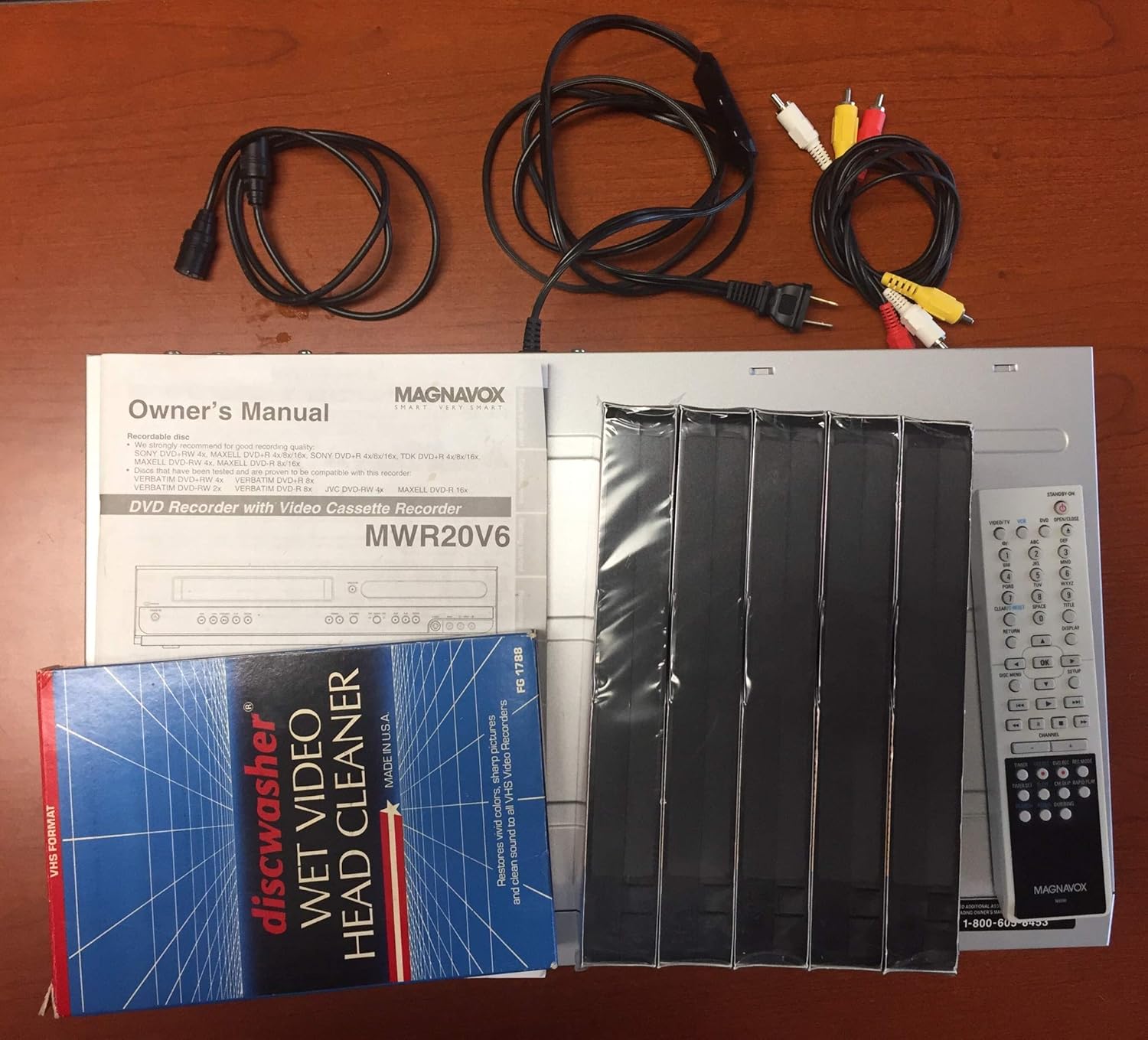
This image shows the Magnavox MWR20V6 unit along with its typical package contents, which may include the remote control, owner's manual, audio/video cables, and potentially a head cleaner or blank VHS tapes for initial use.
4. Setup
4.1 Connecting to a Television
Before connecting, ensure all devices are powered off.
- Power Connection: Plug the unit's power cord into an AC outlet.
- Video Connection (Option 1: Composite Video): Connect the yellow video cable from the unit's VIDEO OUT jack to the yellow VIDEO IN jack on your TV. Connect the red and white audio cables from the unit's AUDIO OUT (L/R) jacks to the corresponding AUDIO IN (L/R) jacks on your TV.
- Video Connection (Option 2: S-Video): For improved picture quality, connect an S-Video cable from the unit's S-VIDEO OUT jack to the S-VIDEO IN jack on your TV. You will still need to connect the red and white audio cables as described in Option 1.
- Antenna/Cable Connection: If using an external antenna or cable TV, connect the incoming RF cable to the ANTENNA IN jack on the unit. Then, connect an RF cable from the unit's RF OUT jack to the ANTENNA IN jack on your TV.

This image displays the rear panel of the unit, highlighting the audio/video input and output connections, including composite, S-Video, coaxial, and antenna ports. Proper connection of these ports is crucial for audio and video signal transmission.
4.2 Initial Power On and Setup
- Power on your television and select the correct input source (e.g., Video 1, S-Video, TV).
- Press the POWER button on the unit or remote control to turn on the Magnavox MWR20V6.
- Follow the on-screen instructions for initial setup, which may include language selection, time setting, and channel scanning.
5. Operating Instructions
5.1 Remote Control Overview
The remote control provides access to all functions of the DVD recorder and VCR. Familiarize yourself with its layout.

The included remote control, model NB550, provides full functionality for both DVD and VCR operations. It features dedicated buttons for power, playback controls, recording, channel selection, and menu navigation.
5.2 Playing a DVD
- Press the DVD button on the remote to select DVD mode.
- Press the OPEN/CLOSE button to open the disc tray.
- Place a DVD disc on the tray with the label side facing up.
- Press the OPEN/CLOSE button again to close the tray. Playback will usually begin automatically.
- Use the PLAY, PAUSE, STOP, FAST FORWARD, and REWIND buttons for control.
5.3 Playing a VHS Tape
- Press the VCR button on the remote to select VCR mode.
- Insert a VHS tape into the VCR slot. The unit will automatically load the tape.
- Press the PLAY button to begin playback.
- Use the PLAY, PAUSE, STOP, FAST FORWARD, and REWIND buttons for control.
5.4 Recording to DVD
This unit can record to various DVD formats. Ensure you are using a compatible recordable disc (e.g., DVD-R, DVD-RW).
- Insert a blank recordable DVD into the disc tray.
- Select the input source you wish to record (e.g., TV tuner, external AV input).
- Press the DVD REC button on the remote control to start recording.
- Press the STOP button to end recording.
5.5 Recording to VHS
- Insert a blank VHS tape into the VCR slot.
- Select the input source you wish to record.
- Press the VCR REC button on the remote control to start recording.
- Press the STOP button to end recording.

An RCA T-120 Hi-Fi Stereo Video Tape, suitable for recording and playback on the VCR component of the Magnavox MWR20V6.
5.6 Dubbing (VHS to DVD / DVD to VHS)
The MWR20V6 allows for dubbing content between VHS tapes and DVDs.
- VHS to DVD: Insert the VHS tape you wish to copy and a blank recordable DVD. Select VCR mode, then press the DUBBING button. The unit will begin copying the VHS content to the DVD.
- DVD to VHS: Insert the DVD you wish to copy and a blank VHS tape. Select DVD mode, then press the DUBBING button. The unit will begin copying the DVD content to the VHS tape.
- Note: Copy-protected content (e.g., commercial VHS tapes or DVDs) cannot be dubbed due to copyright restrictions.
6. Maintenance
6.1 Cleaning the Unit
- Wipe the exterior of the unit with a soft, dry cloth. Do not use abrasive cleaners or solvents.
- For the DVD lens, use a commercially available DVD lens cleaner disc.
- For the VCR heads, use a dry or wet VCR head cleaner tape periodically to maintain optimal playback and recording quality.

A Discwasher Wet Video Head Cleaner, a product used for maintaining the playback and recording quality of the VCR component by cleaning its internal heads.
6.2 Disc and Tape Care
- Handle discs by their edges to avoid fingerprints on the playing surface.
- Store discs in their cases away from direct sunlight and heat.
- Keep VHS tapes away from strong magnetic fields and extreme temperatures.
7. Troubleshooting
If you encounter issues with your unit, refer to the following common problems and solutions:
| Problem | Possible Cause / Solution |
|---|---|
| No power | Check power cord connection. Ensure outlet is functional. |
| No picture/sound | Verify AV cable connections. Ensure correct TV input is selected. |
| Disc not playing | Disc may be dirty or scratched. Ensure disc is inserted correctly. Check disc compatibility. |
| Tape not playing/ejecting | Tape may be damaged or jammed. Do not force. Try ejecting again. |
| Cannot record | Ensure a blank, compatible recordable disc/tape is inserted. Check for copy protection. |
| Remote control not working | Replace batteries. Ensure no obstructions between remote and unit. |
8. Specifications
| Feature | Detail |
|---|---|
| Brand | Magnavox |
| Model Name | MWR20V6 |
| Media Type | CD, DVD, VHS |
| Special Feature | Progressive Scan |
| Resolution | 1920x1080 (Output) |
| Video Output Resolution | 720p, 480p |
| Connector Type | Super Video (S-Video), Composite Video, Coaxial |
| Connectivity Technology | Powerline (for internal components) |
| Color | Black, Light Gray |
| Item Weight | 7.7 Pounds |
| Audio Output Mode | Stereo |
| Supported Audio Format | MP3 |
| Surround Sound Channel Configuration | 5.1, 2.1 |
| Video Encoding | MPEG-2 |
| Compatible Devices | Television |
| Analog Video Format | NTSC |
| Number of Channels | 2 (Audio) |
| Controller Type | Remote Control |
| File Format | MP3 |
| UPC | 840356873893, 053818570180 |
| Manufacturer | Magnavox |
| Model Number (Mfr) | MGGMWR20V6 |
9. Warranty Information
Magnavox products are manufactured to the highest quality standards. This product is covered by a limited warranty against defects in materials and workmanship. Please refer to the warranty card included in your original packaging for specific terms, conditions, and duration of coverage. Keep your purchase receipt as proof of purchase for warranty claims.
10. Support
For technical assistance, customer service, or to order replacement accessories, please contact Magnavox customer support.
- Customer Service: Refer to your warranty card or the official Magnavox website for current contact information.
- Online Support: Visit the official Magnavox website for FAQs, product registration, and additional support resources.


