
1. Introduction
This manual provides comprehensive instructions for the setup, operation, maintenance, and troubleshooting of your Avaya 2420 Digital Telephone. Please read this manual carefully to ensure proper use and to maximize the functionality of your device. Keep this manual for future reference.
2. Product Overview
The Avaya 2420 Digital Telephone is a robust communication device designed for business environments, offering a range of features to enhance productivity and connectivity. It integrates seamlessly with compatible Avaya communication systems.
2.1 Key Features
- Multi-line support for handling multiple calls simultaneously.
- Integrated call log for tracking incoming and outgoing calls.
- Dedicated headset port for hands-free communication.
- Digital answering system capabilities (system dependent).
- Conference call functionality for multi-party conversations.
- Adjustable display for optimal viewing.
2.2 Package Contents
The standard package typically includes the Avaya 2420 Digital Telephone unit, handset, coiled handset cord, line cord, and a desk stand. Please refer to your specific packaging for a complete list of included items.

Figure 2.1: Front view of the Avaya 2420 Digital Telephone, showcasing the display, keypad, and function buttons.
3. Setup
3.1 Connecting the Telephone
- Connect the Handset: Plug one end of the coiled handset cord into the handset and the other end into the handset jack located on the side or bottom of the telephone base.
- Connect the Line Cord: Plug one end of the line cord into the LINE port on the back of the telephone and the other end into your wall jack or network interface.
- Connect Power (if applicable): If your system requires external power, connect the power adapter (sold separately or included) to the power port on the telephone and then to an electrical outlet. Many digital phones receive power over the line cord.
- Adjust the Desk Stand: Position the desk stand to your preferred viewing angle.

Figure 3.1: Rear view of the Avaya 2420 Digital Telephone, illustrating the connection ports for the line cord and handset.
3.2 Initial Configuration
Upon initial connection, the telephone may automatically configure itself with your communication system. If prompted, follow the on-screen instructions to set the date, time, or other system-specific preferences. Consult your system administrator for specific network settings.
4. Operating Instructions
4.1 Basic Call Functions
- Making a Call: Lift the handset or press the SPEAKER button. Dial the desired number using the keypad.
- Answering a Call: When the phone rings, lift the handset or press the SPEAKER button.
- Ending a Call: Place the handset back on the cradle or press the SPEAKER button again if using speakerphone.

Figure 4.1: The Avaya 2420 Digital Telephone with the handset lifted, ready for a call.
4.2 Advanced Features
- Hold: During a call, press the HOLD button to place the call on hold. Press it again to retrieve the call.
- Transfer: During a call, press the TRANSFER button, dial the new extension or number, and then press TRANSFER again to complete.
- Conference: During a call, press the CONFERENCE button, dial the number of the third party, and then press CONFERENCE again to join all parties.
- Voicemail: Press the MESSAGES button to access your voicemail system. Follow the audio prompts.
- Speakerphone: Press the SPEAKER button to activate or deactivate the speakerphone.
- Mute: Press the MUTE button to mute your microphone during a call. Press again to unmute.
- Headset: Connect a compatible headset to the headset jack and press the HEADSET button to use it.
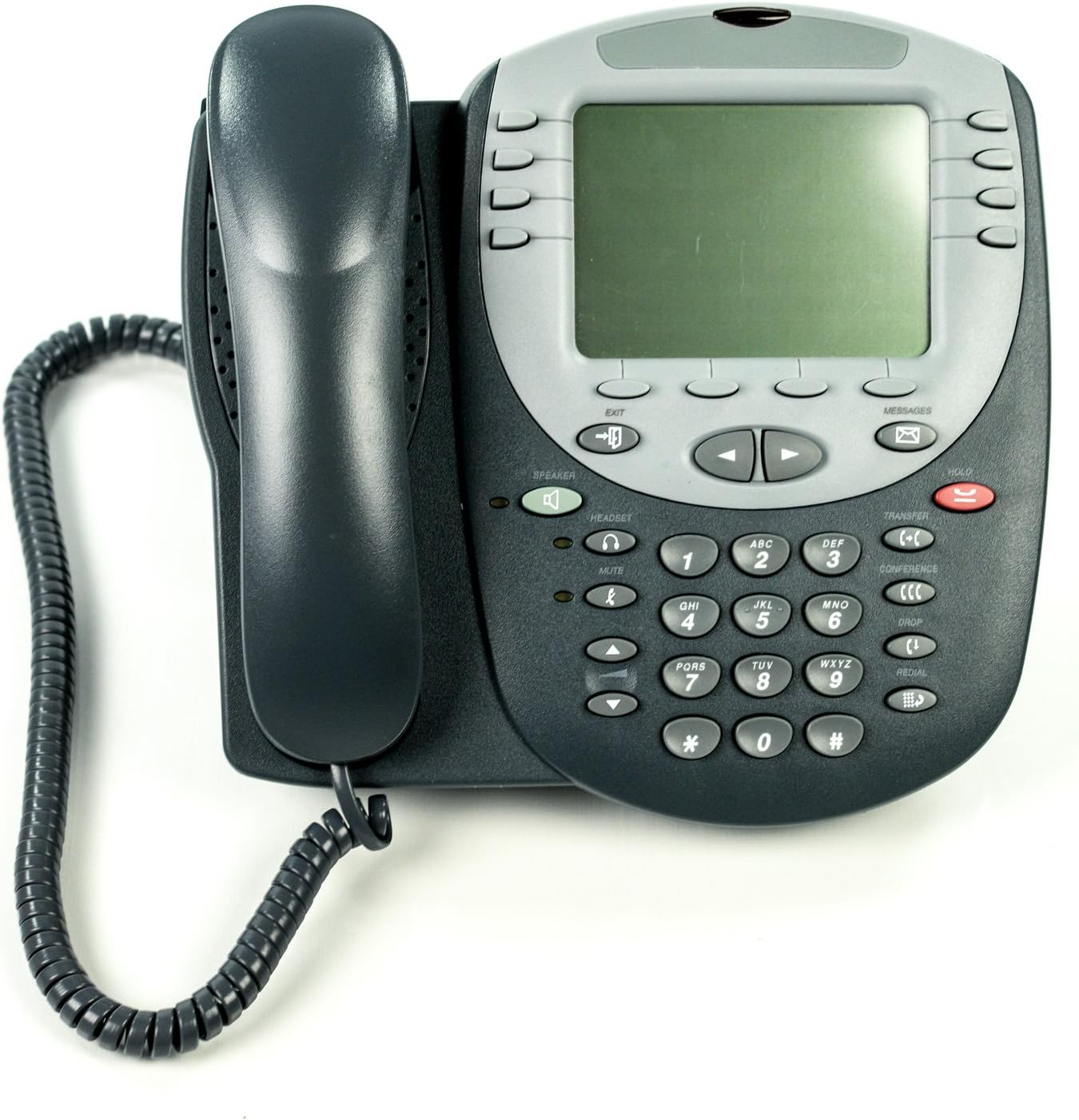
Figure 4.2: Top-down view of the Avaya 2420 Digital Telephone, highlighting the display, navigation buttons, and keypad for various functions.
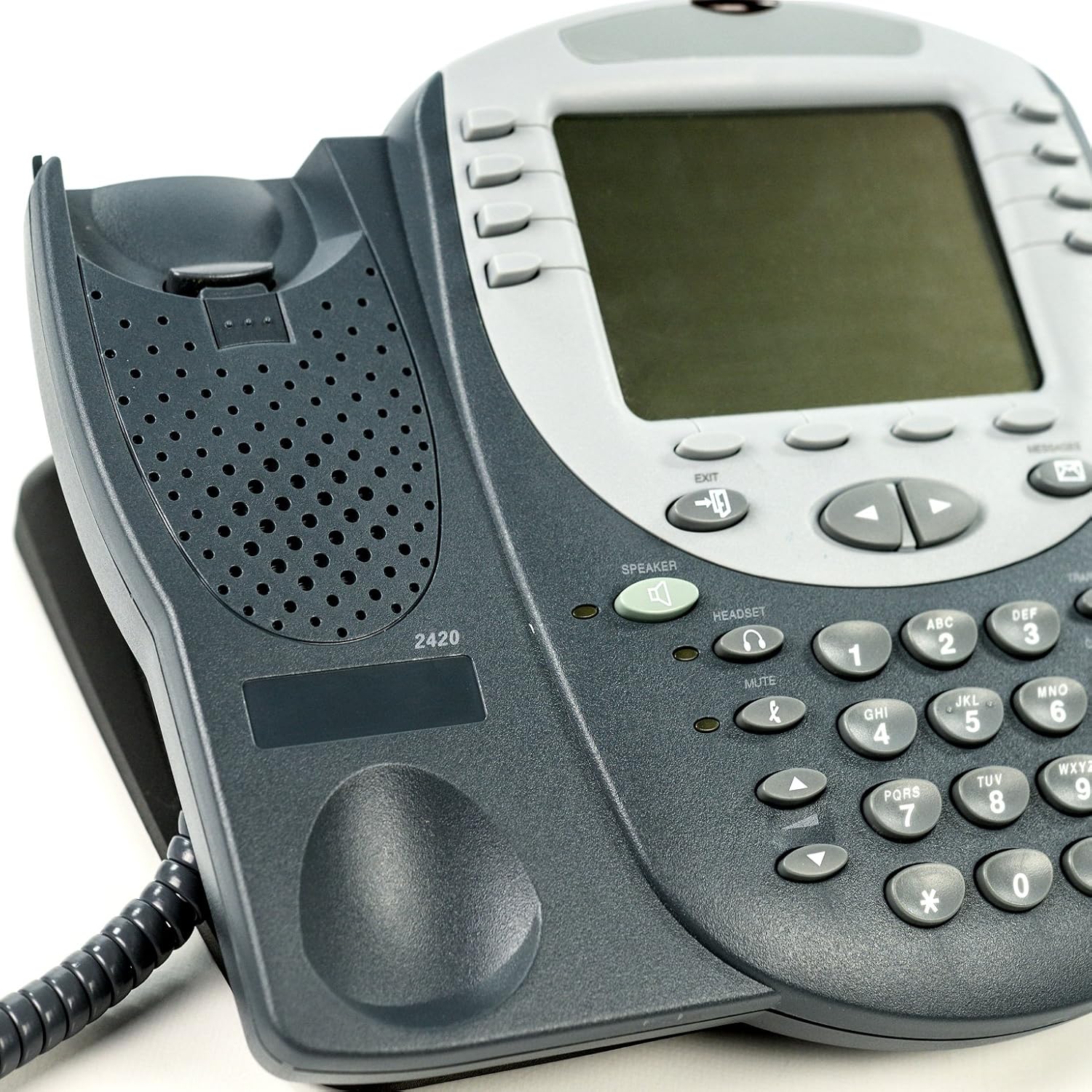
Figure 4.3: A close-up view of the Avaya 2420 Digital Telephone's keypad and speaker, showing button details.
4.3 Using the Display
The display provides information such as caller ID, call duration, and access to various menu options. Use the navigation buttons (up, down, left, right arrows) to scroll through menus and options. The soft keys located directly below the display may change functionality based on the current context or menu.
5. Maintenance
5.1 Cleaning
To clean your telephone, disconnect it from the power source (if applicable) and wipe the surfaces with a soft, damp cloth. Do not use abrasive cleaners, solvents, or strong chemicals, as these can damage the finish or internal components. Avoid getting moisture into any openings.
5.2 Storage
If storing the telephone for an extended period, ensure it is clean and dry. Store it in a cool, dry place away from direct sunlight and extreme temperatures. Keep it in its original packaging if possible to protect it from dust and physical damage.
6. Troubleshooting
This section addresses common issues you might encounter with your Avaya 2420 Digital Telephone. If the problem persists after trying these solutions, please contact your system administrator or Avaya support.
| Problem | Solution |
|---|---|
| No dial tone | Ensure the line cord is securely connected to both the telephone and the wall jack. Verify that the communication system is operational. |
| Display is blank | Check if the telephone is receiving power. If using an external power adapter, ensure it is plugged in correctly. If power is supplied via the line, check the line connection. |
| Cannot make or receive calls | Confirm the line cord is properly connected. Check with your system administrator to ensure your line is active and there are no system-wide issues. |
| Buttons are unresponsive | Try disconnecting and reconnecting the telephone. If the issue persists, the unit may require service. |
| Poor audio quality | Check handset and line cord connections. Ensure there is no interference from other electronic devices. |
7. Specifications
The following are key technical specifications for the Avaya 2420 Digital Telephone:
| Feature | Value |
|---|---|
| Product Dimensions | 1.97 x 1.97 x 1.97 inches |
| Item Weight | 7.1 ounces (200 Grams) |
| Model Number | 700381585 |
| Color | Black, Grey |
| Telephone Type | Corded Digital |
| Power Source | Corded Electric (typically Power over Ethernet or dedicated power supply) |
| Dialer Type | Single Keypad |
| Answering System Type | Digital (system dependent) |
| Compatible Devices | Traditional Telephone Networks (PSTN), VoIP Services (via compatible Avaya systems) |
| Conference Call Capability | Up to 24-way (system dependent) |
8. Warranty and Support
The Avaya 2420 Digital Telephone typically comes with a manufacturer's warranty. For specific warranty terms and conditions, please refer to the documentation provided with your purchase or visit the official Avaya website. For technical support, service, or further assistance, please contact your authorized Avaya dealer or Avaya customer support directly. You can find contact information on the official Avaya website: www.avaya.com.


