
1. Overview
The PlayStation Portable (PSP 1000) is a versatile handheld gaming and multimedia device designed for entertainment on the go. It offers a wide range of functionalities including playing games, watching movies, listening to music, and viewing digital photos. Its compact design and robust features provide a comprehensive mobile digital experience.
Key features include:
- Ability to play a vast library of PSP games.
- High-quality video playback for movies.
- Digital music playback.
- Support for viewing digital photos.
- Wireless internet connectivity for online features.
2. Initial Setup
2.1. Charging the Battery
Before initial use, ensure the PSP 1000's battery is fully charged. Connect the AC adapter to the DC IN 5V port on the PSP and then plug it into a wall outlet. The power indicator light will illuminate, typically orange, to show charging is in progress. It will turn green when fully charged.
2.2. Inserting a Memory Stick Duo
The PSP 1000 uses Memory Stick Duo cards for saving game data, storing music, videos, and photos. Locate the Memory Stick slot on the side of the device. Insert the Memory Stick Duo with the label facing up until it clicks into place.
2.3. Inserting a UMD (Universal Media Disc)
To play games or movies, open the UMD drive cover located on the back of the PSP. Gently insert the UMD disc with the label facing away from the PSP until it is securely seated. Close the UMD drive cover firmly until it clicks.
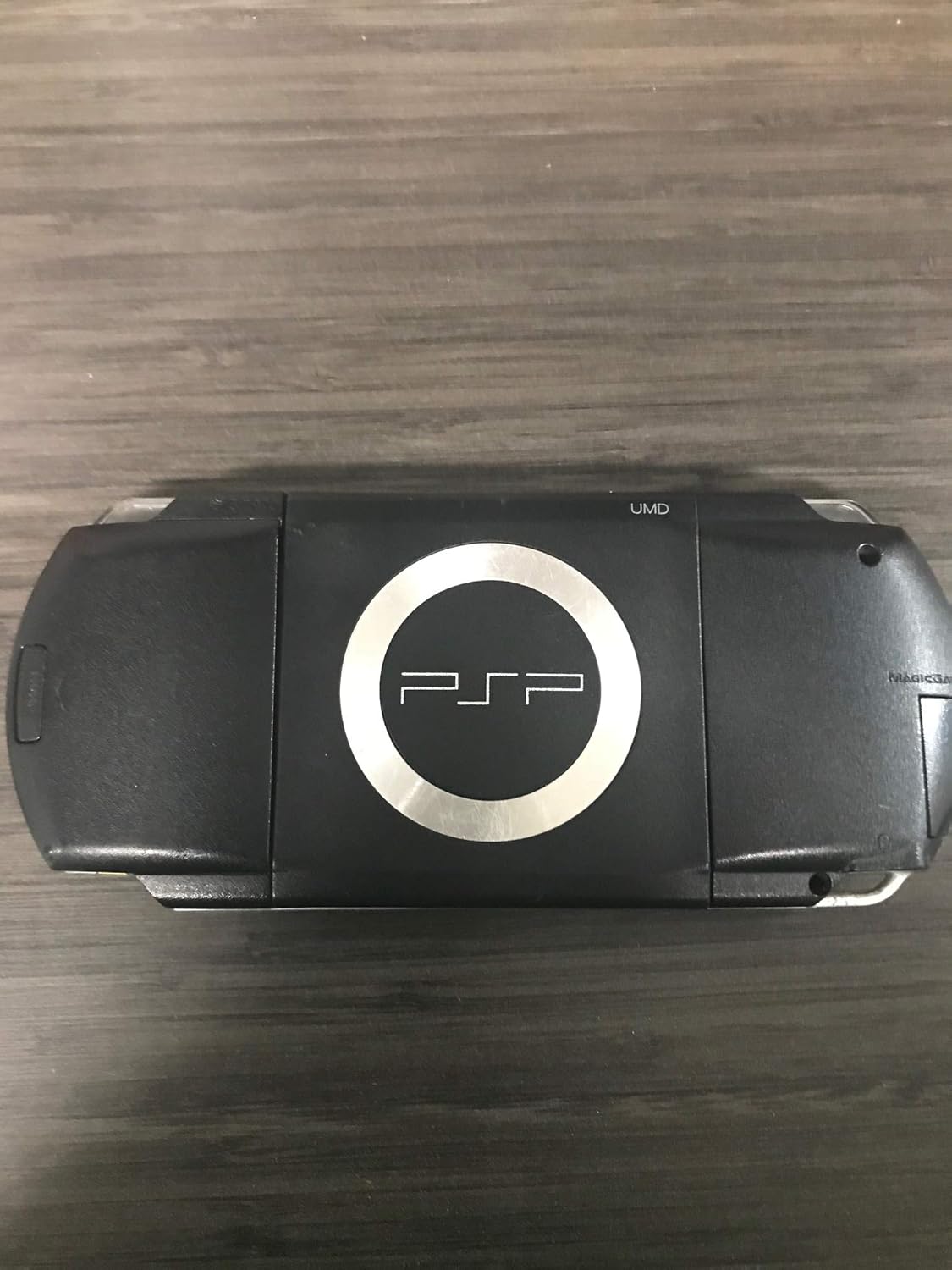
Figure 2.3: Back view of the PSP 1000, illustrating the UMD drive cover.
3. Basic Operation
3.1. Powering On/Off
To power on the PSP, slide the POWER switch located on the right side of the device upwards and hold it for a few seconds until the screen illuminates. To power off, slide and hold the POWER switch upwards again until the screen goes blank. A quick slide and release will put the device into sleep mode.

Figure 3.1: Front view of the PSP 1000, displaying the screen and control buttons.
3.2. Navigating the XMB (XrossMediaBar)
The PSP uses the XrossMediaBar (XMB) interface for navigation. Use the directional buttons (D-pad) on the left to move horizontally between categories (e.g., Games, Video, Music, Photo, Settings) and vertically within a category to select specific items. The X button typically confirms a selection, and the O button cancels or goes back.

Figure 3.2: The PSP 1000 screen showing the XrossMediaBar (XMB) menu interface.
3.3. Volume and Brightness Control
Volume controls are located on the bottom edge of the PSP. Use the VOL + and VOL - buttons to adjust the audio output. Screen brightness can typically be adjusted through the System Settings menu or by holding the 'Note' button (music note icon) and pressing the screen brightness button (sun icon) if available on your model.

Figure 3.3: Side view of the PSP 1000, highlighting ports and switches including volume controls.
4. Media Playback
4.1. Playing Games
Insert a UMD game disc into the UMD drive. Navigate to the 'Game' category on the XMB and select 'UMD'. Choose your game from the list and press X to start. Games can also be played from a Memory Stick Duo if downloaded from the PlayStation Store (if still supported) or transferred from a computer.
4.2. Watching Movies
Insert a UMD movie disc into the UMD drive. Navigate to the 'Video' category on the XMB and select 'UMD'. Choose your movie and press X to begin playback. Videos can also be stored on a Memory Stick Duo in compatible formats.
4.3. Listening to Music
Transfer music files (e.g., MP3) to the 'MUSIC' folder on your Memory Stick Duo. Navigate to the 'Music' category on the XMB, select 'Memory Stick Duo', and choose your desired track or album. Press X to play.
4.4. Viewing Photos
Transfer image files (e.g., JPEG) to the 'PHOTO' folder on your Memory Stick Duo. Navigate to the 'Photo' category on the XMB, select 'Memory Stick Duo', and browse your images. Press X to view a photo in full screen.
5. Maintenance
5.1. Cleaning the PSP
Use a soft, dry cloth to clean the exterior of the PSP. For the screen, use a microfiber cloth specifically designed for electronics. Avoid using harsh chemicals or abrasive materials, as these can damage the screen or casing. Keep the UMD drive free of dust and debris.
5.2. Battery Care
To prolong battery life, avoid exposing the PSP to extreme temperatures. If the device will not be used for an extended period, fully charge the battery before storing it. Over time, battery performance may degrade, requiring replacement.
5.3. Firmware Updates
Periodically check for system software (firmware) updates. Updates can improve performance, add new features, and enhance security. Connect your PSP to a Wi-Fi network and navigate to 'Settings' > 'System Settings' > 'System Update' to check for and install updates.
6. Troubleshooting
6.1. PSP Does Not Power On
- Ensure the battery is charged. Connect the AC adapter and check if the power indicator light illuminates.
- Verify the POWER switch is fully slid to the 'ON' position and held for a few seconds.
- If the battery is old, it might need replacement.
6.2. UMD Disc Not Reading
- Ensure the UMD disc is clean and free of scratches.
- Verify the UMD disc is inserted correctly and the drive cover is securely closed.
- Try another UMD disc to determine if the issue is with the disc or the drive.
6.3. Memory Stick Duo Not Detected
- Ensure the Memory Stick Duo is inserted correctly and fully seated in its slot.
- Check if the Memory Stick Duo is damaged. Try another card if available.
- Format the Memory Stick Duo via the PSP's System Settings (note: this will erase all data).
6.4. Wi-Fi Connection Issues
- Ensure the WLAN switch on the PSP is in the 'ON' position.
- Verify your Wi-Fi network settings in the PSP's Network Settings.
- The PSP 1000 supports older Wi-Fi standards (802.11b). Ensure your router is compatible or configured to support these older standards.
7. Specifications
| Feature | Detail |
|---|---|
| Model Number | 711719850700 |
| Product Dimensions | 9.25 x 5 x 4.5 inches |
| Item Weight | 4 ounces |
| Manufacturer | Sony Computer Entertainment |
| Batteries | 1 Lithium Metal battery required |
| Release Date | June 15, 2006 |
8. Warranty and Support
For information regarding warranty coverage, please refer to the documentation provided at the time of purchase. For technical support or service inquiries, please visit the official PlayStation support website or contact their customer service. Support options may vary depending on your region and the product's age.