1. Introduction
Gyromite is a puzzle-action game developed by Nintendo for the Nintendo Entertainment System (NES). This game is unique as it requires the use of the Robotic Operating Buddy (R.O.B.) accessory for full gameplay. Players control a scientist character navigating a laboratory, with the primary objective of deactivating dynamite before it explodes. R.O.B. assists by manipulating in-game elements through physical actions.
The game challenges players to move columns up and down to guide the scientist, avoid hazardous 'Smicks', and manage R.O.B.'s gyroscope spinning to interact with the game environment. Success often depends on coordinating actions between the player and R.O.B.
2. Setup
2.1 Game Cartridge Insertion
- Ensure your Nintendo Entertainment System (NES) console is powered off.
- Hold the Gyromite game cartridge with the label facing upwards.
- Gently insert the cartridge into the NES cartridge slot until it clicks into place. Do not force the cartridge.
- Press down the cartridge tray lever to secure the game.
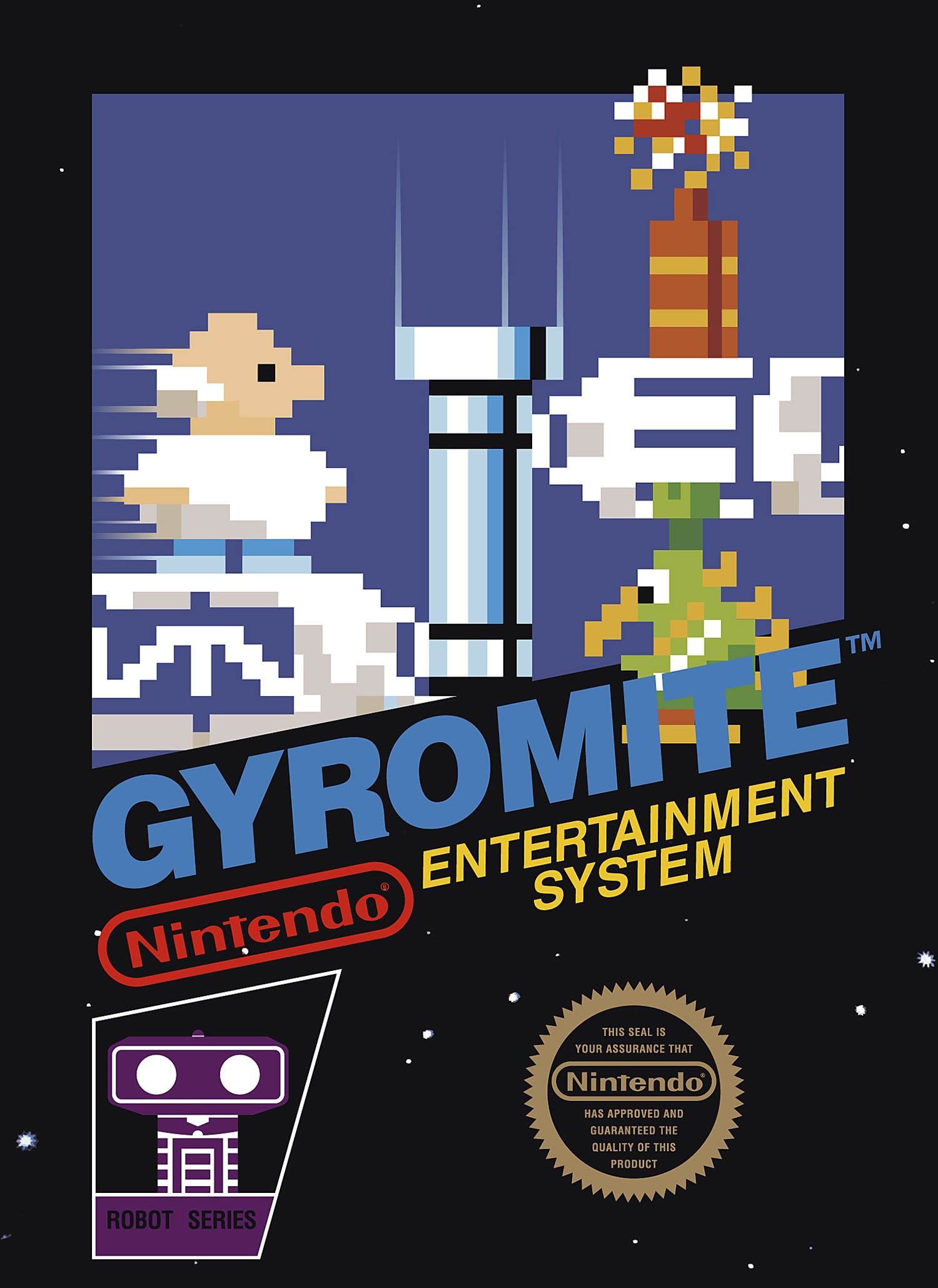
Image: The Gyromite game cartridge for the Nintendo Entertainment System.
2.2 R.O.B. (Robotic Operating Buddy) Connection
Gyromite requires the R.O.B. accessory for proper gameplay. Follow these steps to set up R.O.B.:
- Place R.O.B. on a flat, stable surface directly in front of your television screen. Ensure there are no obstructions between R.O.B. and the TV.
- Insert two D-cell batteries into R.O.B.'s battery compartment (batteries not included).
- Connect the NES controller to Controller Port 1. R.O.B. functions as a second player, receiving commands visually from the screen.
- Ensure R.O.B.'s arms are clear to move and its gyroscopes are accessible.
2.3 Power On
Once the cartridge and R.O.B. are set up, power on your NES console and television. The game should appear on the screen.
3. Operating (Gameplay)
3.1 Basic Controls
- Directional Pad (D-Pad): Moves the scientist character left and right.
- A Button: Jumps.
- B Button: Activates R.O.B. commands (when prompted by the game).
- Start Button: Pauses the game.
- Select Button: Not used in primary gameplay.
3.2 Gameplay Objective
The main objective in Gyromite is to guide the scientist through various laboratory levels to deactivate all sticks of dynamite before a timer runs out. Along the way, you must avoid or eliminate enemies called 'Smicks'.
3.3 R.O.B. Interaction
R.O.B. plays a crucial role in manipulating red and blue columns within the game. When the game displays a specific signal on the screen, R.O.B. will respond by picking up and spinning gyroscopes, then placing them on designated platforms to press the A or B buttons on a second controller (which R.O.B. physically operates). This action raises or lowers the corresponding red or blue columns, allowing the scientist to pass.
- Red Columns: Controlled by R.O.B. pressing the B button.
- Blue Columns: Controlled by R.O.B. pressing the A button.
Timing is essential. You must coordinate your scientist's movements with R.O.B.'s actions to navigate the levels efficiently.
3.4 Game Modes
- Game A (Direct Mode): The player controls the scientist, and R.O.B. responds to on-screen signals to move columns.
- Game B (Test Mode): Allows players to practice controlling R.O.B. directly using the NES controller, without the scientist character. This mode is useful for familiarizing yourself with R.O.B.'s movements and gyroscope handling.
4. Maintenance
4.1 Game Cartridge Care
- Always store the cartridge in its protective sleeve or case when not in use to prevent dust and damage.
- Keep the cartridge away from extreme temperatures, direct sunlight, and moisture.
- To clean the connector pins, use a cotton swab lightly dampened with isopropyl alcohol. Allow to dry completely before reinserting into the console.
4.2 R.O.B. Care
- Keep R.O.B. clean and free of dust. Use a soft, dry cloth for cleaning.
- Remove batteries if R.O.B. will not be used for an extended period to prevent corrosion.
- Ensure R.O.B.'s joints and moving parts are not obstructed.
5. Troubleshooting
5.1 Game Not Starting / Blank Screen
- Check Cartridge: Ensure the Gyromite cartridge is fully inserted and secured in the NES console. Try removing and reinserting it.
- Clean Connectors: Clean the cartridge's connector pins as described in the Maintenance section.
- NES Console: Verify that your NES console is properly connected to the TV and power supply, and that other games function correctly.
5.2 R.O.B. Not Responding
- Batteries: Check if R.O.B. has fresh D-cell batteries and they are inserted correctly.
- Line of Sight: Ensure R.O.B. has a clear, unobstructed view of the television screen. Bright ambient light can interfere with R.O.B.'s optical sensor.
- TV Brightness: Adjust your television's brightness and contrast settings. R.O.B. relies on specific light patterns from the screen.
- Controller Connection: Verify that the second controller (which R.O.B. operates) is securely plugged into the NES.
5.3 Game Freezes or Glitches
- Restart: Turn off the NES console, remove the cartridge, wait a few seconds, and then reinsert and restart.
- Clean Cartridge: Dirt or corrosion on the cartridge pins can cause instability. Clean the pins thoroughly.
6. Specifications
| Feature | Detail |
|---|---|
| Compatible Console | Nintendo Entertainment System (NES) |
| Required Accessory | Robotic Operating Buddy (R.O.B.) |
| Manufacturer | Nintendo |
| Release Date | January 15, 1985 |
| Item Weight | 3.2 ounces |
| Product Dimensions | 8 x 1 x 12 inches (Cartridge) |
| Language | English |
7. Warranty and Support
For warranty information and technical support regarding your Gyromite game or R.O.B. accessory, please refer to the original product packaging or visit the official Nintendo support website. As this is a vintage product, specific warranty terms may vary or no longer be applicable. General support resources for legacy Nintendo products can often be found online.
Nintendo Official Support: www.nintendo.com/support/