
KODAK C530
Kodak EasyShare C530 Digital Camera User Manual
Model: C530
Introduction
This manual provides essential information for the safe and effective use of your Kodak EasyShare C530 Digital Camera. Please read it thoroughly before operating the camera and keep it for future reference.
The Kodak EasyShare C530 is a compact digital camera designed for ease of use, featuring a 5.0-megapixel CCD sensor for high-quality images and simple sharing capabilities. It offers a 5x continuous digital zoom and a 1.5-inch color LCD display for framing and reviewing your shots.
Package Contents
Verify that all items listed below are included in your camera package:
- Kodak EasyShare C530 Digital Camera
- Kodak Non-rechargeable Digital Camera Battery (AA size)
- USB Cable
- Wrist Strap
- Kodak EasyShare Software
- Getting Started Kit
Setup
1. Inserting Batteries
The Kodak EasyShare C530 uses AA size batteries. Ensure correct polarity when inserting.
- Locate the battery compartment door on the bottom of the camera.
- Slide the latch to open the door.
- Insert 4 AA batteries, matching the (+) and (-) indicators inside the compartment.
- Close the battery compartment door securely until it clicks.
2. Inserting a Memory Card (SD/MMC)
The camera has 16 MB internal memory, but an SD/MMC card is recommended for extended storage.
- Open the battery/memory card compartment door.
- Insert the SD or MMC card into the slot with the label facing the front of the camera until it clicks into place.
- To remove, press the card gently until it pops out, then pull it out.
Note: The camera supports SD/MMC cards up to 1 GB. 2 GB cards are not compatible.
3. Attaching the Wrist Strap
Attach the wrist strap to the designated loop on the side of the camera to prevent accidental drops.
Operating the Camera
1. Turning On/Off
Press the Power button located on the top of the camera to turn it on or off.
2. Taking Pictures
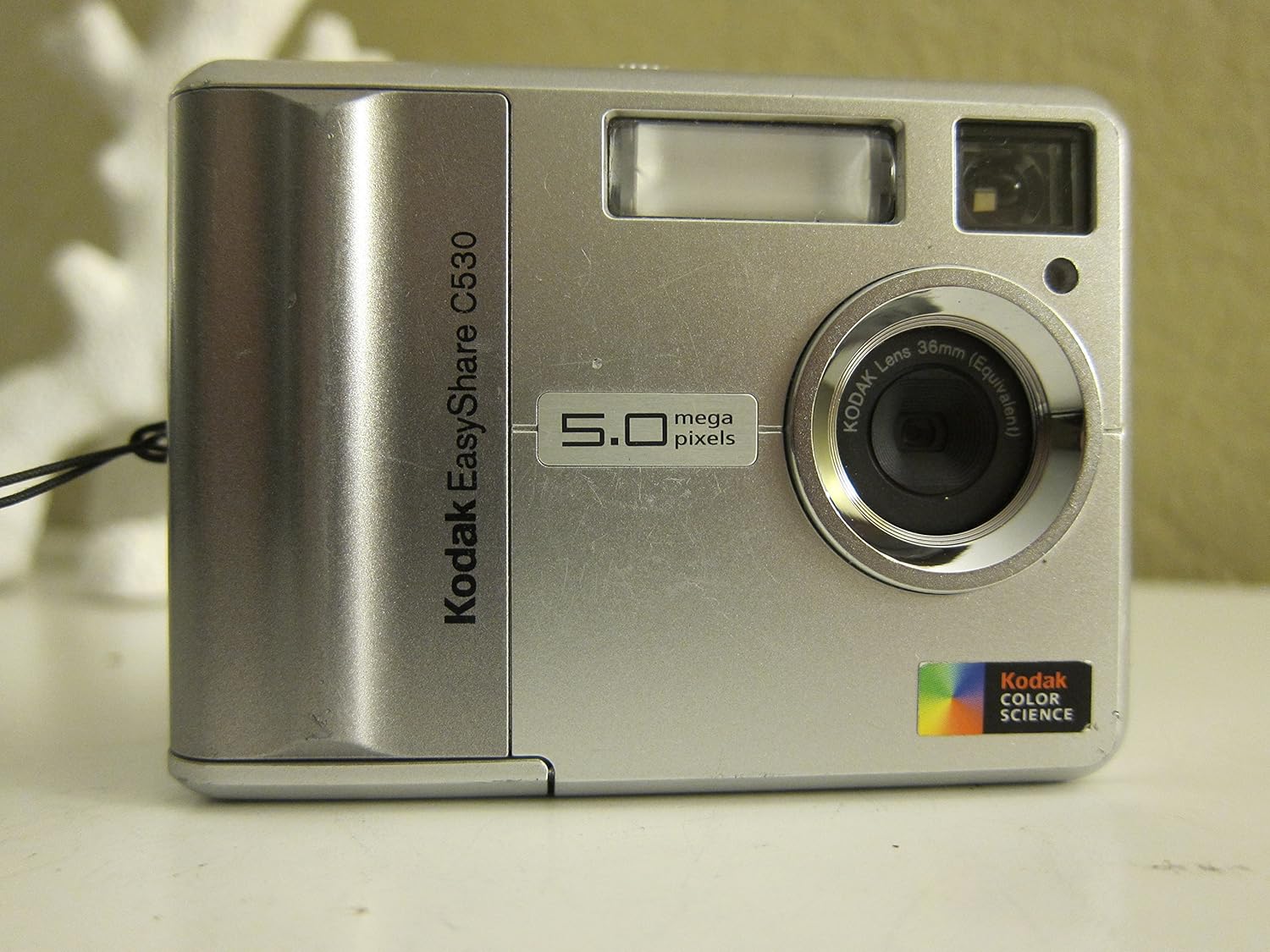
Front view of the Kodak EasyShare C530 digital camera, highlighting the lens and flash components.
- Frame your shot: Use the 1.5-inch color LCD display to compose your image.
- Zoom: Use the zoom controls (usually a rocker switch near the shutter button) to adjust the 5x continuous digital zoom.
- Focus: Press the shutter button halfway down to allow the camera to focus. The focus indicator will confirm when focus is achieved.
- Capture: Press the shutter button all the way down to take the picture.
3. Scene and Color Modes
The camera offers various modes to optimize your photos:
- Automatic Scene Mode: Automatically selects optimal settings for most standard situations.
- Color Modes: Choose between Color, Sepia, and Black & White for creative effects. Access these through the camera's menu.
4. Recording Videos
The C530 can capture continuous QVGA video.
- Switch the camera to video mode (refer to your camera's mode dial or menu).
- Press the shutter button to start recording.
- Press the shutter button again to stop recording.
Videos are saved in QuickTime Video format for universal sharing.
5. Reviewing and Managing Photos/Videos

Rear view of the camera, showing the LCD screen and navigation buttons for reviewing media.

The camera's LCD screen during image playback, showing details and navigation icons.
- Review Button: Press the Review button to view your captured photos and videos on the LCD.
- Navigation: Use the directional pad (OK button) to scroll through images.
- Delete: Use the Delete button to remove unwanted files.
- In-camera Cropping: Utilize the on-camera cropping feature to adjust your pictures directly on the device.
6. Sharing Photos
The C530 is part of the Kodak EasyShare System, simplifying sharing.
- Share Button: Press the exclusive on-camera Share button to tag favorite pictures for printing or emailing later.
- Kodak EasyShare Software: Use the included software to transfer, organize, edit, print, and view slideshows on your computer. It automatically adjusts inkjet printer settings for high-quality prints with Kodak Inkjet Photo Papers.
Maintenance
- Cleaning the Lens: Use a soft, lint-free cloth specifically designed for camera lenses. Do not use abrasive materials or harsh chemicals.
- Cleaning the LCD Screen: Gently wipe the screen with a soft, dry cloth.
- Battery Care: Remove batteries if the camera will not be used for an extended period to prevent leakage. Use fresh, high-quality AA batteries for optimal performance.
- Storage: Store the camera in a cool, dry place away from direct sunlight, dust, and extreme temperatures.
Troubleshooting
| Problem | Possible Cause | Solution |
|---|---|---|
| Camera does not turn on. | Dead or incorrectly inserted batteries. | Replace batteries with fresh ones, ensuring correct polarity. |
| Pictures are blurry. | Camera shake; subject too close; lens dirty; insufficient light. | Hold camera steady; ensure subject is within focus range; clean lens; use flash if needed. |
| Memory card error. | Incompatible card; card not inserted correctly; corrupted card. | Ensure card is 1GB or less and correctly inserted. Try formatting the card (this will erase data) or use a different card. |
| Cannot transfer photos to computer. | USB cable not connected; software not installed; driver issues. | Ensure USB cable is securely connected. Install Kodak EasyShare Software. Check computer's device manager for driver issues. |
Specifications
| Feature | Detail |
|---|---|
| Image Sensor | 5.0 Megapixel CCD |
| Lens | Kodak 36mm Lens (35mm equivalent) |
| Zoom | 5x Continuous Digital Zoom |
| Display | 1.5-inch (3.8-centimeter) Color LCD |
| Internal Memory | 16 MB |
| Storage Media | SD/MMC Card Expansion Slot (up to 1 GB) |
| Video Capture | Continuous QVGA Video (QuickTime format) |
| Power Source | 4 AA Batteries |
| Dimensions | 4 x 6 x 9 inches |
| Weight | 5.2 ounces |
| Supported File Format | JPEG |
| Image Stabilization | Digital |
Warranty and Support
For detailed warranty information and technical support, please refer to the documentation included with your purchase or visit the official Kodak support website. Warranty terms may vary by region and retailer.
It is recommended to register your product with Kodak to receive updates and support.