
1. Introduction
This manual provides essential information for the safe and efficient operation of your Sony FWD50PX2/S 50-Inch Plasma TV. Please read these instructions thoroughly before using the television and retain them for future reference.
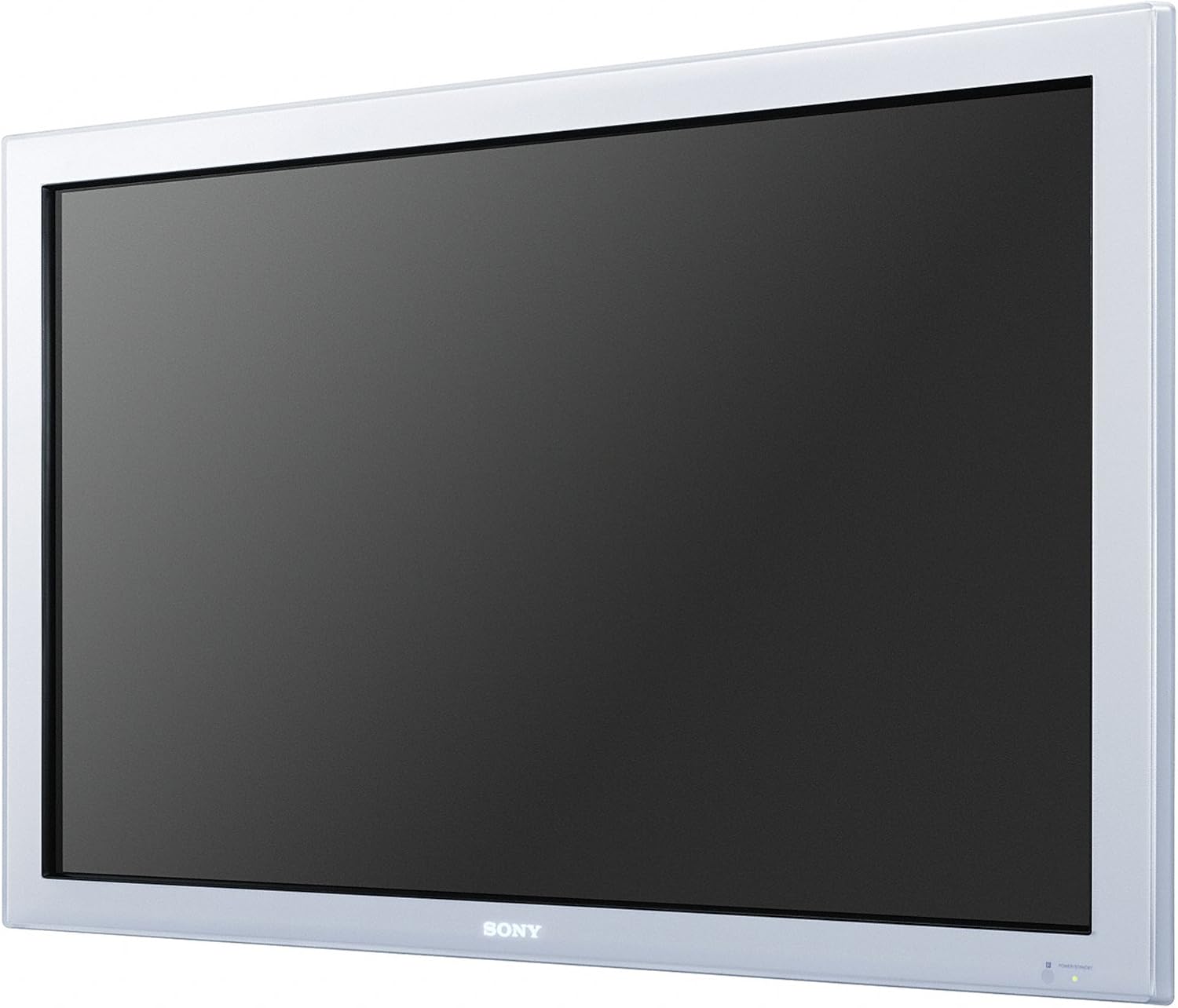
Image 1.1: The Sony FWD50PX2/S 50-Inch Plasma TV. This image displays the television unit with its silver frame and large black screen, indicating its sleek design and primary function as a display device.
2. Safety Information
To prevent fire, electric shock, or damage to the unit, observe the following safety precautions:
- Power Source: Connect the TV only to the type of power source indicated on the label.
- Ventilation: Ensure adequate ventilation. Do not block ventilation openings.
- Water and Moisture: Do not expose the TV to rain or moisture. Do not place objects filled with liquids, such as vases, on the TV.
- Cleaning: Unplug the TV from the wall outlet before cleaning. Use a soft, dry cloth.
- Servicing: Do not attempt to service the TV yourself. Refer all servicing to qualified service personnel.
- Placement: Place the TV on a stable, level surface or mount it securely to a wall according to installation instructions.
3. What's in the Box
Carefully unpack your Sony FWD50PX2/S Plasma TV and ensure all components are present:
- Sony FWD50PX2/S 50-Inch Plasma TV Unit
- TV Stand
- Remote Control (not explicitly listed but standard for TVs)
- Power Cord (not explicitly listed but standard for TVs)
- User Manual (this document)
4. Setup
4.1. Stand Installation
If you are using the included TV stand, carefully attach it to the bottom of the television unit. Refer to the separate stand assembly guide for detailed instructions and ensure all screws are securely fastened. The TV unit weighs approximately 67 pounds, so two people may be required for safe handling during stand attachment.
4.2. Wall Mounting (Optional)
The Sony FWD50PX2/S can be wall-mounted. If you choose this option, use a compatible VESA-compliant wall mount kit (sold separately) and follow the instructions provided with the wall mount. Professional installation is recommended due to the weight and size of the television.
4.3. Connections
Before making any connections, ensure the TV and all external devices are powered off and unplugged from the wall outlet.
- Power Connection: Connect the power cord to the AC input on the back of the TV, then plug the other end into a wall outlet.
- Video Inputs:
- DVI Input: Connect a DVI cable from your source device (e.g., computer, media player) to the DVI input on the TV. For HDMI compatibility, a DVI-to-HDMI adapter or cable may be used.
- Component Video Input: Use component (YPbPr) cables for high-quality analog video connections.
- Composite Video Input: Use a composite (yellow RCA) cable for standard definition video.
- S-Video Input: Use an S-Video cable for improved analog video quality over composite.
- VGA Input: Connect a VGA cable for computer monitor functionality.
- Audio Inputs: Connect corresponding audio cables (red/white RCA) for analog audio, or digital audio cables if available on your source device and TV.
- Network Connection (Wi-Fi): This model supports Wi-Fi connectivity. Refer to the on-screen menu for network setup to connect to your wireless router.
5. Operating Instructions
5.1. Power On/Off
Press the POWER button on the remote control or on the TV unit to turn the television on or off.
5.2. Input Selection
Press the INPUT or SOURCE button on the remote control to cycle through available input sources (e.g., DVI, Component, Composite, S-Video, VGA).
5.3. Menu Navigation
Use the arrow buttons (UP, DOWN, LEFT, RIGHT) and the ENTER button on the remote control to navigate the on-screen display (OSD) menu. Press MENU to access the main menu.
5.4. Picture Settings
Within the OSD menu, navigate to the 'Picture' or 'Display' settings to adjust:
- Brightness: Adjusts the overall lightness or darkness of the image.
- Contrast: Controls the difference between the brightest and darkest parts of the image.
- Color: Adjusts the intensity of colors.
- Tint: Fine-tunes the color balance (primarily for NTSC signals).
- Sharpness: Enhances or softens the edges of objects in the image.
- Aspect Ratio: Selects the display format (e.g., 16:9, 4:3).
5.5. Sound Settings
Within the OSD menu, navigate to the 'Sound' or 'Audio' settings to adjust:
- Volume: Controls the overall sound level.
- Bass: Adjusts low-frequency sounds.
- Treble: Adjusts high-frequency sounds.
- Balance: Adjusts the sound output between left and right speakers.
5.6. Internet Services
This TV supports certain internet services, including Netflix, via its Wi-Fi connectivity. Access these services through the dedicated menu option on the TV's interface. An active internet connection is required.
6. Maintenance
6.1. Cleaning the Screen
Gently wipe the screen with a soft, lint-free cloth. For stubborn marks, lightly dampen the cloth with water or a specialized screen cleaner. Do not use abrasive cleaners, alcohol, benzene, or thinners, as these can damage the screen surface.
6.2. Cleaning the Cabinet
Wipe the TV cabinet with a soft, dry cloth. If necessary, use a slightly damp cloth. Avoid spraying liquids directly onto the TV.
7. Troubleshooting
If you encounter issues with your TV, refer to the following common solutions:
- No Power: Ensure the power cord is securely plugged into both the TV and the wall outlet. Check if the outlet is functional.
- No Picture/Sound: Verify that the correct input source is selected. Check all cable connections between the TV and external devices. Ensure external devices are powered on.
- Remote Control Not Working: Check the batteries in the remote control. Ensure there are no obstructions between the remote and the TV's IR sensor.
- Poor Picture Quality: Adjust picture settings (brightness, contrast, sharpness). Ensure the source signal is of good quality.
- Screen Went Black (after extended use): If the screen goes black and the TV stops working after a period of use, this may indicate an internal component failure. Contact Sony customer support for assistance.
8. Specifications
| Feature | Specification |
|---|---|
| Brand | Sony |
| Model Number | FWD50PX2/S |
| Display Technology | Plasma |
| Screen Size | 50 Inches |
| Resolution | 1080p |
| Aspect Ratio | 16:9 |
| Refresh Rate | 60 Hz |
| Color | Silver |
| Item Weight | 67 Pounds |
| Product Dimensions (L x W x H) | 55 x 38 x 15 inches |
| Special Feature | Flat Screen |
| Connectivity Technology | Wi-Fi |
| Supported Internet Services | Netflix |
9. Warranty and Support
For warranty information and customer support, please refer to the warranty card included with your product or visit the official Sony support website. You may also contact Sony customer service directly for technical assistance or service inquiries.
Online Support: www.sony.com/electronics/support