Introduction
This manual provides essential information for the proper setup, operation, and maintenance of your Samsung SyncMaster 940T 19-inch LCD Monitor. Please read this manual thoroughly before using the product to ensure optimal performance and safety.
Safety Information
Observe the following safety precautions to prevent damage to the monitor and ensure user safety:
- Do not place the monitor in an unstable location.
- Avoid exposing the monitor to direct sunlight, heat sources, or extreme temperatures.
- Keep the monitor away from water or high humidity environments.
- Ensure proper ventilation around the monitor to prevent overheating.
- Use only the power cord and adapter supplied with the monitor.
- Do not attempt to open or repair the monitor yourself. Refer all servicing to qualified personnel.
- Disconnect the power plug from the wall outlet if the monitor will not be used for an extended period.
Package Contents
Verify that all components are present in the package:
- Samsung SyncMaster 940T LCD Monitor
- Power Cable
- VGA Cable (D-Sub)
- DVI Cable
- User Manual (this document)
- Installation CD (may contain drivers and software)
Setup
1. Assembling the Stand
Carefully remove the monitor and stand components from the packaging. Attach the stand base to the monitor neck, ensuring it clicks securely into place. Place the monitor on a stable, flat surface.
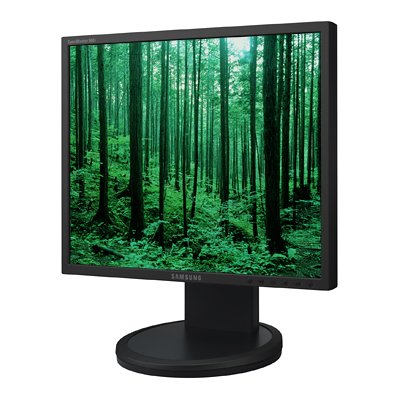
This image displays the Samsung SyncMaster 940T monitor from a slight angle, highlighting its 19-inch screen. The overall dimensions are indicated: 15.9 inches wide, 7.9 inches deep, and 16 inches high, including the stand. The monitor features a black bezel and a sturdy black stand.
2. Connecting the Monitor
- Power Connection: Connect the power cable to the monitor's power input and then to a grounded electrical outlet.
- Video Connection:
- For analog connection, use the supplied VGA (D-Sub) cable to connect the monitor to your computer's VGA port.
- For digital connection, use the supplied DVI cable to connect the monitor to your computer's DVI port.
- Secure Connections: Ensure all cables are firmly connected to prevent signal loss.
3. Installing Drivers (Optional)
While most operating systems will automatically detect and install generic drivers for the monitor, installing the specific drivers from the provided CD or Samsung's support website may enable additional features and optimize display performance. Follow the on-screen instructions during installation.
Operating Instructions
1. Powering On/Off
Press the power button located on the front or bottom bezel of the monitor to turn it on or off. The power indicator light will illuminate when the monitor is active.
2. Adjusting Display Settings
The SyncMaster 940T features an On-Screen Display (OSD) menu for adjusting various settings. Use the control buttons (usually located on the front or bottom bezel) to navigate the OSD menu.
- Brightness: Adjusts the overall luminance of the screen.
- Contrast: Controls the difference between the lightest and darkest areas of the image.
- Resolution: The optimal resolution for this monitor is 1280 x 1024. Ensure your computer's display settings are configured to this resolution for the clearest image.
- MagicBright II: This feature provides various preset brightness modes (e.g., Text, Internet, Game, Sport, Movie) for different viewing environments.
- MagicTune: A software utility (if installed) that allows you to adjust monitor settings directly from your computer's operating system.
- MagicColor: Enhances color saturation and image quality.
- MagicZone: Allows for specific areas of the screen to have different color settings.
3. Ergonomic Adjustments
The monitor stand allows for four-way ergonomic adjustments:
- Height: Adjust the vertical position of the screen.
- Pivot: Rotate the screen between landscape and portrait orientations.
- Tilt: Adjust the vertical viewing angle of the screen.
- Swivel: Rotate the screen horizontally on its base.
Maintenance
1. Cleaning the Monitor
To clean the monitor screen, gently wipe it with a soft, lint-free cloth. For stubborn marks, lightly dampen the cloth with water or a specialized screen cleaner. Do not spray cleaning solutions directly onto the screen. For the monitor casing, use a soft, dry cloth.
2. General Care
Avoid placing heavy objects on the monitor or its cables. Protect the screen from sharp objects. When moving the monitor, hold it by the base and frame, not by the screen itself.
Troubleshooting
If you encounter issues with your monitor, refer to the following common problems and solutions:
- No Power:
Ensure the power cable is securely connected to both the monitor and a working electrical outlet. Check if the power indicator light is on.
- No Image on Screen:
Verify that the video cable (VGA or DVI) is properly connected to both the monitor and your computer. Ensure your computer is powered on and sending a video signal. Try restarting your computer.
- Image is Unclear or Distorted:
Check your computer's display settings to ensure the resolution is set to the optimal 1280 x 1024. Adjust brightness and contrast settings via the OSD menu. Ensure the video cable is not damaged.
- Color Inaccuracies or Dead Pixels:
While the SyncMaster 940T offers good color reproduction, minor variations or the presence of a few non-functioning pixels (dead or stuck pixels) can occur in LCD technology. If color accuracy is critical, ensure your system is calibrated. For persistent issues, contact Samsung support.
- Monitor Not Responding to Controls:
Unplug the monitor's power cable, wait for 30 seconds, and then plug it back in to reset the monitor's internal system.
Specifications
| Feature | Specification |
|---|---|
| Display Size | 19 Inches |
| Panel Type | TFT-LCD |
| Resolution | 1280 x 1024 (SXGA) |
| Contrast Ratio | 1000:1 (typical) |
| Brightness | 250 cd/m² (typical) |
| Viewing Angle (H/V) | 178° / 178° (typical) |
| Response Time | 20 Milliseconds (typical) |
| Scanning Frequency (H) | 30-81 kHz |
| Scanning Frequency (V) | 56-75 Hz |
| Input Connectors | VGA (D-Sub), DVI |
| Mounting Type | VESA 75mm Wall Mount Compatible |
| Dimensions (WxDxH) | 15.9" x 7.9" x 16" (with stand) |
| Weight | 11.9 lbs (monitor only), 15 lbs (shipping) |
| Color | Black |
| Special Features | MagicBright II, MagicColor, MagicTune, MagicZone, Ultra Narrow Bezel, Ergonomic Four-Way Adjustable Stand |
Warranty and Support
For warranty information, technical support, or service inquiries, please refer to the warranty card included with your product or visit the official Samsung support website. You can find detailed support resources, driver downloads, and contact information there.
Samsung Support Website: www.samsung.com/us/support/