
1. Overview
The Canon PowerShot SD450 Digital ELPH camera is a compact digital camera designed for ease of use and high-quality imaging. It features a 5.0-megapixel sensor, a 3x optical zoom lens, and a 2.5-inch LCD display. The camera incorporates Canon's DIGIC II processor for efficient image processing and offers various shooting modes to suit different photographic situations.

Figure 1.1: Front view of the Canon PowerShot SD450 Digital ELPH camera with its lens retracted.
2. What's in the Box
Verify that all the following items are included in your package:
- PowerShot SD450 body
- Lithium battery pack NB-4L
- Battery charger CB-2LV
- 16 MB SD memory card SDC-16M
- Wrist strap WS-600
- Digital Camera Solution CD-ROM
- USB interface cable IFC-400PCU
- Audio-video cable AVC-DC300
3. Setup
3.1. Charging the Battery
- Insert the Lithium battery pack NB-4L into the battery charger CB-2LV.
- Plug the charger into a power outlet. The charging indicator light will illuminate.
- Once charging is complete, the indicator light will change or turn off. Remove the battery.
3.2. Inserting the Battery and SD Card
- Open the battery/card compartment cover located on the bottom of the camera.
- Insert the charged battery pack into the compartment, ensuring correct orientation.
- Insert the SD memory card into the card slot until it clicks into place.
- Close the compartment cover securely.
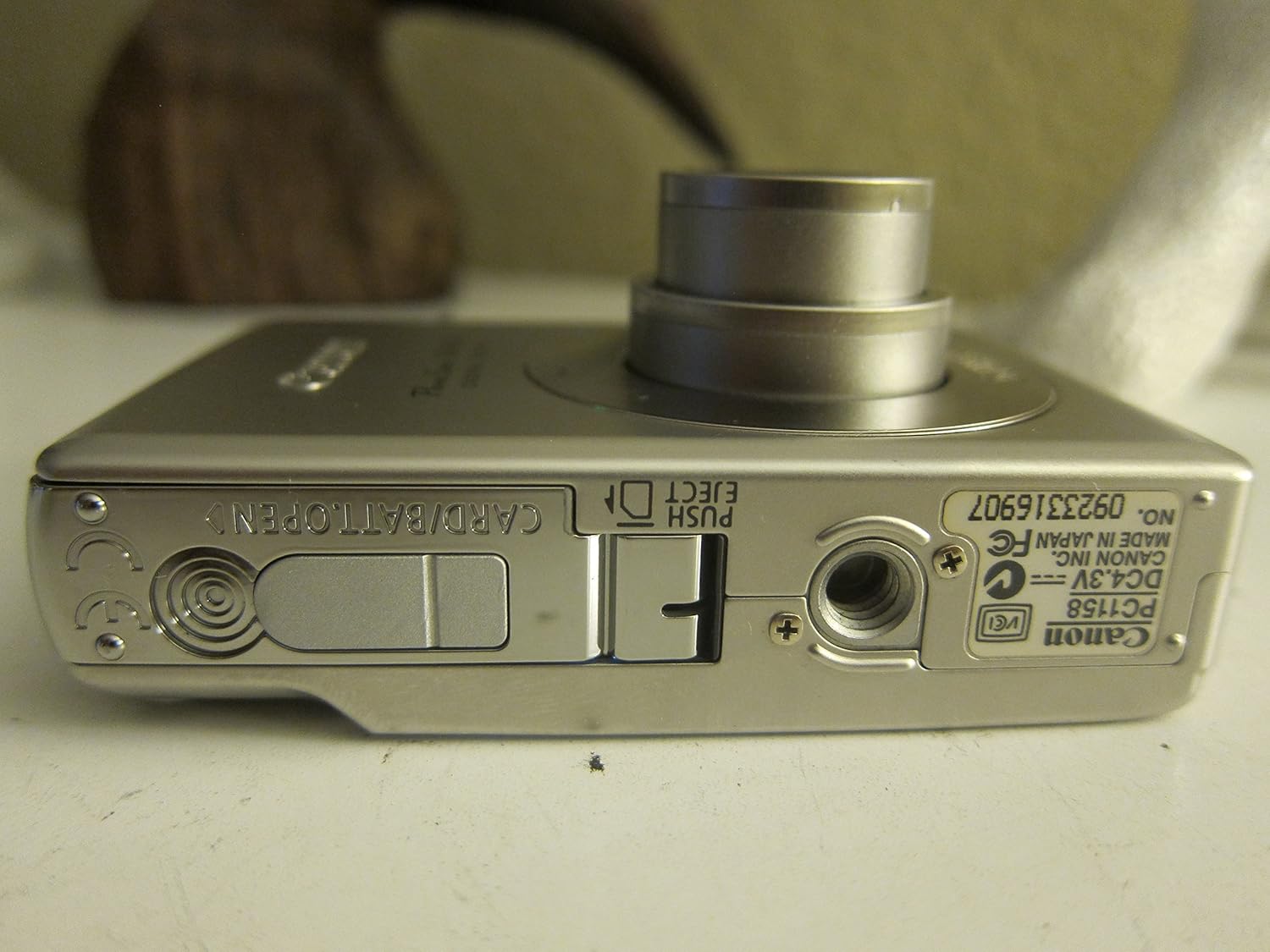
Figure 3.1: Bottom view of the camera, illustrating the battery and SD card compartment.
3.3. Initial Power On and Basic Settings
- Press the ON/OFF button to power on the camera.
- Follow the on-screen prompts to set the date, time, and language.

Figure 3.2: Top view of the camera, highlighting the power button and shutter release.
4. Operating the Camera
4.1. Basic Photography
- Power On/Off: Press the ON/OFF button.
- Taking a Picture: Press the shutter button halfway to focus, then press fully to capture the image.
- Zoom: Use the zoom lever around the shutter button to adjust the 3x optical zoom.

Figure 4.1: Front view of the camera with the optical zoom lens extended.
4.2. Shooting Modes
The PowerShot SD450 offers various shooting modes to optimize settings for different scenes. Rotate the mode dial to select:
- Auto: Camera automatically sets optimal exposure and focus.
- Manual: Allows for more control over settings like white balance and color tones (black and white, sepia, vivid, neutral).
- Portrait: Blurs the background to emphasize the subject.
- Landscape: Ensures sharp focus on distant subjects.
- Night Snapshot: For shooting in low light conditions.
- Scene Modes: Includes specific settings for Kids & Pets, Foliage, Fireworks, Snow, Underwater, Beach, and Indoor.
- My Colors: Apply special effects like Color Swap or Custom Color directly in-camera.
4.3. Focusing and Exposure
- AiAF: The 9-point Artificial Intelligence Auto Focus system automatically focuses on subjects, even if off-center.
- Exposure Control: Select from Evaluative, Center-weighted, or Spot metering.
- ISO Sensitivity: Adjustable to Auto, 50, 100, 200, or 400 to control light sensitivity.
4.4. Video Recording
The camera can record high-quality movies:
- Resolutions: VGA (640x480) or QVGA (320x240) at 30 or 15 frames per second.
- Fast Frame Rate Movie Mode: Records at 60 frames per second for slow-motion playback.
- Compact Movie Mode (QQVGA): 160x120 at 15 frames per second, suitable for email sharing.
- Continuous filming is available until the file size reaches 1 GB or 60 minutes.
4.5. Playback and Review
To review your photos and videos:
- Press the Playback button.
- Use the directional pad to navigate through images and videos.
- Intelligent Orientation Sensor: Automatically rotates stored images for correct playback when the camera is rotated.
- Slideshow Functions: Create impressive slideshows with transition effects directly on the camera.

Figure 4.2: Rear view of the camera, showing the LCD display during image playback.
4.6. Printing Images
The PowerShot SD450 supports direct printing:
- PictBridge: Connect directly to PictBridge-compatible printers (e.g., Canon PIXMA printers) for printing without a PC.
- Print/Share Button: Simplifies direct printing and image uploading to Windows XP or Mac OS X.
5. Maintenance
5.1. Cleaning the Camera
- Use a soft, dry cloth to clean the camera body.
- For the lens and LCD screen, use a lens cleaning cloth and specialized cleaning solution if necessary. Avoid harsh chemicals.
5.2. Battery Care
- Store batteries in a cool, dry place when not in use.
- Avoid fully discharging the battery frequently to prolong its lifespan.
- Recharge the battery using only the provided Canon charger.
5.3. Storage
- When storing the camera for extended periods, remove the battery.
- Store the camera in a protective case to prevent dust and scratches.
6. Troubleshooting
| Problem | Solution |
|---|---|
| "Memory Error" message appears. |
|
| Images are blurry. |
|
| Flash is too strong or washes out subjects. |
|
| Battery drains quickly. |
|
| Camera does not power on. |
|
7. Specifications
| Brand | Canon |
| Model Name | Canon PowerShot SD450 |
| Effective Still Resolution | 5 Megapixels |
| Optical Zoom | 3x |
| Screen Size | 2.5 Inches |
| Image Stabilization | Digital, Optical |
| ISO Range | Auto, 50, 100, 200, 400 |
| Min Shutter Speed | 15 seconds |
| Max Shutter Speed | 1/1500 Seconds |
| Video Capture Resolution | SD VGA 480p |
| Video Capture Format | AVI |
| File Format | JPEG, RAW |
| Dimensions (L x W x H) | 3.39 x 0.87 x 2.13 inches |
| Item Weight | 5.44 ounces |
| Color | Silver |
| Has Self-Timer | Yes |
| Water Resistance Level | Not Water Resistant |
8. Warranty and Support
For detailed warranty information, please refer to the warranty card included with your product or visit the official Canon website. The camera comes bundled with Canon software (ZoomBrowser EX 5.5, PhotoRecord 2.2, ImageBrowser 5.5, PhotoStitch 3.1, Movie Edit Task) for image management and editing. Purchasers are also eligible for membership to Canon iMAGE Gateway for additional support and services.
For technical support, driver downloads, or service inquiries, please visit the official Canon support website or contact Canon customer service.