
1. Introduction
This manual provides comprehensive instructions for the installation, operation, and maintenance of your HP 72 GB Serial Attached SCSI (SAS) Hard Drive, model 375870-B21. Please read this manual thoroughly before proceeding with installation or operation to ensure proper functionality and to prevent data loss or damage to the device.
2. Product Overview
The HP 72 GB SAS Hard Drive is an internal storage device designed for enterprise environments, offering high performance and reliability. Serial Attached SCSI (SAS) represents the evolution of SCSI technology, integrating its established software advantages with the Serial ATA (SATA) electrical and physical connection interface. This drive is engineered to meet the escalating and complex demands of enterprise storage, including requirements for larger capacity, greater density, enhanced security, scalability, and accessibility. It is suitable for data centers that require continuous online operation, simultaneous user requests, constant growth, and maintenance during operation.
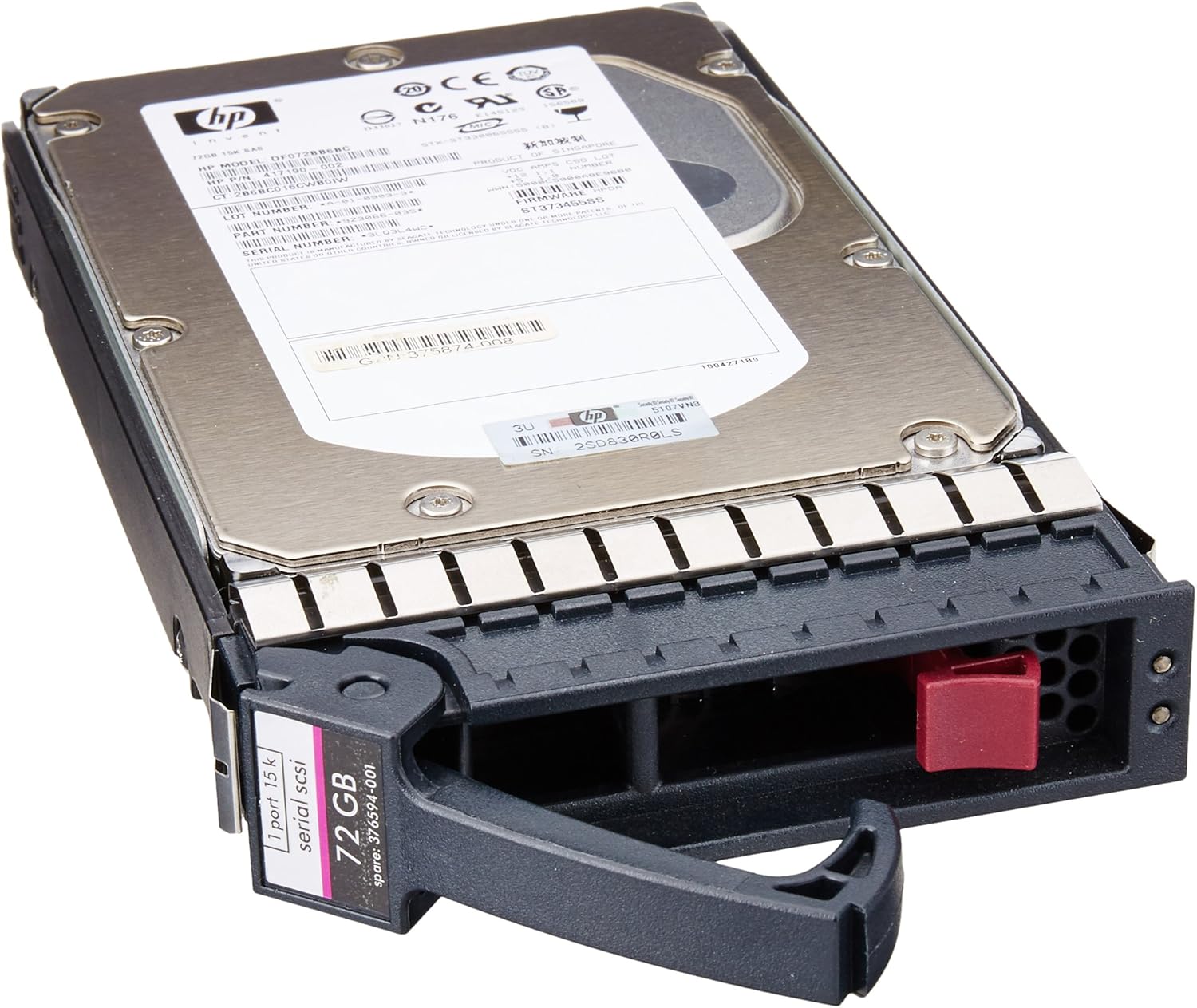
Figure 2.1: HP 72 GB SAS Hard Drive with its integrated caddy. This image displays the top view of the hard drive, showing the HP branding, model number label, and the SAS interface connector at the rear, along with the drive caddy for server bay installation.
3. Setup and Installation
This hard drive is designed for internal installation within compatible desktop systems or server enclosures. Proper installation is crucial for optimal performance and data integrity.
3.1 Safety Precautions
- Always power off and unplug the computer or server before opening the chassis.
- Discharge any static electricity by touching a grounded metal object before handling the hard drive.
- Handle the hard drive by its edges or caddy; avoid touching the circuit board or connectors.
3.2 Installation Steps
- Prepare the System: Power down your computer or server and disconnect all power cables. Open the computer case or server chassis according to the manufacturer's instructions.
- Locate a Drive Bay: Identify an available 3.5-inch drive bay. For server installations, ensure the bay is compatible with the drive's caddy.
- Mount the Drive: If the drive is not already in a caddy, secure it into a compatible 3.5-inch drive caddy using the provided screws. Slide the caddy with the hard drive into the empty drive bay until it clicks into place or is secured by the locking mechanism.
- Connect Cables: Connect a SAS data cable from the hard drive to an available SAS port on your motherboard or RAID controller. Connect a power cable from the power supply unit (PSU) to the hard drive's power connector.
- Close and Power On: Close the computer case or server chassis. Reconnect all power cables and power on the system.
4. Operating Instructions
Once physically installed, the operating system will typically detect the new hard drive. Further steps may be required to make the drive usable.
4.1 Initializing and Formatting
- Operating System Detection: Upon booting, your operating system (e.g., Windows, Linux, VMware) should detect the new hardware.
- Disk Management: Access your operating system's disk management utility (e.g., Disk Management in Windows,
fdiskorpartedin Linux). - Initialize Disk: For a new drive, you will need to initialize it (e.g., MBR or GPT partition style).
- Create Partition(s): Create one or more partitions on the drive.
- Format Partition(s): Format the created partition(s) with a suitable file system (e.g., NTFS, ext4, VMFS).
- Assign Drive Letter/Mount Point: Assign a drive letter (Windows) or mount point (Linux) to access the storage.
4.2 Data Storage and Access
After initialization and formatting, the HP 72 GB SAS Hard Drive will function as a standard storage device. You can save, retrieve, and manage files as you would with any other hard drive connected to your system.
5. Maintenance
Regular maintenance helps ensure the longevity and optimal performance of your hard drive.
- System Cooling: Ensure your computer or server has adequate ventilation and cooling to prevent the hard drive from overheating. High temperatures can degrade performance and shorten the drive's lifespan.
- Regular Backups: Implement a routine backup strategy for all critical data stored on the drive. While SAS drives are reliable, no storage device is immune to failure.
- Check Drive Health: Utilize system monitoring tools to periodically check the drive's S.M.A.R.T. (Self-Monitoring, Analysis and Reporting Technology) status. This can provide early warnings of potential drive issues.
- Firmware Updates: Periodically check the official HP support website for any available firmware updates for your hard drive model. Firmware updates can improve performance, stability, and compatibility.
6. Troubleshooting
If you encounter issues with your HP 72 GB SAS Hard Drive, refer to the following common troubleshooting steps.
6.1 Drive Not Detected
- Check Cables: Ensure both the SAS data cable and power cable are securely connected to the hard drive and the motherboard/controller/PSU.
- BIOS/UEFI Settings: Verify that the SAS controller is enabled in your system's BIOS/UEFI settings.
- Controller Drivers: Ensure that the correct and latest drivers for your SAS controller are installed in your operating system.
- Try Another Port/Cable: If possible, try connecting the drive to a different SAS port or using different data/power cables to rule out faulty connections.
6.2 Slow Performance
- System Resources: Check if other system components (CPU, RAM) are heavily utilized, which can impact drive performance.
- Drive Fragmentation: While less common with modern file systems, excessive file fragmentation can sometimes affect performance. Consider defragmenting if applicable to your file system.
- S.M.A.R.T. Status: Check the drive's S.M.A.R.T. status for any warnings that might indicate impending failure or performance degradation.
- Cooling: Ensure the drive is not overheating. High temperatures can cause thermal throttling and reduced performance.
6.3 Data Corruption
- Run Disk Check: Use your operating system's built-in disk checking utility (e.g.,
chkdskin Windows,fsckin Linux) to scan and repair file system errors. - Power Stability: Ensure your system has a stable power supply. Power fluctuations can lead to data corruption. Consider using an Uninterruptible Power Supply (UPS).
7. Specifications
Detailed technical specifications for the HP 72 GB SAS Hard Drive (Model 375870-B21).
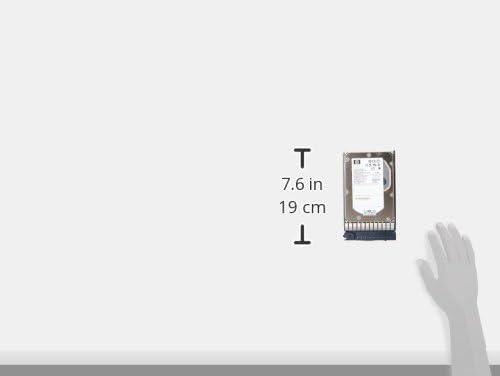
Figure 7.1: Approximate dimensions of the HP 72 GB SAS Hard Drive. This image illustrates the physical size of the hard drive, indicating a height of approximately 7.6 inches (19 cm).
| Feature | Specification |
|---|---|
| Model Number | 375870-B21 |
| Brand | HEWLETT PACKARD |
| Digital Storage Capacity | 72 GB |
| Hard Disk Interface | SAS (Serial Attached SCSI) |
| Hard Disk Form Factor | 3.5 Inches |
| Installation Type | Internal Hard Drive |
| Compatible Devices | Desktop, Server |
| Product Dimensions | 9 x 7 x 4.63 inches |
| Item Weight | 1.6 pounds |
| First Available Date | February 3, 2006 |
8. Warranty and Support
For information regarding the product warranty, please refer to the official Hewlett Packard (HP) website or the documentation provided at the time of purchase. HP provides various support resources, including technical documentation, drivers, and customer service.
Official HP Support: For the most up-to-date support information, including warranty details, driver downloads, and troubleshooting guides, please visit the official HP support website. You will typically need your product's model number (375870-B21) to access specific support resources.


