
Introduction
The Kensington 60112 SmartFit Easy Riser is an ergonomic laptop cooling stand designed to enhance your computing experience. By elevating your laptop, it promotes better posture, reduces neck and shoulder strain, and improves air circulation to keep your device cool. This manual provides detailed instructions for proper setup, operation, and maintenance of your stand.

Image: The Kensington SmartFit Easy Riser Ergonomic Laptop Cooling Stand in its upright position, ready for use.
Key Features
- Ergonomic Elevation: Lifts your laptop to an optimal viewing height, aligning your neck and shoulders for improved comfort and reduced strain.
- Enhanced Air Circulation: Elevates the laptop off the desktop, allowing for better airflow and heat dissipation, which helps keep the battery and internal components cooler.
- SmartFit System: Features a color-coded system for easy adjustment of height and angle, ensuring a personalized ergonomic setup.
- Secure Laptop Placement: Equipped with padded inserts to hold your laptop securely in place and prevent accidental slips.
- Wide Compatibility: Suitable for laptops ranging from 12 inches to 17 inches, accommodating a broad range of models.
- Portable Design: Folds completely flat for convenient transport and compact storage, ideal for mobile users.
- External Peripherals Recommended: Designed for optimal use with an external keyboard and mouse to maintain a healthy working posture.
Setup Instructions
- Unfold the Stand: Carefully unfold the Kensington SmartFit Easy Riser until it forms a stable triangular structure. Ensure all locking mechanisms (if present) are engaged.
- Adjust Height and Angle: Utilize the SmartFit system to select your preferred height and angle. Refer to the color-coded chart (if included) or adjust manually until your laptop screen is at eye level and your wrists are straight when using an external keyboard.
- Place Your Laptop: Position your laptop onto the stand, ensuring it rests securely on the padded inserts. The inserts are designed to prevent sliding.
- Connect Peripherals: For optimal ergonomic benefits, connect an external keyboard and mouse to your laptop. This allows you to maintain a comfortable typing and pointing posture while the laptop screen is elevated.

Image: A complete ergonomic workstation setup showing a laptop elevated on the Kensington stand, connected to an external monitor, keyboard, and mouse.

Image: Detail of the SmartFit adjustment wheel and the ventilation holes on the stand, designed for optimal cooling.
Operating Instructions
Once the stand is set up and your laptop is placed securely, you can begin using your ergonomic workstation.
- Maintain Proper Posture: Ensure your feet are flat on the floor, your back is supported, and your elbows are at a 90-degree angle when typing. Your eyes should be level with the top third of your laptop screen.
- Monitor Cooling: The elevated design naturally improves air circulation. Avoid blocking the ventilation holes on the stand or your laptop to maximize cooling efficiency.
- Portability: When you need to transport the stand, remove your laptop, fold the stand flat, and secure it. Its compact design allows it to fit easily into most laptop bags.

Image: The Kensington SmartFit Easy Riser Laptop Stand shown in its fully folded, compact state, ready for travel or storage.
Maintenance
To ensure the longevity and optimal performance of your Kensington SmartFit Easy Riser, follow these simple maintenance guidelines:
- Cleaning: Wipe the stand with a soft, damp cloth. Avoid using harsh chemicals or abrasive cleaners, as these may damage the plastic material or padded surfaces.
- Inspection: Periodically check the stand for any signs of wear or damage, especially on the adjustable components and padded inserts.
- Storage: When not in use, fold the stand flat and store it in a clean, dry place away from direct sunlight or extreme temperatures.
Troubleshooting
| Problem | Possible Cause | Solution |
|---|---|---|
| Stand feels unstable. | Not fully unfolded or locked into position. Uneven surface. | Ensure the stand is fully extended and all adjustment points are securely tightened. Place the stand on a flat, stable surface. |
| Laptop slides on the stand. | Padded inserts are worn or dirty. Laptop size mismatch. | Clean the padded inserts. Ensure your laptop is within the 12-17 inch compatibility range. Contact support if inserts are damaged. |
| Difficulty adjusting height/angle. | Adjustment mechanism is stiff or obstructed. | Apply gentle, even pressure when adjusting. Check for any debris obstructing the mechanism. Do not force adjustments. |
Specifications
- Model Number: 60112
- Brand: Kensington
- Color: Black
- Material: Plastic
- Dimensions (Folded): 30.4 x 28.1 x 4.2 cm (11.97 x 11.06 x 1.65 inches)
- Weight: 861.83 g (1.9 lbs)
- Compatible Laptop Sizes: 12" to 17"
- Adjustable: Yes
- Mounting Type: Table Mount
- Special Features: Ergonomic, Cooling, Foldable, SmartFit System
- GTIN/UPC: 034138601129, 858966011284
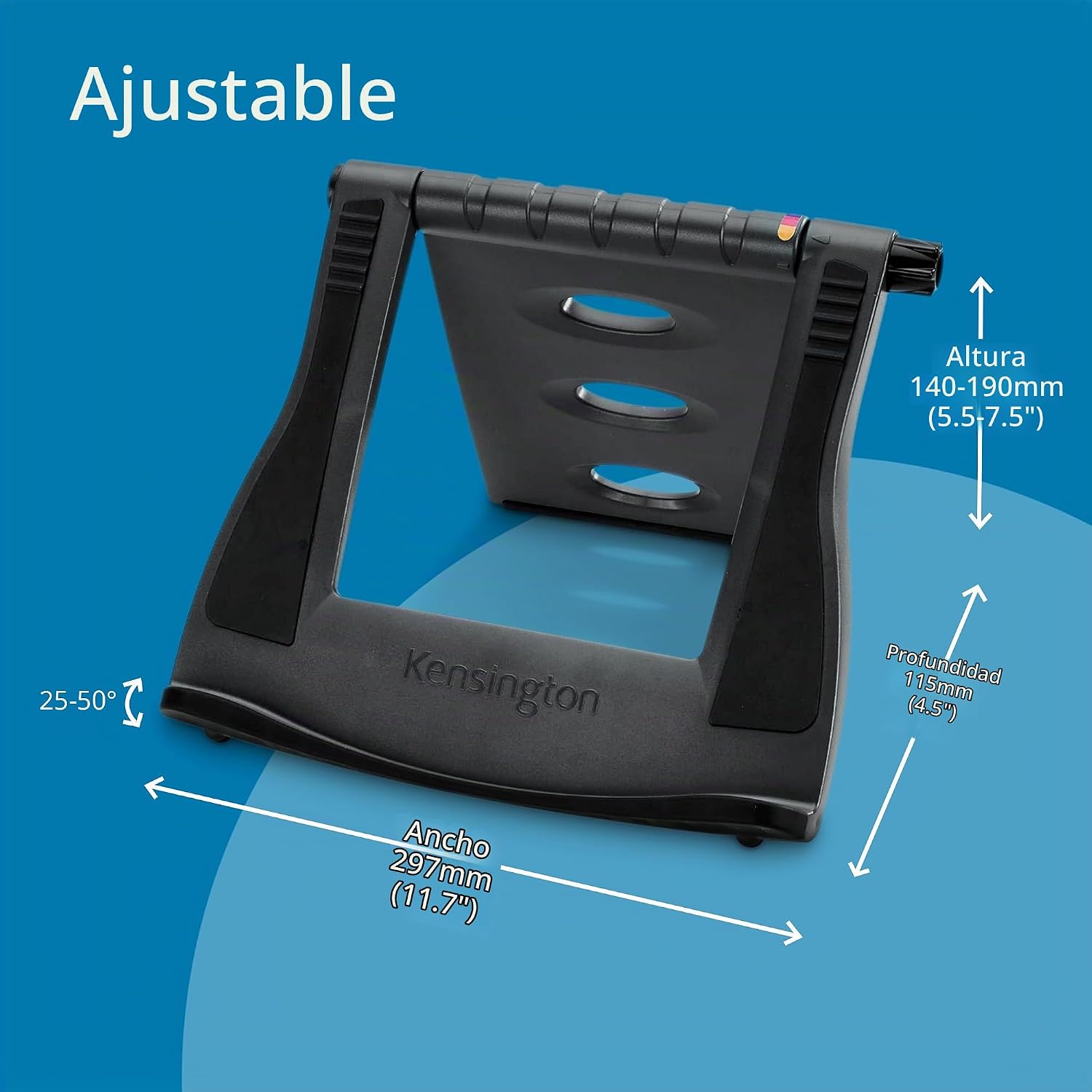
Image: A diagram illustrating the adjustable height, width, and depth dimensions of the Kensington SmartFit Easy Riser Laptop Stand.
Warranty Information
This product is covered by the manufacturer's warranty. For specific details regarding warranty terms, duration, and claims, please refer to the documentation included with your purchase or visit the official Kensington website.
Customer Support
If you encounter any issues or have questions about your Kensington 60112 SmartFit Easy Riser, please contact Kensington customer support.
- Online Support: Visit the official Kensington website for FAQs, troubleshooting guides, and contact information.
- Contact Information: Refer to the product packaging or Kensington's website for regional customer service phone numbers and email addresses.


