
Introduction
The Canon EOS Digital Rebel XT is an 8.0-megapixel DSLR camera designed for both aspiring photographers and those transitioning from film SLRs. It offers a compact and lightweight design, making it easy to handle, while delivering sharp and vibrant photos thanks to its advanced CMOS sensor and DIGIC II Image Processor. This manual provides essential information to help you set up, operate, and maintain your camera, ensuring you get the most out of its capabilities.

Figure 1: Front-side view of the Canon Rebel XT DSLR Camera body.
Setup
1. Battery Installation
The Canon Rebel XT is powered by a rechargeable Lithium-ion battery (NB-2LH). To install the battery:
- Open the battery compartment cover located at the bottom of the camera.
- Insert the battery with the electrical contacts facing inward, ensuring it clicks into place.
- Close the battery compartment cover securely.
Ensure the battery is fully charged using the included charger before first use. A fully charged battery provides approximately 400 photos.
2. Memory Card Insertion
The camera uses Compact Flash (CF) cards for image storage. To insert a CF card:
- Open the CF card slot cover on the side of the camera.
- Insert the Compact Flash card with the correct orientation until it is fully seated.
- Close the CF card slot cover.
The camera supports up to 4 GB Compact Flash cards.
3. Lens Attachment
The Canon Rebel XT is compatible with Canon EF and EF-S lenses. To attach a lens:
- Remove the body cap from the camera and the rear cap from the lens.
- Align the red dot on the lens with the red dot on the camera body (for EF-S lenses, align the white square).
- Rotate the lens clockwise until it clicks into place.
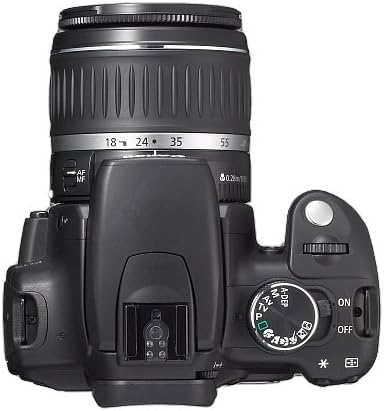
Figure 2: Top view of the camera, showing the lens mount and mode dial.
Operating the Camera
1. Power On and Basic Settings
Turn the power switch to the 'ON' position. The camera has a fast startup time of 0.2 seconds. You may need to set the date and time upon first use or after a prolonged period without battery power.

Figure 3: Rear view of the camera, highlighting the LCD screen and control buttons.
2. Shooting Modes
The mode dial on top of the camera allows selection from 12 exposure modes:
- Full Auto: Camera automatically sets all parameters.
- Creative Zone Modes:
- Program AE (P): Automatic exposure with program shift.
- Shutter Speed-Priority AE (Tv): You set shutter speed, camera sets aperture.
- Aperture-Priority AE (Av): You set aperture, camera sets shutter speed.
- Manual (M): You set both shutter speed and aperture.
- Auto Depth-of-Field AE (A-DEP): Automatically expands depth of field.
- Basic Zone Modes:
- Portrait: For soft skin tones and blurred backgrounds.
- Landscape: For sharp focus on distant subjects.
- Close-up: For macro photography.
- Sports: For freezing fast-moving subjects.
- Night Portrait: For flash photography with ambient light.
- Flash Off: Disables flash.
3. Autofocus System
The camera features a 7-point autofocus system. It can analyze subject movement and automatically select locking (One-Shot AF) or tracking (AI Servo AF) modes. You can also manually select these modes for greater creative control.
4. ISO Sensitivity
Adjust ISO to control the camera's sensitivity to light. Available ISO settings are 100, 200, 400, 800, and 1600. The Auto ISO setting is raised to 400 to improve image quality in various conditions.
5. Image Quality and File Formats
The Rebel XT supports both JPEG and RAW (CR2) file formats. JPEG images can be captured in various sizes (Large, Medium, Small) and quality settings (Fine, Normal). RAW files offer maximum image data for post-processing flexibility.
6. Flash Operation
The camera features a built-in pop-up flash and supports Canon EX-series Speedlites. It utilizes the E-TTL II evaluative flash metering system for optimal exposure in challenging lighting conditions.

Figure 4: Front view of the camera with the built-in flash raised.
7. White Balance
The camera offers various white balance settings including Auto, Custom, and Flash. It also provides white balance correction control (blue/amber and magenta/green bias) and white balance bracketing for precise color rendition.
8. DIGIC II Image Processor
The DIGIC II processor ensures high precision, speed, and natural color reproduction. It contributes to faster startup times, quicker CompactFlash card writing, USB 2.0 high-speed data transfer, and improved battery efficiency (approximately 35% longer battery life).
9. Image Playback
To review captured images, press the Playback button. Use the directional buttons to navigate through photos. The 1.8-inch LCD screen displays images and menu options.
Maintenance
1. Cleaning the Camera
- Use a soft, lint-free cloth to clean the camera body.
- For the lens and LCD screen, use a specialized lens cleaning cloth and solution. Avoid harsh chemicals.
- Use a blower brush to remove dust from the sensor (with caution and only if experienced, or consult a professional).
2. Battery Care
- Store batteries in a cool, dry place when not in use.
- Avoid fully discharging the battery frequently to prolong its lifespan.
- Charge the battery at least once every six months if not used regularly.
3. Storage
When storing the camera for extended periods, remove the battery and memory card. Store the camera in a dry, dust-free environment, preferably in a camera bag or case to protect it from impacts and moisture.
Troubleshooting
This section addresses common issues you might encounter with your Canon Rebel XT. For more detailed troubleshooting, please refer to the official user manual.
| Problem | Possible Cause / Solution |
|---|---|
| Camera does not power on. | Battery is not inserted correctly or is depleted. Ensure battery is charged and properly seated. |
| Images are blurry. | Check focus mode (ensure autofocus is engaged or manual focus is accurate). Verify shutter speed is fast enough for subject motion or camera shake. Ensure lens is clean. |
| Memory card error. | Card may be full, corrupted, or incompatible. Try formatting the card (this will erase all data) or use a different card. |
| Flash does not fire. | Flash Off mode may be selected. Battery level might be too low. Subject may be out of flash range. |
Specifications
| Feature | Detail |
|---|---|
| Model Name | Canon Rebel XT |
| Effective Still Resolution | 8.0 MP |
| Photo Sensor Technology | CMOS |
| Compatible Mountings | Canon EF, Canon EF-S |
| Autofocus Points | 7 |
| ISO Range | 100-1600 (Expanded) |
| Shutter Speed Range | 30 seconds to 1/4000 seconds |
| Display Type | LCD |
| Screen Size | 1.8 Inches |
| Flash Memory Type | Compact Flash (up to 4 GB) |
| Connectivity Technology | USB 2.0 |
| Item Weight | 1.19 Pounds |
| Battery Type | Lithium Ion (NB-2LH) |
| Battery Average Life | 400 Photos |
Warranty and Support
For detailed warranty information, please refer to the documentation included with your product at the time of purchase. Canon provides various support resources for its products.
Bundled Software
Your Canon Rebel XT comes with several software discs to enhance your photography workflow:
- EOS Digital Solutions Disc 10: Includes ZoomBrowser EX, ImageBrowser, and ArcSoft PhotoStudio, along with other utilities for managing and editing your photos.
- Digital Photo Professional 1.6: Software specifically for converting and processing RAW image files.
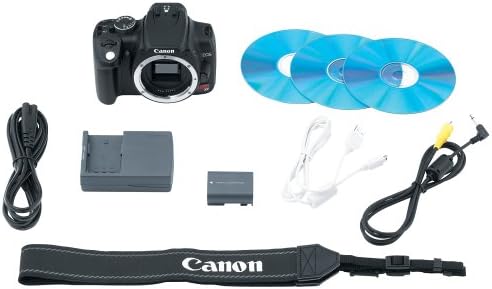
Figure 5: Included accessories and software discs with the camera.
Official User Manual
A comprehensive user manual in PDF format is available for download. It contains detailed instructions on all camera functions and advanced settings.