
1. Introduction
Welcome to the user manual for your OM SYSTEM OLYMPUS Stylus 500 Digital Camera. This camera is designed for ease of use, offering a 5-megapixel sensor, 3x optical zoom, and a durable all-weather body. It is ideal for capturing high-quality images in various environments. This manual provides essential information for setting up, operating, maintaining, and troubleshooting your camera.
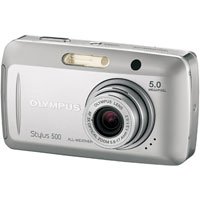
Figure 1: OM SYSTEM OLYMPUS Stylus 500 Digital Camera. This image shows the front view of the compact digital camera, highlighting its lens and sleek design.
Key features include:
- 5-megapixel sensor for detailed images.
- All-weather construction for outdoor use.
- 2.5-inch HyperCrystal LCD for clear viewing.
- 3x optical zoom and 12x total zoom.
- Movie mode with sound for video recording.
- Support for xD-Picture cards for storage.
2. Setup
2.1. Battery Installation
The Stylus 500 uses a rechargeable battery (not included with all packages).
- Open the battery compartment cover located on the bottom of the camera.
- Insert the battery with the correct orientation, matching the polarity indicators (+/-).
- Close the battery compartment cover securely until it clicks into place.
- Charge the battery fully before first use using the provided charger.
2.2. Memory Card Insertion
The camera uses xD-Picture Cards for image storage. A 32 MB card may be included.
- Locate the memory card slot, usually near the battery compartment.
- Insert the xD-Picture Card into the slot with the correct orientation until it clicks.
- To remove, press the card gently inward, and it will spring out.
2.3. Initial Power On
Press the power button to turn on the camera. The lens barrier will open, and the LCD screen will activate. Follow any on-screen prompts for initial setup, such as setting the date and time.
3. Operating Instructions
3.1. Taking Photos
- Power On: Press the power button.
- Select Mode: Use the mode dial or menu to select a shooting mode (e.g., Auto, Portrait, Landscape). The camera offers 23 shooting modes, including two new underwater modes.
- Frame Your Shot: Use the 2.5-inch HyperCrystal LCD to compose your image.
- Zoom: Use the zoom lever to adjust the 3x optical zoom or 4x digital zoom.
- Focus: Press the shutter button halfway down to focus. The camera will confirm focus.
- Capture: Press the shutter button fully to take the picture.
3.2. Using the Flash
The camera features a built-in flash with automatic modes. Access flash settings through the camera's menu to select options like Auto, Red-eye Reduction, Fill-in, or Flash Off.
3.3. Recording Movies
The Stylus 500 can record QuickTime movies with sound.
- Switch the camera to Movie mode via the mode dial or menu.
- Press the shutter button to start recording.
- Press the shutter button again to stop recording.
- Movie length is limited only by the memory card capacity.
3.4. Playback and Album Function
To view your photos and videos, switch to Playback mode. The Album Function allows you to organize up to 12 individual albums, each holding up to 100 images, directly on the camera's xD-Picture Card.
3.5. Connecting to a Computer and Printing
Connect the camera to a computer using a USB 2.0 cable. The USB Auto Connect feature allows direct connection without additional software. For direct printing, the camera supports PictBridge technology, enabling printing to compatible printers without a computer.
4. Maintenance
4.1. Cleaning the Camera
- Lens: Use a soft, lint-free cloth specifically designed for camera lenses. Do not use abrasive materials or harsh chemicals.
- LCD Screen: Gently wipe with a soft, dry cloth. For stubborn smudges, use a screen cleaner designed for electronics.
- Camera Body: Wipe with a soft, dry cloth. While the camera has all-weather construction, avoid submerging it or exposing it to excessive moisture unnecessarily.
4.2. Battery Care
- Store batteries in a cool, dry place when not in use.
- Avoid fully discharging the battery frequently to prolong its lifespan.
- Remove the battery if the camera will not be used for an extended period.
5. Troubleshooting
| Problem | Possible Cause / Solution |
|---|---|
| Camera does not power on. |
|
| Cannot take pictures. |
|
| Images are blurry. |
|
| LCD screen is dim or blank. |
|
6. Specifications
| Feature | Detail |
|---|---|
| Model Name | Stylus 500 |
| Photo Sensor Resolution | 5 MP |
| Optical Zoom | 3x |
| Digital Zoom | 4x |
| Screen Size | 2.5 Inches (HyperCrystal LCD) |
| Image Stabilization | Digital, Optical |
| Supported File Format | RAW |
| Memory Type | xD Picture Card (32 MB included) |
| Video Resolution | 320 x 240, 15 fps, with audio |
| Connectivity | USB 2.0 |
| Special Feature | All-weather construction |
| Item Weight | 7.04 ounces |
| Self Timer | 12 Seconds |
| ISO Range | Auto, 64, 100, 200, 250, 400, 500 |
7. Warranty and Support
For detailed warranty information, please refer to the warranty card included with your product purchase or visit the official OM SYSTEM website.
For technical support, software updates, and additional resources, please visit the OM SYSTEM support page. Keep your model number (Stylus 500) and serial number (if applicable) ready when contacting support.