1. Introduction
This manual provides essential information for the safe and effective installation, operation, and maintenance of your Compaq PDP100 ATX 200W Power Supply. Please read this manual thoroughly before attempting any installation or maintenance procedures.
2. Safety Information
Always observe the following safety precautions to prevent electric shock, personal injury, or damage to the equipment:
- Disconnect the computer from the main power outlet before installing or removing the power supply.
- Do not open the power supply casing. High voltages are present inside, even when the unit is unplugged. There are no user-serviceable parts inside.
- Ensure proper grounding of your computer system.
- Avoid operating the power supply in high humidity or extreme temperature environments.
- Do not block the ventilation openings of the power supply.
3. Setup and Installation
The Compaq PDP100 is an ATX form factor power supply designed for personal computers. Follow these general steps for installation:
- Prepare Your System: Ensure your computer is powered off and unplugged from the wall outlet. Open the computer case according to your system's manufacturer instructions.
- Remove Old Power Supply (if applicable): Disconnect all cables from the old power supply to the motherboard, drives, and other components. Unscrew and remove the old power supply from the case.
- Install New Power Supply: Carefully place the Compaq PDP100 power supply into the designated power supply bay in your computer case. Ensure the fan faces the correct direction for optimal airflow (typically facing inwards or downwards, depending on case design). Secure the power supply with screws provided with your computer case or the power supply itself.
- Connect Cables:
- 20/24-pin ATX Main Power Connector: Connect this large connector to the corresponding port on your motherboard.
- 4-pin or 8-pin CPU Power Connector: Connect this to the CPU power port on your motherboard.
- SATA Power Connectors: Connect these to your SATA hard drives, SSDs, and optical drives.
- Molex (4-pin Peripheral) Connectors: Connect these to older drives or case fans if needed.
- PCIe Power Connectors (if present and needed): Connect these to your graphics card if it requires additional power.
Refer to your motherboard and component manuals for specific cable connection requirements.
- Close Case and Power On: Once all connections are secure, close your computer case. Plug the computer's power cord into the power supply and then into a wall outlet. Power on your computer.
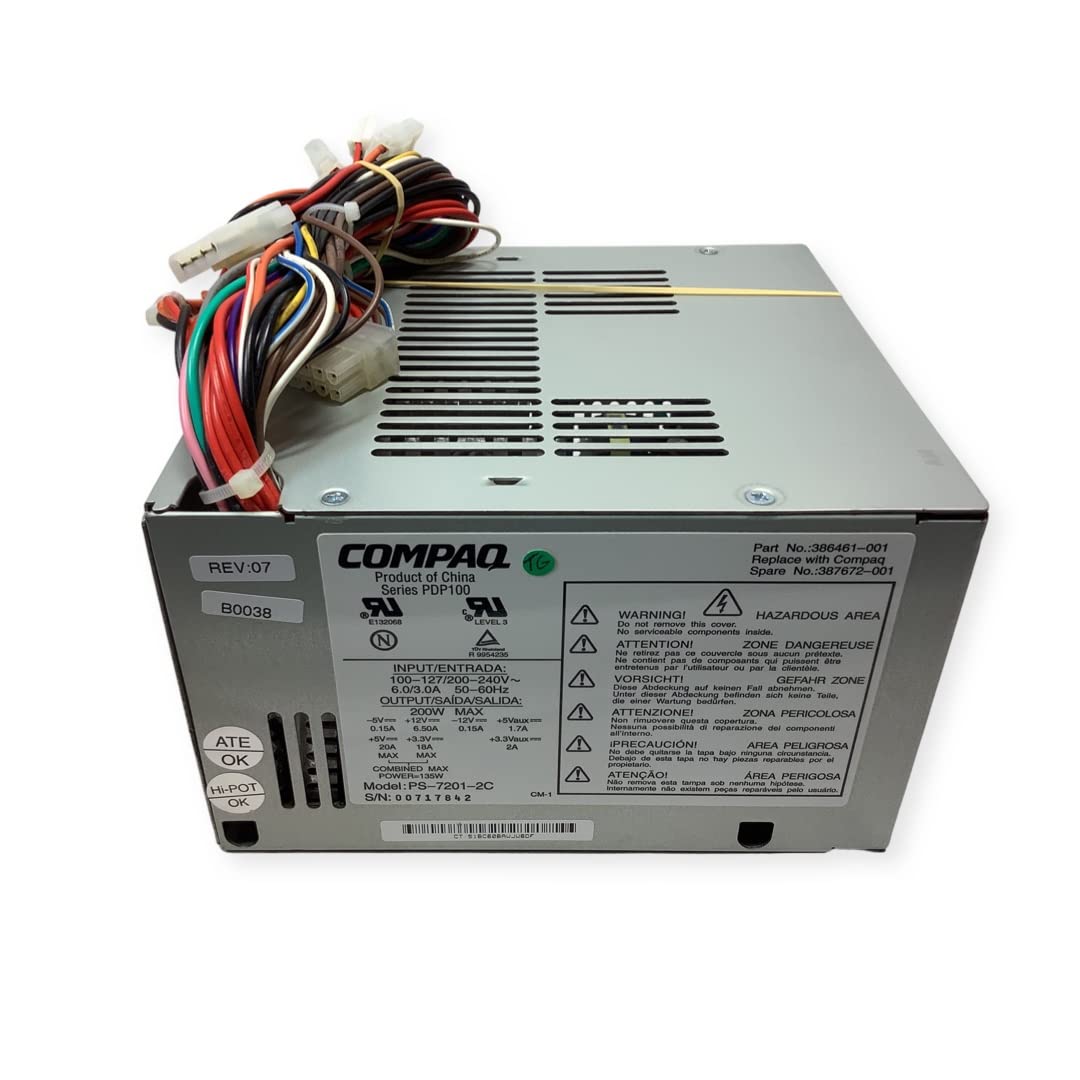
Image: The Compaq PDP100 ATX 200W Power Supply, showing its compact design and various connectors. This image illustrates the general appearance of the power supply unit before installation.
4. Operation
The Compaq PDP100 ATX 200W Power Supply operates automatically once installed correctly and connected to a power source. Its primary function is to convert AC power from your wall outlet into stable DC power required by your computer's components. There are no user-adjustable settings for its operation.
- Ensure the power switch on the back of the power supply (if present) is in the 'ON' position before powering on your computer.
- The power supply will provide power to your motherboard, CPU, graphics card, storage drives, and other peripherals as needed.
5. Maintenance
Proper maintenance ensures the longevity and stable operation of your power supply:
- Dust Cleaning: Periodically (e.g., every 6-12 months), power off and unplug your computer. Open the case and use compressed air to gently clean dust from the power supply's fan and ventilation grilles. Dust accumulation can hinder cooling and lead to overheating.
- Ventilation: Ensure your computer case has adequate airflow and that the power supply's vents are not obstructed by cables or other components.
- Cable Management: Organize internal cables to prevent them from blocking airflow around the power supply.
6. Troubleshooting
If you encounter issues with your power supply, consider the following troubleshooting steps:
- No Power:
- Check if the power cord is securely plugged into both the power supply and the wall outlet.
- Ensure the power switch on the back of the power supply is in the 'ON' position.
- Test the wall outlet with another device to confirm it has power.
- Verify all internal power connectors (20/24-pin ATX, CPU, SATA, etc.) are firmly seated.
- System Instability/Random Shutdowns:
- This could indicate an overloaded or failing power supply. Ensure the total wattage draw of your components does not exceed the power supply's 200W capacity.
- Check for proper ventilation and ensure the power supply is not overheating.
- If the issue persists, consider testing with a known good power supply or consulting a qualified technician.
- Fan Not Spinning:
- Some power supply fans only spin when under load or when a certain temperature is reached.
- If the fan never spins and the system is overheating, ensure there are no obstructions and clean any dust.
If these steps do not resolve the issue, contact customer support or a qualified technician.
7. Specifications
| Feature | Specification |
|---|---|
| Brand | Compaq |
| Model Name | PDP100 |
| Part Number | 386461-001 |
| Output Wattage | 200 Watts |
| Form Factor | ATX |
| Connector Type | ATX |
| Compatible Devices | Personal Computer |
| Item Weight | 5 Pounds |
| UPC | 788490574446 |
| Date First Available | September 28, 2010 |
8. Warranty and Support
This Compaq PDP100 ATX 200W Power Supply includes a warranty. For specific warranty terms and conditions, please refer to the documentation provided at the time of purchase or contact your retailer. For technical support or service inquiries, please contact Compaq customer service or the vendor from whom you purchased the product.


