
1. Introduction
The Marantz CDR300 is a portable CD recorder designed for direct recording of audio, particularly spoken word, onto CD-R/RW media. This device combines the functionality of a professional portable recorder with the convenience of CD recording, allowing for immediate playback on standard CD players. Its robust design and versatile features make it suitable for various field recording applications.
2. Key Features
- Direct Recording: Records directly to blank CD-R/RW discs.
- Minute Track Mode: Automatically marks each minute of spoken word as a separate track for easy navigation during playback.
- Portability: Transportable, tabletop operation with options for AC power or optional RPS300 battery system for up to four hours of recording.
- Integrated Audio Tools: Features a built-in microphone, internal speaker, microphone inputs (including XLR), Automatic Level Control (ALC), mic filtering, limiter, and programmable EQ for optimized stereo recording.
- CD-R/RW Compatibility: Supports standard CD-R and CD-RW media.
3. Product Overview
3.1 Front Panel Controls

Figure 1: Front view of the Marantz CDR300 with its remote control.
The front panel provides access to all primary recording and playback functions. Key controls include:
- Audio Adjustments: BASS, MID, TREBLE knobs for tone control.
- Recording Settings: TEXT, PHANTOM (for external microphones), PROG, REPEAT, MENU/STORE buttons.
- Disc Operations: DISC MODE, SINGLE, A-B, CANCEL/DELETE buttons.
- Power: POWER switch and STANDBY button.
- Display: LCD screen showing status, track information, and settings.
- CD Tray: Push ENTER button to open/close the CD tray.
- Recording/Finalizing: ERASE, FINALIZE, REC buttons.
- Transport Controls: Play/Pause, Stop, Skip Forward/Backward buttons.
3.2 Rear Panel Connections
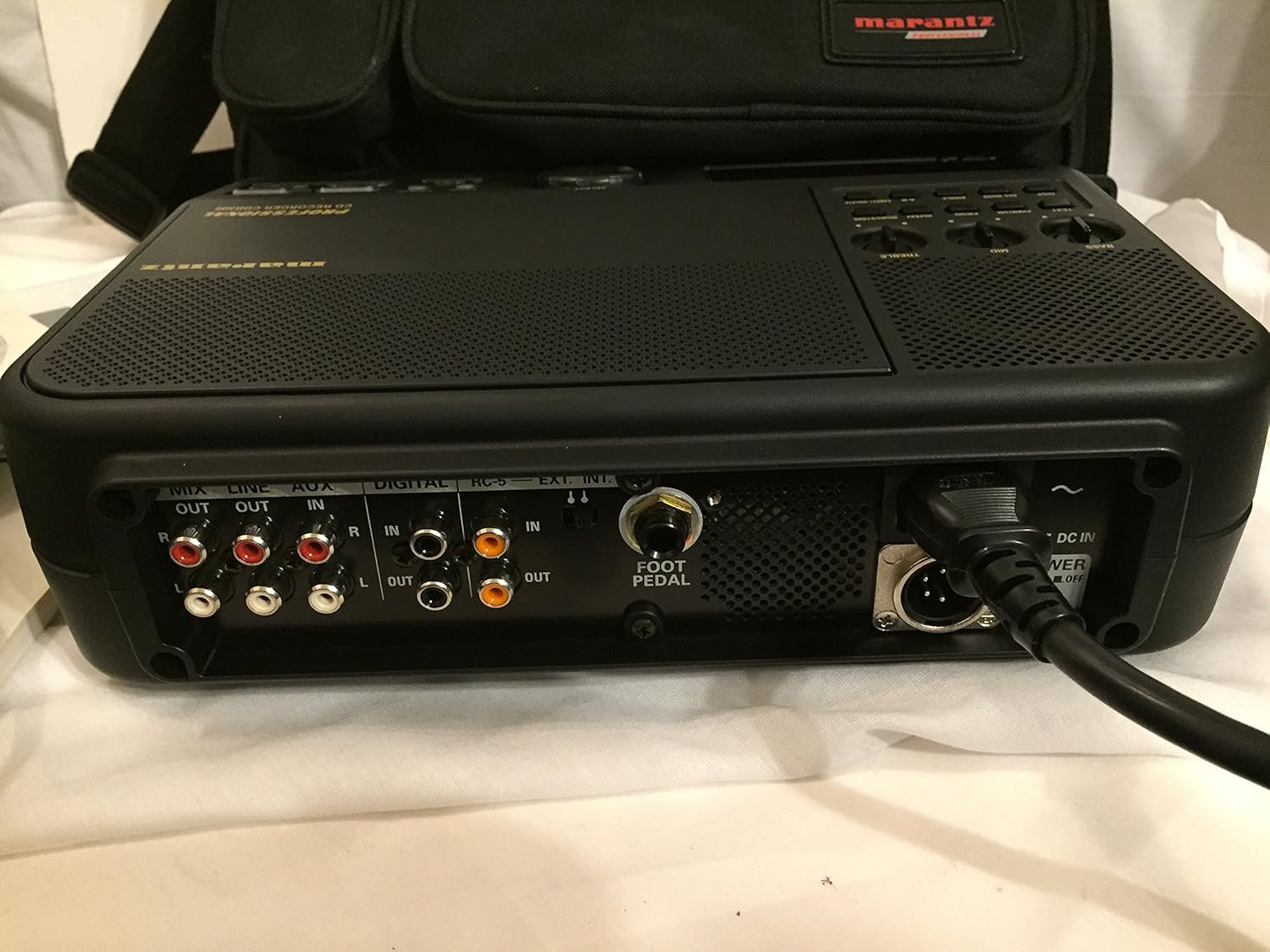
Figure 2: Rear panel connections of the Marantz CDR300.
The rear panel houses various input and output connections for external audio devices and power:
- Audio Outputs: MIX OUT (RCA), LINE OUT (RCA).
- Audio Inputs: LINE IN (RCA), AUX IN (RCA), DIGITAL IN (Coaxial/Optical).
- Control Ports: RC-5, EXT. INT. (External/Internal microphone selector), FOOT PEDAL input.
- Power Input: DC IN (4-pin connector for optional RPS300 battery or external DC power), AC POWER ON/OFF switch.
3.3 Remote Control (RC300CDR)
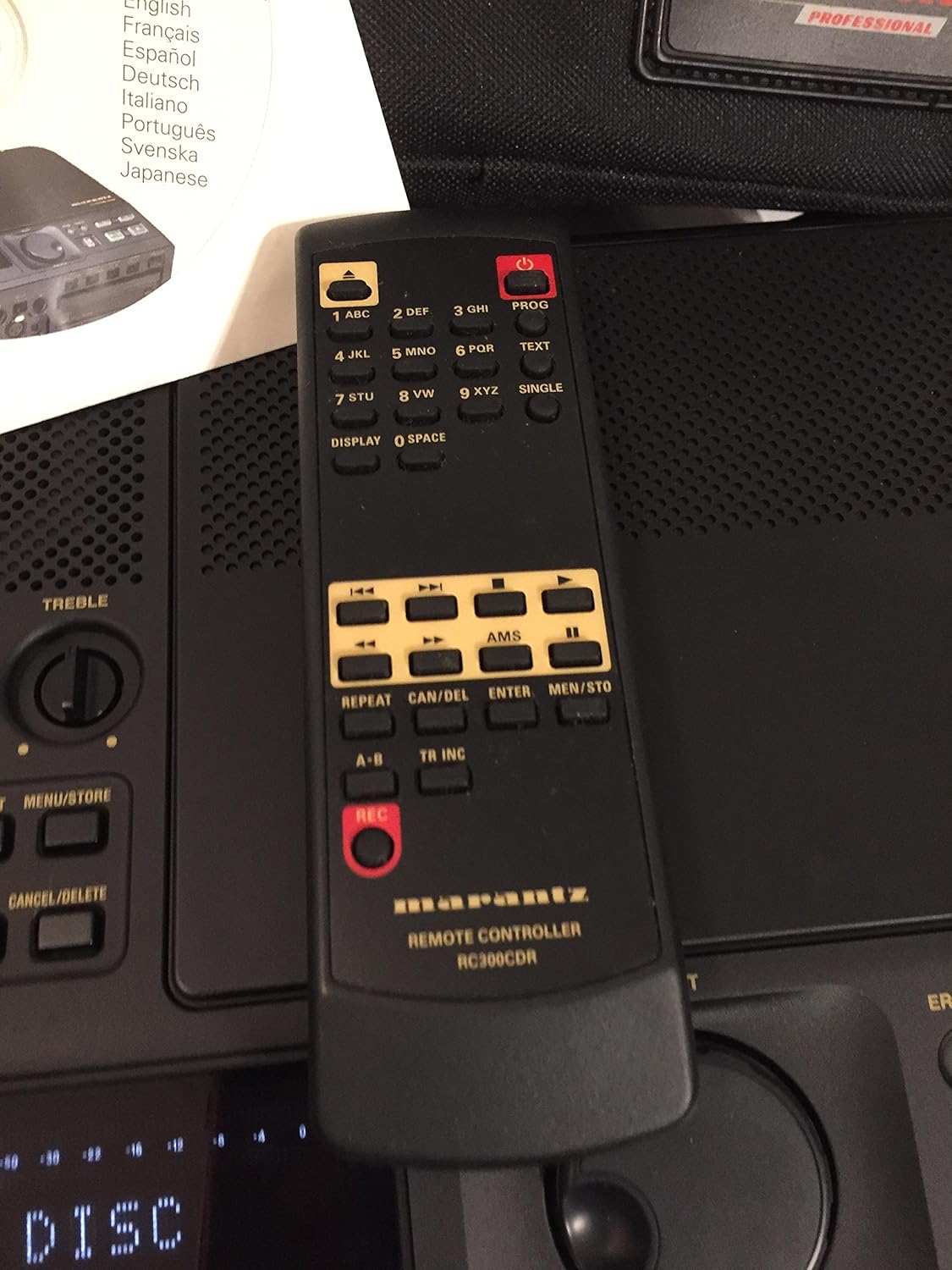
Figure 3: The RC300CDR remote control unit.
The included remote control provides convenient access to most functions from a distance. It includes buttons for power, numerical input, text entry, display options, AMS (Automatic Music Search), repeat functions, track increment, and full transport controls (REC, Play/Pause, Stop, Skip).
4. Setup
4.1 Power Connection
- Connect the supplied AC power adapter to the AC POWER input on the rear panel and plug it into a standard wall outlet.
- Alternatively, for portable use, connect the optional RPS300 battery system to the 4-pin DC IN connector.
- Ensure the AC POWER ON/OFF switch on the rear panel is in the 'ON' position.
4.2 Loading a Disc
- Press the 'Push ENTER' button on the front panel to open the CD tray.
- Place a blank CD-R or CD-RW disc, label side up, into the tray.
- Press the 'Push ENTER' button again to close the tray. The display will show "READING DISC" then "READY" or "NO DISC" if no disc is detected or if the disc is incompatible.
4.3 Audio Connections
- External Microphones: Connect professional microphones to the XLR inputs (if available, typically via an external mixer or pre-amp connected to Line In). Ensure PHANTOM power is enabled if required by your microphones.
- Line-Level Devices: Connect audio sources like mixers, preamplifiers, or other playback devices to the LINE IN (RCA) or AUX IN (RCA) ports.
- Digital Sources: For digital audio input, connect compatible devices to the DIGITAL IN (Coaxial or Optical) port.
- Monitoring: Connect headphones to the headphone jack for private monitoring or connect external speakers to the LINE OUT (RCA) ports.
5. Operating Instructions
5.1 Basic Recording
- Power on the unit and insert a blank CD-R or CD-RW disc.
- Select your desired input source (internal microphone, external microphone via LINE IN, or other line/digital inputs). Use the EXT. INT. switch on the rear panel for microphone selection.
- Adjust input levels using the ALC (Automatic Level Control) or manually set levels and apply mic filtering, limiter, or programmable EQ as needed via the menu.
- Press the REC button to begin recording. The REC indicator will illuminate.
- To stop recording, press the STOP button.
5.2 Minute Track Mode (for Spoken Word)
The "Minute Track Mode" is ideal for recording interviews, lectures, or meetings, as it automatically creates a new track marker every minute. This allows for quick navigation to specific points during playback.
- Before recording, activate "Minute Track Mode" through the unit's menu settings. Refer to the on-screen display for navigation.
- Proceed with recording as described in Section 5.1. The unit will automatically insert track markers every 60 seconds.
5.3 Playback
- Insert a recorded CD into the tray.
- Press the PLAY/PAUSE button to start playback.
- Use the Skip Forward/Backward buttons to navigate between tracks. If "Minute Track Mode" was used, these buttons will jump to the next or previous minute marker.
- Press the STOP button to end playback.
5.4 Finalizing a Disc
After recording, a CD-R disc must be finalized to be playable on standard CD players. CD-RW discs do not always require finalizing for playback on the CDR300 itself, but it is recommended for universal compatibility.
- Ensure the disc contains all desired recordings.
- Press the FINALIZE button on the front panel.
- Follow the on-screen prompts to confirm the finalization process. This process is irreversible.
6. Maintenance
- Cleaning: Use a soft, dry cloth to clean the exterior of the unit. Do not use liquid cleaners or solvents.
- Disc Handling: Always handle discs by their edges. Store discs in cases to prevent scratches and dust accumulation.
- Storage: Store the unit in a cool, dry place away from direct sunlight and extreme temperatures.
7. Troubleshooting
This section addresses common issues you might encounter with the Marantz CDR300.
- "NO DISC" displayed:
- Ensure a disc is properly inserted, label side up.
- Verify the disc is a compatible CD-R or CD-RW.
- Clean the disc if it appears dirty or scratched.
- No recording audio:
- Check all audio cable connections.
- Ensure the correct input source is selected.
- Verify input levels are not set too low or muted.
- If using external microphones, confirm phantom power is supplied if needed.
- Disc not playable on other devices after recording:
- Ensure the disc has been finalized (see Section 5.4).
- Some older CD players may not be compatible with CD-R/RW media.
- Unit does not power on:
- Check AC power adapter connection and wall outlet.
- Verify the AC POWER ON/OFF switch on the rear panel is in the 'ON' position.
- If using battery power, ensure the battery is charged and properly connected.
8. Specifications

Figure 4: Bottom label with model and power specifications.
- Model: CDR300
- Disc Compatibility: CD-R, CD-RW
- Power Requirements:
- AC: 120V, 60Hz, 0.35A
- DC: 13.2V, 2.0A (for optional RPS300 battery system)
- Inputs: Line In (RCA), Aux In (RCA), Digital In (Coaxial/Optical), External Microphone (XLR via Line In), Foot Pedal.
- Outputs: Mix Out (RCA), Line Out (RCA), Headphone.
- Built-in Features: Microphone, Speaker, Automatic Level Control (ALC), Mic Filtering, Limiter, Programmable EQ.
- Item Weight: Approximately 21 pounds (9.5 kg)
- Date First Available: October 2, 2001
9. Warranty and Support
For warranty information, technical support, and service inquiries regarding your Marantz CDR300 Portable CD Recorder, please refer to the official Marantz website or contact your authorized Marantz dealer. Keep your purchase receipt as proof of purchase for warranty claims.


