
Magellan eXplorist 100
Magellan eXplorist 100 User Manual
Model: eXplorist 100 | Brand: Magellan
1. Introduction
The Magellan eXplorist 100 is a compact, pocket-sized Global Positioning System (GPS) device designed for outdoor navigation, particularly hiking. It offers essential GPS features in a user-friendly format, suitable for both new and experienced users. This device is built to be rugged and water-resistant, making it a reliable companion in various environmental conditions. Its bright orange color with black rubber trim enhances visibility and grip.
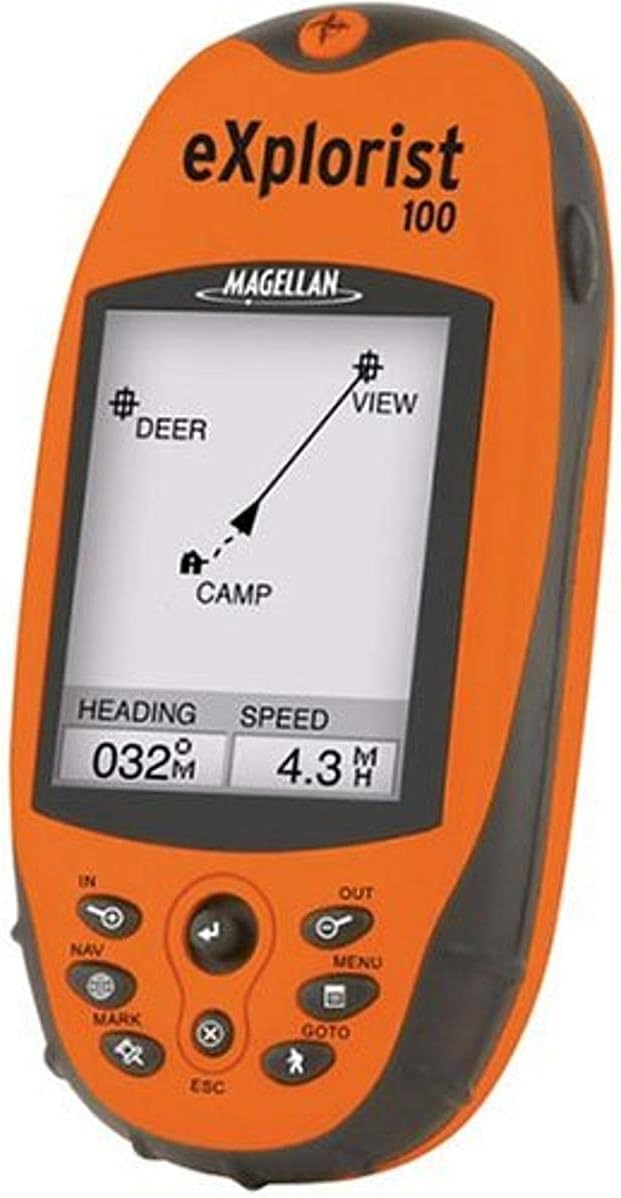
Figure 1: The Magellan eXplorist 100 handheld GPS unit. This image shows the device's front, highlighting its grayscale display, control buttons, and overall ergonomic design. The screen displays navigation information including heading, speed, and a simple map with waypoints labeled "DEER", "VIEW", and "CAMP".
2. Setup
2.1 Battery Installation
The eXplorist 100 requires two (2) AA batteries for operation. Follow these steps to install them:
- Locate the battery compartment cover on the back of the device.
- Open the cover by sliding or unlatching it according to the indicators.
- Insert two AA batteries, ensuring correct polarity (+/-) as indicated inside the compartment.
- Securely close the battery compartment cover to maintain water resistance.
2.2 Initial Power On
After installing batteries, press and hold the power button (usually located on the top or side) to turn on the device. The device will perform a self-check and then attempt to acquire GPS satellite signals.
3. Operating Instructions
3.1 GPS Signal Acquisition
The eXplorist 100 utilizes TrueFix technology with a 14 parallel channel, WAAS/EGNOS-enabled GPS receiver for accurate positioning. For optimal signal acquisition, ensure you are in an open area with a clear view of the sky, away from tall buildings or dense foliage. Initial acquisition may take a few minutes.
3.2 Basic Controls and Navigation
The device features a full keyboard with a joystick for easy operation. Key buttons include:
- Joystick: Used for navigating menus and moving the cursor on the map screen.
- IN/OUT: Zoom in and out on the map display.
- NAV: Access navigation features and screens.
- MENU: Open the main menu for settings and advanced functions.
- MARK: Mark your current location as a waypoint. The device can store up to 500 waypoints.
- GOTO: Initiate navigation to a marked waypoint or a specific coordinate.
- ESC: Exit the current screen or menu.
3.3 Managing Waypoints, Routes, and Track Logs
The eXplorist 100 allows you to store up to 500 waypoints, 20 routes, and five track logs. Refer to the on-screen menu options (accessed via the MENU button) for detailed instructions on creating, editing, and managing these navigation elements.
3.4 Understanding the Display
The 2.3-inch grayscale LCD provides clear information. Key data displayed typically includes:
- Heading: Your current direction of travel.
- Speed: Your current speed over ground.
- Map View: A simplified map showing your position and marked waypoints.
- Battery Indicator: Displays remaining battery life.
4. Maintenance
4.1 Cleaning the Device
To clean your eXplorist 100, use a soft, damp cloth. Avoid abrasive cleaners or solvents, as these can damage the display or casing. Ensure the device is powered off before cleaning.
4.2 Battery Care
Remove batteries if the device will not be used for an extended period to prevent leakage and potential damage. Use high-quality alkaline or rechargeable AA batteries for best performance.
4.3 Water Resistance
The eXplorist 100 is designed to be water-resistant. However, ensure the battery compartment cover is securely closed at all times to maintain this protection. Do not submerge the device in water for prolonged periods or expose it to high-pressure water jets.
5. Troubleshooting
This section addresses common issues you might encounter with your Magellan eXplorist 100.
- Device Does Not Power On:
- Check battery installation. Ensure batteries are inserted with correct polarity.
- Replace old batteries with fresh ones.
- Cannot Acquire GPS Signal:
- Ensure you are in an open area with a clear view of the sky, away from tall buildings or dense foliage.
- Allow sufficient time (up to several minutes) for initial signal acquisition.
- Perform a soft reset by removing and reinserting the batteries.
- Display is Faded or Unresponsive:
- Check battery level; low batteries can affect display performance.
- Ensure the screen is clean and free of debris.
- If the issue persists, contact customer support.
- Buttons Are Unresponsive:
- Ensure no debris is lodged around the buttons.
- Try a soft reset (remove and reinsert batteries).
6. Specifications
| Feature | Detail |
|---|---|
| Model Number | eXplorist 100 |
| Dimensions (WxHxD) | 2.1 x 4.6 x 1.3 inches (5.3 x 11.7 x 3.3 cm) |
| Weight | 249 g (approx. 8.8 oz) |
| Display Type | Grayscale LCD |
| Screen Size | 2.3 inches (diagonal) |
| Power Source | 2 x AA Batteries |
| GPS Receiver | 14 Parallel Channel, WAAS/EGNOS-enabled |
| Waypoint Capacity | Up to 500 |
| Route Capacity | Up to 20 |
| Track Log Capacity | Up to 5 |
| Special Features | Water-resistant, Rubber-armored, Impact-resistant |
| Connectivity | USB (for data transfer, if supported by specific firmware versions) |
| Human Interface | Buttons, Joystick |
7. Warranty and Support
For warranty information, technical support, or service inquiries regarding your Magellan eXplorist 100, please refer to the official Magellan website or contact their customer service department. Keep your purchase receipt as proof of purchase for warranty claims.
Magellan Official Website: www.magellangps.com (Please note: This is a placeholder URL as the specific support URL was not provided in the product data.)
Related documentseXplorist 100


Ask a question about this manual
Ask about setup, troubleshooting, compatibility, parts, safety, or missing instructions. Manuals+ will review the question and use this page’s manual context to help answer it.