
D-Link DGS-1005D/B
D-Link DGS-1005D/B 5-Port Gigabit Unmanaged Plastic Desktop Switch
Model: DGS-1005D/B
1. Introduction
The D-Link DGS-1005D/B is a 5-Port Gigabit Unmanaged Plastic Desktop Switch designed to provide high-speed network connectivity for your home or small office. Its plug-and-play design allows for quick and easy installation, enabling fast file transfers and smooth media streaming across up to five devices. This manual provides detailed instructions for setting up, operating, and maintaining your DGS-1005D/B switch.
2. Package Contents
Please verify that your package contains the following items:
- 1x DGS-1005D Switch
- 4x Rubber Feet
- 1x CD-ROM with Product Documentation
- 1x Power Adapter
- 1x Mounting Kit
- 1x Quick Installation Guide
3. Product Features
- Energy Efficient Ethernet: Reduces energy consumption without sacrificing performance, contributing to lower power bills.
- Quiet and Economical Design: Features an innovative design that runs cool and quiet, making it an unobtrusive addition to any workspace.
- Gigabit Speed: Creates a blazing fast network with five Gigabit Ethernet ports, providing high-speed wired connections for up to five PCs or other devices.
- Cable Diagnostics: Includes a function that notifies users of cable conditions through product LEDs, aiding in troubleshooting.
- Limited Lifetime Warranty: Register and enjoy Limited Lifetime Warranty support from D-Link, a global leader in the industry.
4. Product Overview
4.1 Front Panel

The front panel of the DGS-1005D/B switch features LED indicators for power and each of the five Gigabit Ethernet ports. These LEDs provide visual feedback on the connection status and activity of each port, allowing for quick monitoring of your network.
4.2 Rear Panel
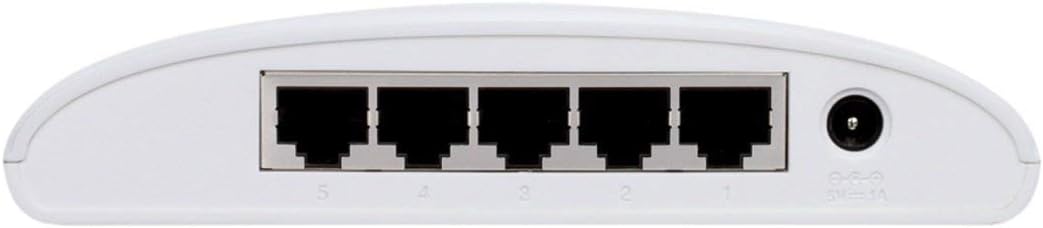
The rear panel houses the five Gigabit Ethernet ports (RJ45) for connecting your network devices and the power input jack. The ports are clearly numbered for easy identification and connection.
4.3 Compact Design

The DGS-1005D/B features a compact and lightweight plastic desktop design, making it easy to place on any desk or shelf without taking up much space. Its unobtrusive form factor blends seamlessly into various environments.
5. Setup
5.1 Before You Begin
- Ensure you have a stable power source available.
- Have standard Ethernet cables (Cat5e or Cat6 recommended for Gigabit speeds) ready for connecting your devices.
5.2 Connecting the Switch
- Placement: Place the switch on a flat, stable surface.
- Attach Rubber Feet: Attach the four rubber feet to the bottom of the switch to prevent slipping and provide adequate ventilation.
- Connect Power: Connect the power adapter to the power input jack on the rear of the switch and then plug the adapter into a power outlet. The Power LED on the front panel should illuminate, indicating the switch is receiving power.
- Connect Devices: Connect your network devices (e.g., computers, network-attached storage, gaming consoles) to any of the five Gigabit Ethernet ports using standard Ethernet cables. The corresponding port LEDs will illuminate when a connection is established and blink to indicate network activity.
- Ready for Use: The switch is now ready for use. No software configuration is required due to its unmanaged design.
6. Operating Instructions
The D-Link DGS-1005D/B is an unmanaged switch, meaning it operates on a plug-and-play basis without requiring any software configuration. Once connected to power and network devices, it automatically detects network speeds (10/100/1000 Mbps) and adjusts for compatibility, providing seamless data transfer. The switch intelligently manages traffic flow to ensure optimal performance for all connected devices without user intervention.
7. Maintenance
To ensure optimal performance and longevity of your DGS-1005D/B switch, follow these maintenance guidelines:
- Environment: Keep the switch in a well-ventilated area, away from direct sunlight, heat sources, and excessive moisture.
- Cleaning: Periodically clean the exterior of the switch with a soft, dry cloth. Do not use liquid or aerosol cleaners.
- Ventilation: Do not block the ventilation slots on the device, as this can lead to overheating.
- Liquids: Avoid spilling liquids on the device.
8. Troubleshooting
If you encounter issues with your DGS-1005D/B switch, refer to the following common problems and solutions:
- No Power LED:
- Ensure the power adapter is securely connected to the switch and a working power outlet.
- Verify the power outlet is active by plugging in another device.
- Port LED Not Illuminating:
- Check if the Ethernet cable is securely connected to both the switch port and the connected device.
- Ensure the connected device is powered on and its network adapter is functioning correctly.
- Try a different Ethernet cable to rule out a faulty cable.
- Test with a different device to confirm the port's functionality.
- Slow Network Speed:
- Ensure all connected devices and cables support Gigabit Ethernet (Cat5e or Cat6 cables are recommended for Gigabit speeds).
- Check for excessive network traffic or bandwidth-intensive applications running on connected devices.
- Verify your internet service provider's speed if the issue is related to internet access.
9. Specifications
| Feature | Description |
|---|---|
| Brand | D-Link |
| Model Number | DGS-1005D/B |
| Number of Ports | 5 |
| Interface Type | RJ45 |
| Data Transfer Rate | 1000 Megabytes Per Second (Gigabit Ethernet) |
| Case Material | Plastic |
| Voltage | 230 Volts |
| Item Weight | 0.01 ounces |
| Product Dimensions (LxWxH) | 4.53 x 5.59 x 1.18 inches |
| Compatible Devices | Desktop |
| Language | English |
| UPC | 790069252679 |
10. Warranty and Support
The D-Link DGS-1005D/B 5-Port Gigabit Unmanaged Plastic Desktop Switch comes with a Limited Lifetime Warranty, providing peace of mind regarding its quality and durability. For technical support, product registration, or warranty claims, please refer to the contact information provided in the included product documentation or visit the official D-Link support website. Keep your purchase receipt for warranty validation.
Related documentsDGS-1005D/B


Ask a question about this manual
Ask about setup, troubleshooting, compatibility, parts, safety, or missing instructions. Manuals+ will review the question and use this page’s manual context to help answer it.