
1. Introduction
The OM SYSTEM OLYMPUS C60 is a 6-megapixel digital camera designed for ease of use and portability. It features a 3x optical zoom and 4x digital zoom, combining for a 12x seamless zoom capability. The high-resolution 6.0 megapixel CCD sensor ensures sharp and vibrant images, suitable for enlargements up to 14x19 inches.
Key features include a 1.8-inch low-reflective LCD, TruePic Turbo for faster image processing, QuickTime Movie mode with audio, and 13 selectable shooting modes. The camera's durable metal body and compact design make it convenient for everyday use.
The C60 supports xD-Picture Cards for image storage and offers direct print capability via PictBridge. Connectivity to computers is simplified with USB auto-connect.
2. What's in the Box
Upon opening your OM SYSTEM OLYMPUS C60 package, please ensure all the following items are present:
- OM SYSTEM OLYMPUS C60 Digital Camera
- Rechargeable Lithium-Ion Battery
- Battery Charger
- USB Cable (for computer connection)
- Video Cable (for TV connection)
- Carrying Strap
- 32MB xD-Picture Card
- Remote Control
- Camedia Master Software CD-ROM
- Quick Start Guide / Basic Manual

Figure 1: Front view of the OM SYSTEM OLYMPUS C60 Digital Camera in its closed position.
3. Setup
3.1. Charging the Battery
- Insert the rechargeable Lithium-Ion battery into the provided battery charger.
- Connect the battery charger to a power outlet using the AC power cord.
- The charging indicator light on the charger will illuminate. Once charging is complete, the light will change or turn off (refer to charger specific instructions for details).
- Remove the fully charged battery from the charger.
3.2. Inserting the Battery and xD-Picture Card
- Locate the battery/card compartment on the camera.
- Open the compartment cover.
- Insert the charged Lithium-Ion battery, ensuring correct orientation as indicated inside the compartment.
- Insert the xD-Picture Card into its designated slot until it clicks into place.
- Close the compartment cover securely.
4. Operating Instructions
4.1. Powering On/Off
To power on the camera, slide the lens barrier open. The camera will automatically extend the lens and power on. To power off, slide the lens barrier closed.
4.2. Taking Photos
- Turn on the camera.
- Select your desired shooting mode from the 13 available options using the mode dial or menu.
- Frame your shot using the 1.8-inch LCD monitor or the optical viewfinder.
- Press the shutter button halfway down to focus. The focus indicator will confirm focus.
- Press the shutter button fully to capture the image.
The camera features a 3x optical zoom and 4x digital zoom. Use the zoom lever to adjust the focal length for wide-angle or telephoto shots.
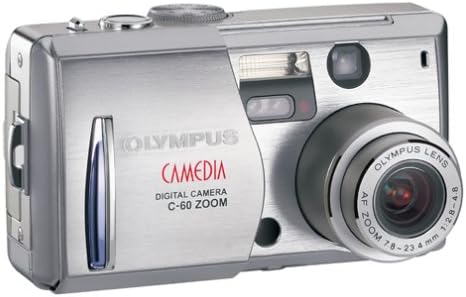
Figure 2: Front 3/4 view of the OM SYSTEM OLYMPUS C60 Digital Camera with the lens extended, ready for shooting.
4.3. Using Movie Mode
To record videos with audio:
- Switch the camera to Movie mode (refer to the basic manual for specific mode selection).
- Press the shutter button to start recording.
- Press the shutter button again to stop recording.
4.4. Reviewing Images and Videos
Press the Playback button to enter playback mode. Use the directional pad to navigate through your captured photos and videos. The 1.8-inch LCD screen will display your media.

Figure 3: Back view of the OM SYSTEM OLYMPUS C60 Digital Camera, showing the LCD screen displaying a captured image and control buttons.
4.5. Connecting to a Computer
Use the supplied USB cable to connect the camera to your computer. The camera supports USB auto-connect for easy transfer of images and videos. System requirements for connection are Windows 98 rev. 2/Me/2000 Pro/XP or Mac OS 8.6-OS X 10.1.
4.6. Direct Printing (PictBridge)
The OM SYSTEM OLYMPUS C60 is PictBridge enabled, allowing you to print directly to compatible printers without needing a computer. Connect the camera to a PictBridge-compatible printer using the USB cable and follow the on-screen instructions on the camera's LCD.
5. Maintenance
5.1. Cleaning the Camera
- Camera Body: Wipe the camera body with a soft, dry cloth. For stubborn dirt, use a slightly damp cloth and then dry thoroughly.
- Lens: Use a lens brush or a blower to remove dust. For smudges, use a lens cleaning cloth and lens cleaning solution. Avoid touching the lens with your fingers.
- LCD Monitor: Gently wipe the LCD screen with a soft, lint-free cloth. Do not apply excessive pressure.
5.2. Storage
When not in use for extended periods, remove the battery from the camera. Store the camera in a cool, dry place, away from direct sunlight and extreme temperatures. Use a protective case to prevent scratches and impacts.
6. Troubleshooting
This section addresses common issues you might encounter with your OM SYSTEM OLYMPUS C60 Digital Camera.
6.1. Camera Does Not Power On
- Ensure the battery is fully charged and correctly inserted.
- Check if the lens barrier is fully open.
- If using an AC adapter (optional, not included), ensure it is properly connected.
6.2. Images Are Blurry
- Ensure the lens is clean and free from smudges or dust.
- Check that the camera has focused correctly before taking the shot (press the shutter button halfway).
- In low light conditions, use the built-in flash or a tripod to prevent camera shake.
- Verify that the correct shooting mode is selected for the scene.
6.3. Memory Card Error
- Ensure the xD-Picture Card is inserted correctly and fully.
- Check if the memory card is locked (if applicable).
- Try formatting the memory card (Note: This will erase all data on the card. Back up important files first).
- If the issue persists, try a different, compatible xD-Picture Card.
6.4. Flash Not Firing
- Check the flash mode settings. Ensure it is set to Auto, Fill-in, or Red-eye Reduction, not Off.
- Ensure the subject is within the effective flash range.
- Allow time for the flash to recharge between shots.
7. Specifications
| Feature | Specification |
|---|---|
| Model Name | C60 |
| Photo Sensor Resolution | 6 MP |
| Optical Zoom | 3x |
| Digital Zoom | 4x |
| Total Zoom | 12x seamless |
| Lens Focal Length | 38mm – 114mm (35mm equivalent) |
| Maximum Aperture | F2.8 |
| Image Stabilization | Digital, Optical |
| Photo Sensor Technology | CCD |
| Screen Size | 1.8 Inches |
| Supported File Format | RAW, JPEG (Fine) |
| Video Resolution | 320 x 240 / 160 x 120, 15 fps |
| Video Capture Format | MOV |
| Compatible Flash Memory Type | xD Picture Card |
| Connectivity Technology | USB |
| Battery Cell Type | Lithium Ion |
| Item Weight | 0.51 Pounds |
| Dimensions (approx.) | 2-7/32" H x 3-29/32" W x 1-19/32" D |
8. Warranty and Support
For detailed warranty information, please refer to the warranty card included with your product or visit the official OM SYSTEM website. Keep your proof of purchase for warranty claims.
For technical support, service, or additional inquiries, please contact OM SYSTEM customer service through their official channels. Contact information can typically be found in the basic manual or on the manufacturer's website.


