
1. Introduction
The PHILIPS PMDVR8 is an advanced 8-device universal remote control designed to simplify your home entertainment experience. It is capable of controlling various audio and video components, including TVs, Cable boxes, DVRs, Satellite receivers, VCRs, Audio systems, and CD players. This remote features a comprehensive code library and a learning function, allowing it to adapt to your existing devices and consolidate multiple remotes into one.
2. Key Features
- 8-Device Control: Manages up to eight different audio/video components.
- Extensive Code Library: Compatible with over 325 brands, ensuring broad device compatibility.
- Learning Function: Allows the remote to learn functions directly from your original remote controls.
- Dedicated DVR Keys: All original TiVo and DVR remote keys are included and highlighted in green for easy identification.
- Ergonomic Design: Comfortable to hold and use.
- Permanent Memory Retention: Retains programmed codes even when batteries are removed.
- Battery Saving Feature: Deactivates remote keys if stuck to conserve battery life.
- Closed Captioning Support: Displays program dialect as text.
3. Setup Guide
3.1. Battery Installation
The PHILIPS PMDVR8 remote requires two (2) AAA batteries (not included).
- Locate the battery compartment on the back of the remote control.
- Press down on the latch and slide the battery cover off.
- Insert two AAA batteries, ensuring the positive (+) and negative (-) terminals align with the markings inside the compartment.
- Slide the battery cover back into place until it clicks securely.
3.2. Programming Your Devices
There are two primary methods to program your PMDVR8 remote: using the extensive code library or using the learning function.
3.2.1. Programming with Code Library
This method involves entering a specific code for your device's brand. Refer to the code list provided with your remote (or available online) for the correct codes.
- Turn on the device you wish to program (e.g., TV, DVD player).
- On the PMDVR8 remote, press and hold the desired device button (e.g., TV, DVD) for approximately 3 seconds until the indicator light illuminates.
- Enter the 4-digit code for your device's brand using the number buttons.
- If the code is correct, the indicator light will turn off. Test the remote by pressing the POWER button. If the device turns off, the programming was successful.
- If the device does not respond, try the next code listed for your brand.
3.2.2. Using the Learning Function
The learning function allows the PMDVR8 to copy specific commands directly from your original remote control.
- Place the PMDVR8 remote and your original remote control on a flat surface, facing each other, about 1-2 inches apart.
- On the PMDVR8, press and hold the LEARN button until the indicator light blinks rapidly, then stays solid.
- Press the device button on the PMDVR8 (e.g., TV) that you want to assign the learned function to. The indicator light will blink slowly.
- On your original remote, press and hold the button you wish to teach (e.g., MENU).
- The indicator light on the PMDVR8 will blink rapidly to confirm the command has been learned, then turn solid.
- Press the button on the PMDVR8 where you want to store this learned function. The indicator light will turn off.
- Repeat steps 3-6 for each function you wish to learn.
- To exit learning mode, press the LEARN button again.
4. Operating Your Remote
Once programmed, the PMDVR8 remote operates similarly to your original remote controls. Simply select the desired device mode (e.g., TV, DVD) by pressing the corresponding device button at the top of the remote, then use the function buttons.
Key Functions Overview:
- Device Buttons (TV, CBL, DVD, SAT, VCR, Audio, DVR, CD): Select the device you want to control.
- POWER: Turns the selected device on or off.
- Number Pad (0-9): For direct channel entry or menu navigation.
- VOL +/-: Adjusts volume.
- CHAN +/-: Changes channels.
- MUTE: Mutes audio.
- Navigation Pad (UP, DOWN, LEFT, RIGHT, OK/SELECT): For menu navigation.
- DVR/TiVo Specific Keys (highlighted in green): Include functions like LIVE TV, GUIDE, LIST, INFO, REPLAY, ADVANCE, RECORD, PLAY, PAUSE, STOP, FFWD, REW.
- AUDIO Specific Keys (highlighted in blue): For audio device control.
5. Maintenance
To ensure the longevity and optimal performance of your PHILIPS PMDVR8 remote control, follow these simple maintenance guidelines:
- Cleaning: Wipe the remote with a soft, dry cloth. For stubborn dirt, slightly dampen the cloth with water or a mild cleaning solution, then wipe dry immediately. Do not use abrasive cleaners or immerse the remote in water.
- Battery Replacement: Replace batteries when the remote's performance degrades or the indicator light does not illuminate. Always replace both batteries at the same time with new AAA batteries.
- Storage: Store the remote in a cool, dry place away from direct sunlight, extreme temperatures, and high humidity.
- Avoid Drops: Protect the remote from physical shocks and drops, which can damage internal components.
6. Troubleshooting
If you encounter issues with your PHILIPS PMDVR8 remote, try the following troubleshooting steps:
| Problem | Possible Cause / Solution |
|---|---|
| Remote does not work at all. |
|
| Device does not respond to commands. |
|
| Some buttons do not work after programming. |
|
| Indicator light does not blink during programming. |
|
7. Specifications
- Manufacturer: Philips
- Model Number: PMDVR8
- Dimensions: 27.94 x 10.16 x 4.45 cm (11 x 4 x 1.75 inches)
- Weight: 0.28 g (Note: This weight seems unusually low and might be a typo in the source data. Actual weight is likely higher.)
- Batteries Required: 2 x AAA (not included)
- Maximum Supported Devices: 8
- Compatible Devices: Home Theater Systems (TV, CBL, DVD, SAT, VCR, Audio, DVR, CD)
- Special Feature: Universal, Learning Function
- ASIN: B0000ALPB9
8. Warranty and Support
The PHILIPS PMDVR8 Universal Remote Control comes with a Limited Lifetime Warranty. For detailed warranty terms and conditions, please refer to the documentation included with your product or visit the official Philips support website.
For technical support, troubleshooting assistance, or to obtain the latest code lists, please visit the official Philips support website or contact their customer service department. Keep your product model number (PMDVR8) and ASIN (B0000ALPB9) handy when seeking support.
You can visit the Philips store on Amazon for more information: Philips Store
9. Product Images

Figure 1: Front view of the PHILIPS PMDVR8 Universal Remote Control in its retail box. The packaging highlights its 8-device capability and compatibility with DVR systems like TiVo and ReplayTV.

Figure 2: The PHILIPS PMDVR8 remote control displayed alongside its opened retail packaging. The inner flap of the box details key features and functions of the remote, including dedicated DVR and audio keys.
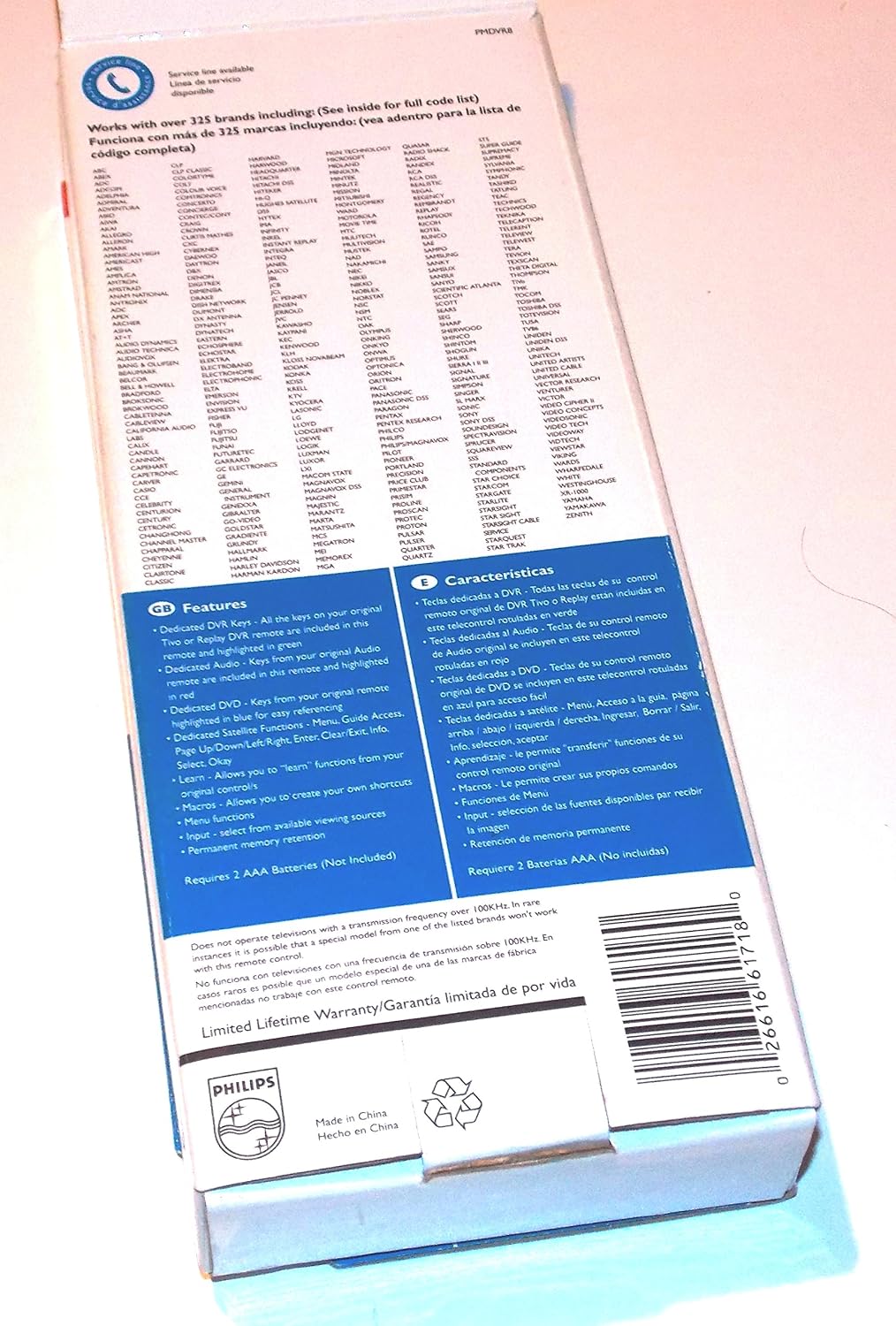
Figure 3: Rear view of the PHILIPS PMDVR8 retail box. This side lists the extensive features of the remote, including its learning capability and compatibility with over 325 brands. It also specifies the requirement for 2 AAA batteries.