
Introduction
The Kyocera Finecam L4V is a compact 4-megapixel digital camera designed for capturing high-quality images and video. It features a 3x optical zoom lens, a large 2.5-inch LCD screen, and various shooting modes to suit different photographic situations. This manual provides essential information for setting up, operating, maintaining, and troubleshooting your Finecam L4V camera.
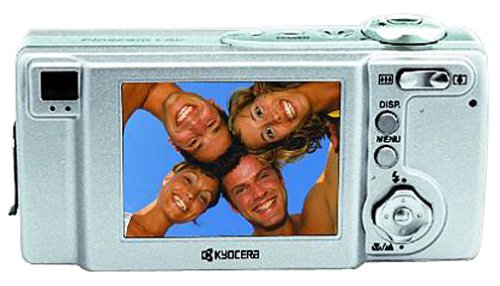
Figure 1: A silver Kyocera Finecam L4V digital camera, viewed from a slight angle, showing the lens, flash, and the 'Finecam L4v' branding on the front, and the battery/card compartment on the side.
Setup
1. Battery Installation
The Finecam L4V operates using a CR-V3 lithium battery (included). For extended use and cost-effectiveness, two AA-sized rechargeable NiMH batteries are recommended as an alternative.
- Locate the battery compartment door on the side of the camera.
- Slide the latch to open the compartment.
- Insert the CR-V3 battery or two AA NiMH batteries, ensuring correct polarity (+/-) as indicated inside the compartment.
- Close the compartment door securely until it clicks into place.
2. Memory Card Installation
The camera uses Secure Digital (SD) or MultiMedia (MMC) memory cards for image and video storage. A 16 MB SD card is included with your camera.
- Open the battery/card compartment door.
- Insert the SD or MMC card into the designated slot with the metal contacts facing the correct direction (usually towards the front of the camera).
- Push the card gently until it locks into place. To remove, push the card in again, and it will spring out.
- Close the compartment door securely.
3. Connecting to a Computer
To transfer images and videos, connect your Finecam L4V to a computer using the supplied USB cable.
- Ensure the camera is powered off.
- Connect one end of the USB cable to the camera's USB port.
- Connect the other end to an available USB 1.1 port on your Windows or Mac computer.
- Install the imaging software and USB drivers from the included CD-ROM if prompted by your operating system.
Operating the Camera
1. Powering On/Off
Press the power button (usually located on the top of the camera) to turn the camera on or off. The 2.5-inch LCD screen will activate upon power-on.
2. Taking Photos
- Framing: Use the 2.5-inch LCD screen or the optical viewfinder to compose your shot.
- Zoom: Use the zoom controls (typically a rocker switch near the shutter button) to adjust the 3x optical zoom and 4x digital zoom (for a total 12x zoom).
- Focus: The camera features autofocus. Half-press the shutter button to focus, then fully press to capture the image.
- Shooting Modes: Select from various modes such as macro for close-ups, landscape for wide scenes, and color modes (color, sepia, black & white) via the camera's menu.
- Flash Modes: Adjust flash settings for different lighting conditions: auto flash, red-eye reduction auto flash, fill-in flash, flash-off, or night-time portrait.
3. Recording Videos
The Finecam L4V supports AVI movie recording with sound for up to 120 seconds.
- Switch the camera to movie mode (refer to your camera's specific button or menu option).
- Press the shutter button to start recording.
- Press the shutter button again to stop recording.
4. Voice Recording
You can attach up to a 30-second voice message to each image. Consult the camera's on-screen menu for options to record and attach voice memos.
Maintenance
- Cleaning the Lens: Use a soft, lint-free cloth specifically designed for camera lenses. Avoid harsh chemicals.
- Cleaning the LCD Screen: Gently wipe the screen with a microfiber cloth.
- Storage: When not in use, store the camera in a dry, dust-free environment, away from extreme temperatures. Remove batteries if storing for extended periods.
- Battery Care: If using rechargeable NiMH batteries, follow the manufacturer's charging instructions. Avoid overcharging.
Troubleshooting
Common Issues and Solutions:
- Camera does not power on:
- Ensure batteries are correctly inserted with proper polarity.
- Check if batteries are fully charged or replace with fresh ones.
- If using a CR-V3 battery, note that it is not rechargeable and will need replacement when depleted. Consider using rechargeable AA NiMH batteries for long-term use.
- Images are blurry:
- Ensure the lens is clean.
- Make sure the camera has focused correctly before fully pressing the shutter button.
- Check lighting conditions; use flash if necessary.
- Memory card error:
- Ensure the memory card is inserted correctly.
- Try reformatting the card (this will erase all data, so back up first).
- Try a different compatible SD or MMC card.
- Cannot transfer photos to computer:
- Verify the USB cable is securely connected to both the camera and the computer.
- Ensure the camera is powered on when connected.
- Install the necessary drivers from the included CD-ROM.
- Try a different USB port on your computer.
Specifications
| Feature | Detail |
|---|---|
| Model Name | Finecam L4V |
| Effective Still Resolution | 4 MP |
| Optical Zoom | 3x |
| Digital Zoom | 4x |
| Screen Size | 2.5 Inches |
| Sensor Type | CCD |
| Supported File Format | JPEG |
| Video Resolution | 320 x 240 up to 120 sec |
| Flash Memory Type | SD/MMC card |
| Battery Type | CR-V3 Lithium (included), AA NiMH (recommended) |
| Connectivity Technology | USB 1.1 |
| Item Weight | 0.49 Pounds (approx. 222g) |
| Dimensions (approx.) | 4.4 x 2.1 x 1.4 inches (11.2 x 5.3 x 3.6 cm) |
| ISO Range | Auto, 100, 200, 400 |
| Minimum Shutter Speed | 8 seconds |
| Maximum Shutter Speed | 1/2000 Seconds |
| Aperture Modes | F2.8-F4.7 |
| Has Self-Timer | Yes |
Warranty and Support
For information regarding warranty coverage, technical support, or service for your Kyocera Finecam L4V camera, please refer to the documentation included with your purchase or visit the official Kyocera support website.
You can also visit the Kyocera brand store for additional product information: Kyocera Store on Amazon.


